ZenHR’s Vacation Clearance & Resumption feature streamlines the process of managing employee leaves from start to finish.
Vacation Clearance ensures that all required steps are completed before an employee goes on leave. Admins can easily track that employees have settled any pending tasks or approvals, returned company assets, and obtained the necessary approvals from relevant departments.
Vacation Resumption simplifies the return-to-work process. Employees can notify their employer of their return date and confirm their resumption directly through ZenHR, ensuring a smooth transition back to work and proper documentation within the system.
This feature helps HR teams maintain clear records, ensure compliance, and automate the entire leave cycle, from clearance to resumption.
How to Create Vacation Clearance Workflows
To create or manage Vacation Clearance workflows for employees:
Go to the User Menu in the top-right corner.
Then click “System Preferences”.
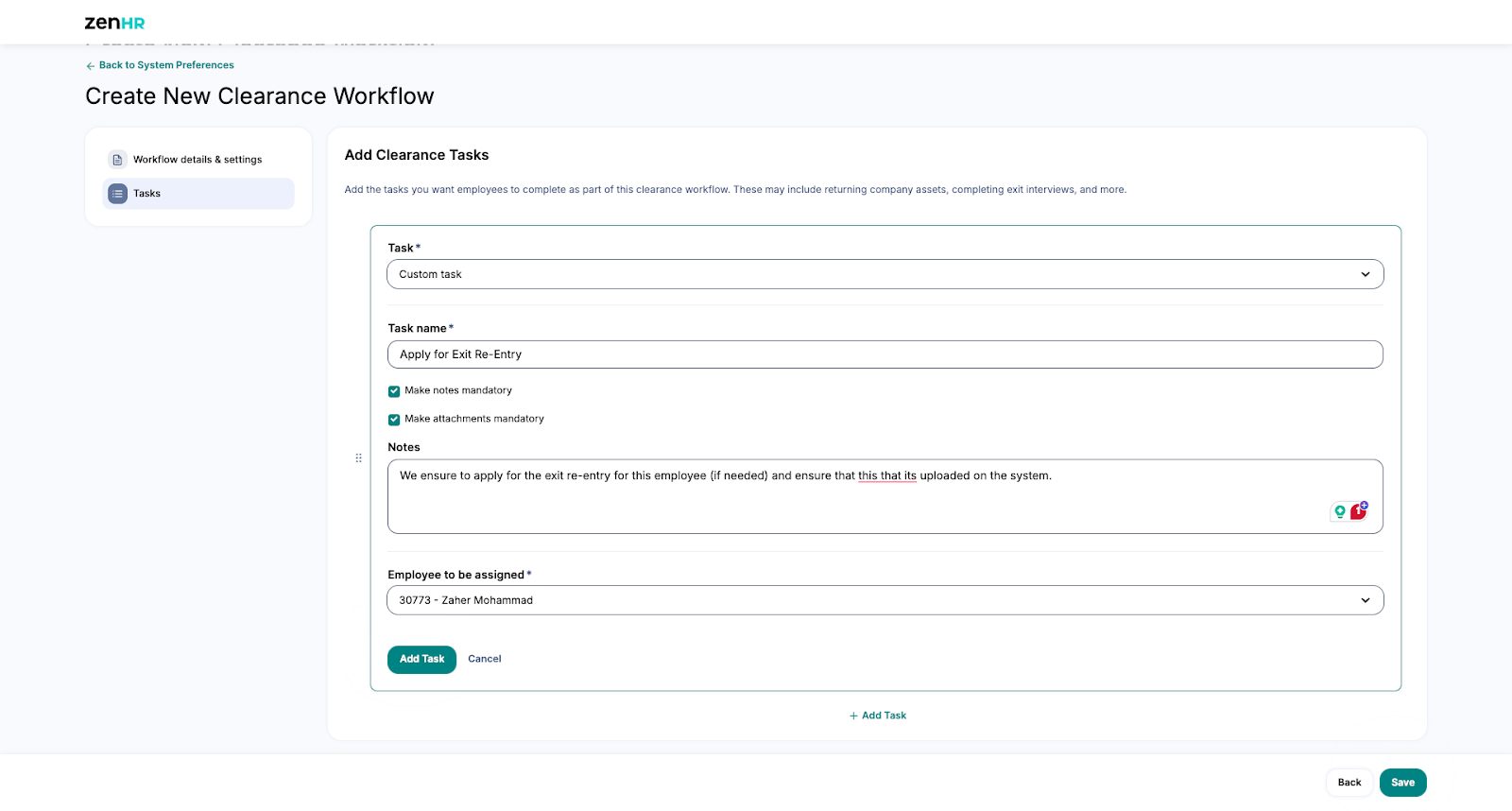
From the left sidebar, under Administrative Setup, select “Workflow Templates”.
Then, on the Workflow Templates page, click on the Vacation Clearance tab.
On this page, you can view, create, and edit Vacation Clearance workflows that are automatically sent to employees.
Vacation Clearance helps make sure employees complete all the required steps before going on leave, like finishing pending tasks, returning company assets, and getting the needed approvals. You can easily set up a workflow that includes all these tasks to keep the process clear, organized, and hassle-free for everyone.
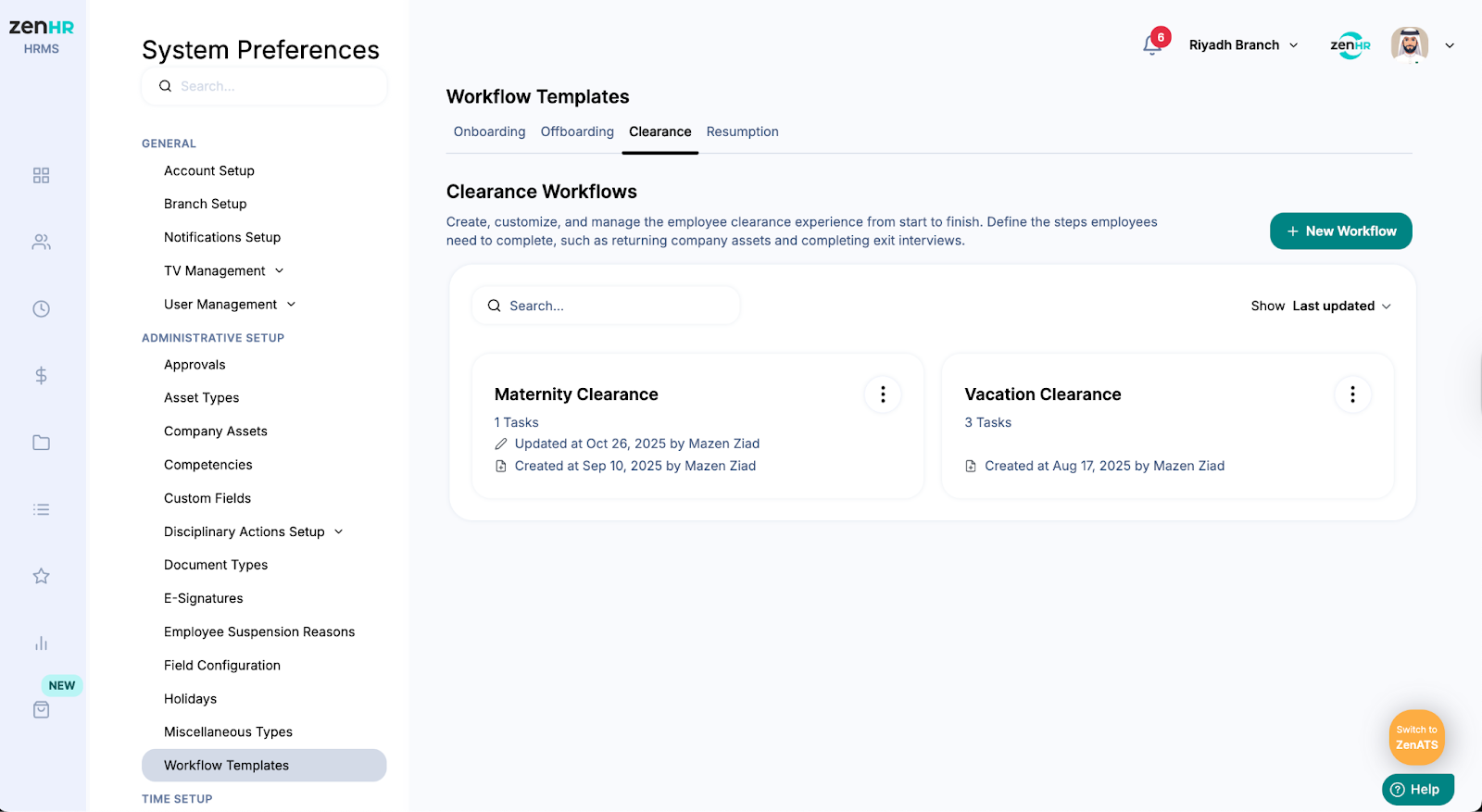
Step 1: Clearance Workflow Details & Triggers
On the Vacation Clearance page, start by setting up your workflow triggers.
Minimum Vacation Days: Choose the minimum number of vacation days that will trigger this workflow.
Auto-Send Timing: Decide when you want the vacation clearance workflow to be automatically sent to employees.
Time Off Type: Select the specific time off type (for example, annual leave or unpaid leave) that this workflow applies to.
These settings help ensure the workflow is only triggered when it’s needed and for the right type of leave.
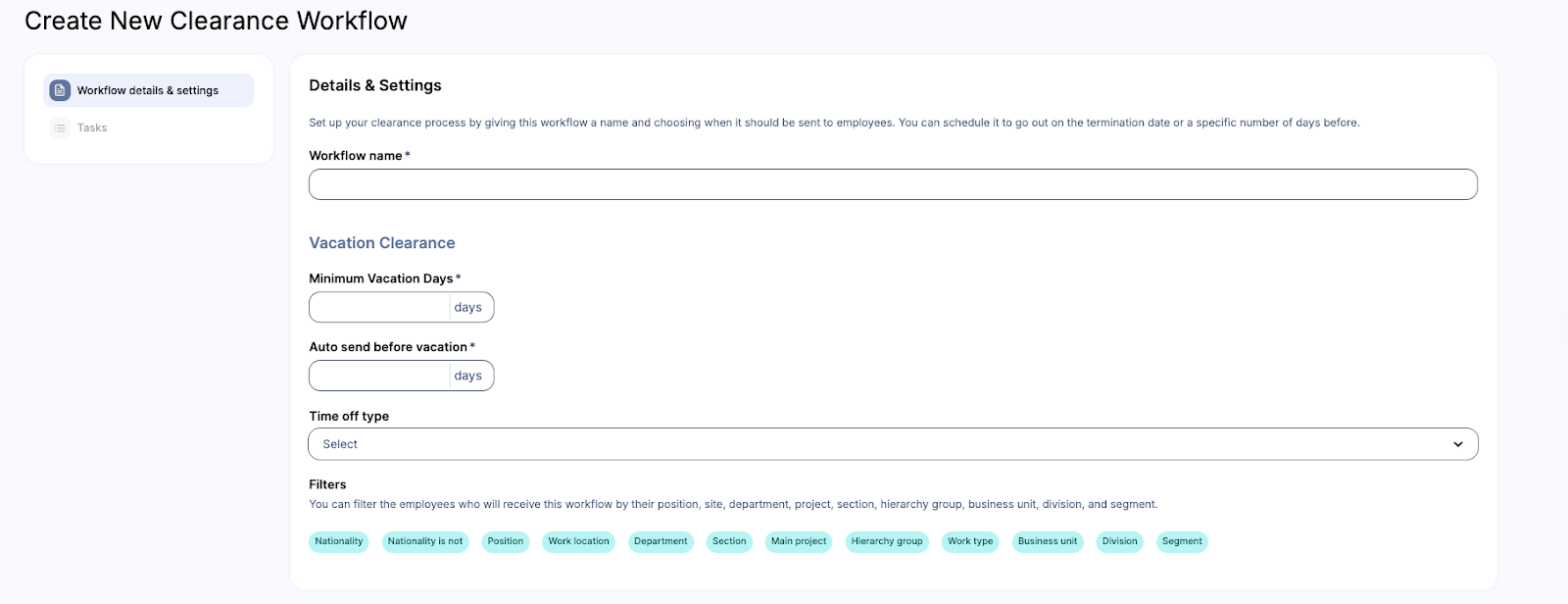
Step 2: Resumption Workflow Details & Triggers
On the Vacation Clearance page, you can also set the triggers for the Resumption Workflow.
Minimum Vacation Days: Set the minimum number of vacation days that will trigger the resumption workflow.
Auto-Trigger Options: Choose how the resumption workflow will be triggered. You can select one of the following options:
Employee First Punch: The workflow is automatically triggered when the employee punches in for the first time after returning from leave. No additional action is required from the employee.
Employee Request: The employee manually submits a resumption request form upon returning. This request is sent to admins for approval and includes the employee’s return dates.
Auto Send: The system automatically sends the resumption workflow a certain number of days before the employee’s expected return date (you can specify how many days in advance).
Auto Adjustment: You can also enable the option to automatically adjust the employee’s vacation days if they return earlier or later than their planned return date.
These settings ensure a smooth transition back to work and keep all resumption records accurate and up to date.
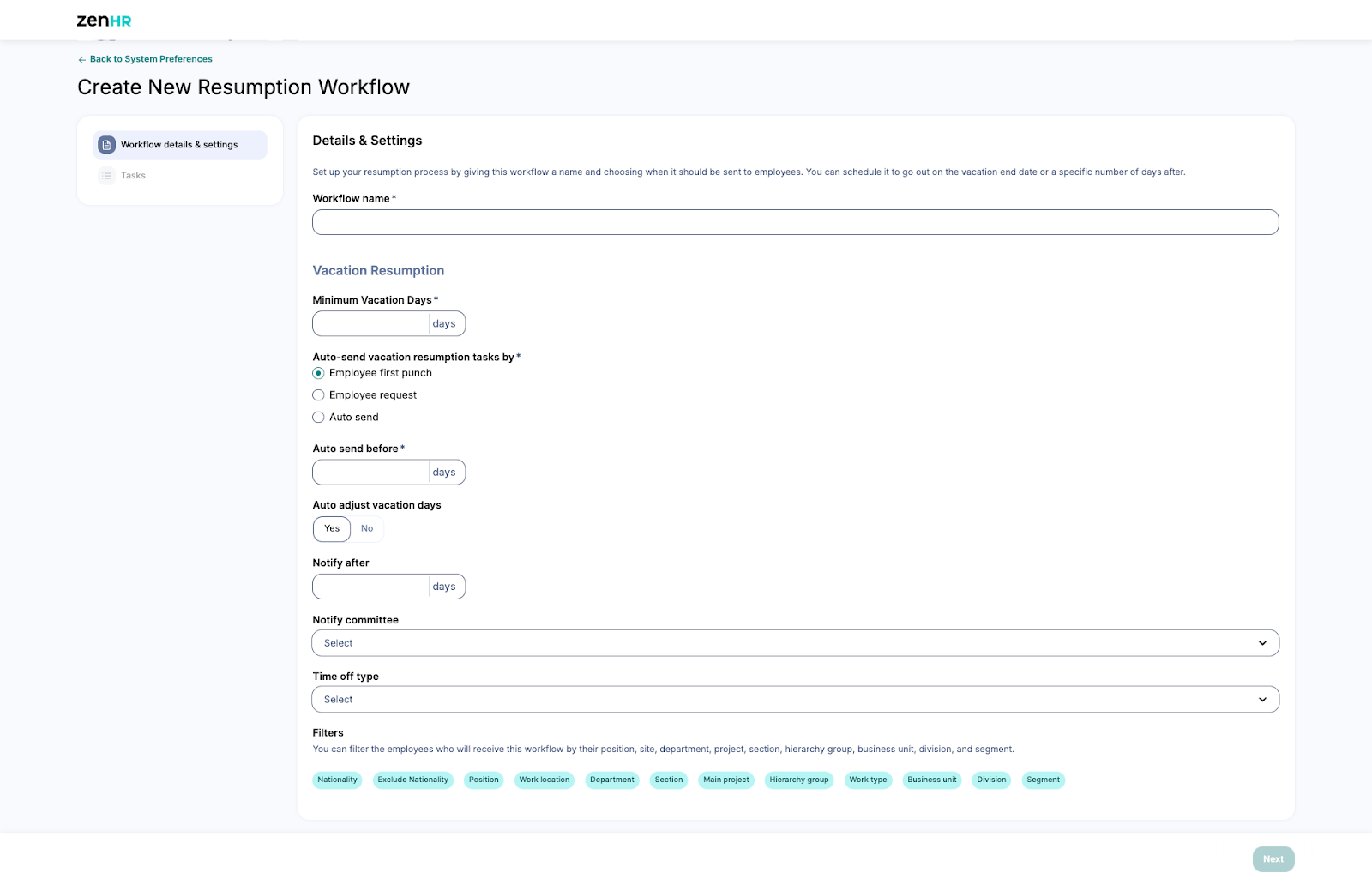
Step 3: Tasks
In this step, you can specify the tasks that employees need to complete as part of their Vacation Clearance process.
You can include the following types of tasks:
Uploading Documents: Ask employees to upload specific files such as their employment agreement, handover documents, or any other required paperwork.
Downloading Documents: Require employees to download important documents like data confidentiality forms, non-compete agreements, or any other company policies.
Custom Tasks: Add any additional steps you’d like employees to complete before their vacation, such as Exit/Reentry procedures, Delegation of Employees, or Encashment of End-of-Service Benefits.
Take Assets: Include any company assets that need to be returned before the employee goes on leave.
Once you’ve added all the necessary tasks and completed the three setup steps, click “Save” to finalize your Vacation Clearance Workflow.
Setting Up Vacation Resumption Approval Cycles
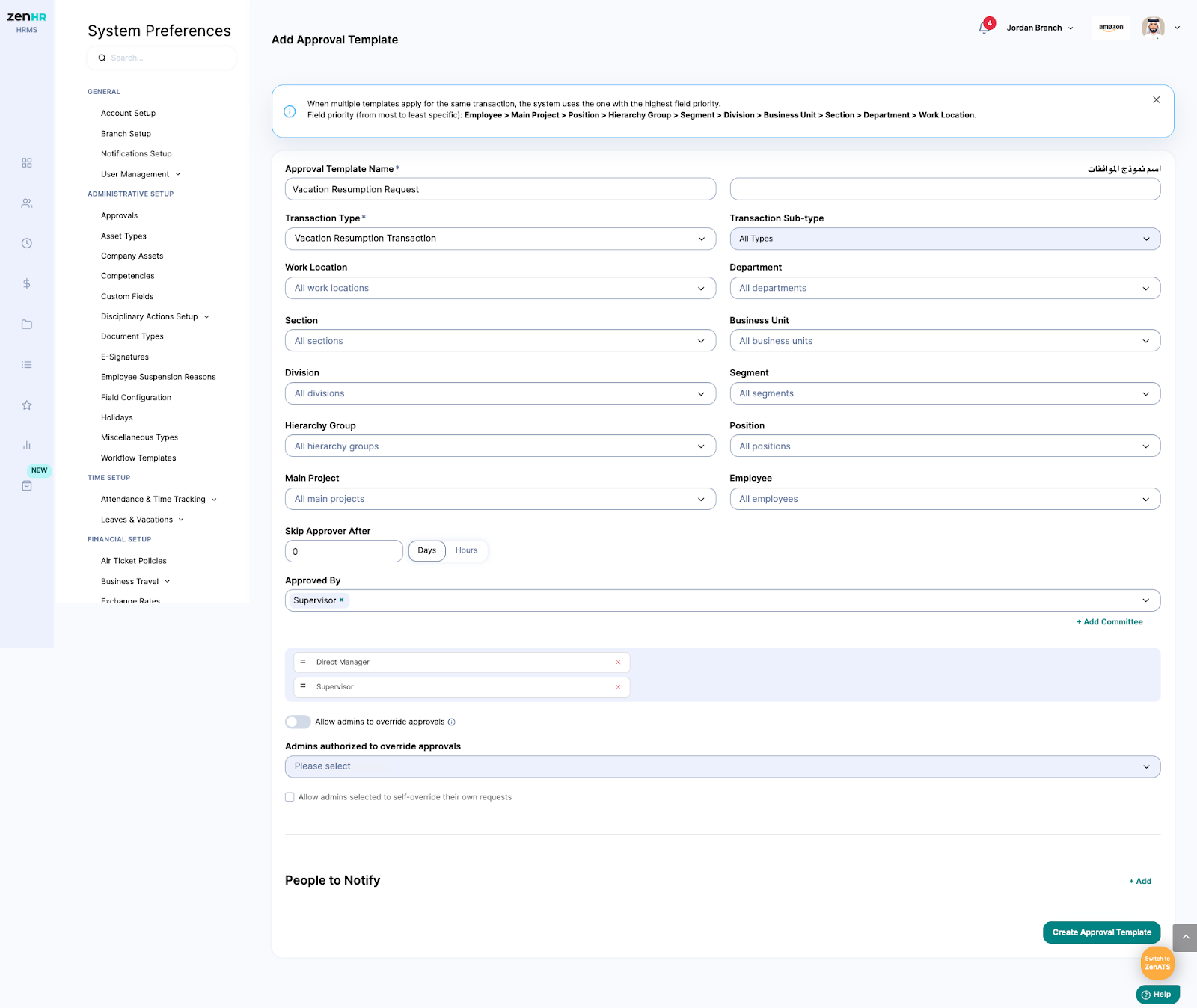
You can also define approval cycles for the Vacation Resumption process through the Approval Cycle page in System Preferences. This ensures that each resumption request goes through the proper approval flow before being finalized.
Was this article helpful?
That’s Great!
Thank you for your feedback
Sorry! We couldn't be helpful
Thank you for your feedback
Feedback sent
We appreciate your effort and will try to fix the article