New Time Off Flexibility & Eligibility Controls
The Time Management module includes new configuration options that give HR teams greater control over who can request specific leave types, how much notice employees must provide, and the minimum duration of certain leave requests.
With these controls, organizations can configure leave policies according to their internal requirements and applicable labor laws. HR teams can:
Set a minimum duration for Casual Vacation requests.
Limit Casual Vacation eligibility based on employee nationality, gender, religion, or organizational level.
Limit Hourly Leave eligibility based on nationality, department, section, or position.
Set different notice periods depending on the number of leave days requested.
Create leave transactions on behalf of employees without applying notice-period restrictions.
To access these settings, go to:
Main Menu → System Preferences →Time Setup → Leaves & Vacation
A. Casual Vacation
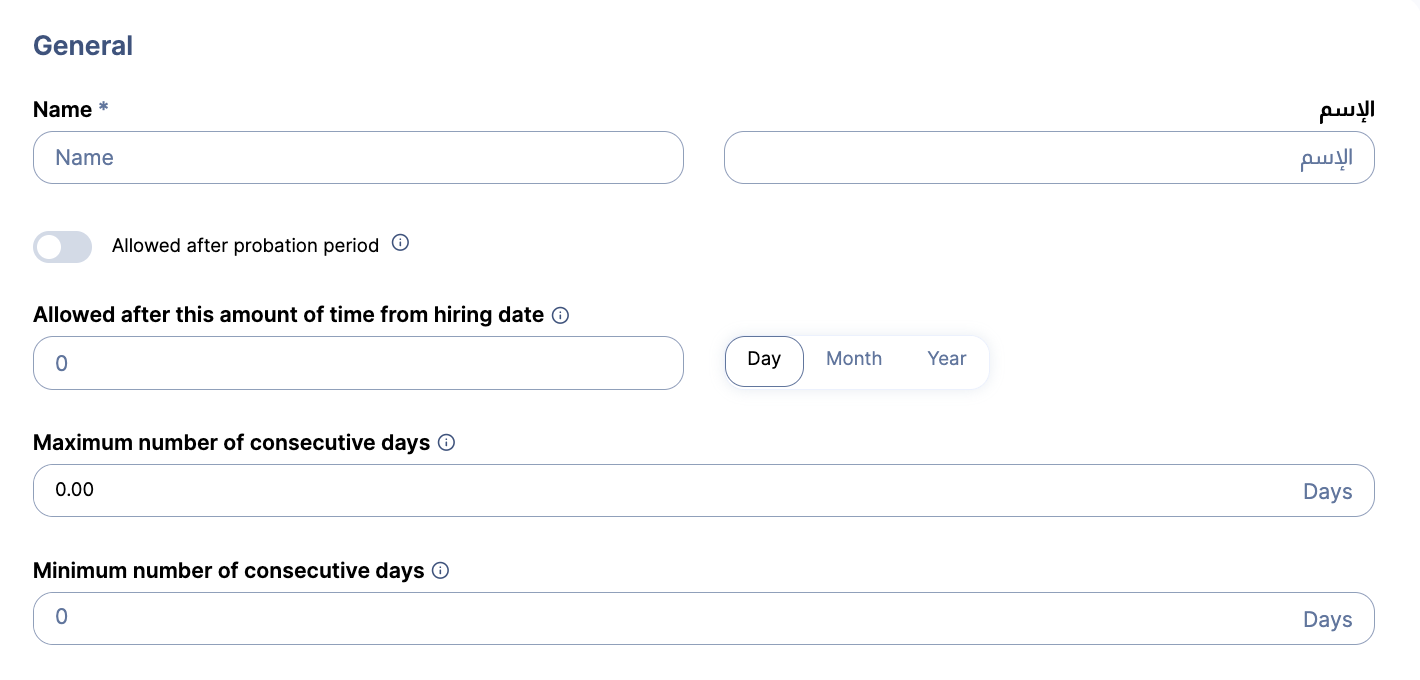
1. Set a Minimum Leave Duration
You can define the minimum number of days an employee must request for a specific Casual Vacation type.
This is useful for leave types that must meet a minimum duration. For example, an organization may require employees to request at least three days when applying for bereavement leave.
How to Set the Minimum Leave Duration
Go to Main Menu → System Preferences → Time Setup → Leaves & Vacations.
Open the Casual Vacations section.
Then click “Add Casual Vacation” to create a new leave type, or open an existing Casual Vacation type to edit it.
Locate the minimum leave duration setting.
Enter the minimum number of days employees must request.
Complete or review the remaining leave settings.
Save your changes.
Once configured, employees will not be able to submit a request for fewer than the specified minimum number of days.
2. Restrict Casual Vacation by Employee Attributes
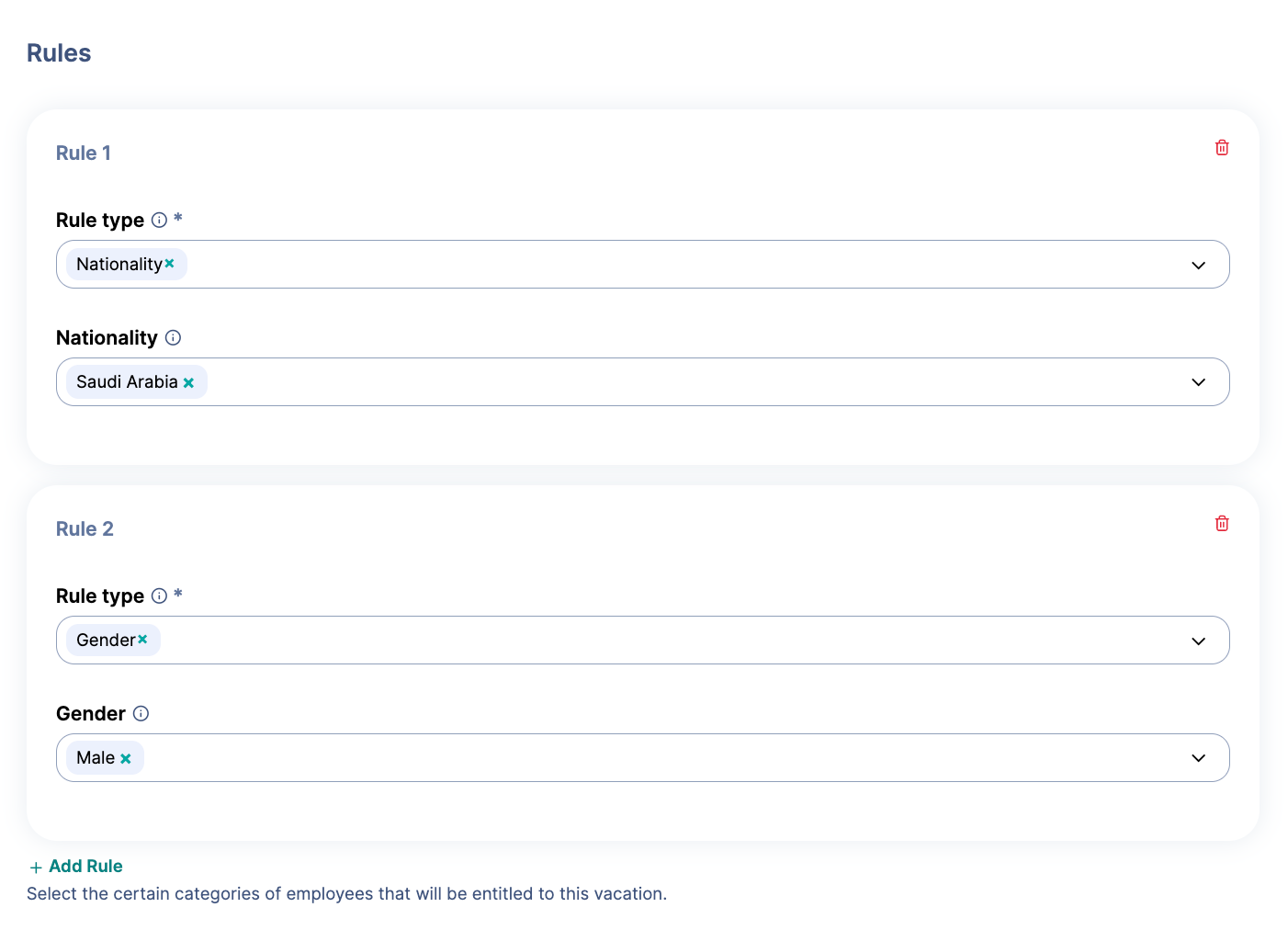
You can control which employees are eligible to request a Casual Vacation type based on the following attributes:
Nationality
Gender
Religion
Organizational level
For example, National Service Leave may only apply to male employees who are citizens of a specific country. By configuring the relevant eligibility criteria, the leave type will only be available to employees who meet those requirements.
How to Configure Eligibility Restrictions
Go to Main Menu → System Preferences →Time Setup →Leaves & Vacations.
Open the Casual Vacations section.
Click “Add Casual Vacation”, or open an existing Casual Vacation type.
Go to the employee restriction (Rules) settings.
Select the employee attribute you want to use:
Nationality
Gender
Religion
Organizational level
Select the eligible values under each applicable attribute.
Review the remaining leave settings.
Save your changes.
After the restrictions are saved, the Casual Vacation type will only be available to employees who meet the selected eligibility criteria.
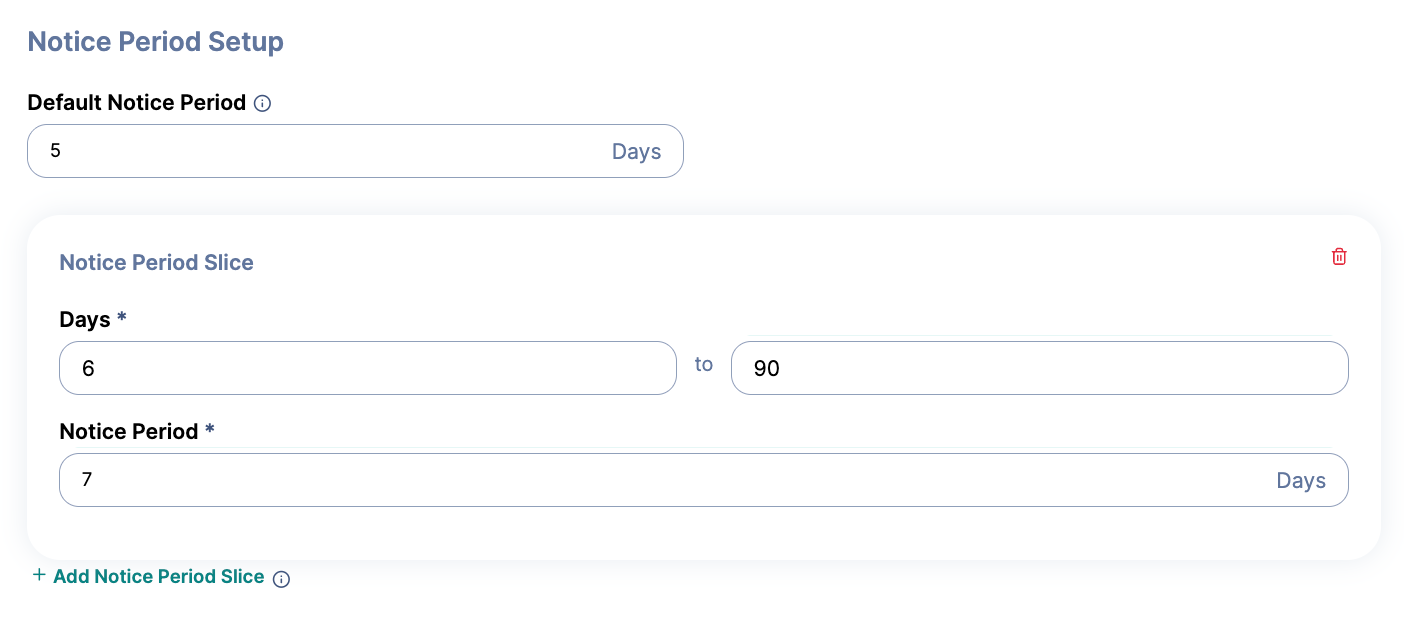
3. Configure Dynamic Notice Periods
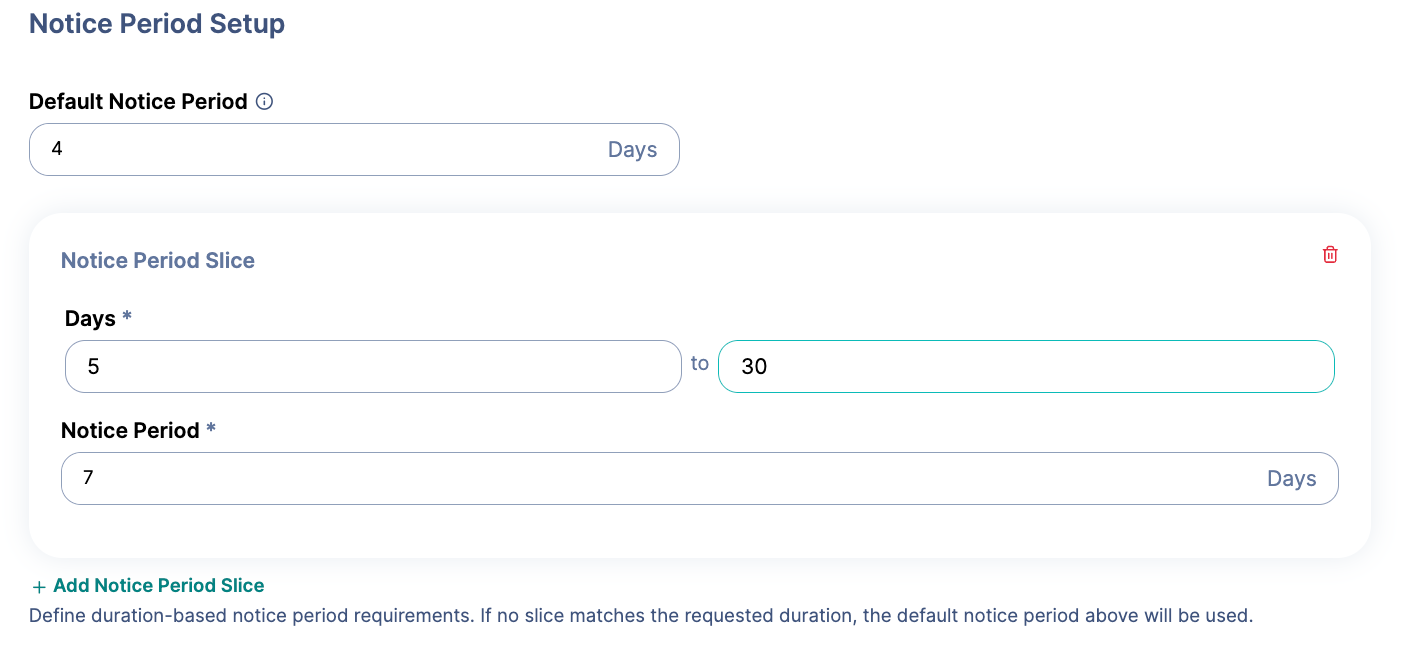
You can set different notice periods based on the duration of the Casual Vacation request.
For example:
A one-day leave request may require one day of advance notice.
A ten-day leave request may require seven days of advance notice.
This allows organizations to apply shorter notice requirements to brief absences and longer notice requirements to extended leave requests.
How to Configure Dynamic Notice Periods
Go to Main Menu → System Preferences → Time Setup → Leaves & Vacations.
Open the Casual Vacations section.
Select “Add Casual Vacation”, or open an existing Casual Vacation type.
Locate the notice-period settings.
Add a leave-duration range or condition.
Enter the notice period that should apply to that duration.
Add additional duration and notice-period conditions as needed.
For example:
Review the configured rules to make sure all required leave durations are covered.
Save your changes.
When an employee submits a request, ZenHR will apply the notice period that corresponds to the requested leave duration.
Note: When HR creates a leave transaction directly on behalf of an employee, ZenHR automatically bypasses the notice-period validation.
B. Hourly Leaves
1. Restrict Hourly Leave by Employee Attributes
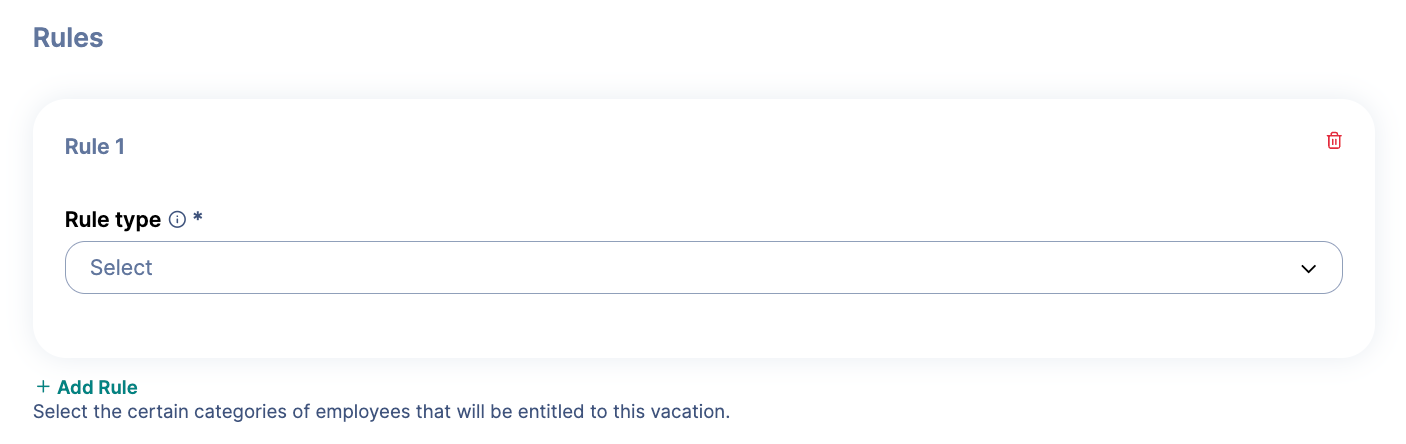
You can limit an Hourly Leave type to specific groups of employees based on the following attributes:
Nationality
Department
Section
Position
This ensures that employees only see and request the Hourly Leave types for which they are eligible.
How to Configure Hourly Leave Restrictions
Go to Main Menu → System Preferences → Time Setup → Leaves & Vacations.
Open the Hourly Leaves section.
Select the option to add a new Hourly Leave type, or open an existing type to edit it.
Go to the employee restriction (Rules) settings.
Select the employee attribute you want to use:
Nationality
Department
Section
Position
Select the eligible values under each applicable attribute.
Review the remaining Hourly Leave settings.
Save your changes.
Once configured, the Hourly Leave type will only be available to employees who match the selected criteria.
C. Annual Vacation
1. Configure Dynamic Notice Periods
Annual Vacation policies can now have different notice periods based on the number of vacation days requested.
For example:
A one-day vacation request may require one day of advance notice.
A ten-day vacation request may require seven days of advance notice.
This helps organizations plan for longer employee absences while maintaining flexibility for shorter vacation requests.
How to Configure Dynamic Notice Periods for Annual Vacation
Go to Main Menu → System Preferences → Time Setup → Leaves & Vacations.
Open the Annual Vacation section.
Select the Annual Vacation policy you want to configure.
Locate the notice-period setup.
Add a vacation-duration range or condition.
Enter the required notice period for that duration.
Add additional duration and notice-period conditions as needed.
Review the rules to ensure the required vacation durations are covered.
Save your changes.
ZenHR will automatically apply the appropriate notice period when an employee submits an Annual Vacation request.
Note: When HR creates a vacation transaction directly on behalf of an employee, ZenHR automatically bypasses the notice-period validation.
Was this article helpful?
That’s Great!
Thank you for your feedback
Sorry! We couldn't be helpful
Thank you for your feedback
Feedback sent
We appreciate your effort and will try to fix the article