ZenHR's Business Travel module enables organizations to manage, control, and automate all aspects of business travel, from policy setup and approvals to per diem calculations, expense claims, and reimbursements. With the latest enhancements, the module now offers greater flexibility, clearer visibility, and stronger control over how business trips are requested, calculated, and processed.
The Business Travel feature allows your company to:
Define and enforce structured business travel policies.
Provide employees with the ability to request business trips, select allowances, submit expenses, and track reimbursements with full transparency.
1. Business Travel Setup
Before employees can request business trips, admins must complete the initial setup as per the following steps:
System Preferences → Financial Setup →Business Travel → Business Travel Setup
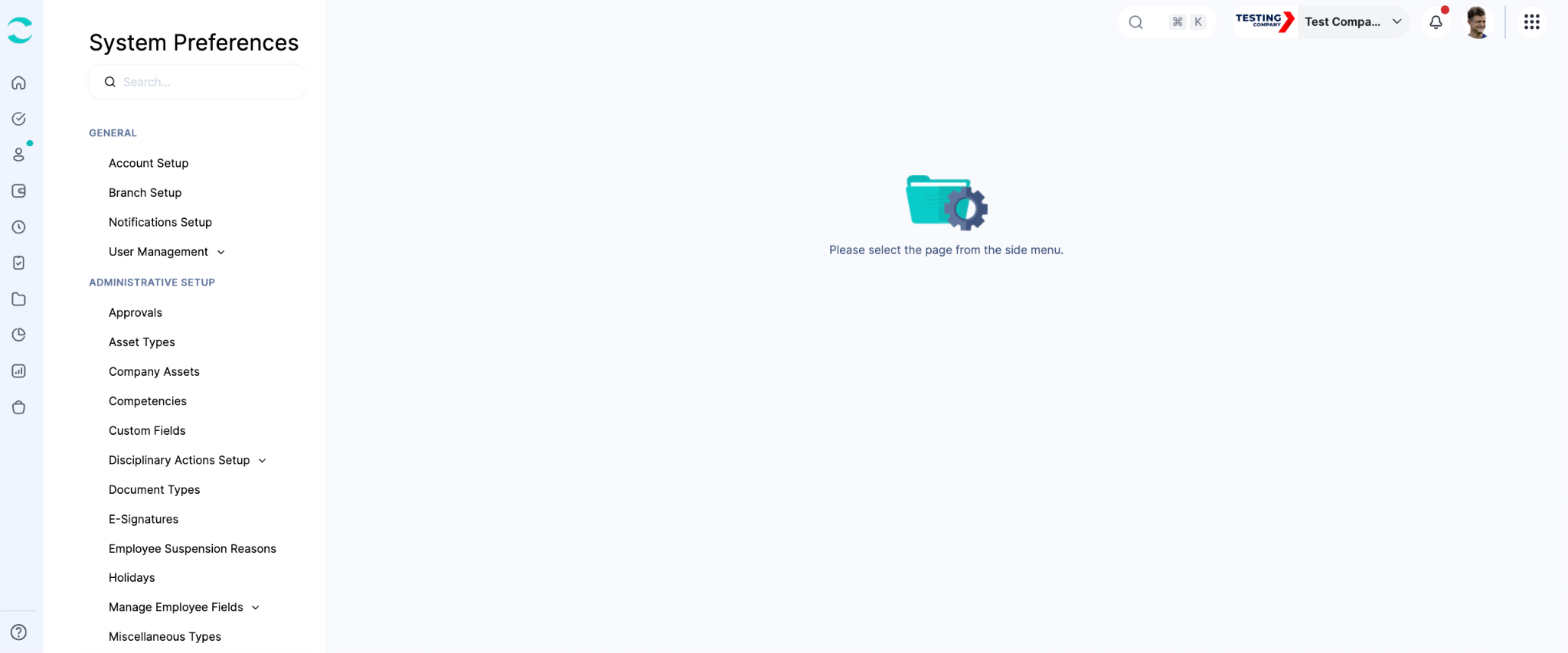
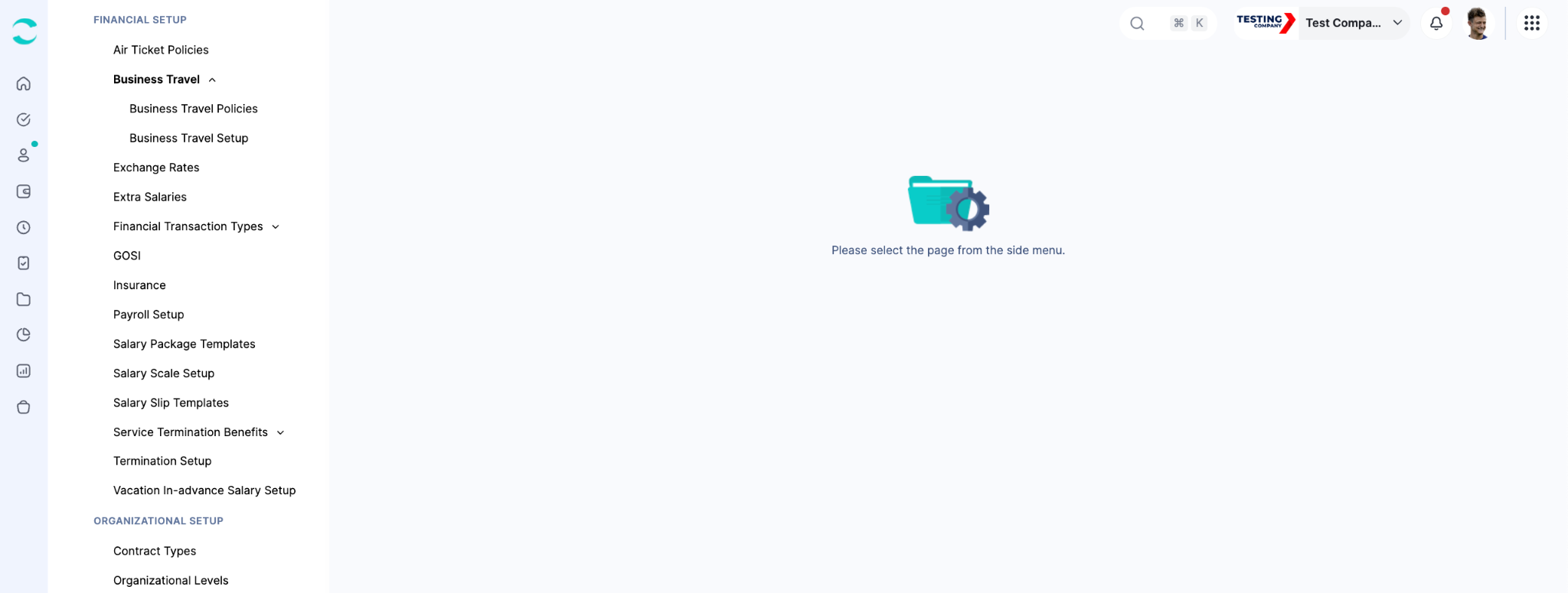
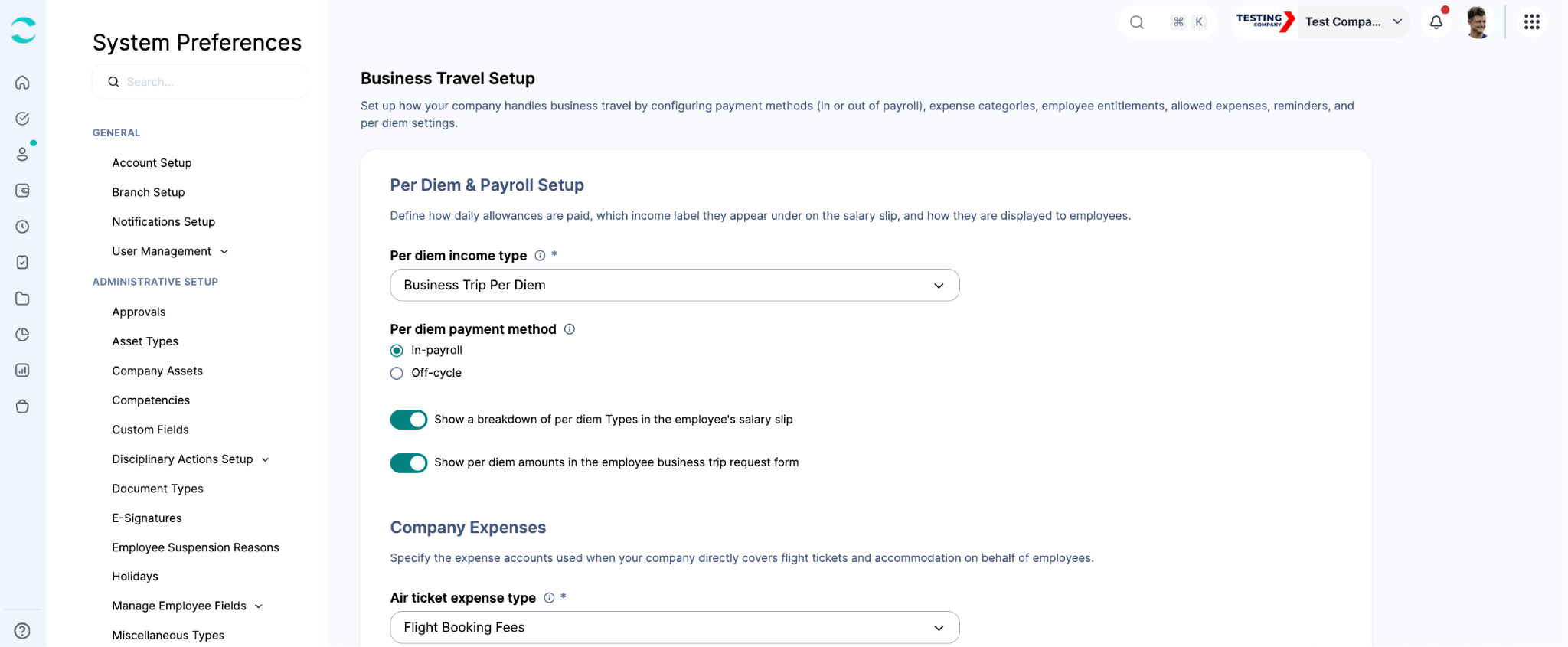
The setup page is organized into four sections on the Business Travel Setup page:
A) Per Diem & Payroll Setup
On this page, you can define how daily allowances are paid, which income label they appear under on the salary slip, and how they are displayed to employees.
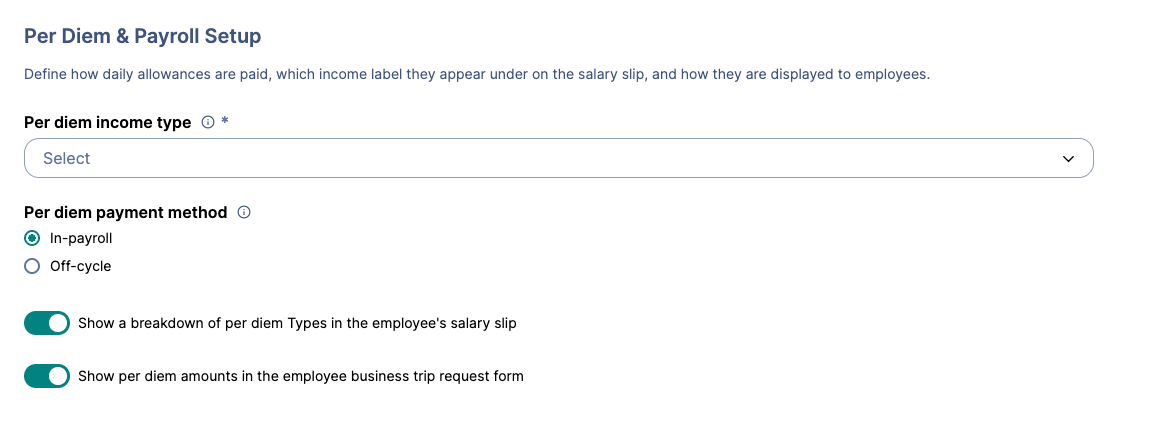
Per Diem Income Type
Select the payroll income type for this per diem. It will appear in the employee's salary slip if processed in payroll, or under off-cycle payments if processed off-cycle.

Per Diem Payment Method
Set whether transactions are processed:
In-payroll: The reimbursement is settled in the payroll cycle.
Paid Separately (Off-Cycle): The reimbursement is settled outside of the regular payroll cycle.

Show Per Diem Breakdown on Salary Slip
When enabled, each per diem component (e.g., meals, transport) is listed individually on the salary slip. When disabled, only the total reimbursement amount appears under the income label defined above.

Show Per Diem Amounts to Employees
When enabled, employees can view the exact allowance amounts for each per diem component when submitting a business trip request.

B) Company Expenses
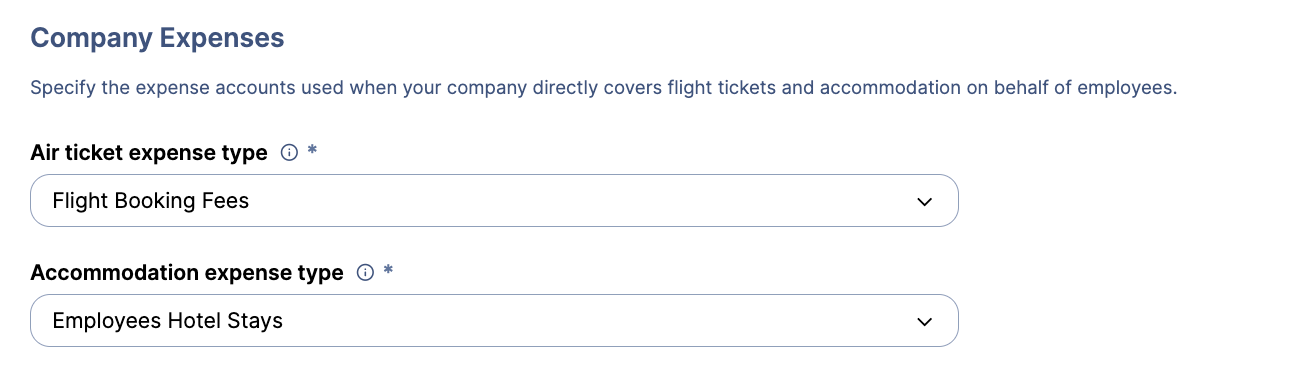
Specify the expense accounts used when your company directly covers flight tickets and accommodation on behalf of employees.
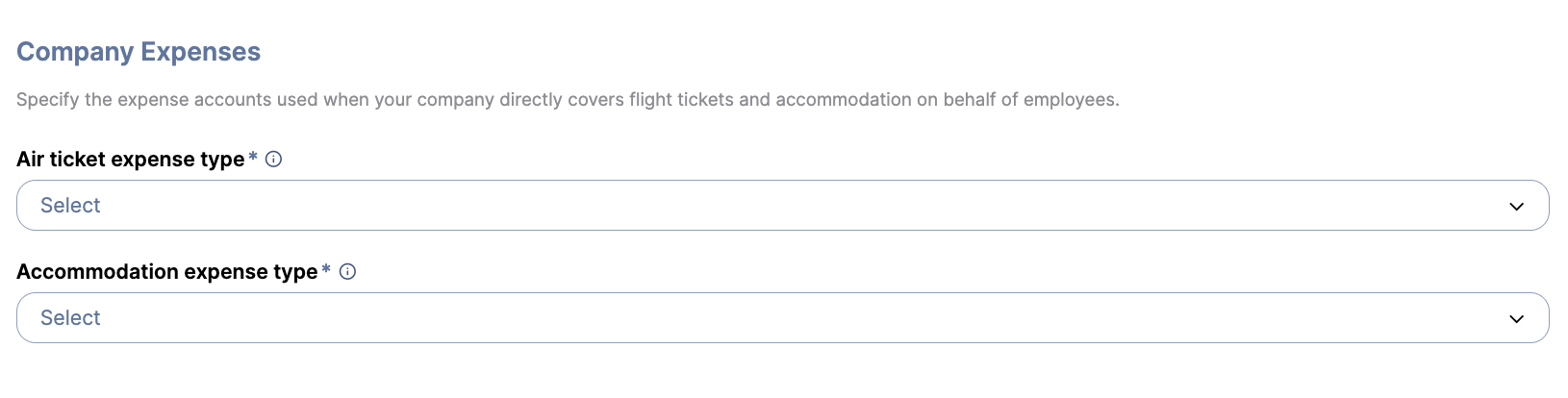
Air Ticket Expense Type
When the company books a flight on behalf of an employee, the cost is recorded under the company expense type selected here, ensuring it is properly tracked in financial reports.

Accommodation Expense Type
When the company books accommodation on behalf of an employee, the cost is recorded under the company expense type selected here.

C) Employee Notifications & Permissions
This section allows you to define which additional expenses employees can claim during their trip, and when they receive a reminder before departure.
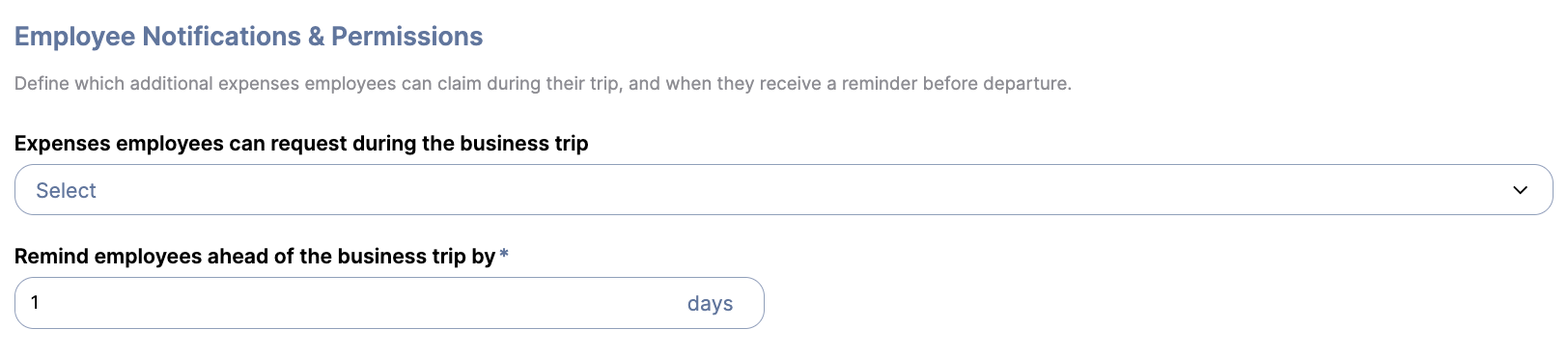
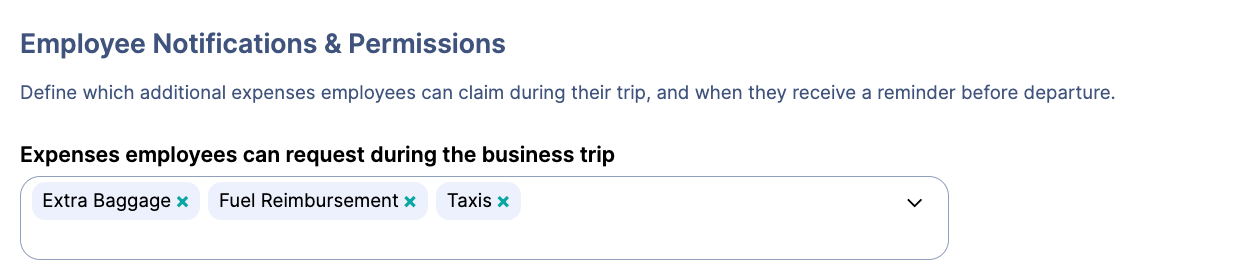
Claimable Expense Types - Expenses employees can request
Select the expense types employees are allowed to claim during their business trip, such as taxi rides, client dinners, or parking. These will appear as options when the employee submits additional expenses.

Trip Reminder
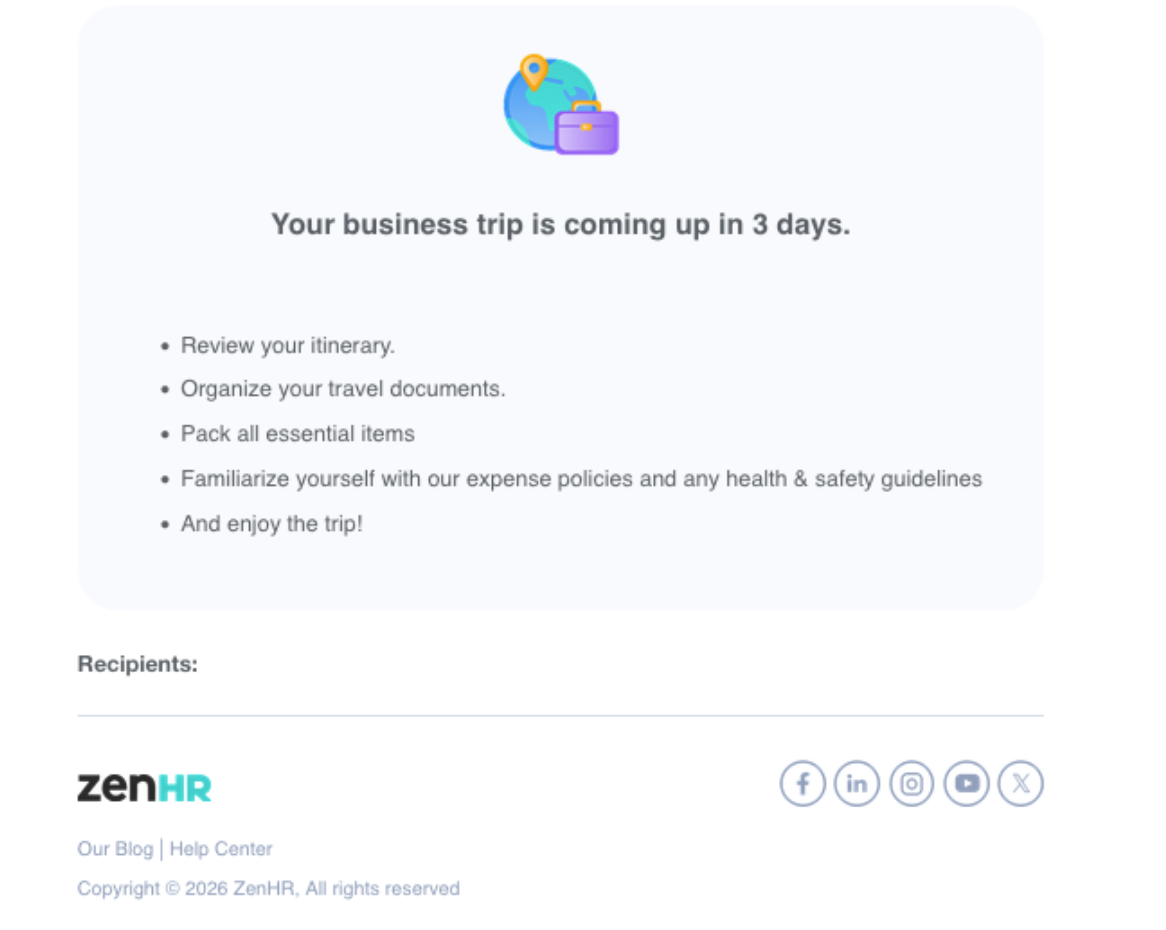
Employees receive an automatic notification a set number of days before their trip starts. Enter the number of days in advance you want the reminder to be sent.

D) Per Diem Types
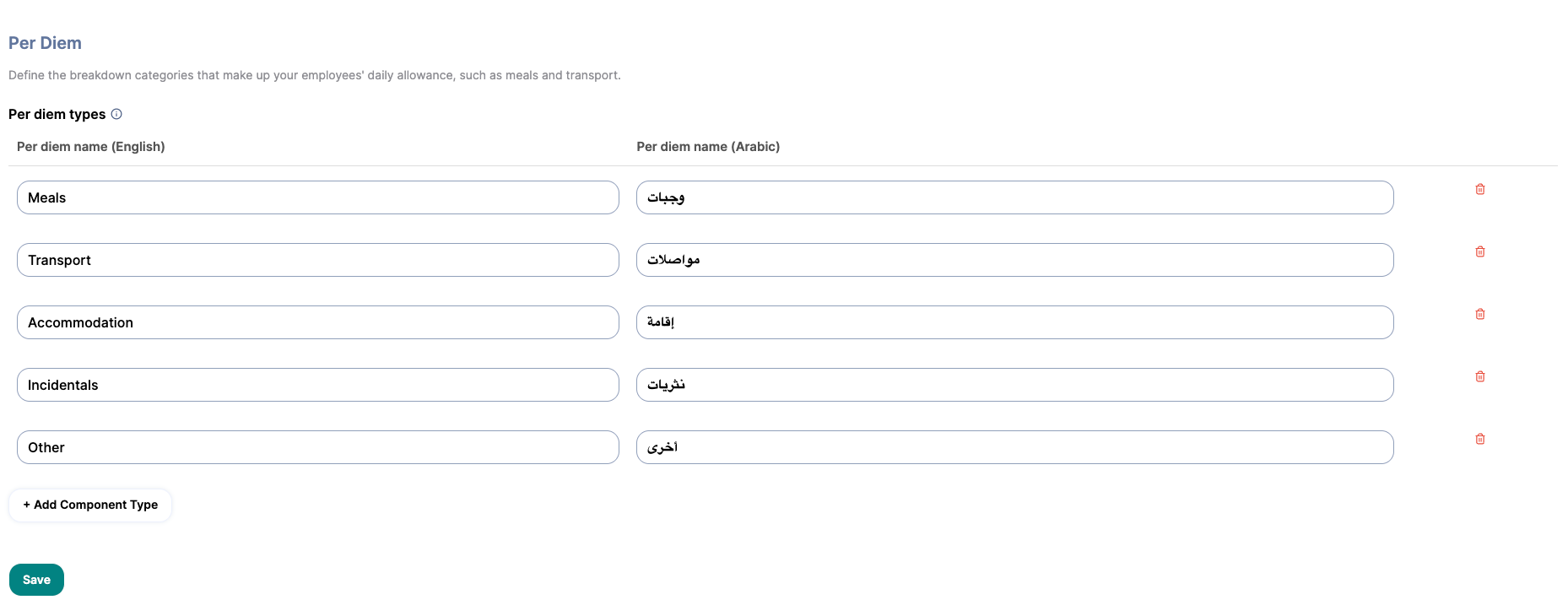
Define the breakdown categories that make up your employees' daily allowance, such as meals and transportation. These categories will be used across all business travel policies.
Each per diem type requires a label in both English and Arabic. You can add, edit, or delete types at any time based on your company's policy.
2. Business Travel Policies
After completing the setup, create and manage your business travel policies from:
System Preferences → Financial Setup →Business Travel → Business Travel Policy
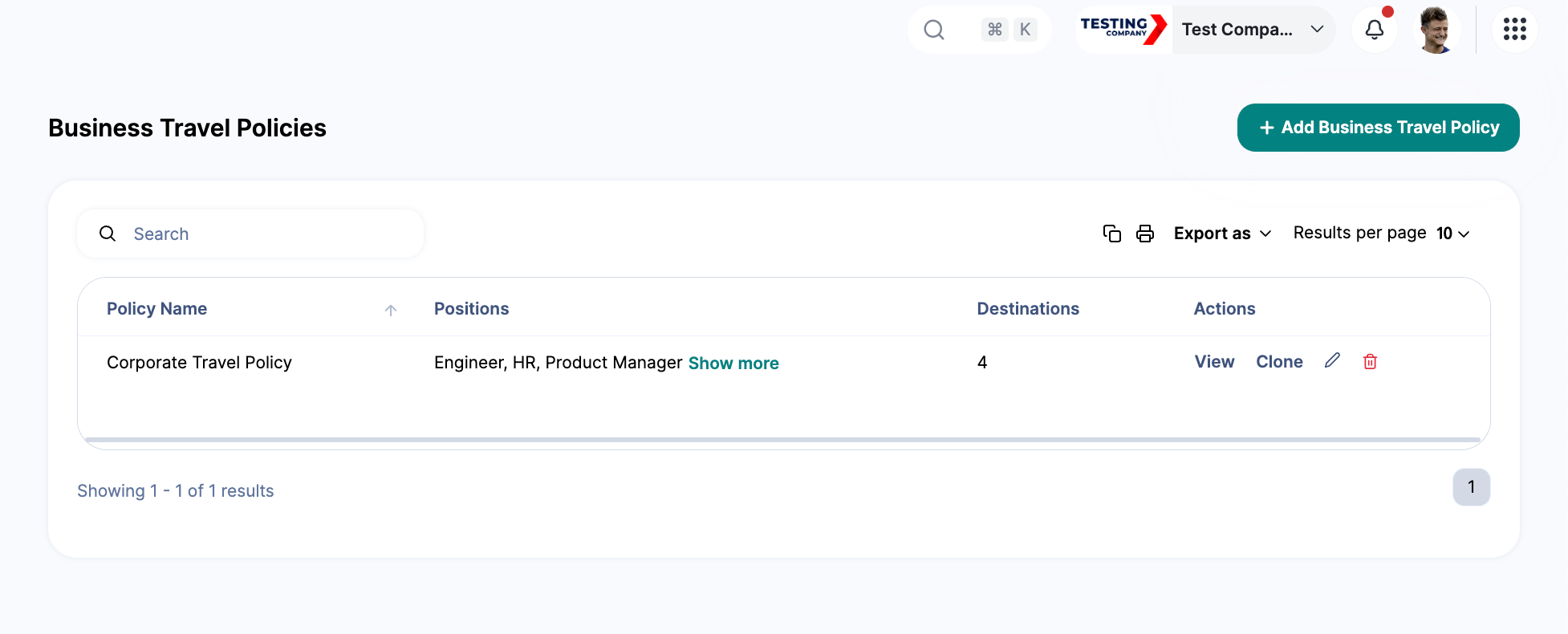
On the Business Travel Policy page, click “+ Add Business Travel Policy”.
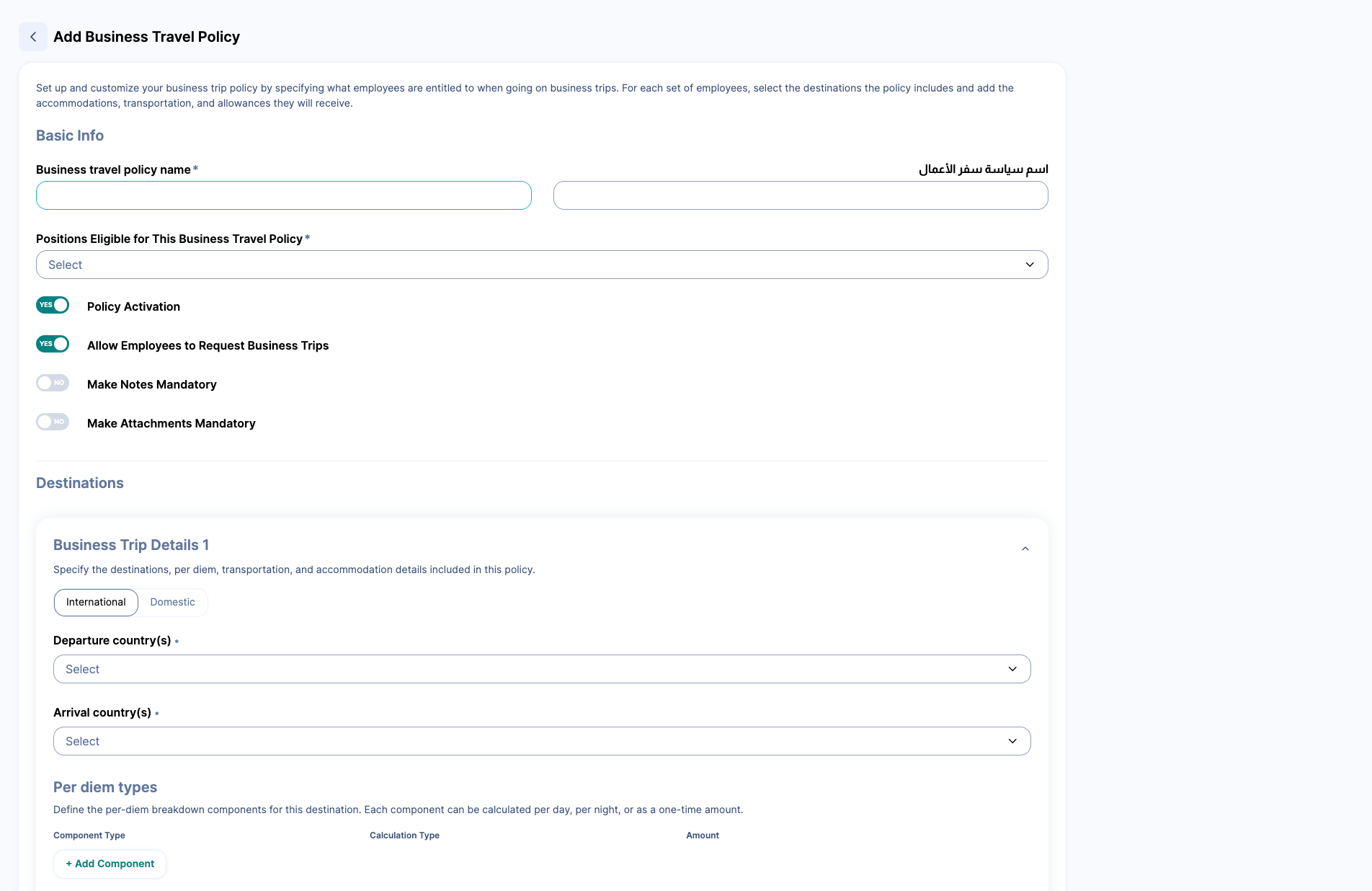
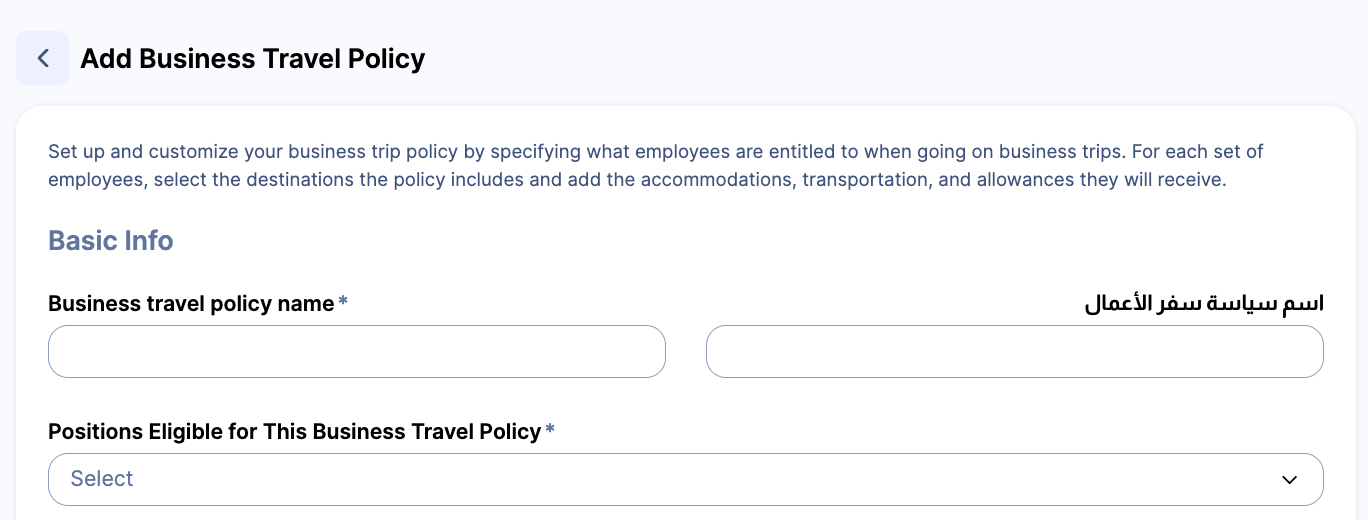
Each policy includes the following:
Policy name (e.g., Sales & Business Development Business Travel Policy)
Positions eligible for this policy
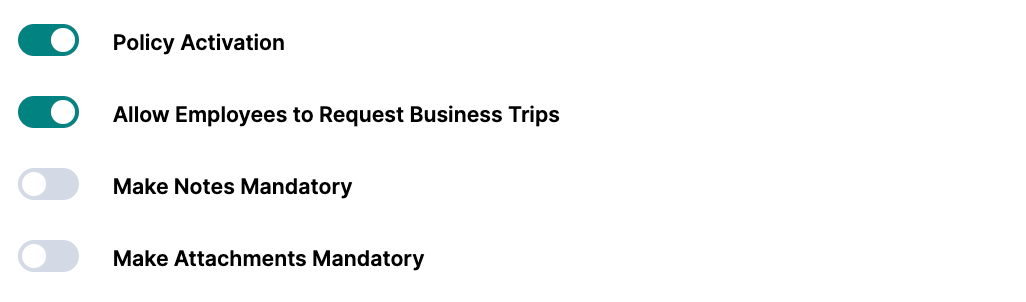
Policy toggles:
Policy Activation: Activate or disable this policy.
Allow Employees to Request Business Trips: Let employees send trip requests themselves.
Make Notes Mandatory: Activate this to require employees to include a note when submitting a request.
Make Attachments Mandatory: Activate this to require employees to upload supporting documents with the request
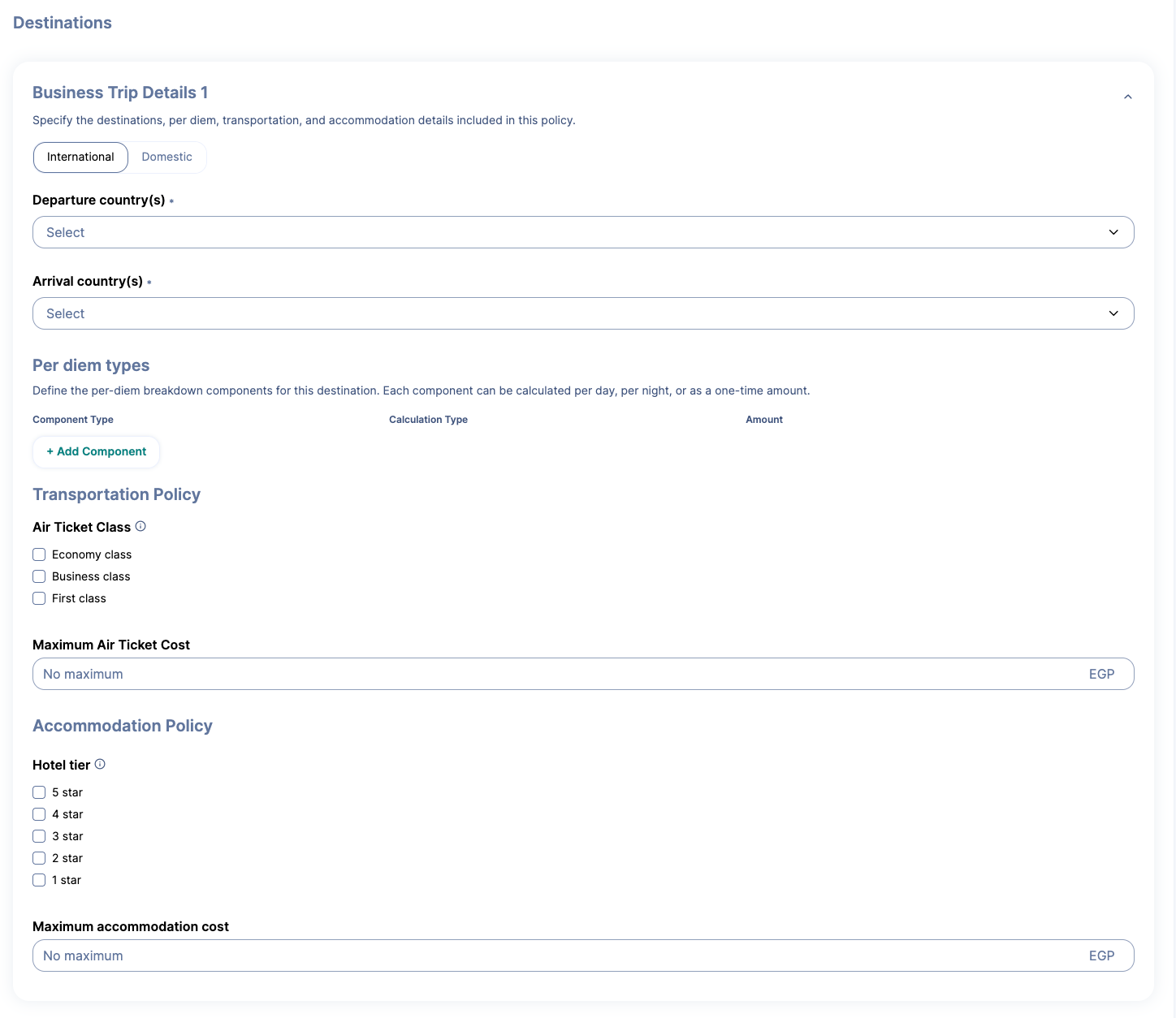
Under Destinations, define one or more trip destinations (domestic or international) with their per diem details, transportation options, and accommodation limits.
International Business Trips
Select departure and arrival countries.
Click “Add Component” to choose the per diem options that employees can request (e.g., food, transport, accommodation).
Set the calculation method per component: (Per Day, Per Night, One-Time, or Day Trip). Please note that the “Day Trip” component will only appear when the business trip duration is 1 day and 0 nights.
Choose whether the component should be “Always Included.” When this toggle is enabled, the component will be automatically included in business trip requests, and employees will not be able to disable it.
Define air ticket class, maximum air ticket cost, hotel tier, and maximum accommodation cost.
Note: Air ticket and accommodation limits are required if you plan to integrate ZenHR with AlMatar (supported for KSA only).
Domestic Business Trips
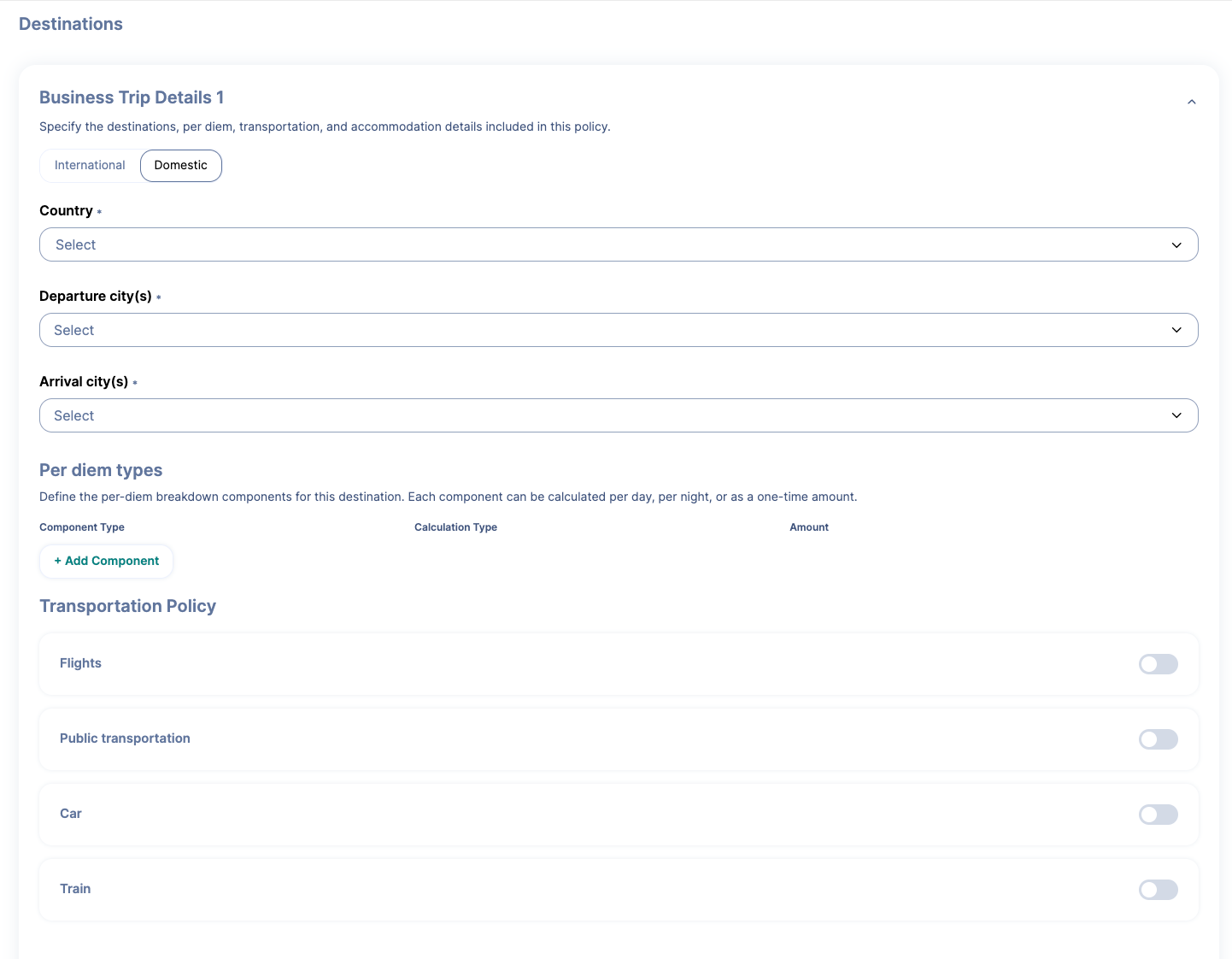
Select the country and departure/arrival cities.
Choose per diem options and calculation methods (Per Day, Per Night, One-Time, Day Trip). Please note that the “Day Trip” component will only appear when the business trip duration is 1 day and 0 nights.
Choose whether the component should be “Always Included.” When this toggle is enabled, the component will be automatically included in business trip requests, and employees will not be able to disable it.
If required, activate the allowed transportation methods that employees can request, which could be: Flight, Public Transportation, Car, or Train, and set the one-time payment for each.
Define air ticket class, maximum air ticket cost, hotel tier, and maximum accommodation cost.
3. Employees Requesting Business Trips
Employees can submit business trip requests through both the ZenHR web and the ZenHR mobile app.
How to Access
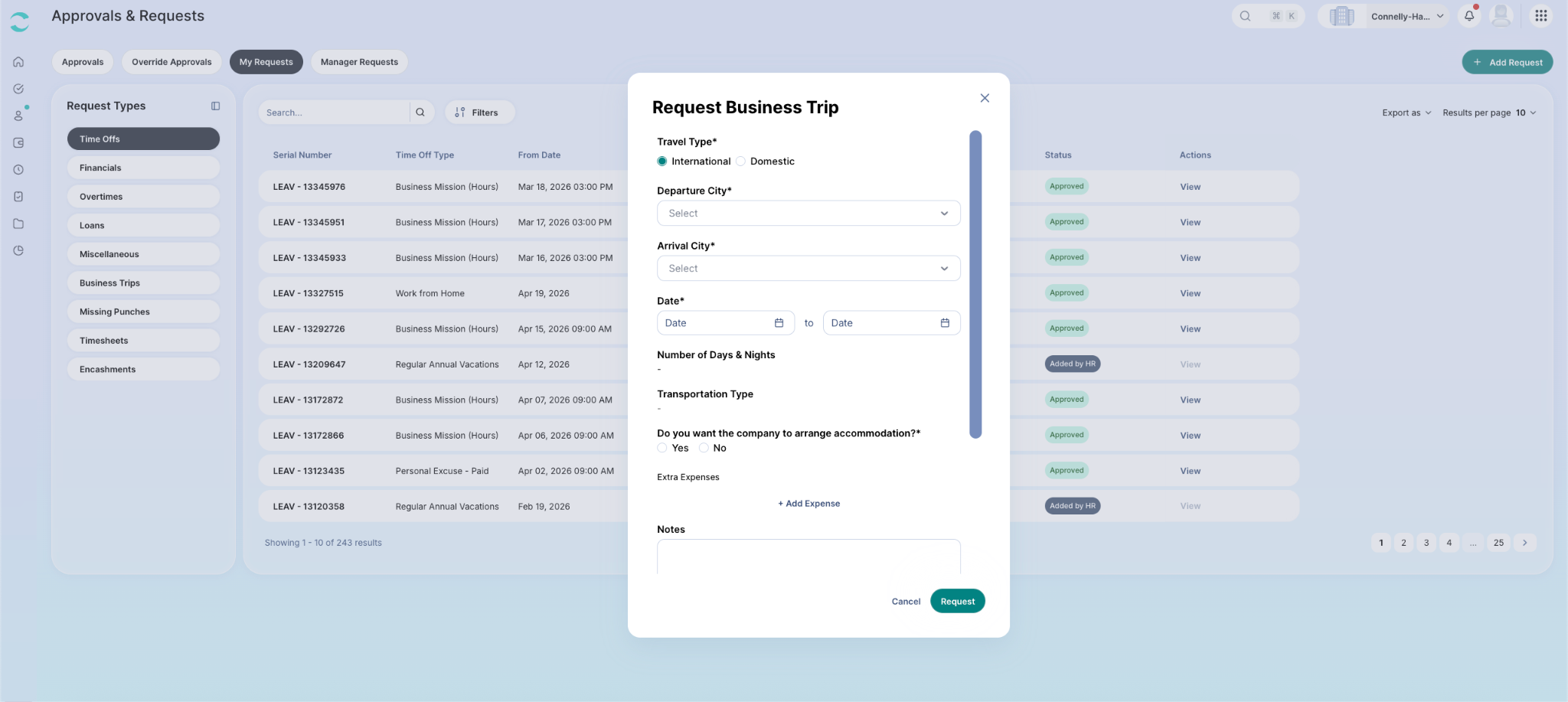
Web: ZenHR Dashboard → Approvals & Requests → + Add Request → Business Trips
Mobile: Open ZenHR App → (+) → Business Trips
Request Steps
Click “Request a Business Trip”.
Enter trip details: type, destination, and dates.
Choose per diem components for the trip.
Add any additional expenses if applicable.
Attach notes and supporting documents.
Submit the request.
4. Business Trip Approvals
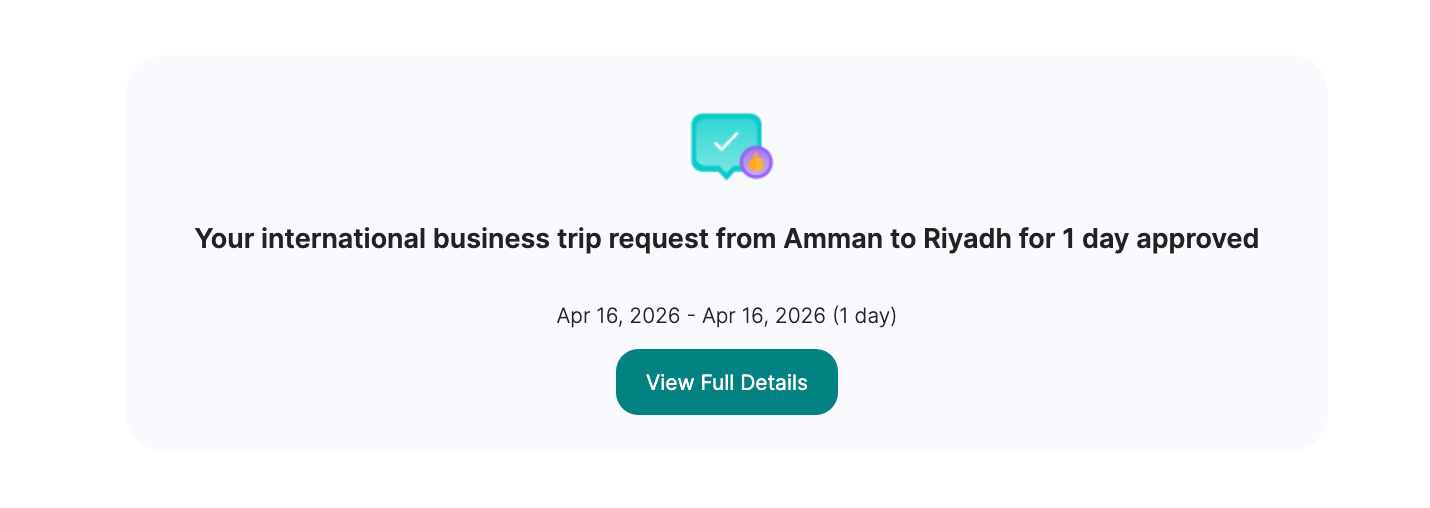
All business trip requests follow a predefined approval cycle. Once submitted, the request is routed to the relevant approvers. The employee is notified once the request is approved or rejected.
How to Access
Web:
ZenHR Dashboard → Approvals & Requests → Approvals → Business TripsMobile:
Open ZenHR App → Approvals → Business Trips
The transaction includes full trip details, per diem breakdown, additional expenses, and all attached documents.
Note: The system automatically validates the employee's position, sets per diem amounts based on the applicable policy, and ensures consistency across all reimbursement calculations.
5. Additional Expenses
Employees can request additional expenses after a trip has already been approved and completed. These requests go through the same approval cycle as the original trip.
If the additional expense type has mandatory notes or attachments configured, employees must include them with the request. These will appear under both the Manage Financial Transactions page and the business trip transaction.
How to Request Additional Expenses
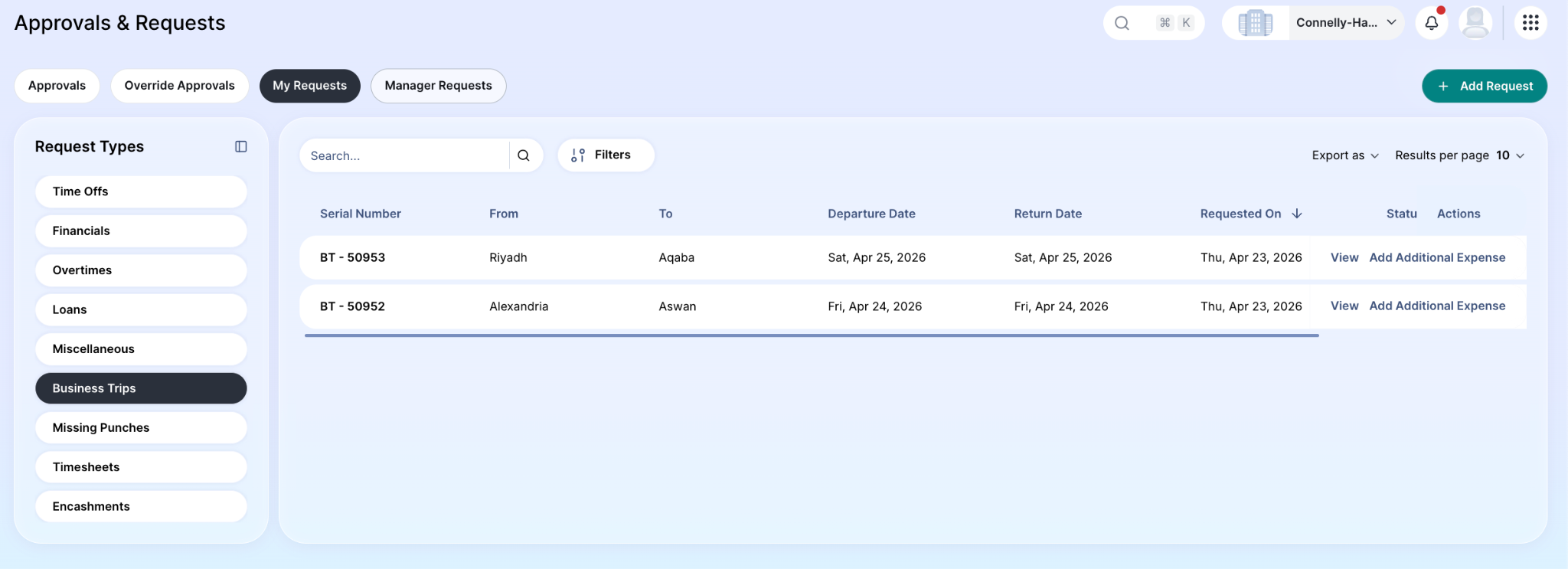
Web:
Go to ZenHR Dashboard → My Requests → Business Trips
Then click “Add Additional Expense”.
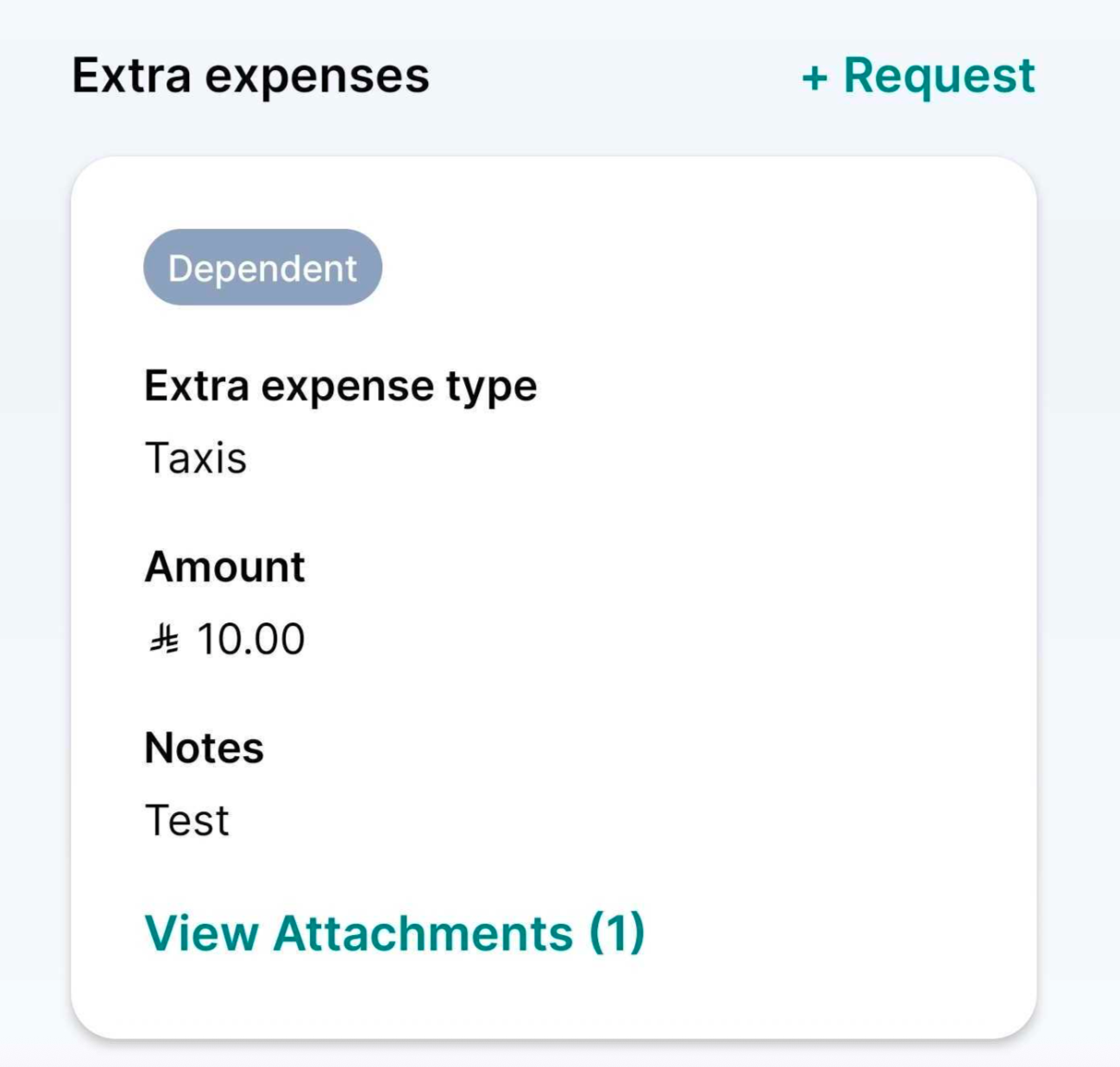
Mobile:
Go to Transactions → Select Business Trip
Then scroll down and click “+ Request Extra Expenses”.
6. Manage Employee Business Trips
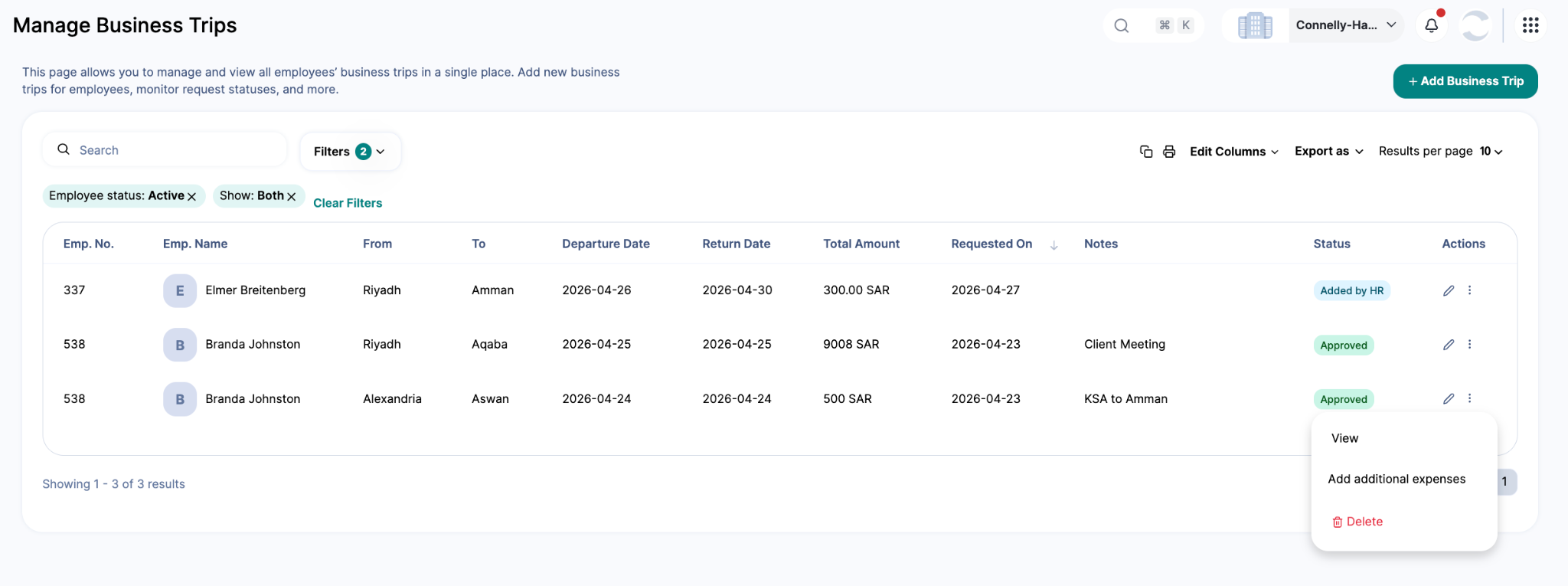
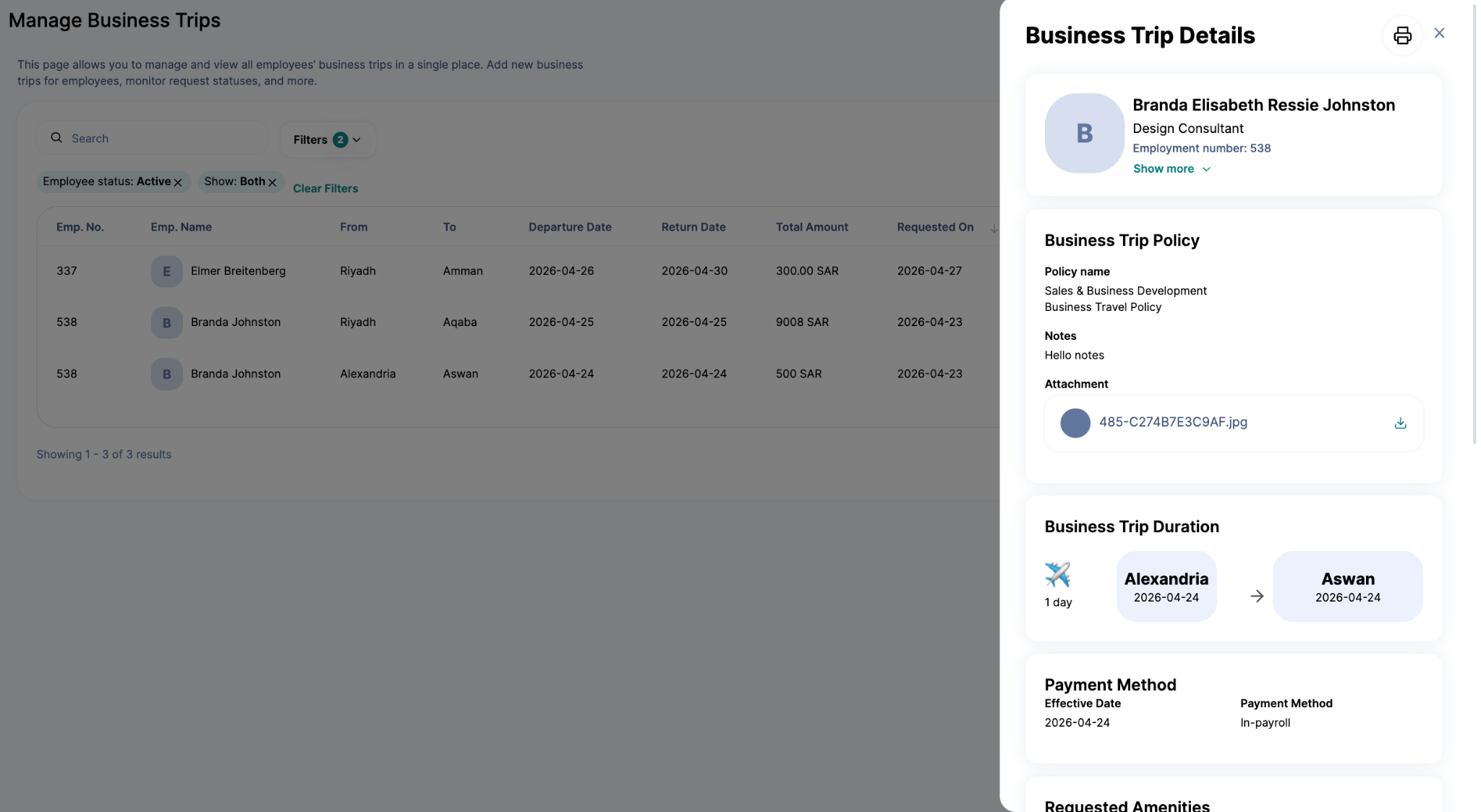
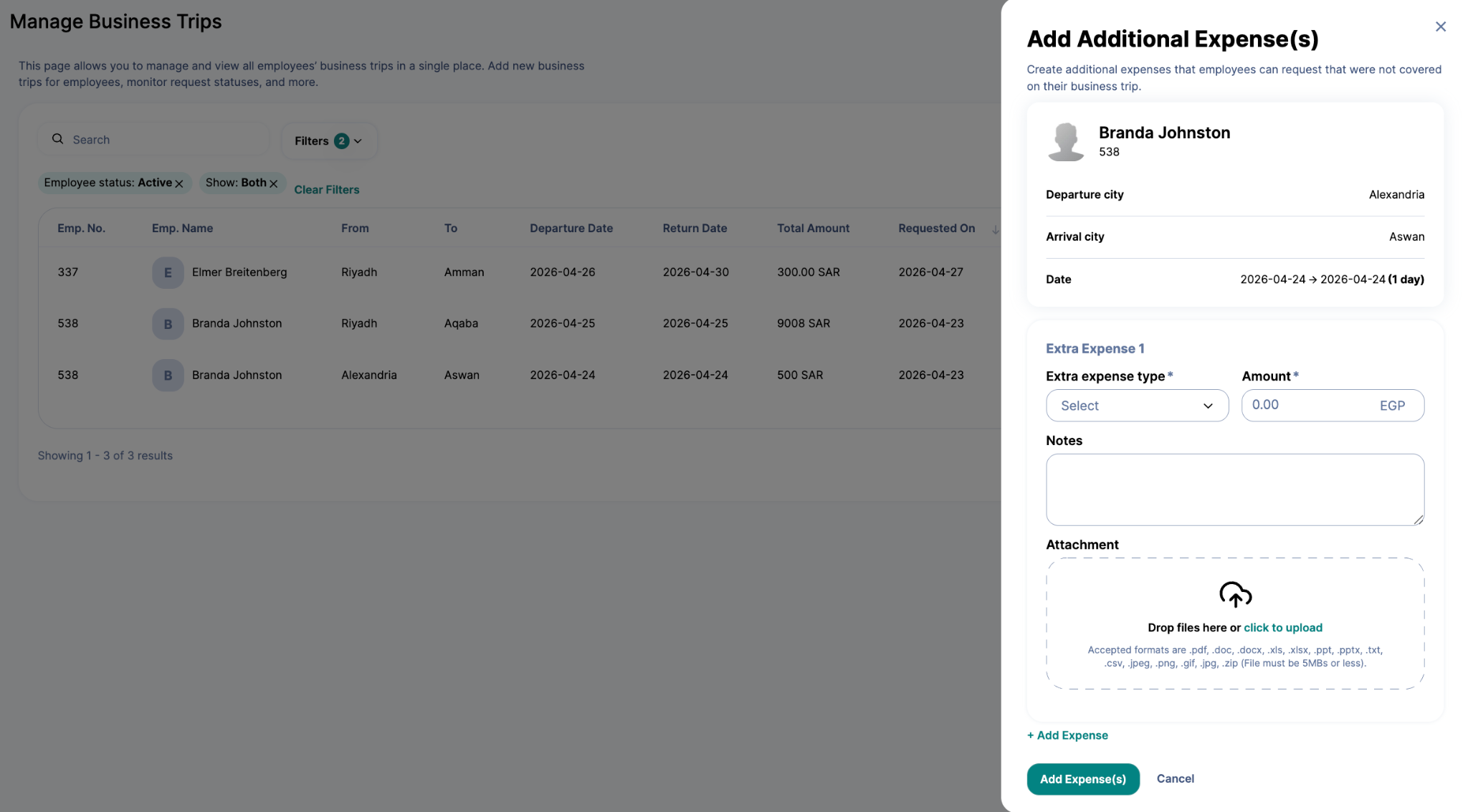
Administrators have access to a centralized Manage Business Trips page, allowing them to track, update, and manage all employee business trips across the organization.
Track Business Trips: View all trip requests with details such as employee name, dates, destination, and status.
Add Business Trips for Employees: Admins can add business trips directly for employees when needed.
Edit & Update Trips: Adjust dates, destinations, or per diem allowances on existing trip requests.
Manage Additional Expenses: Add, view, and review attachments and notes for extra expenses.
7. Frequently Asked Questions
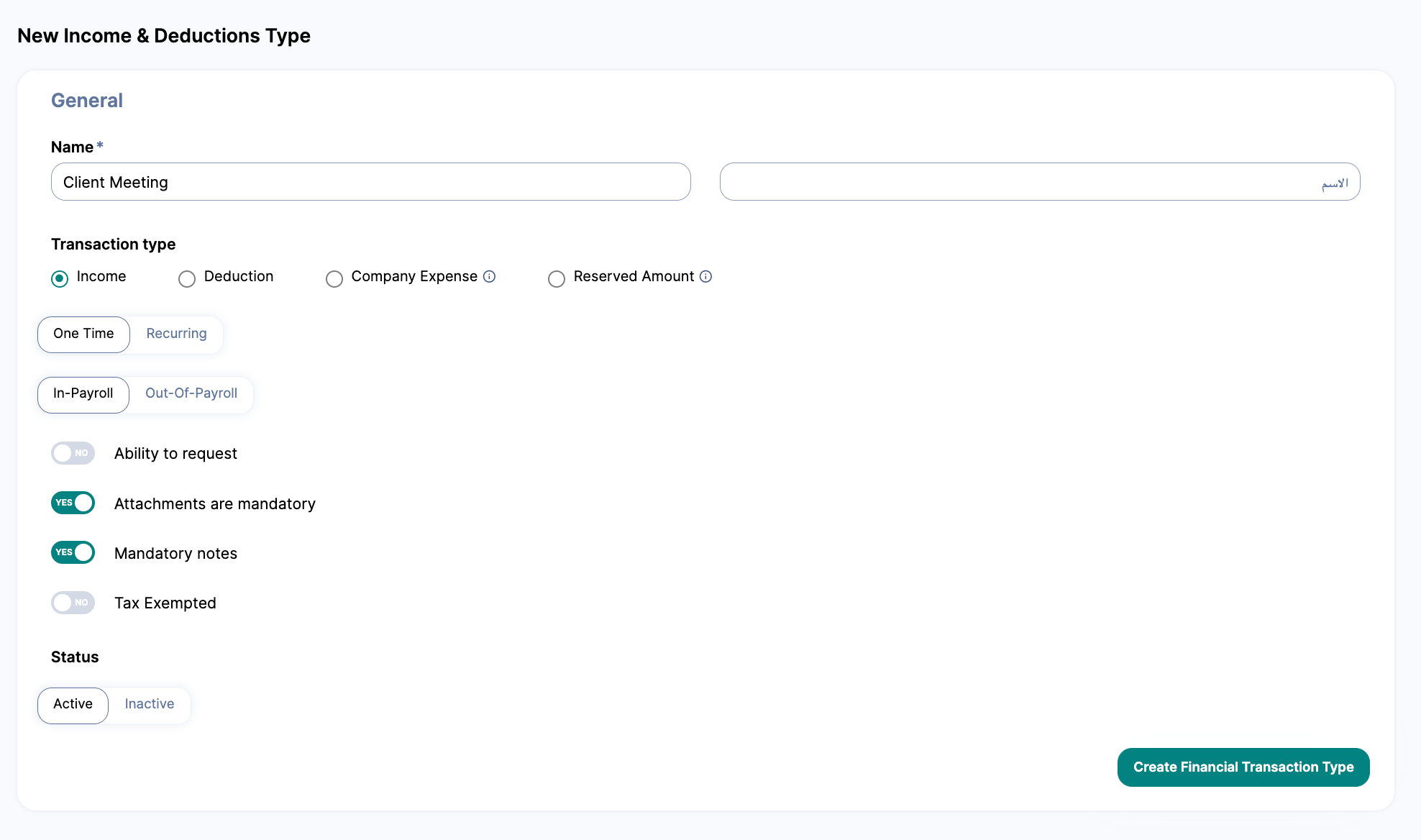
1. The additional expense type I need is not available. What should I do?
Go to System Preferences → Financial Transaction Types → Incomes & Deductions
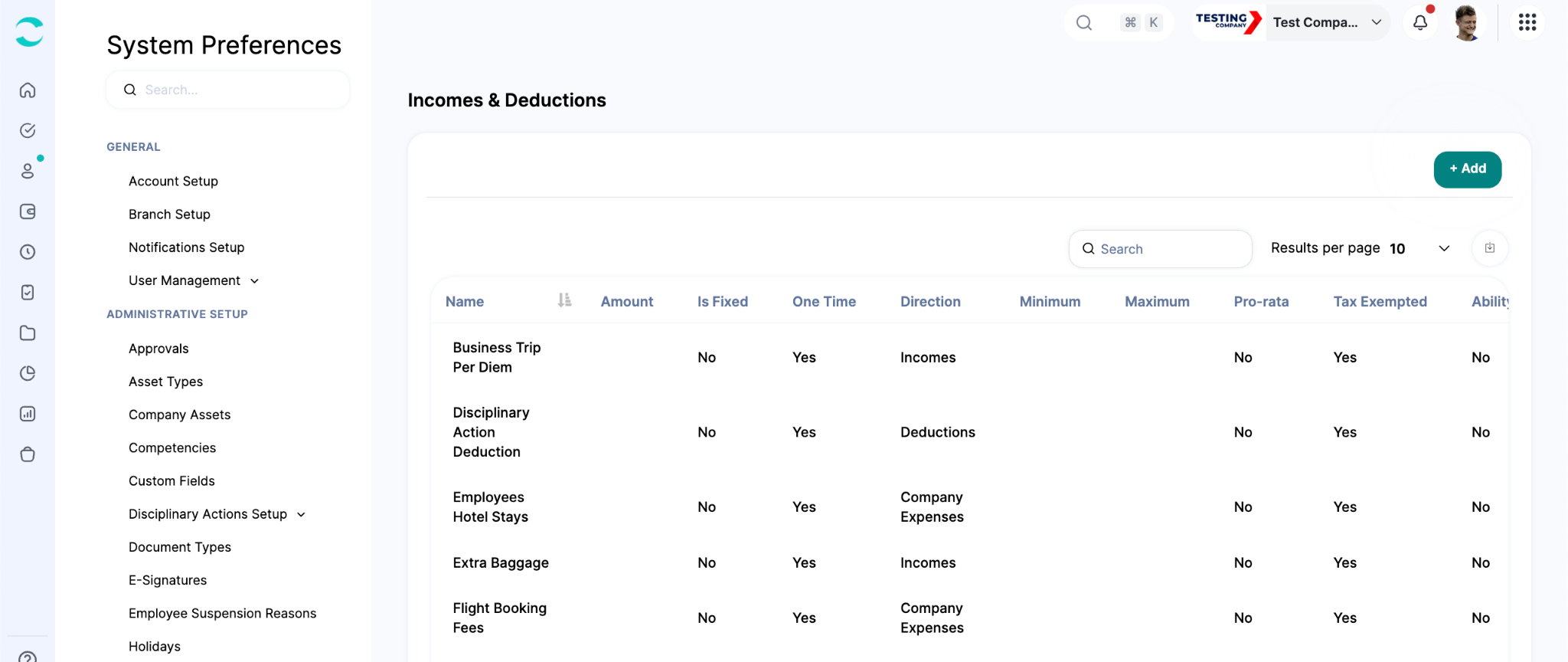
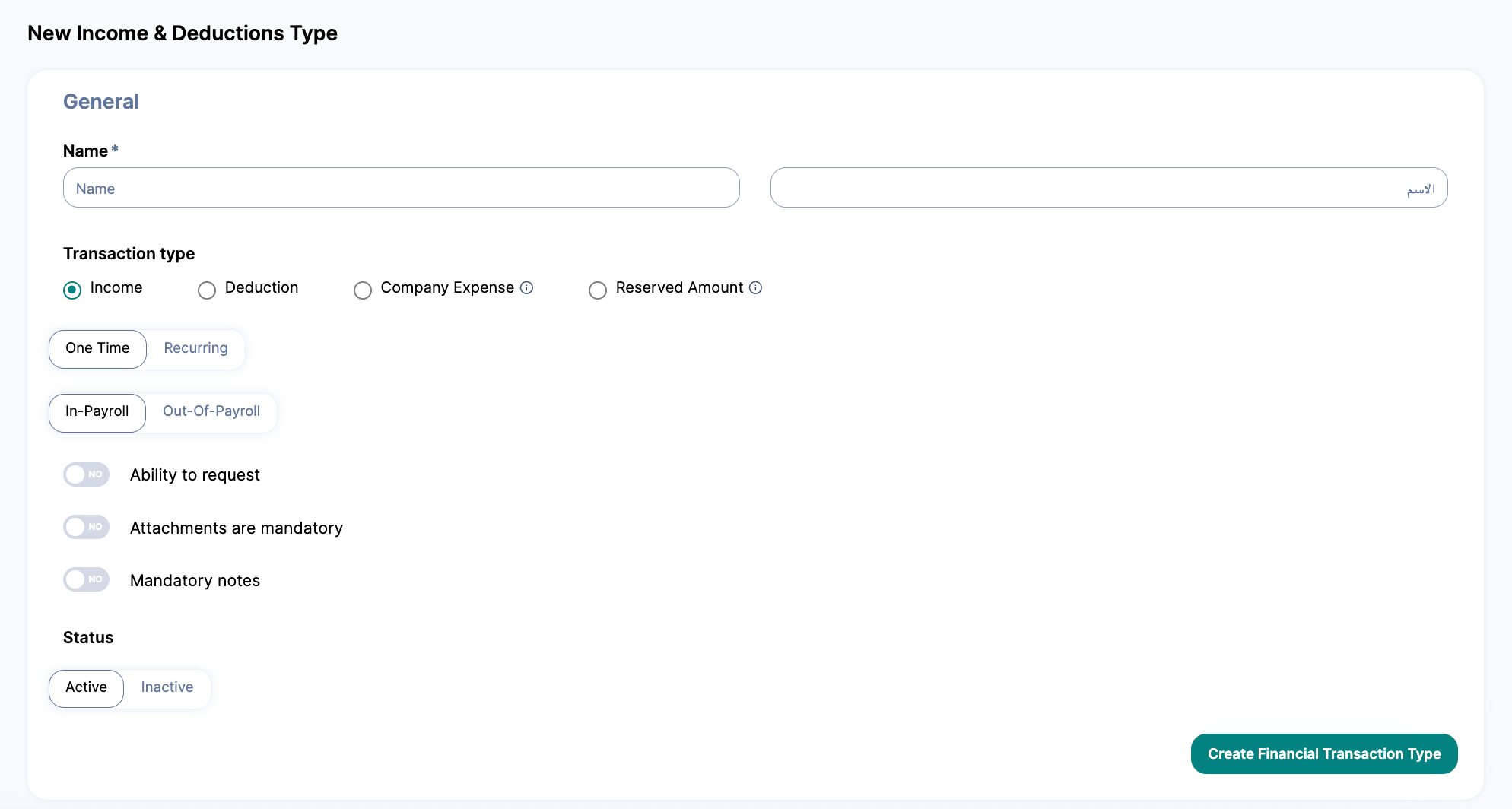
On the Incomes & Deductions page, click on the “Add” button.
Set the transaction type to Income, set the frequency to One-Time, and disable the Ability to Request option so employees can only claim it via a business trip.
Then go to the Business Travel Setup and add it under Claimable Expense Types.
2. How do I make notes or attachments mandatory for additional expenses?
Go to System Preferences → Financial Transaction Types → Incomes & Deductions
Find the transaction that you would like to edit.
Then activate the Make Attachments Mandatory and/or Make Notes Mandatory option.
Save the changes, and they will apply immediately to all future requests.
3. The Per diem income type I need is not available. What should I do?
Go to System Preferences → Financial Transaction Types → Incomes & Deductions
On that page, click the “Add” button. Set the transaction type to Income, frequency to One-Time, and disable the Ability to Request option.
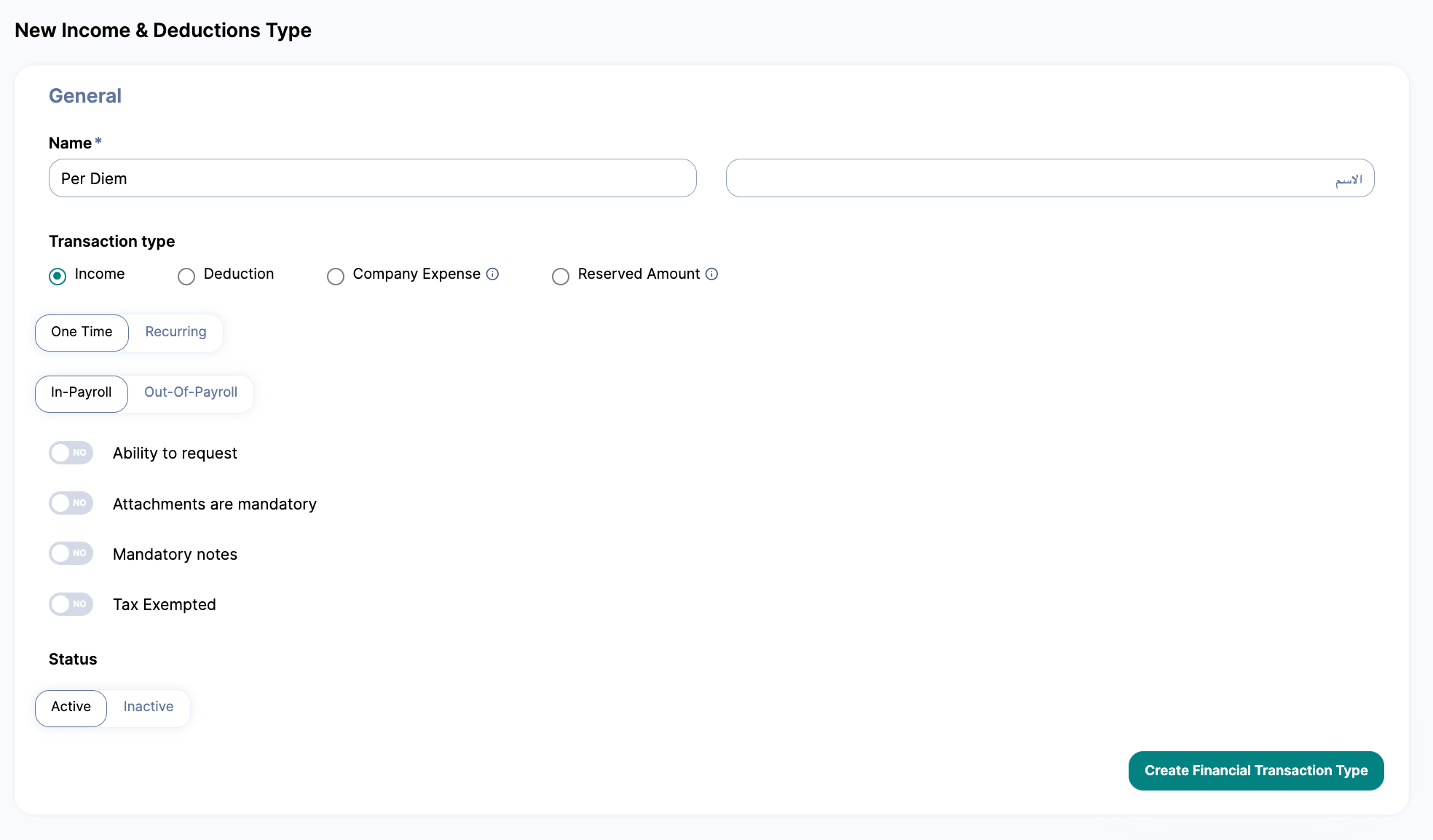
Then go to Business Travel Setup and add it under Per diem income type.

4. The air ticket or accommodation expense type I need is not available.
Go to System Preferences → Financial Transaction Types → Incomes & Deductions
On that page click “Add”. Set the transaction type to Company Expense and frequency to One-Time.
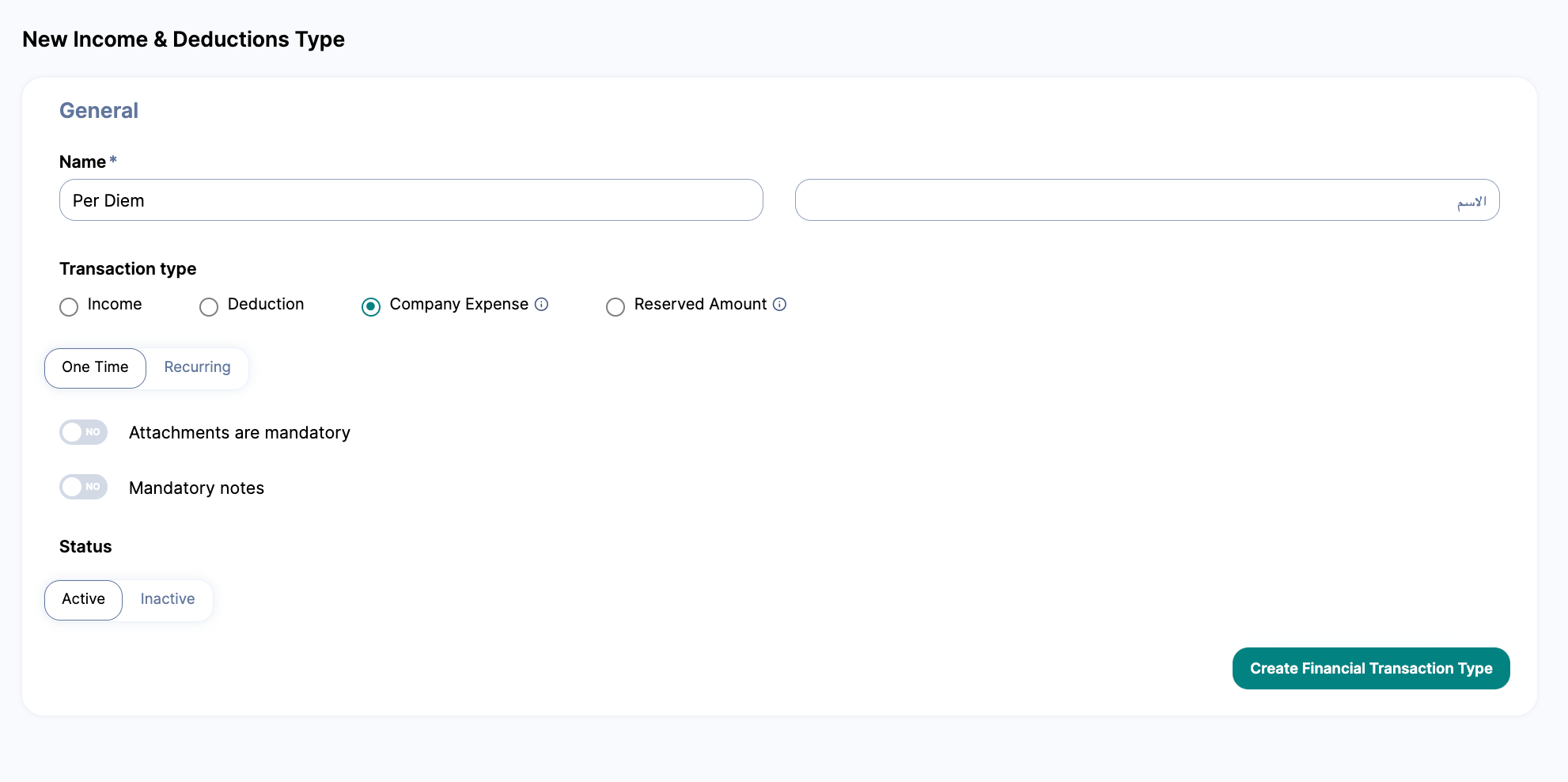
Then go to Business Travel Setup and add it under Air Ticket Expense Type or Accommodation Expense Type.
Was this article helpful?
That’s Great!
Thank you for your feedback
Sorry! We couldn't be helpful
Thank you for your feedback
Feedback sent
We appreciate your effort and will try to fix the article