SAP S/4HANA Native Integration
The SAP S/4HANA integration allows you to connect your ZenHR account with SAP S/4HANA so you can send salary journal entries, off-cycle payments, vacation-in-advance salaries, and provisions directly from ZenHR to SAP S/4HANA. This helps reduce manual work, improve accuracy, and make sure your payroll and financial data are synced smoothly between both systems.
Before activating the integration, you need to set up your Journal Entries Structure on ZenHR. This defines how your journal entries should be created, grouped, matched, and generated.
Note: To set up or edit how you would like your journal entries to be created, including how to match your journal entries, how many employees you wish to include, and how to group and generate them, follow the steps in this support article: Journal Entries Structure guide.
Integrate Your ZenHR Account with SAP S/4HANA
To access the SAP S/4HANA integration setup page, go to:
Main Menu → Integration → ERP & Accounting Software → SAP S/4HANA
From this page, you can connect your ZenHR account with SAP S/4HANA using username and password credential authentication.
Once the integration is set up, you can send and update employee data, as well as post journal entries to SAP S/4HANA, through the URLs added to the setup page.
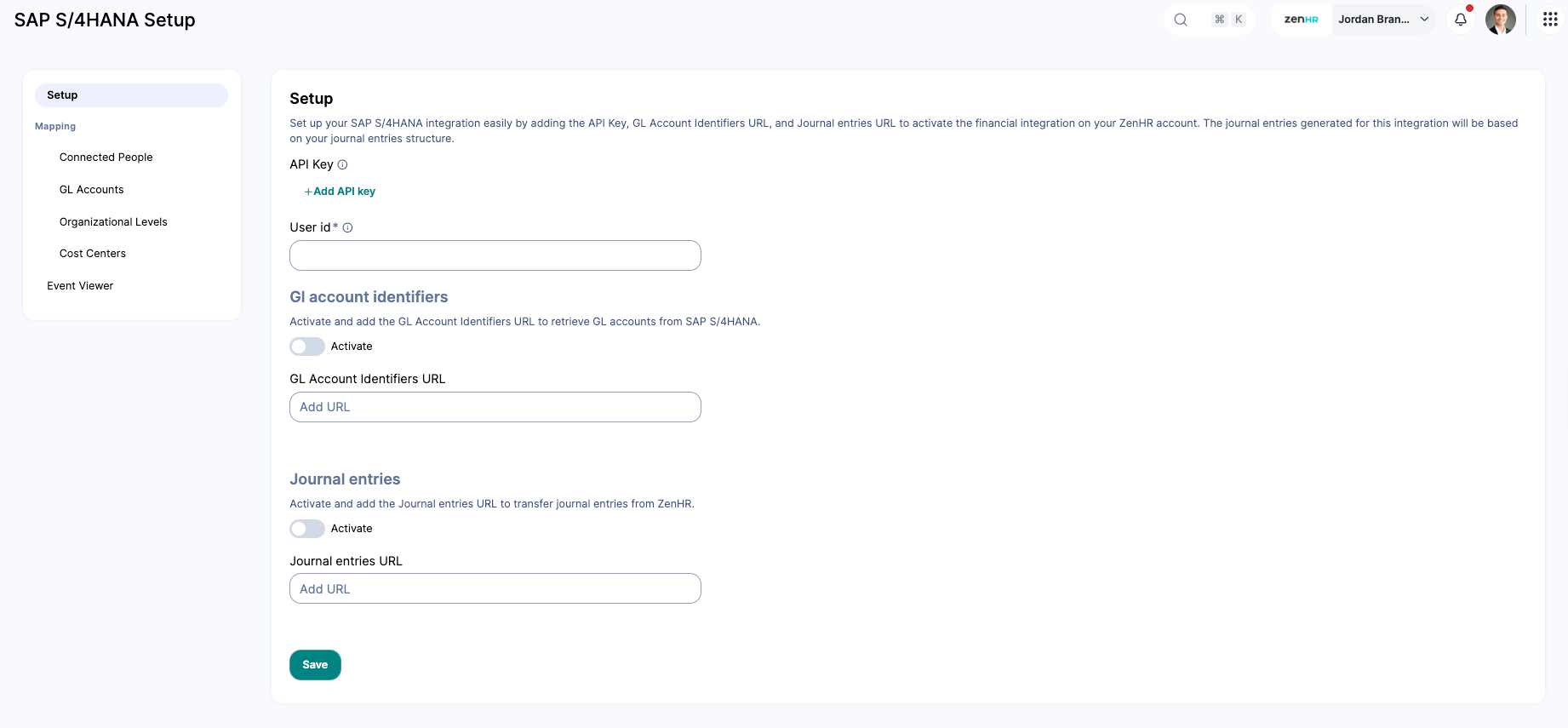
How to Activate the SAP S/4HANA Integration
To activate this integration, complete the following steps:
Step 1: Set Up Journal Entries Structure
First, define how you want ZenHR to create your Journal Entries Structure.
Follow these steps:
Click the System Preferences icon in the lower-left corner.
Go to Main Menu → System Preferences → Integration Setup → Journal Entries Structure.
Fill in the required fields based on how you want your journal entries to be structured.
Click “Save”.
Step 2: Set Up SAP S/4HANA on ZenHR
Once your journal structure and API keys are ready, you can connect ZenHR with SAP S/4HANA.
To set up the integration:
Go to Main Menu → Integration → ERP & Accounting Software → SAP S/4HANA Setup.
Click “API Key”.
Enter your SAP S/4HANA username and password.
Add the User ID of the user who has permission to send journals.
Enable the GL Account Identifiers toggle.
Add the SAP S/4HANA GL Account Identifier URL.
Enable the Journal Entries toggle.
Add the SAP S/4HANA Journal Entries URL.
Click “Save”.
Your SAP S/4HANA integration is now active. You can start posting journal entries directly from ZenHR.
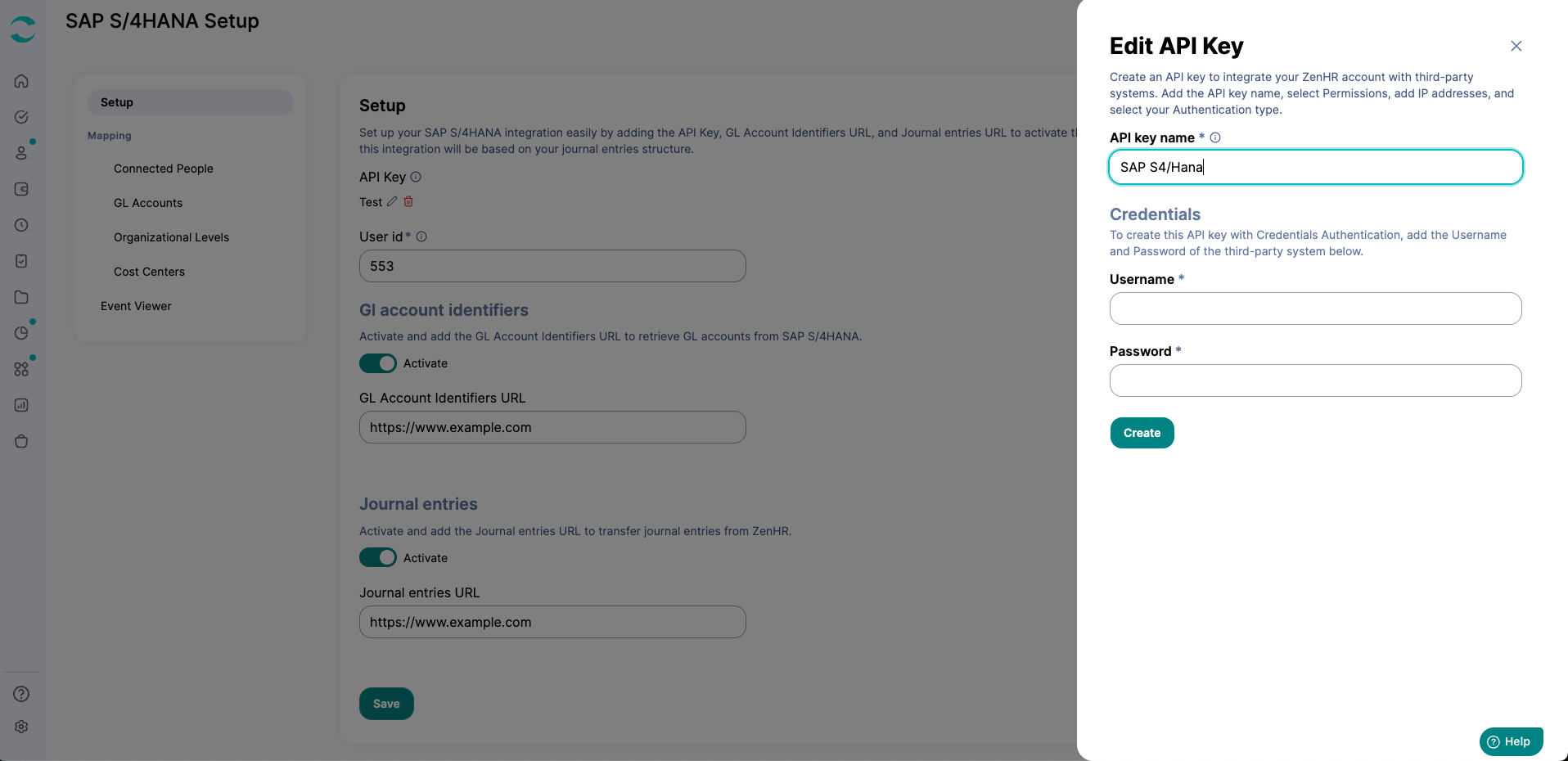
That’s it; your financial integration will now be complete! You can now post journal entries directly from ZenHR.
Using the SAP S/4HANA Integration:
Posting Salaries From ZenHR to SAP S/4HANA
To post salaries from ZenHR to SAP S/4HANA, follow these steps:
On the left side of the page, go to Main Menu → Payroll → Manage Financials → Manage Salaries.
Filter the desired salary year and month for all employees, and click “Filter”.
Then click “Send to SAP S/4HANA”, and your salaries will be transferred as journals.
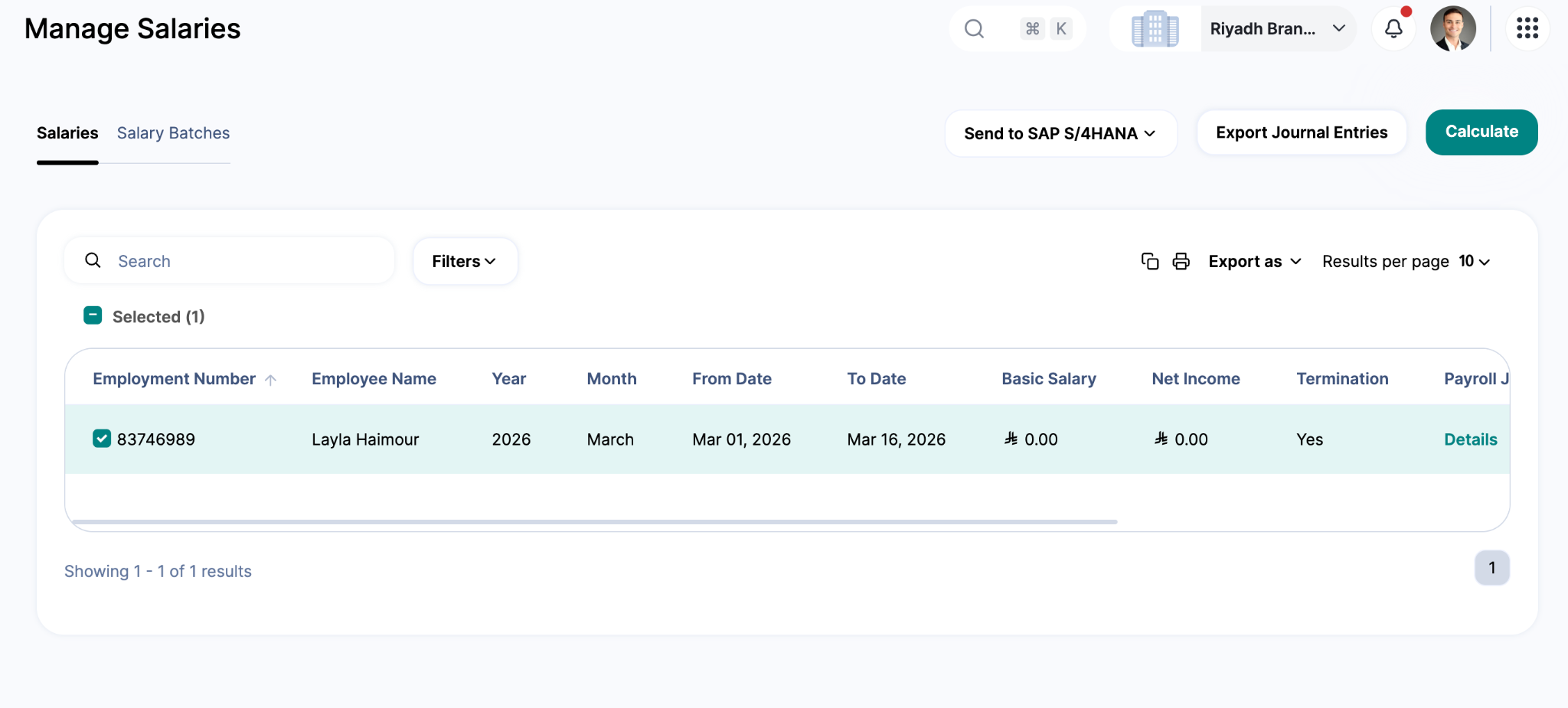
Posting Off-Cycle Payments From ZenHR to SAP S/4HANA
To auto-generate separate journals for off-cycle payments and post them with your payroll journal entries, follow these steps:
Go to Main Menu → System Preferences → Integration Setup → Journal Entries Structure.
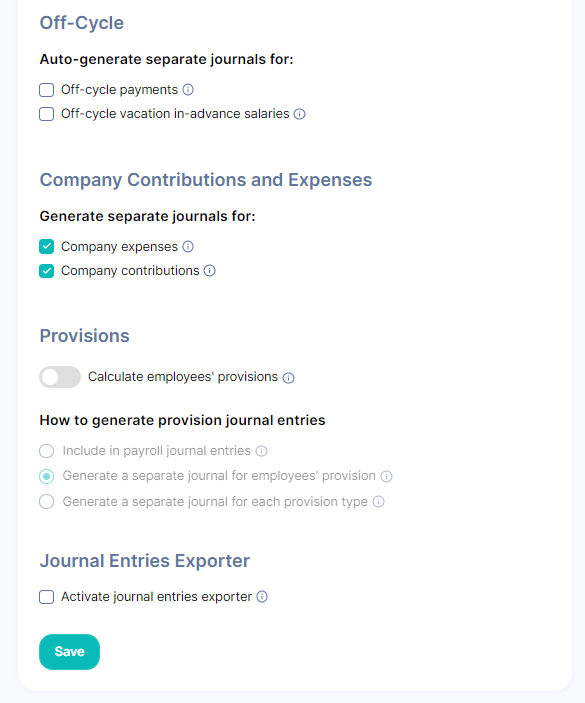
Activate the Auto-generate separate journals for off-cycle payments checkbox and click “Save”.
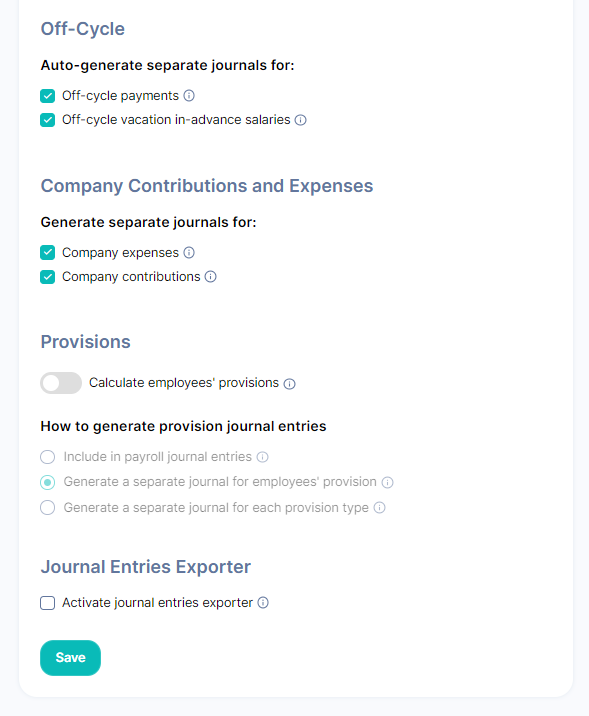
You can then post salaries from ZenHR to SAP S/4HANA, and the transferred journals will include separate journal entries for your off-cycle payments.
To manually generate your off-cycle payments journal entries, follow these steps:
Go to Main Menu → System Preferences → Integration Setup → Journal Entries Structure.
Clear the Auto-generate separate journals for off-cycle payments checkbox and click “Save”.
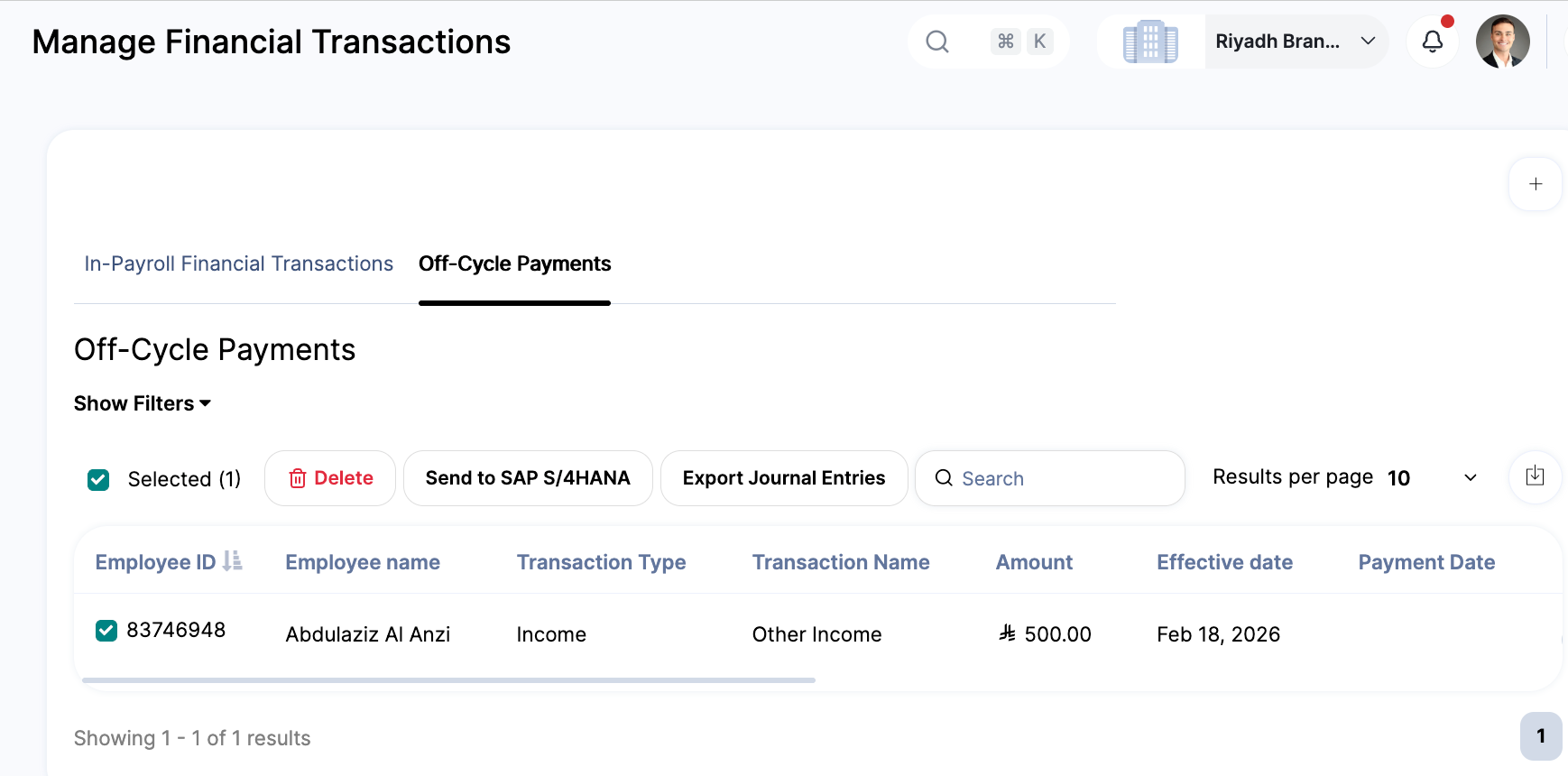
Go to Main Menu → Payroll → Manage Financials → Manage Financial Transactions → Off-Cycle Payments
Use the “Date from” and “to” filters to filter out the duration of the transactions you wish to include in your journal entries, and click “Filter”.
In the Employee ID column, select the transactions you wish to include in your journal entries.
Then click “Send to SAP S/4HANA”, and your off-cycle payments will be transferred as journals.
Post Off-Cycle Vacation In-Advance Salaries From ZenHR to SAP S/4HANA
To auto-generate separate journals for off-cycle vacation in-advance salaries and post them with your payroll journal entries, follow these steps:
Go to Main Menu → System Preferences → Integration Setup → Journal Entries Structure.
Activate the Auto-generate separate journals for off-cycle vacation in-advance salaries checkbox and click “Save”.
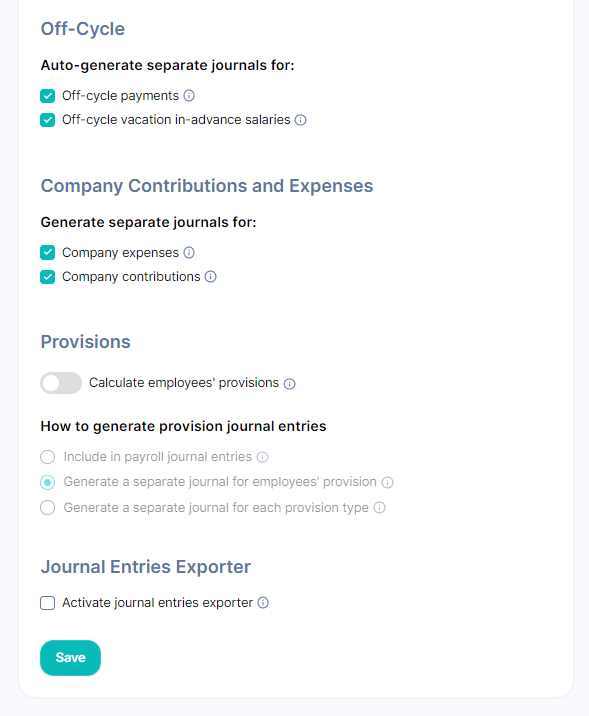
You can then post salaries from ZenHR to SAP S/4HANA, and the transferred journals will include separate journal entries for your off-cycle vacation in-advance salaries.
To manually generate your off-cycle vacation in-advance journal entries, follow these steps:
Go to Main Menu → System Preferences → Integration Setup → Journal Entries Structure.
Clear the Auto-generate separate journals for off-cycle vacation in-advance checkbox.
Then click “Save”.
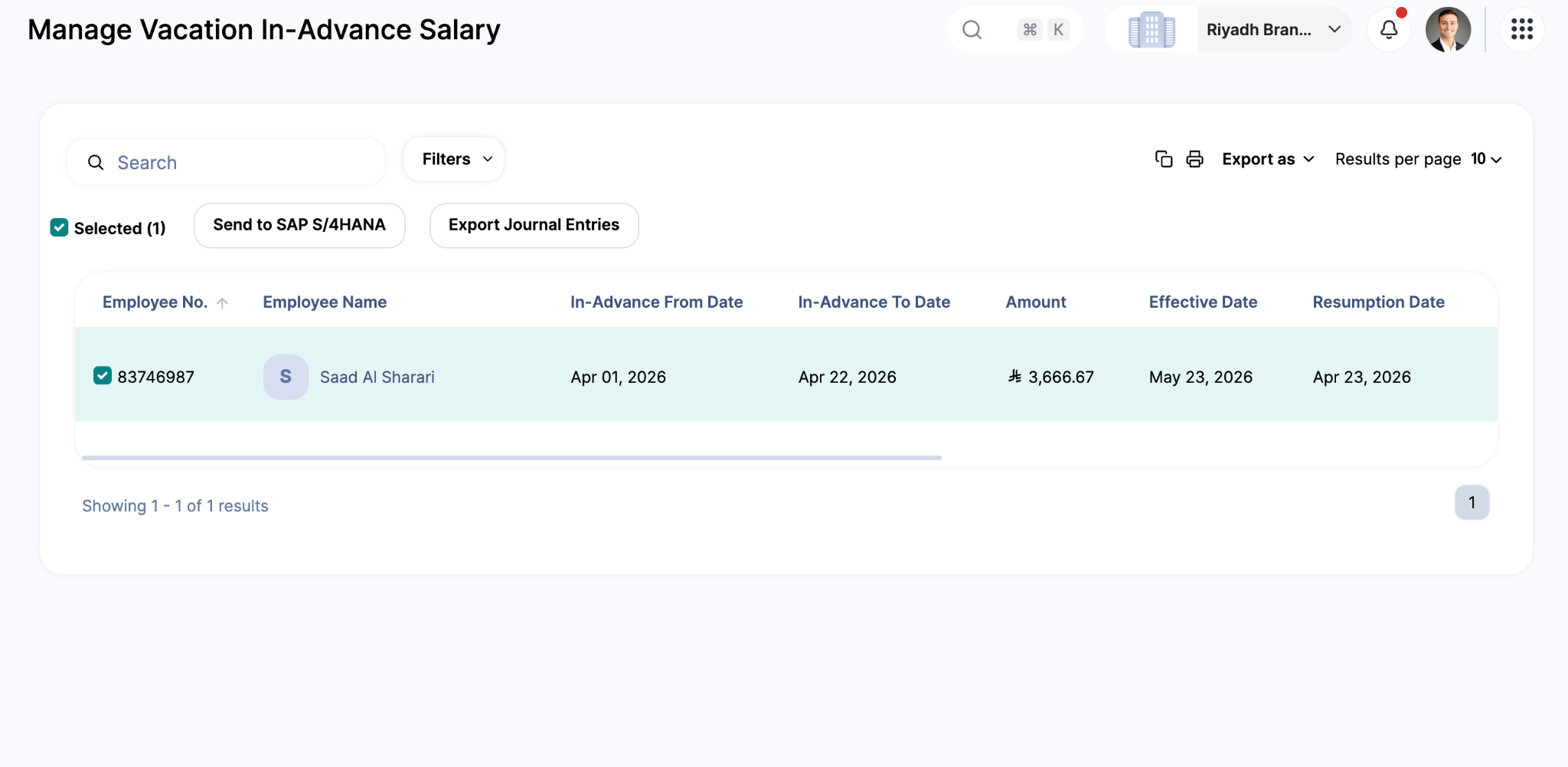
Go to Main Menu → Payroll → Manage Financials → Manage Vacation In-Advance Salary.
Filter out the vacation in-advance salaries that fall within a specific time period by using the “In-advance from date” and “In-advance to date” filters.
Select “Off-cycle” under Payroll status and click “Apply Filters”.
Then, under the Employee No. column, select the in-advance salaries you wish to include in your exported journal entries. Or you can select all the filtered salaries by clicking the “Select all” checkbox.
Then click “Send to SAP S/4HANA”, and your off-cycle vacation in-advance salaries will be transferred as journals.
Posting Provisions From ZenHR to SAP S/4HANA
To auto-generate journals for provisions and post them with your payroll journal entries, follow these steps:
Click your user icon in the upper right corner and go to System Preferences → Integration Setup → Journal Entries Structure.
Activate the Calculate employees' provisions toggle.
Activate the Auto-generate journal entries for employees' provisions toggle.
Then select the desired option under “How to generate provision journal entries”.
Click “Save”.
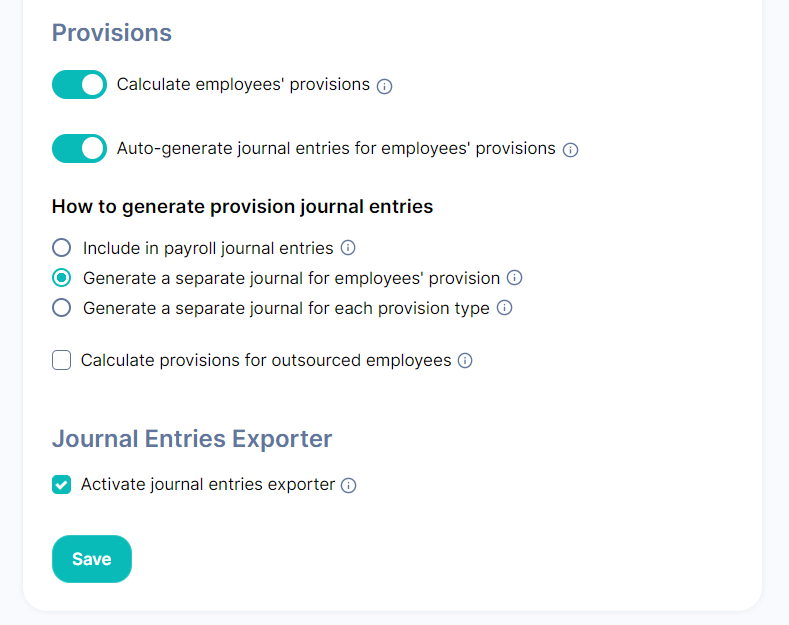
You can then post salaries from ZenHR to SAP S/4HANA, and the transferred journals will include journal entries for your provisions.
To manually generate provisions journal entries, follow these steps:
Go to Main Menu → System Preferences → Integration Setup → Journal Entries Structure.
Activate the Calculate employees' provisions toggle.
Deactivate the Auto-generate journal entries for employees' provisions toggle.
Then select the desired option under “How to generate provision journal entries”.
Click “Save”.
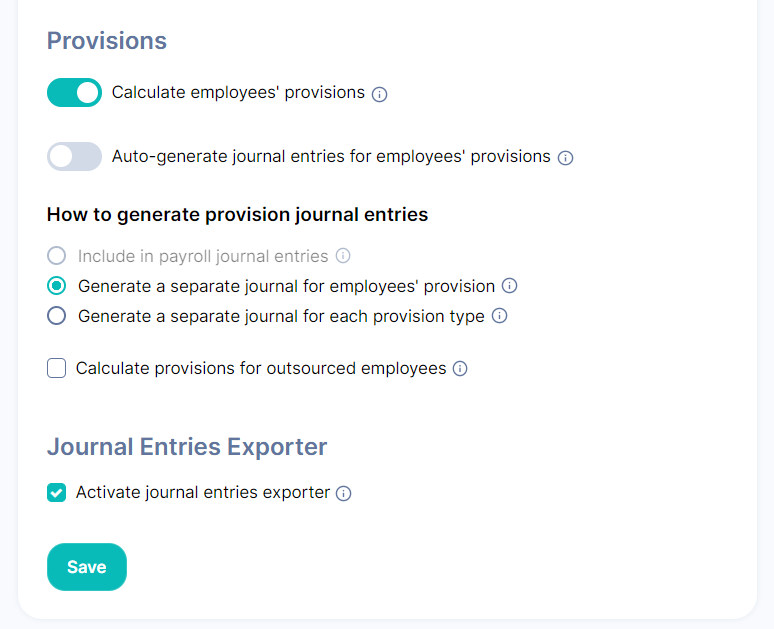
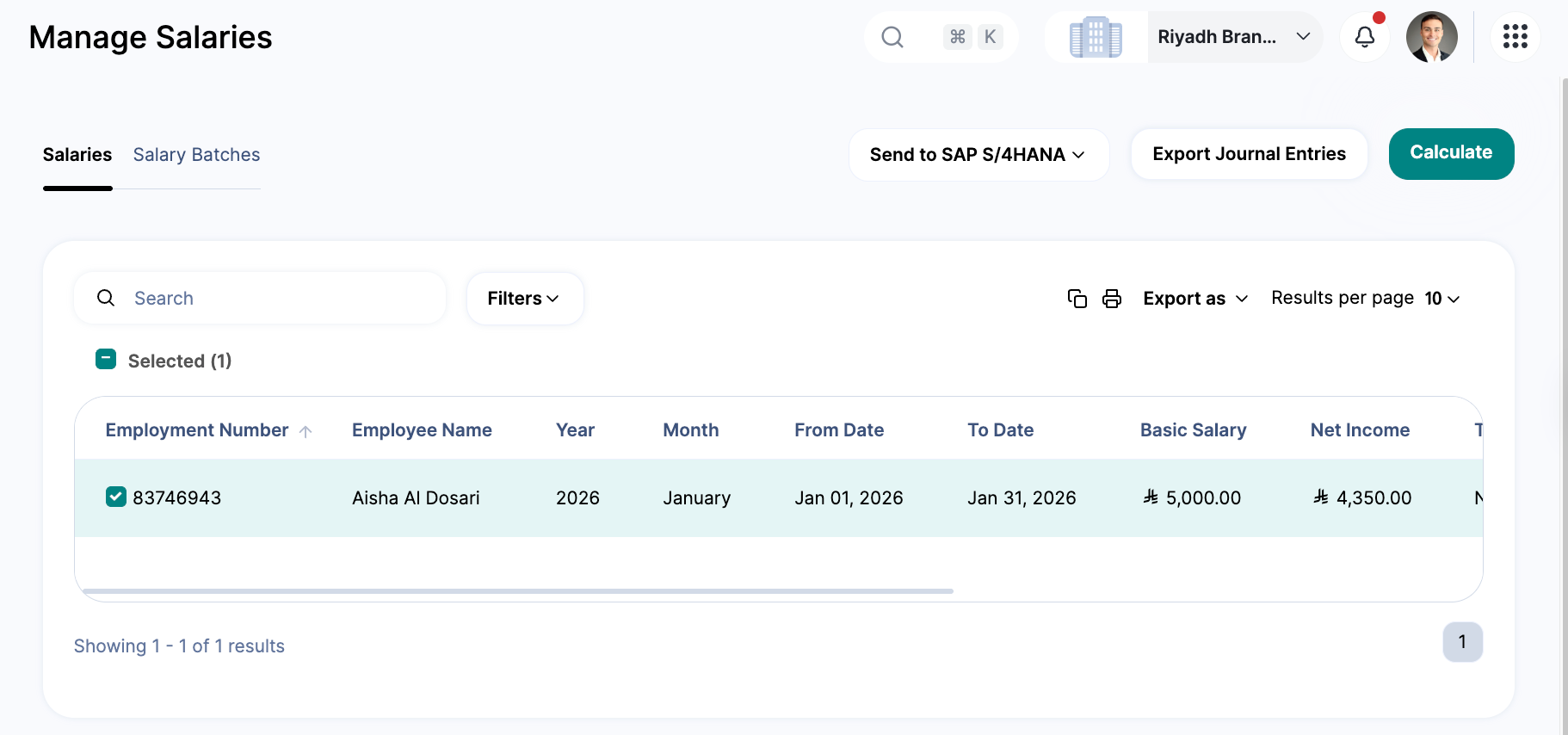
Then, on the left side of the page, go to Main Menu → Payroll → Manage Financials → Manage Salaries.
Enter the desired salary Year and Month for all employees, and click “Filter”.
Then click the“Send to SAP S/4HANA” drop-down menu and click on “Provisions journal entries,” and your provisions will be transferred as journals.
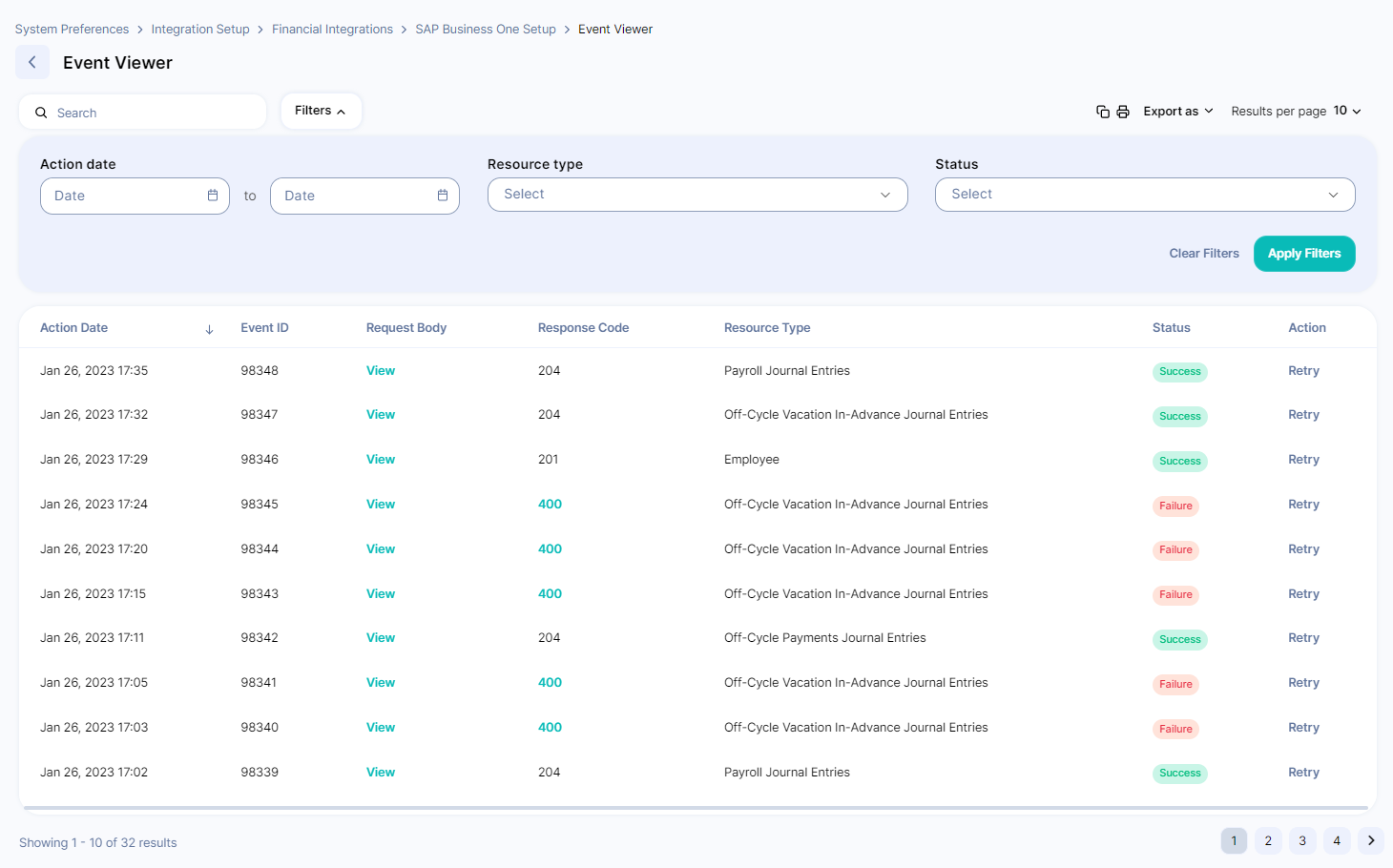
SAP S/4HANA Event Viewer
To view all events and retry sending failed posts, go to Main Menu → System Preferences → Integration Setup → Marketplace Integrations → ERP & Accounting Software → SAP S/4HANA.
On the Event Viewer page, click “Retry” to send journal entries again.
Was this article helpful?
That’s Great!
Thank you for your feedback
Sorry! We couldn't be helpful
Thank you for your feedback
Feedback sent
We appreciate your effort and will try to fix the article