Biometric Verification is a security feature in the ZenHR Mobile App that ensures only the right employee can clock in or out. When enabled by the admin, employees are required to authenticate using their device’s built-in biometrics, such as Face ID or fingerprint, or their phone’s passcode, before their attendance is recorded.
This extra verification step helps companies maintain accurate attendance data and prevents misuse, such as someone else clocking in on behalf of an employee.
The best part? There’s no extra setup needed on the admin’s side. As long as employees have biometrics enabled on their mobile devices, the system will automatically prompt them to verify their identity during each clock-in or clock-out.
Biometric Verification strengthens your company’s time-tracking process, giving you confidence that every recorded entry truly belongs to the correct employee.
Table of Contents
How to Enable Biometric Verification
Employee Experience (Mobile App Behavior)
Limitations & Notes
FAQ
How to Enable Biometric Verification
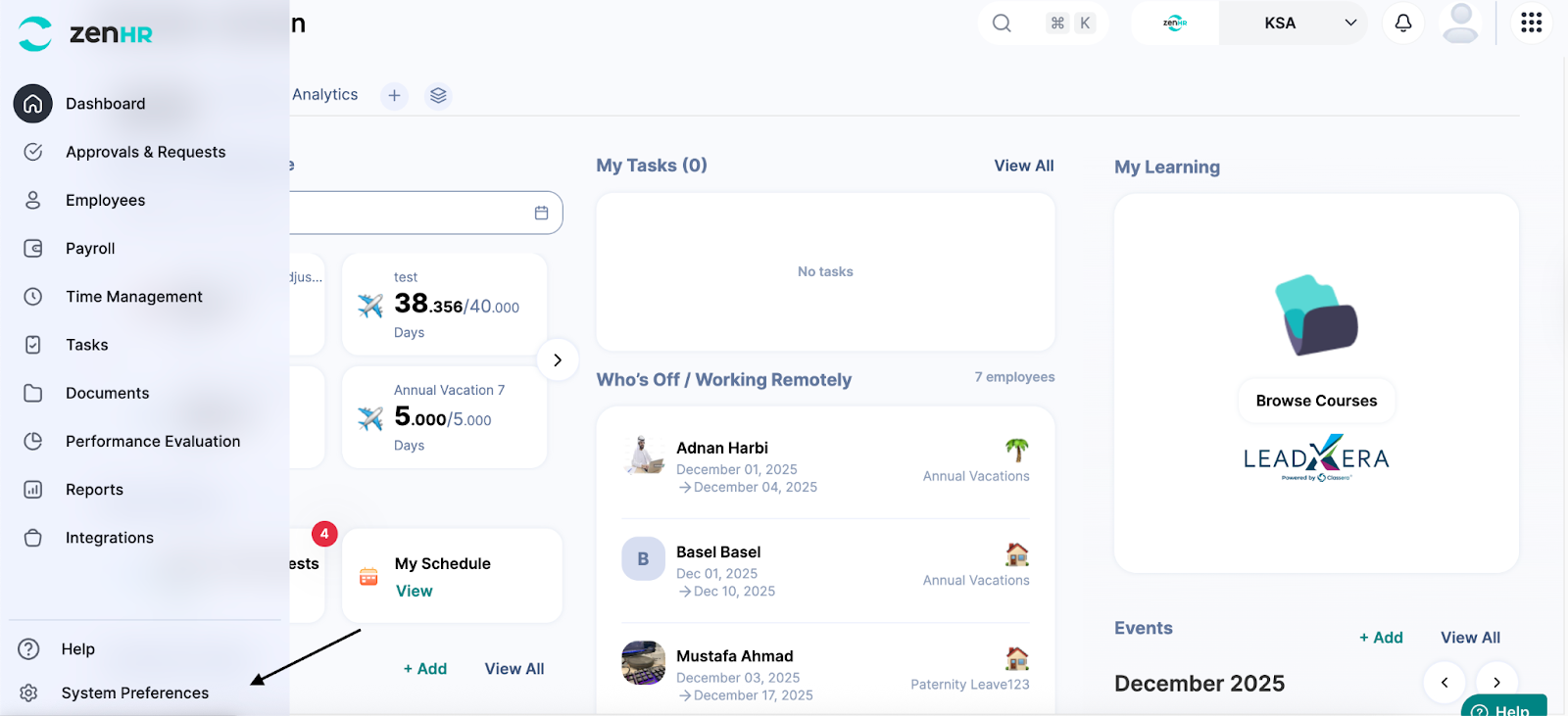
From the ZenHR Dashboard.
Go to the Main Menu on the left side of the screen.
Then click on “System Preferences”.
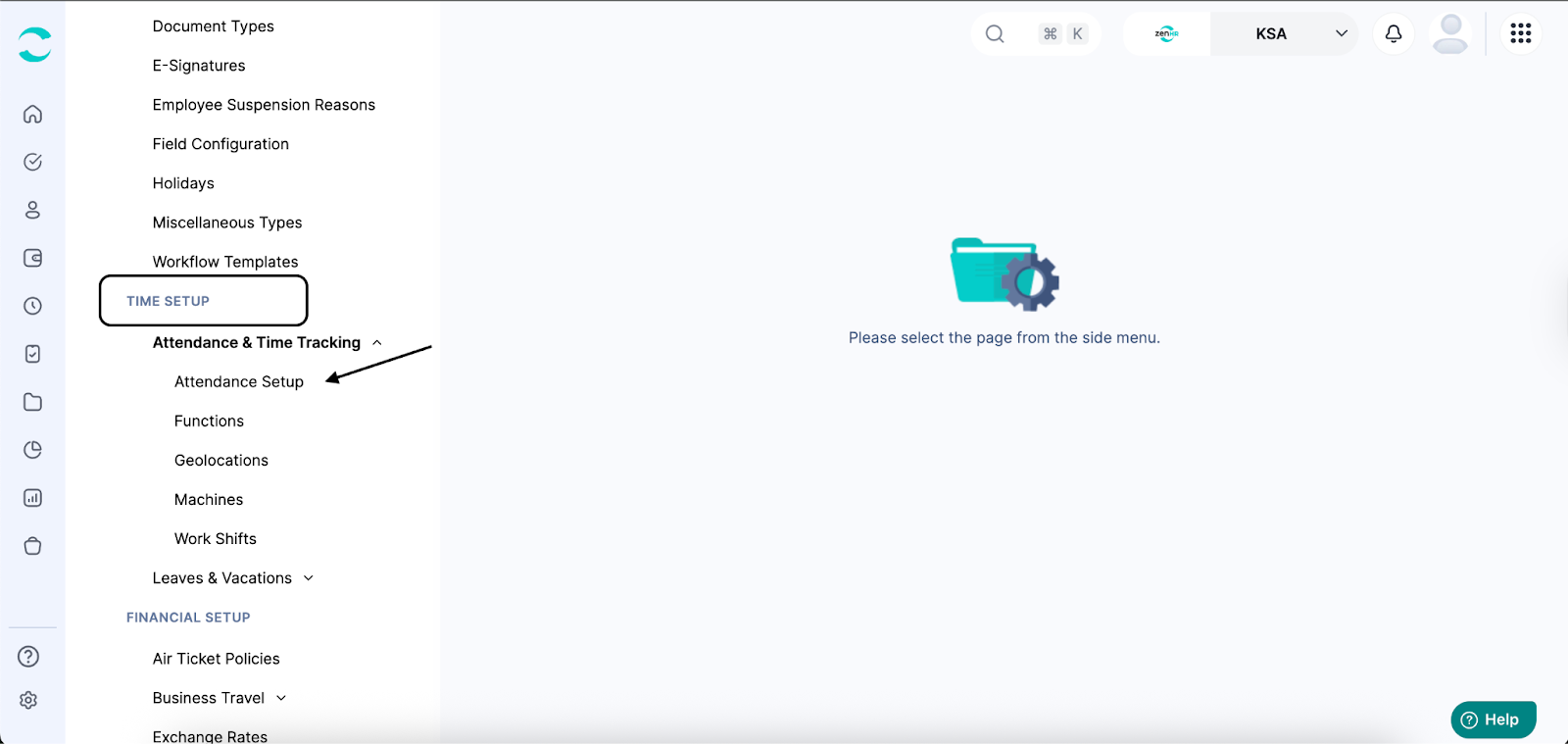
Go to Time Setup.
Under Attendance & Time Tracking, click “Attendance Setup”.
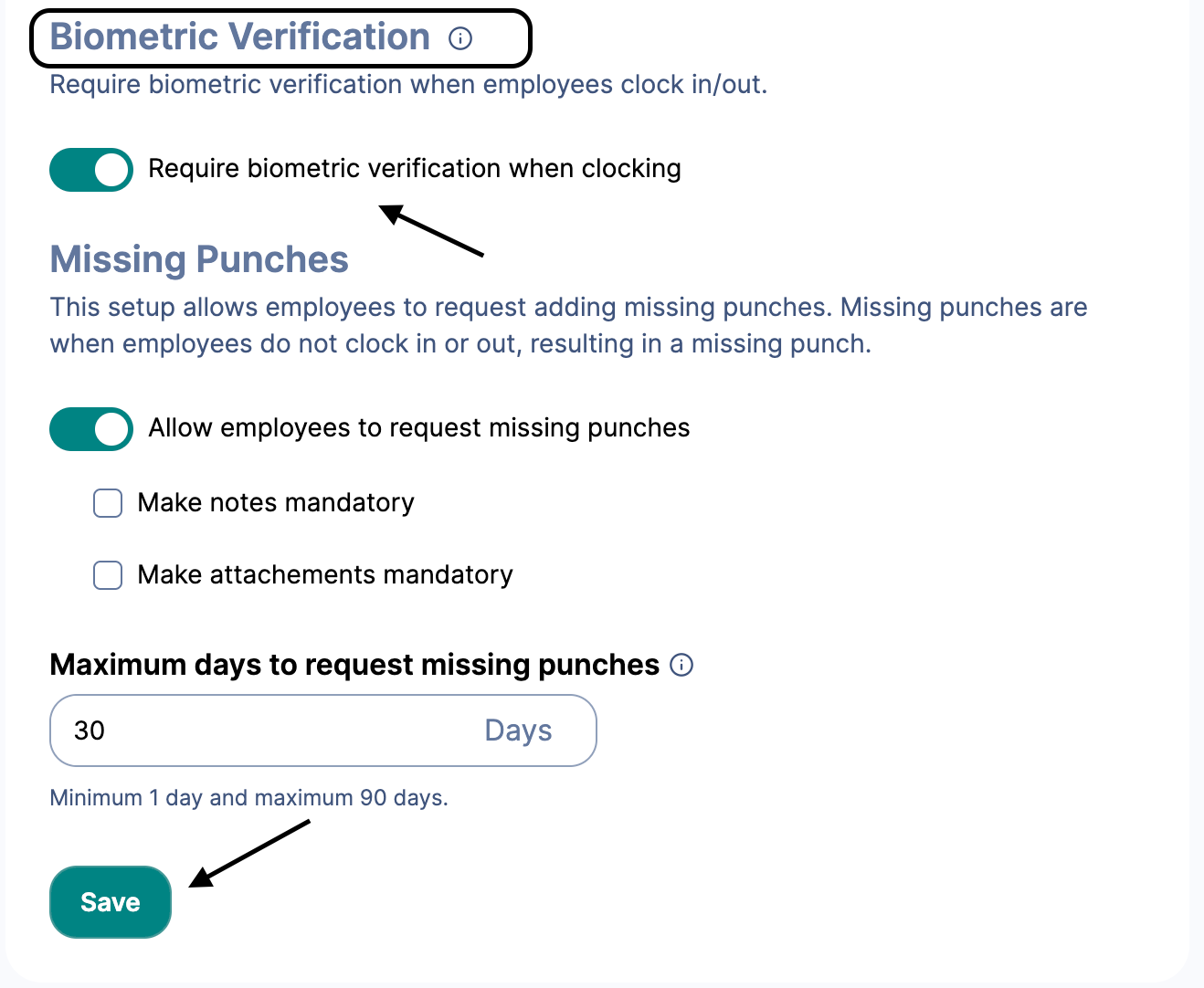
Then scroll down until you find Biometric Verification.
Enable the toggle “Require biometric verification when clocking.”
Once enabled, the setting takes effect immediately for all employees.Then click “Save”.
Employee Experience (Mobile App)
Once enabled, every clock-in and clock-out must be authenticated using biometrics or a passcode, depending on the device.
Employee opens the ZenHR Mobile App.
Tap Clock In or Clock Out.
If biometrics are active on the device:
The phone requests Face ID, fingerprint, or Passcode
After successful verification, they are then successfully clocked in/out.
Important Notes:
Biometric prompts appear only for employees with biometrics or Passcode enabled on their devices.
ZenHR does not store or process biometric data; this is handled by the device operating system.
This feature does not replace other attendance rules (such as geolocation or Wi-Fi restrictions).
FAQs
Q1: Will all employees have to use biometrics?
Only employees with biometrics or a Passcode enabled on their device will be prompted.
Q2: What if the employee’s device does not support biometrics or Passcode?
Clocking in and out will proceed normally without biometric verification.
Q3: Does ZenHR store or collect fingerprint or face data?
No. All verification is handled by the device.
Was this article helpful?
That’s Great!
Thank you for your feedback
Sorry! We couldn't be helpful
Thank you for your feedback
Feedback sent
We appreciate your effort and will try to fix the article