Vacation In-Advance allows employees to receive their salary for approved vacation days before their regular payroll date.
The Vacation In-Advance Salary calculation has now been redesigned to make the process clearer and easier to manage. You can also connect the process to an approval cycle, allowing vacation in-advance salary slips to be reviewed and approved before the payment amount is finalized.
HR teams can:
Require approval before finalizing vacation in-advance salary slips.
Create a dedicated approval committee for vacation in-advance salary batches.
Calculate vacation in-advance salaries using a clearer screen with improved payment and transaction settings.
To access these settings, go to:
Main Menu → System Preferences → Financial Setup → Vacation In-advance Salary Setup
A. Approval Setup
1. Require Approval Before Finalizing
A new toggle, “Require approval after calculating in-advance salaries,” controls whether a vacation in-advance salary slip needs approval. When this toggle is on, the slip must be sent to an approval committee after it's calculated, and the amount isn't finalized until the committee approves it. When it's off, the slip is finalized as soon as it's calculated, with no approval step.
How to Require Approval on In-Advance Salaries
Go to Main Menu → System Preferences → Financial Setup → Vacation In-advance Salary Setup.
Under “Approval Cycle,” turn on “Require approval after calculating in-advance salaries.”
Click “Update.”
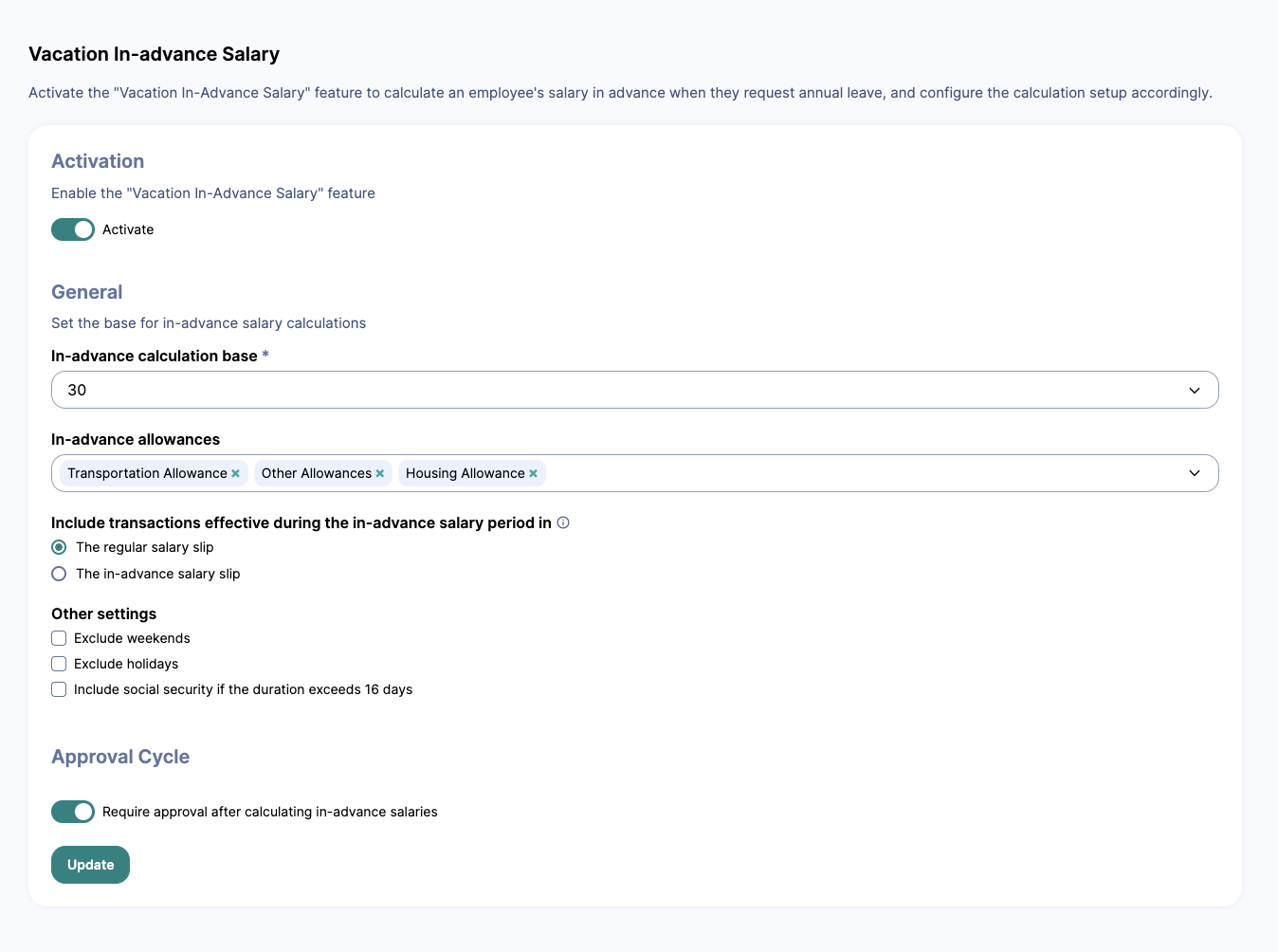
Note: If this toggle is left off, vacation in-advance salary slips are finalized without going through an approval committee.
2. Set Up the Approval Committee
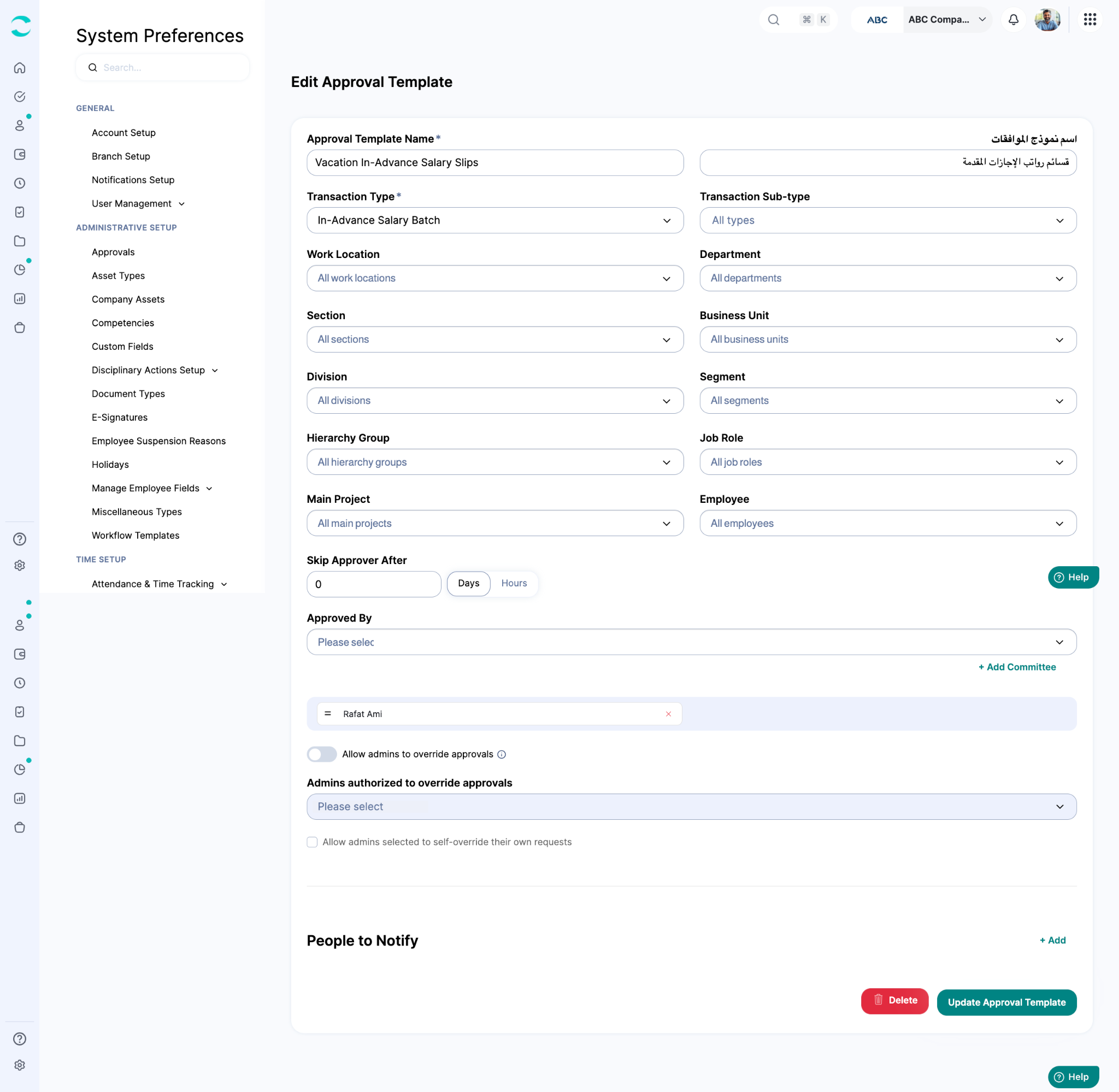
Turning on the approval toggle doesn't set up who approves the slip; that requires a separate approval template for the “In-Advance Salary Batch” transaction type, listing who's on the approval committee.
For example, a company may want its Finance Manager and HR Director to both sign off on a vacation in-advance salary batch before it's paid out.
How to Create the Approval Template
Go to Main Menu → System Preferences → Administrative Setup → Approvals.
Click “+ Add.”
Enter a clear name for the template, such as “Vacation In-Advance Salaries.”
Set “Transaction Type” to “In-Advance Salary Batch.”
Under “Approved By,” click “+ Add Committee” and select the approval committee members.
Click “Create Approval Template.”
Once the template is created, every vacation in-advance salary batch sent for approval will route to the committee members selected here.
B. Calculating and Approving Vacation In-Advance Salaries
1. Redesigned Calculation Screen
The screen used to calculate a vacation in-advance salary has been redesigned. On this screen, HR sets:
The in-advance period: the number of days the employee will be paid in advance.
The effective date: the date from which the in-advance salary calculation applies.
The in-advance payment method: whether the in-advance amount is included in the employee's regular salary slip or paid separately.
Where one-time transactions that fall within the in-advance period should appear.
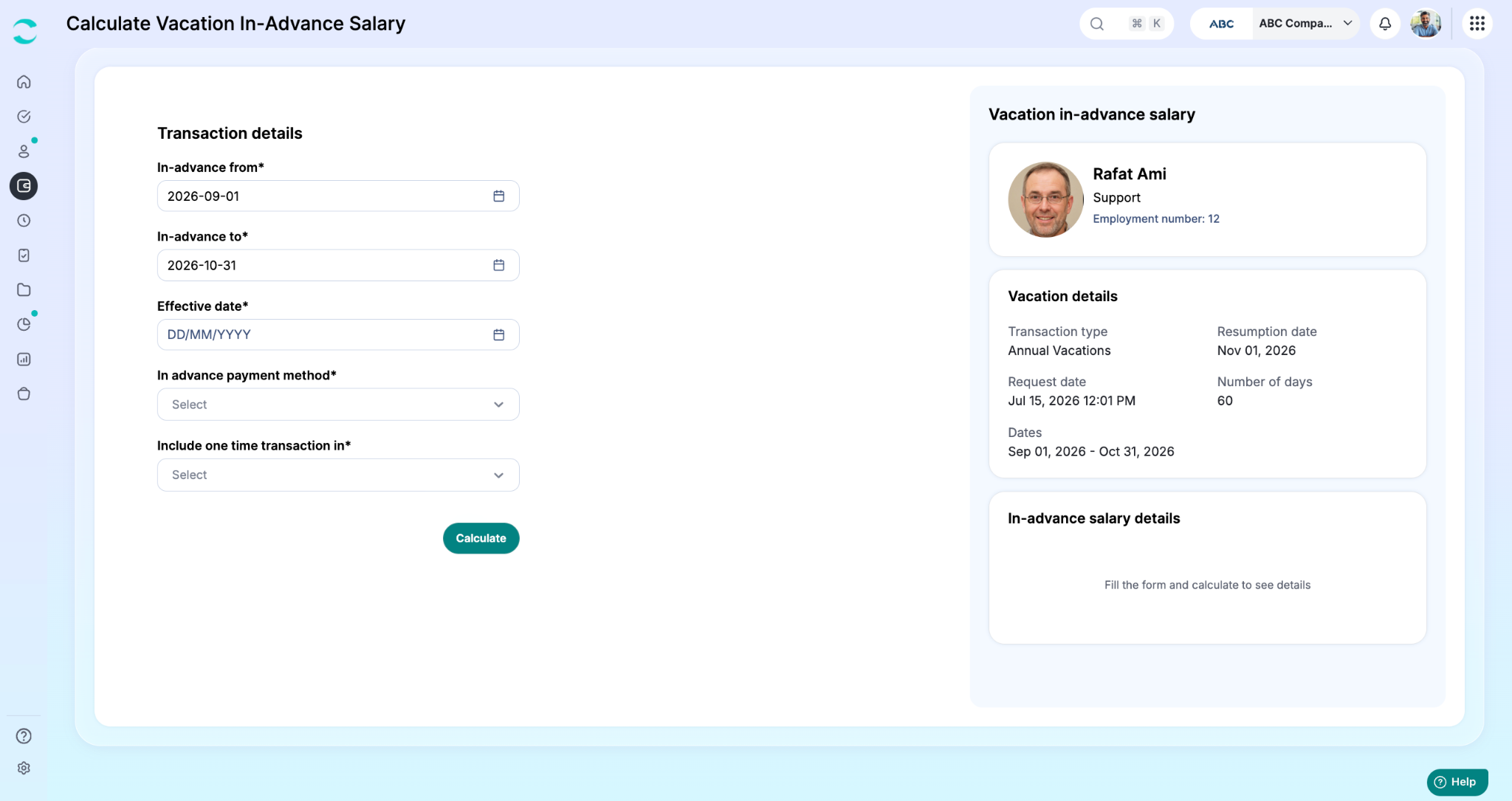
Once these details are set, click "Calculate."
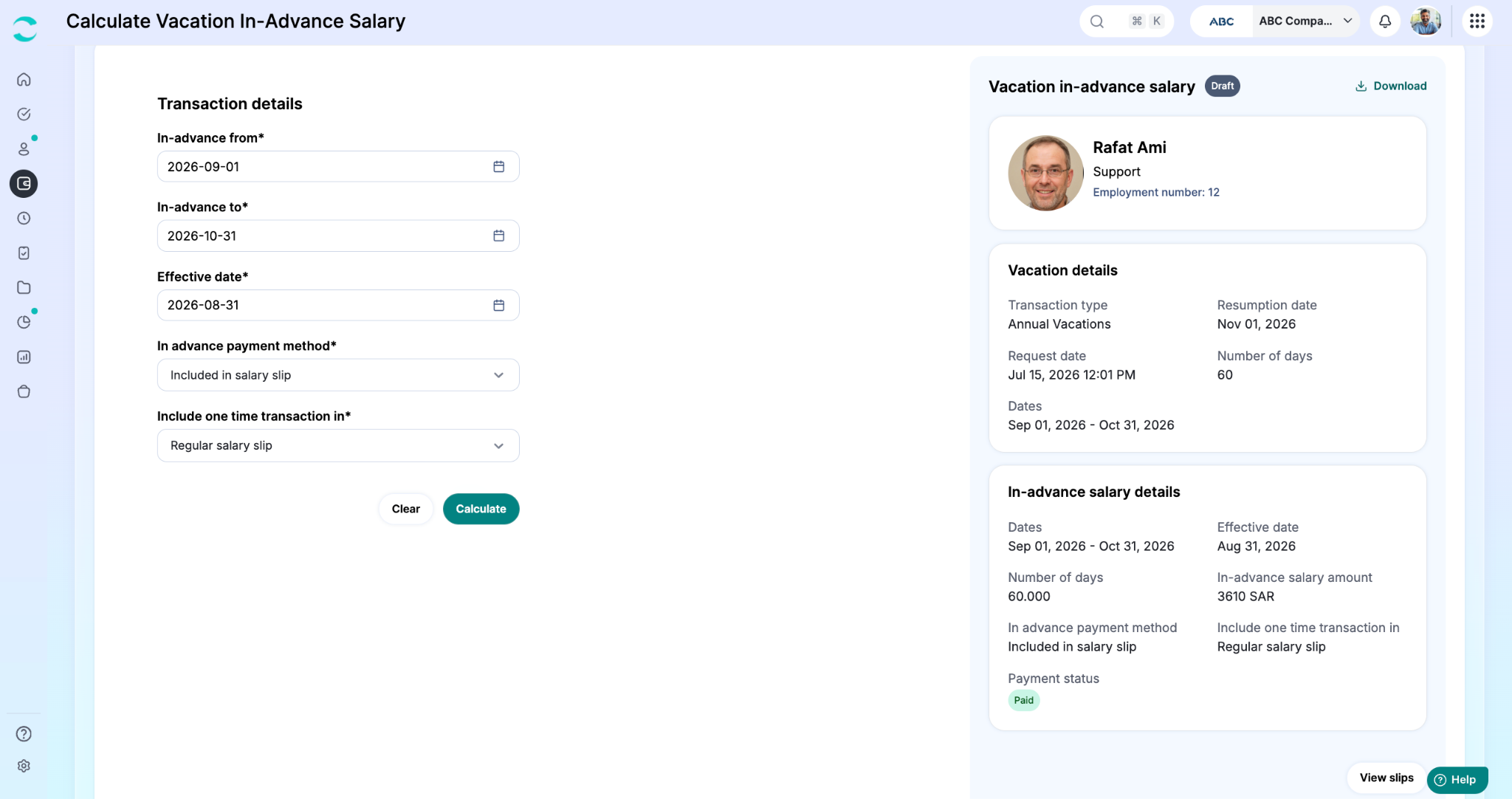
The vacation in-advance salary slip is generated on the right side of the page. It can be downloaded from the “Download” button at the top right, or opened from “View slips” at the bottom left.
2. Sending the Slip for Approval
If the approval toggle described in Section A is on, the calculated slip has to be sent to the approval committee before the amount is finalized.
How to Send a Slip for Approval
From the calculated slip, click “View slips.”
Click “Send to approval.”
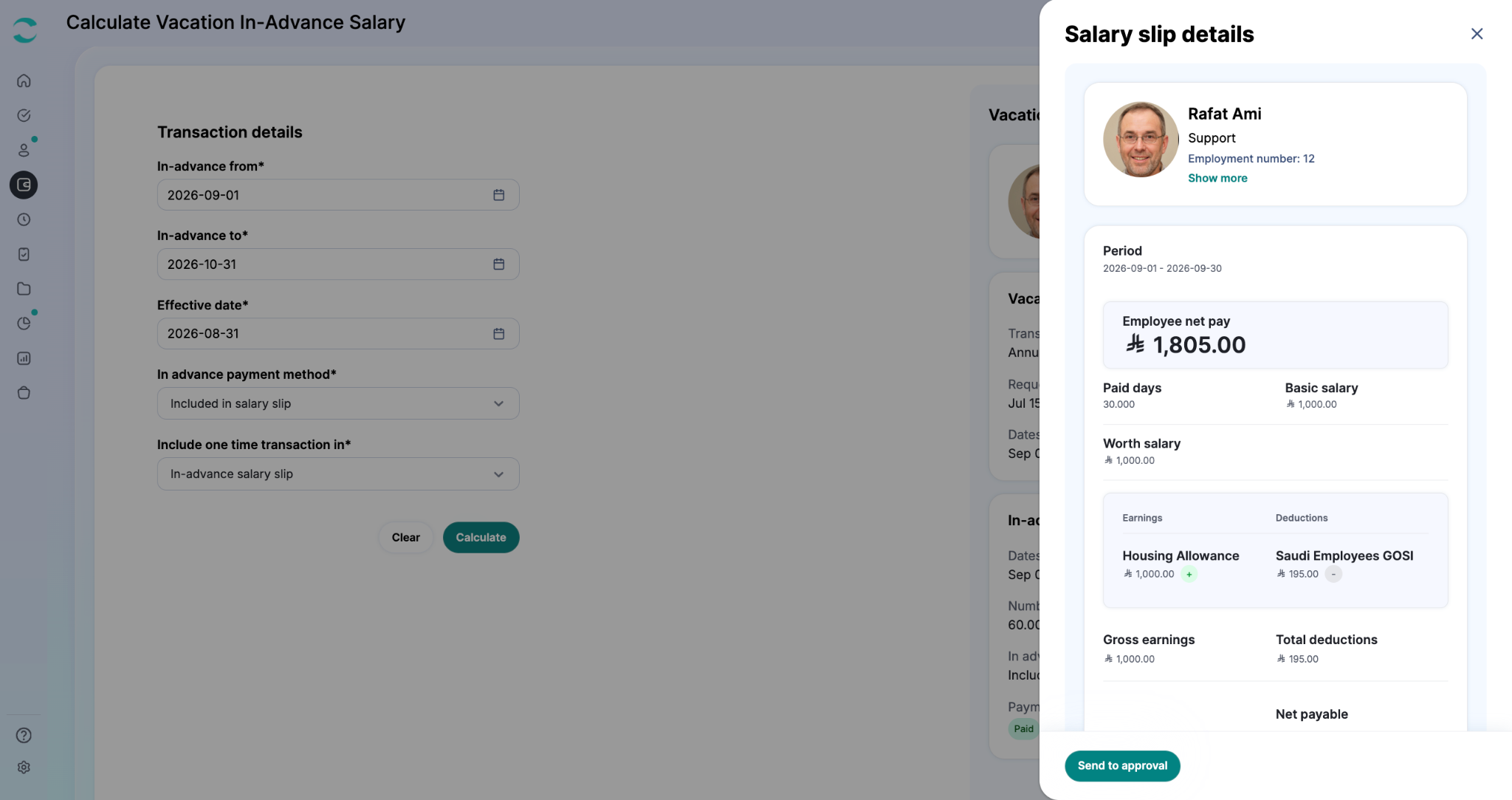
The slip is sent to the committee set up in the approval template. Committee members see it under Approvals & Requests → In-Advance Salaries, where they can review the details and either approve or reject it.
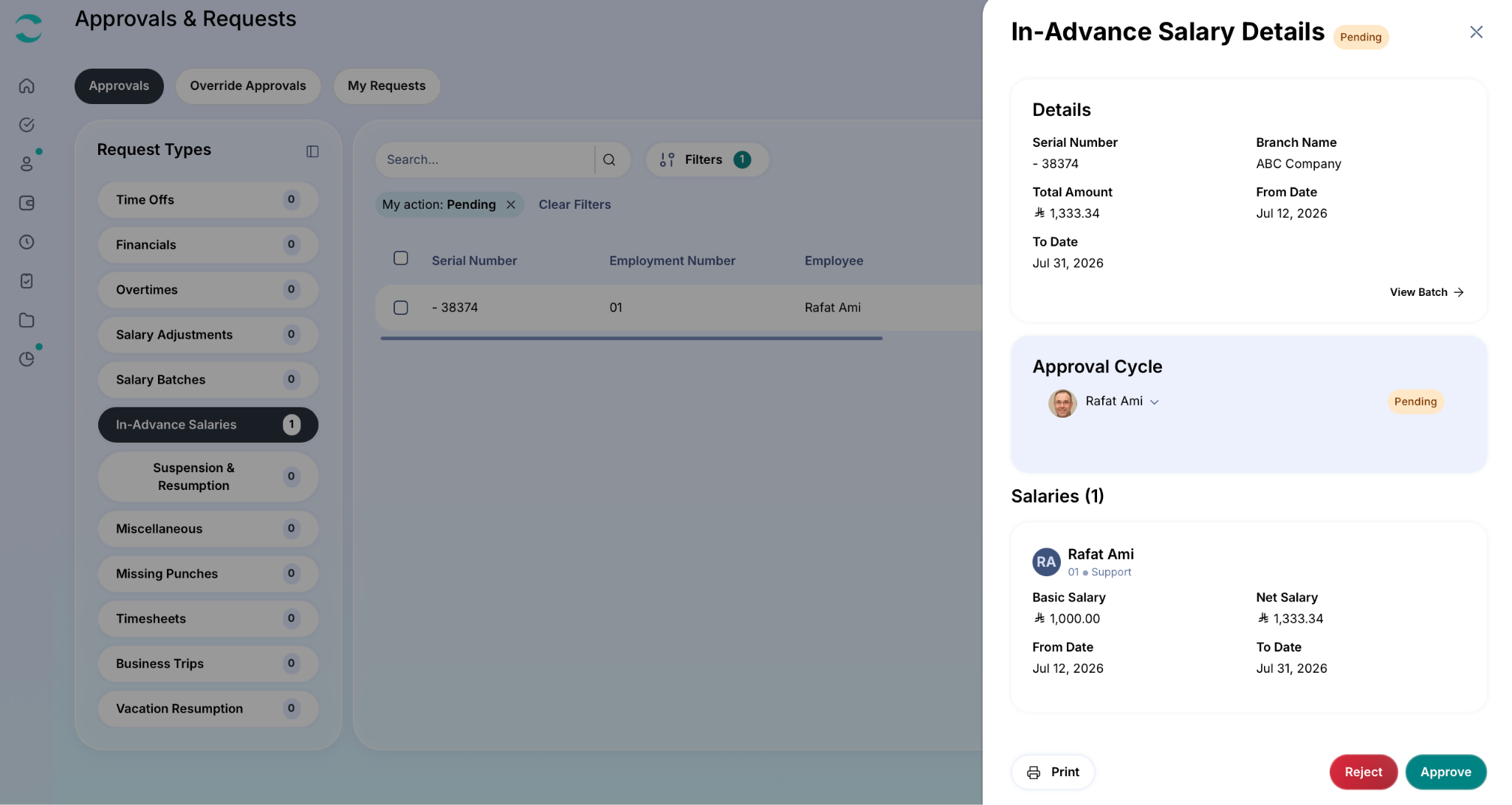
Note: If the approval toggle is off, this step doesn't apply — the slip is finalized directly after calculation.
Was this article helpful?
That’s Great!
Thank you for your feedback
Sorry! We couldn't be helpful
Thank you for your feedback
Feedback sent
We appreciate your effort and will try to fix the article