Admins can stop an employee’s salary directly from their profile. When a salary is stopped, the employee is excluded from future payroll runs until the salary is reactivated.
This can be useful when an employee’s salary needs to be temporarily placed on hold, such as while an unexcused absence is being reviewed.
Admins can:
Stop an employee’s salary from their profile and add a required reason.
View who stopped the salary, when it was stopped, and the reason from the alert banner on the employee’s profile.
Filter employees by Salary Status on the Employee Management page.
Resume a stopped salary at any time to include the employee in payroll again.
How to Stop an Employee's Salary
ZenHR Dashboard → Employees → Employee Management
Click the employee's name to open their profile.
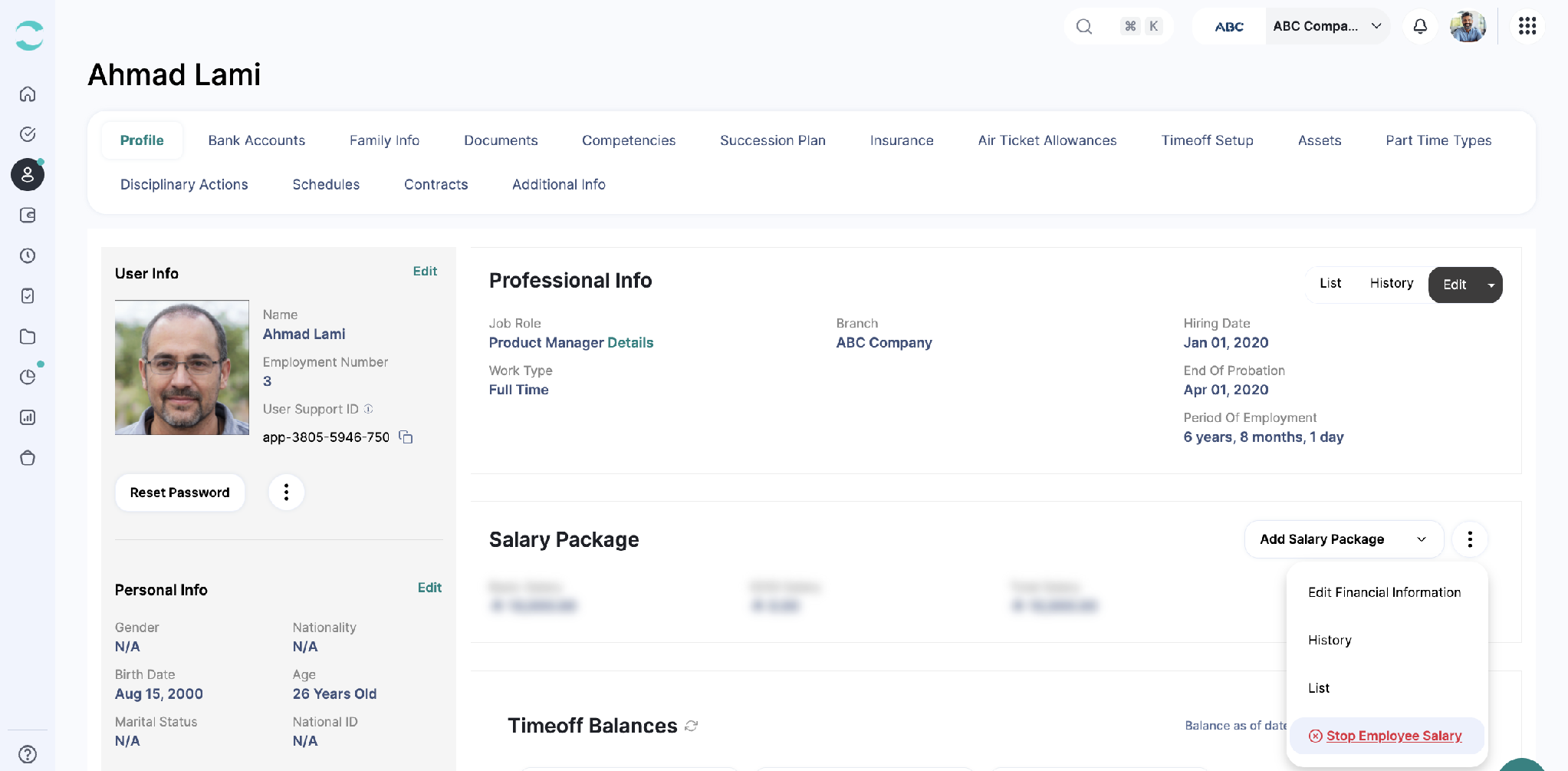
Next to Salary Package, click “⋮” for more options.
Then click “Stop Employee Salary.”
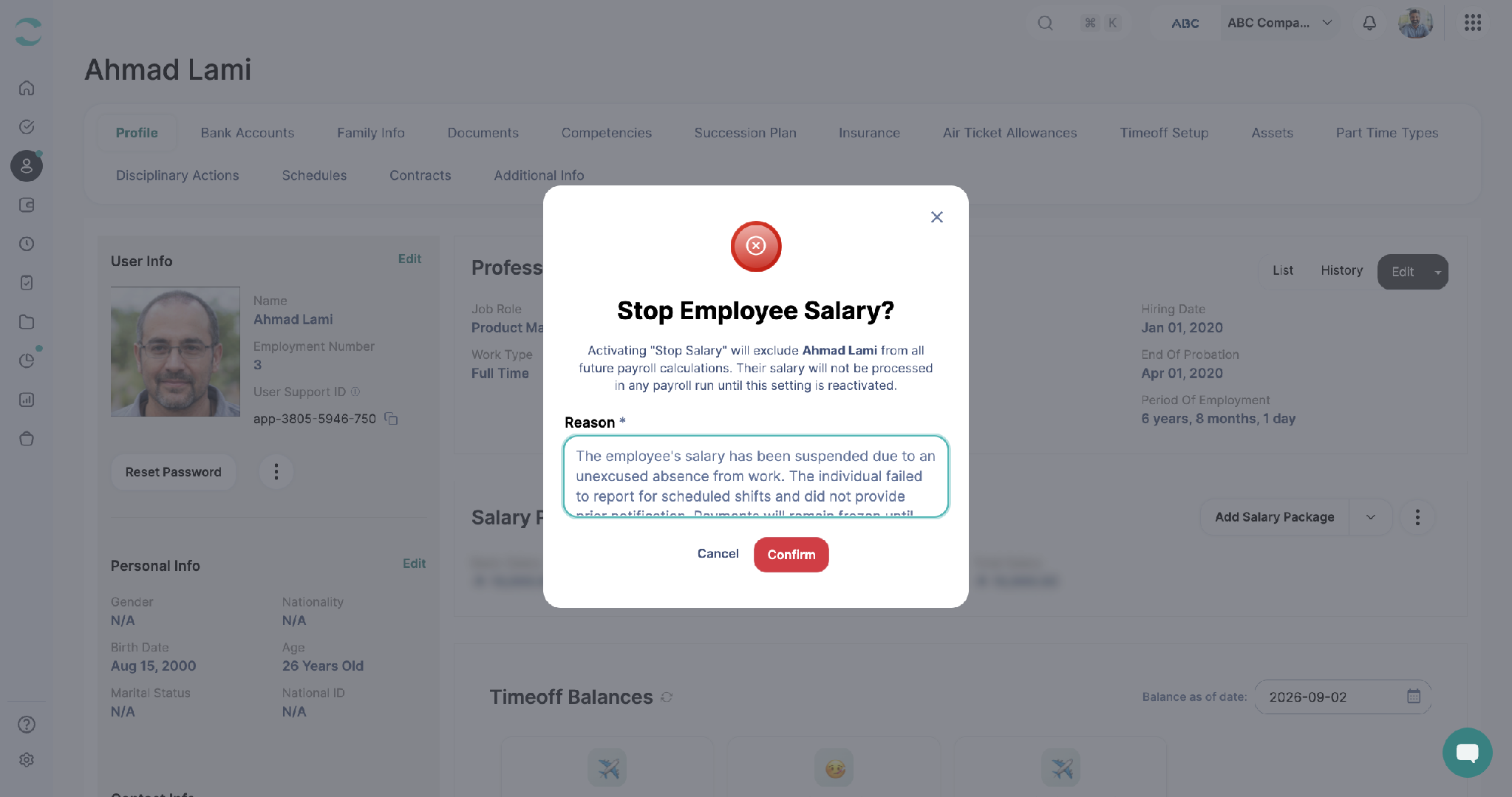
Enter a Reason. This field is required; the text is saved for the record and shown later in the Salary Stop Details.
Click “Confirm.”
Once confirmed, the employee is excluded from every future payroll run until their salary is resumed.
Salary Stop Alert on the Employee Profile
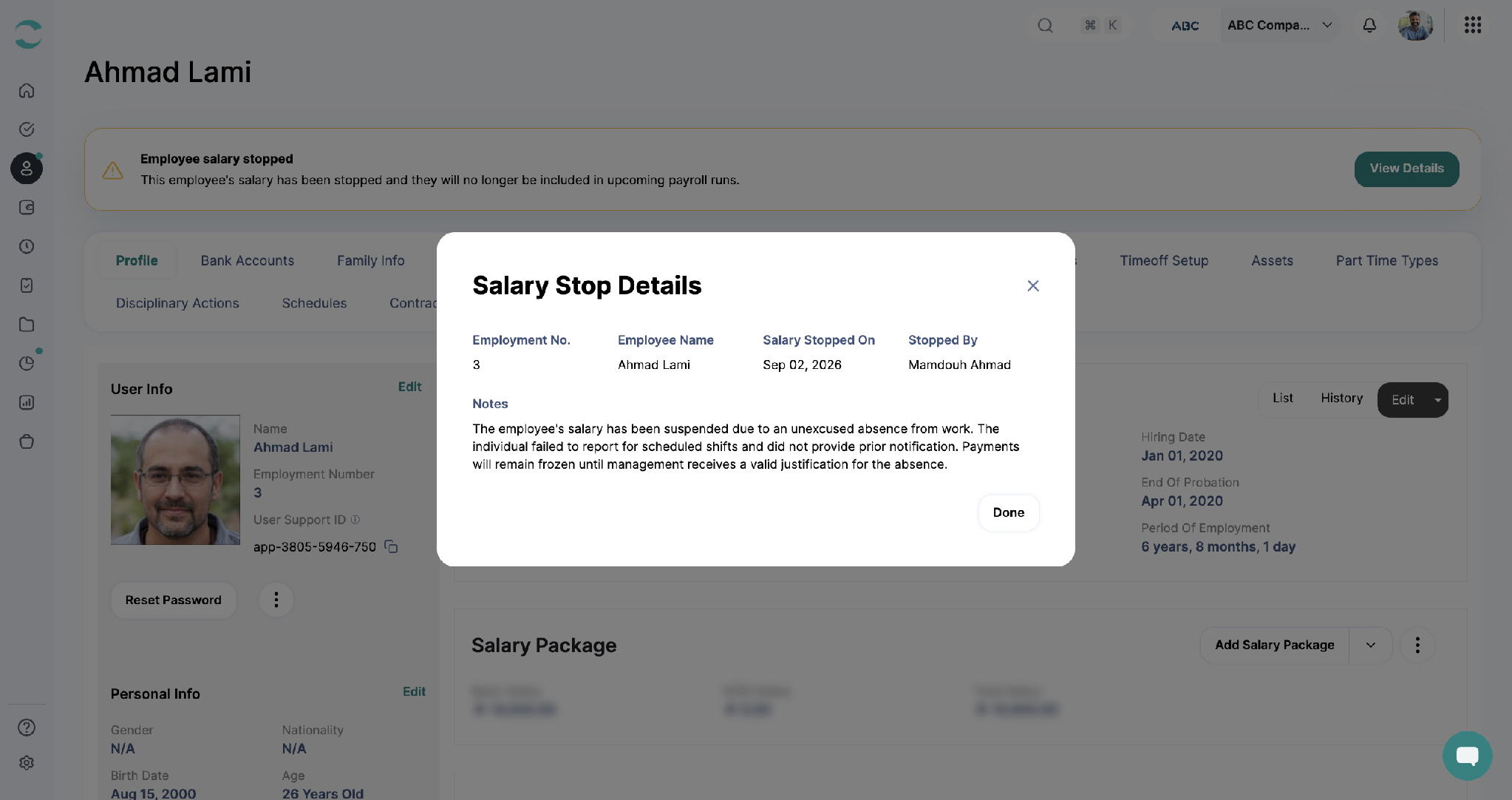
An alert banner appears at the top of the employee's profile: “Employee salary stopped.” This banner is visible only to admins with financial access.
Clicking “View Details” on the banner opens the Salary Stop Details window, showing the Employment No., Employee Name, Salary Stopped On date, who stopped it (Stopped By), and the Notes (the reason that was entered when the salary was stopped).
Note: The employee is not notified and cannot see anywhere in their account that their salary was stopped.
Filtering Employees by Salary Status
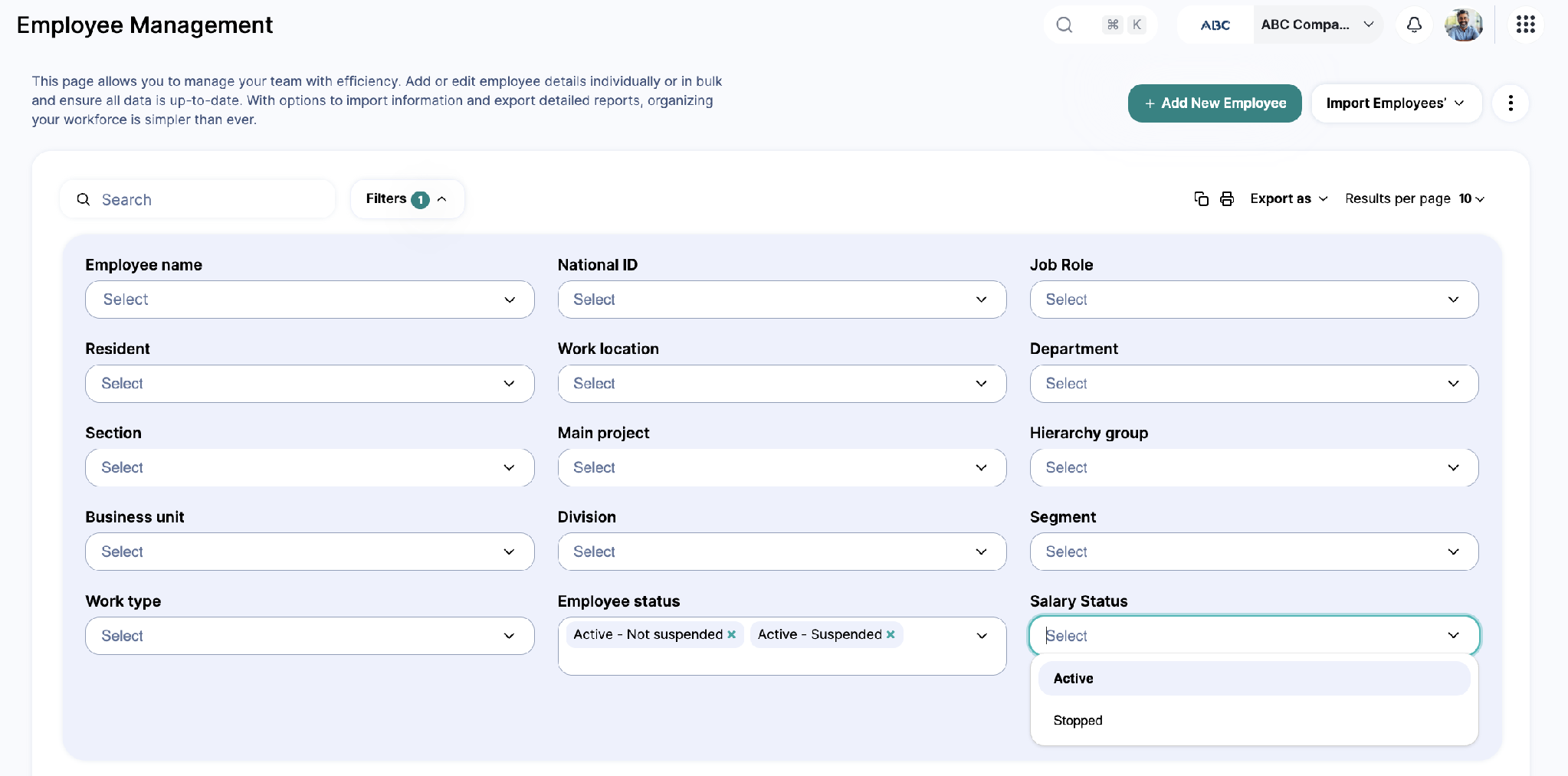
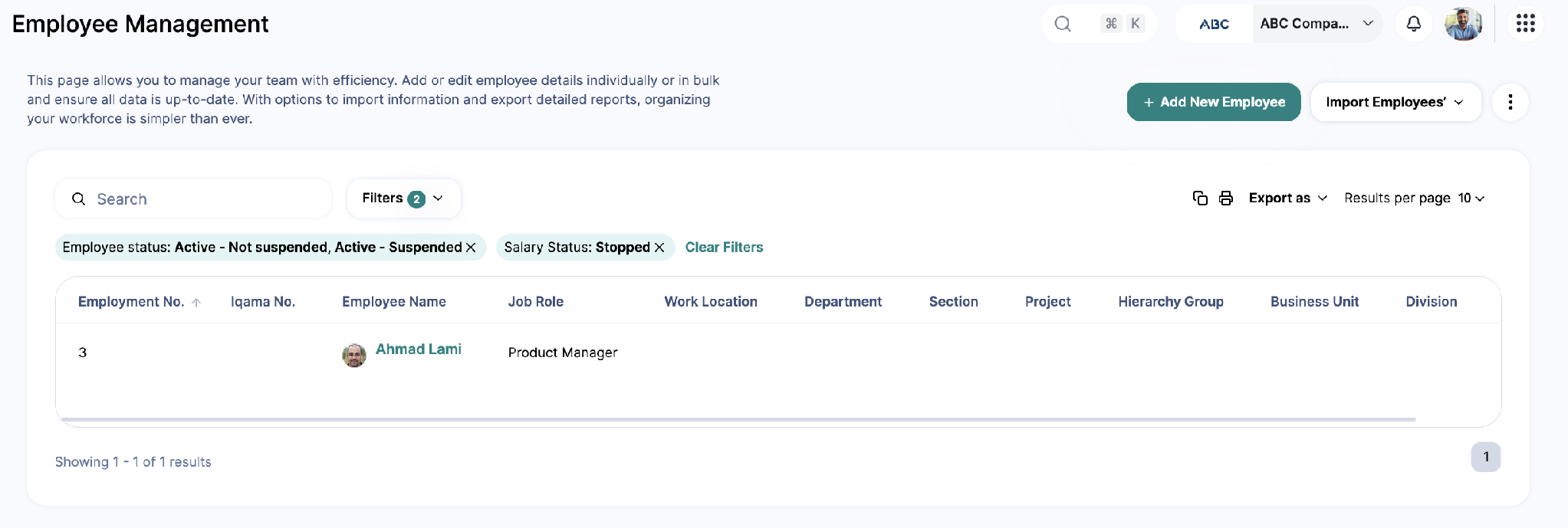
The Employee Management page now has a Salary Status filter, so admins can list employees whose salary is Active or Stopped.
On the Employee Management page, click “Filters.”
Under Salary Status, select “Active” or “Stopped.”
The list updates to show only employees matching the selected status.
Salary Stop Alert on Manage Salaries
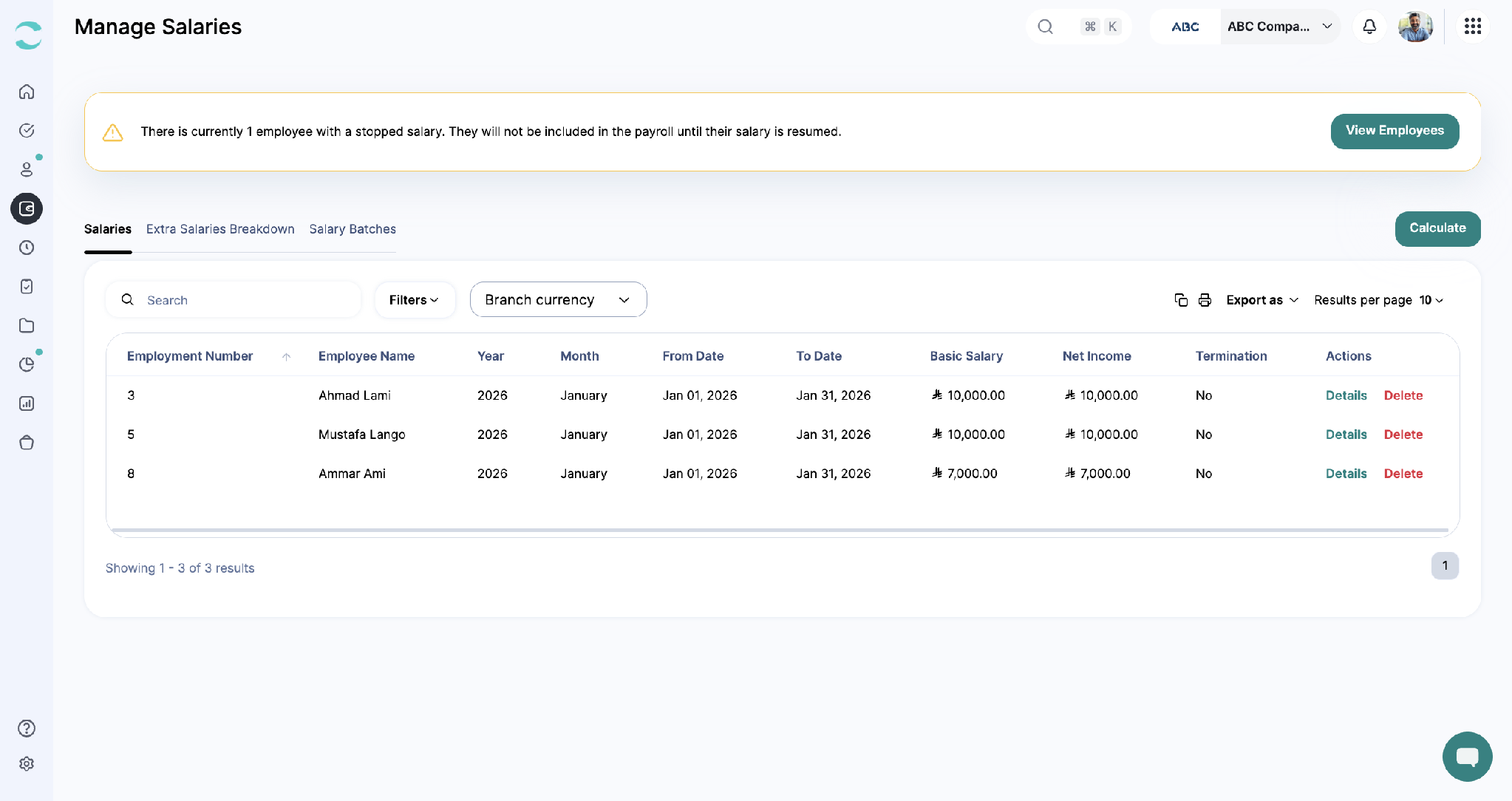
The Manage Salaries page shows an alert whenever any employee currently has a stopped salary, for example:
“There is currently 1 employee with a stopped salary. They will not be included in the payroll until their salary is resumed.”
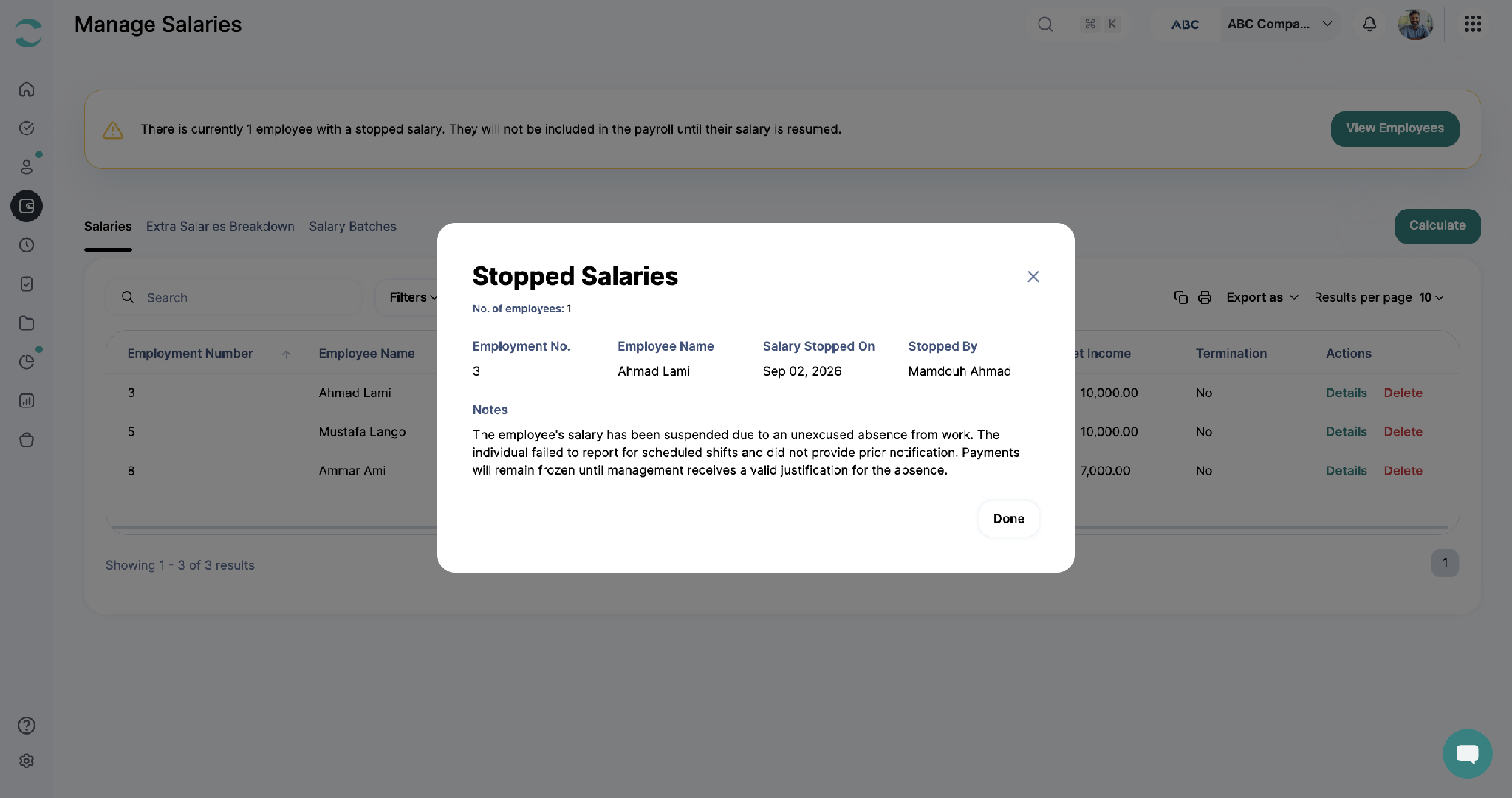
Clicking “View Employees” opens the Stopped Salaries window, listing the same details as the profile banner: Employment No., Employee Name, Salary Stopped On, Stopped By, and Notes, for every employee with a stopped salary.
Impact on Salary Calculations
A stopped salary blocks:
Regular salary calculations.
Extra salary calculations.
If an admin tries to calculate either one for an employee whose salary is stopped, the system blocks the calculation and shows an error.
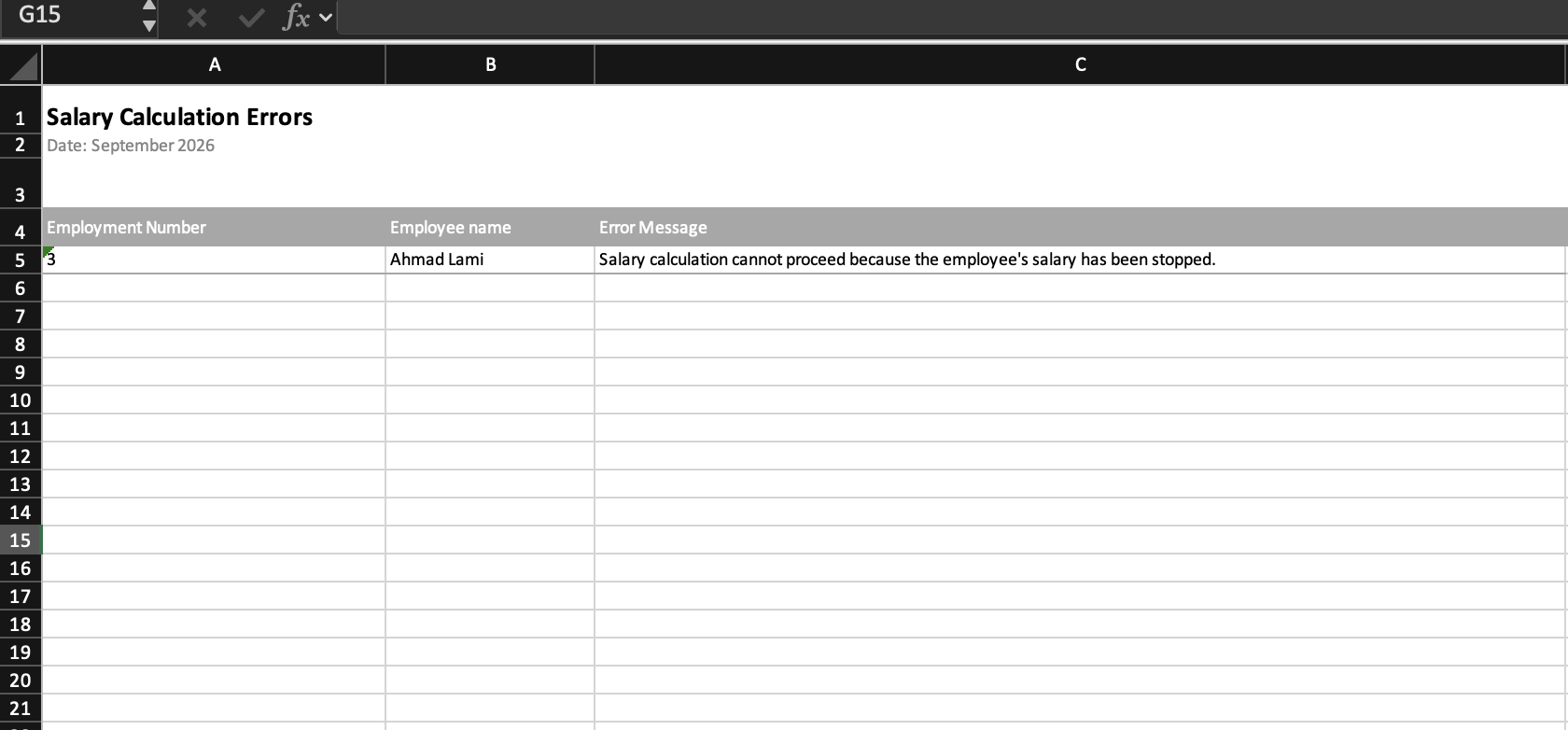
The error also appears in the calculation error sheet, with the Employment Number, Employee name, and the notification: “Salary calculation cannot proceed because the employee's salary has been stopped.”
Vacation In-Advance for a Stopped Salary
Admins can still calculate Vacation In-Advance salary for an employee whose salary is stopped. The system displays a warning before the calculation proceeds.
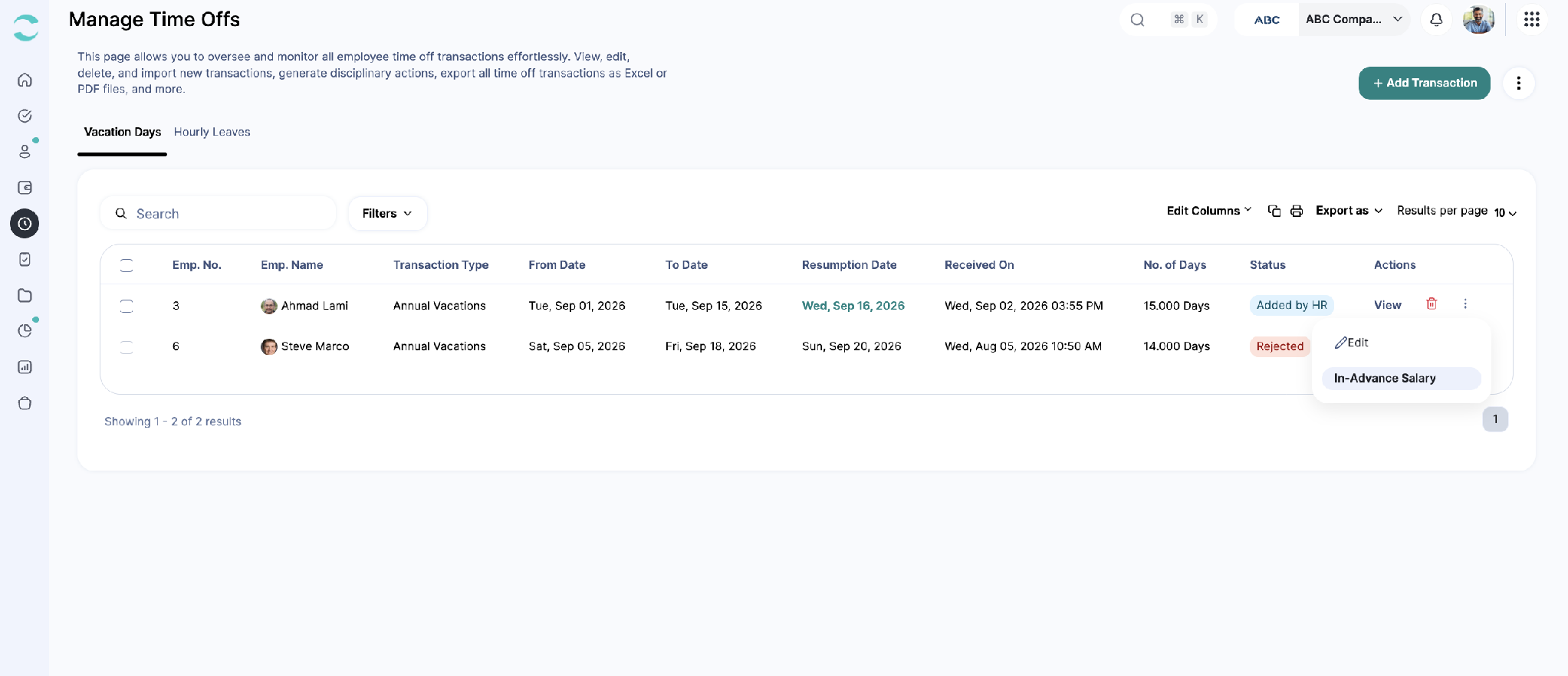
On the Manage Time Offs page, next to the employee's vacation request, click the “⋮” for more options.
Click “In-Advance Salary.”
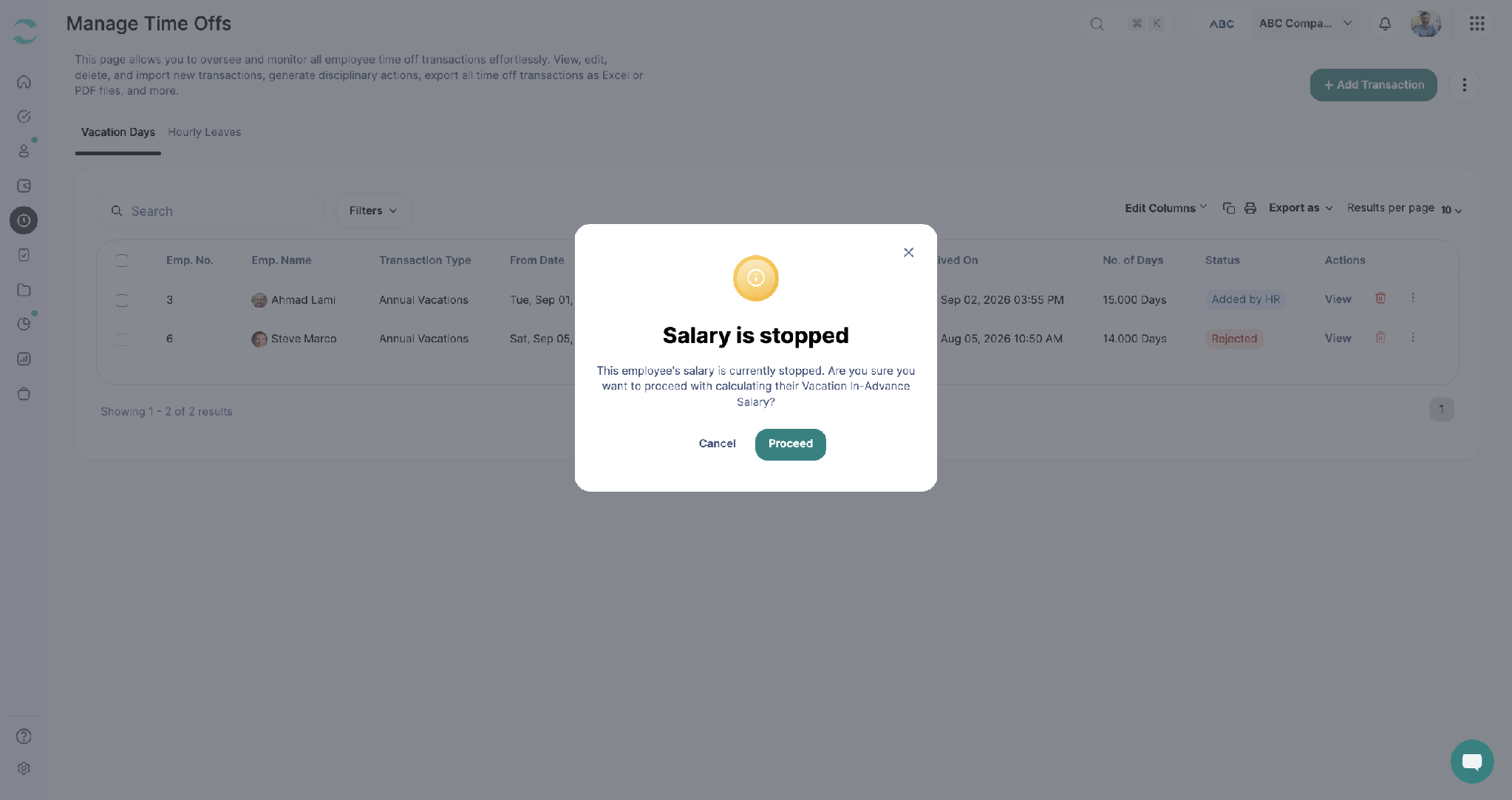
If the employee's salary is stopped, a Salary is stopped message appears:
“This employee's salary is currently stopped. Are you sure you want to proceed with calculating their Vacation In-Advance Salary?”Click “Proceed” to continue, or “Cancel” to stop.
Final Settlement
Admins can still calculate a final settlement for an employee whose salary is stopped. The salary-stopped alert stays visible on the profile, but it does not block the settlement calculation.
Effect on Early Wage Access (EWA)
Pending EWA request: if the employee has a pending EWA request, the admin must cancel it first. Once the request is canceled, the salary can be stopped.
Approved EWA request: if an EWA request was already approved, the admin must settle it and calculate the employee's salary first. The salary can't be stopped until that's done.
EWA access while stopped: While an employee's salary is stopped, they can't request EWA, either on the web or in the app.
No Pro-Rata Calculation
This feature does not prorate any amount. It only blocks salary calculation while active. Once the salary is resumed, admins calculate it as normal, and the system does not count the days the salary was stopped.
How to Resume an Employee's Salary
ZenHR Dashboard → Employees → Employee Management
Click the employee's name to open their profile.
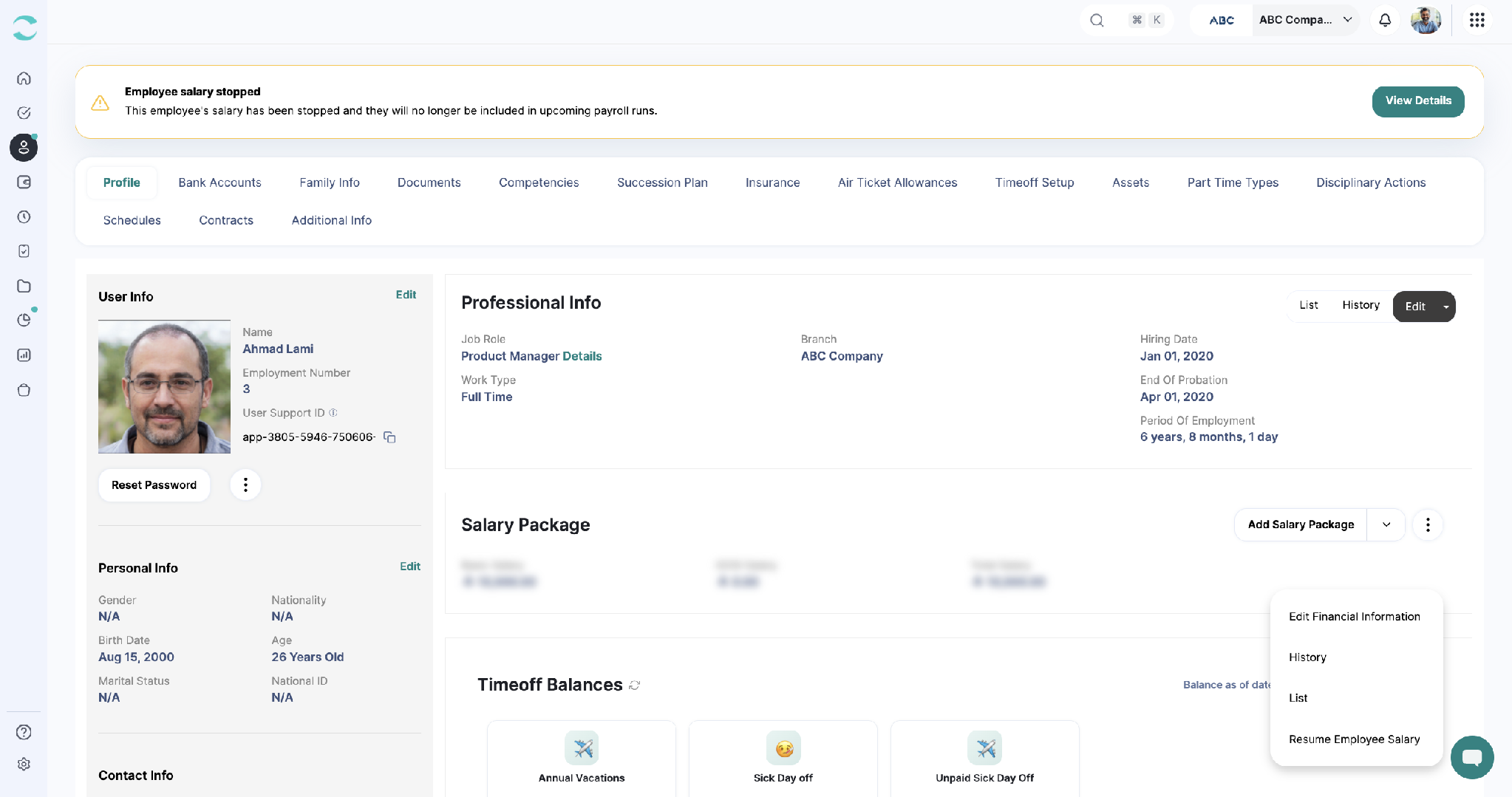
Next to Salary Package, click the “⋮” for more options.
Click “Resume Employee Salary.”
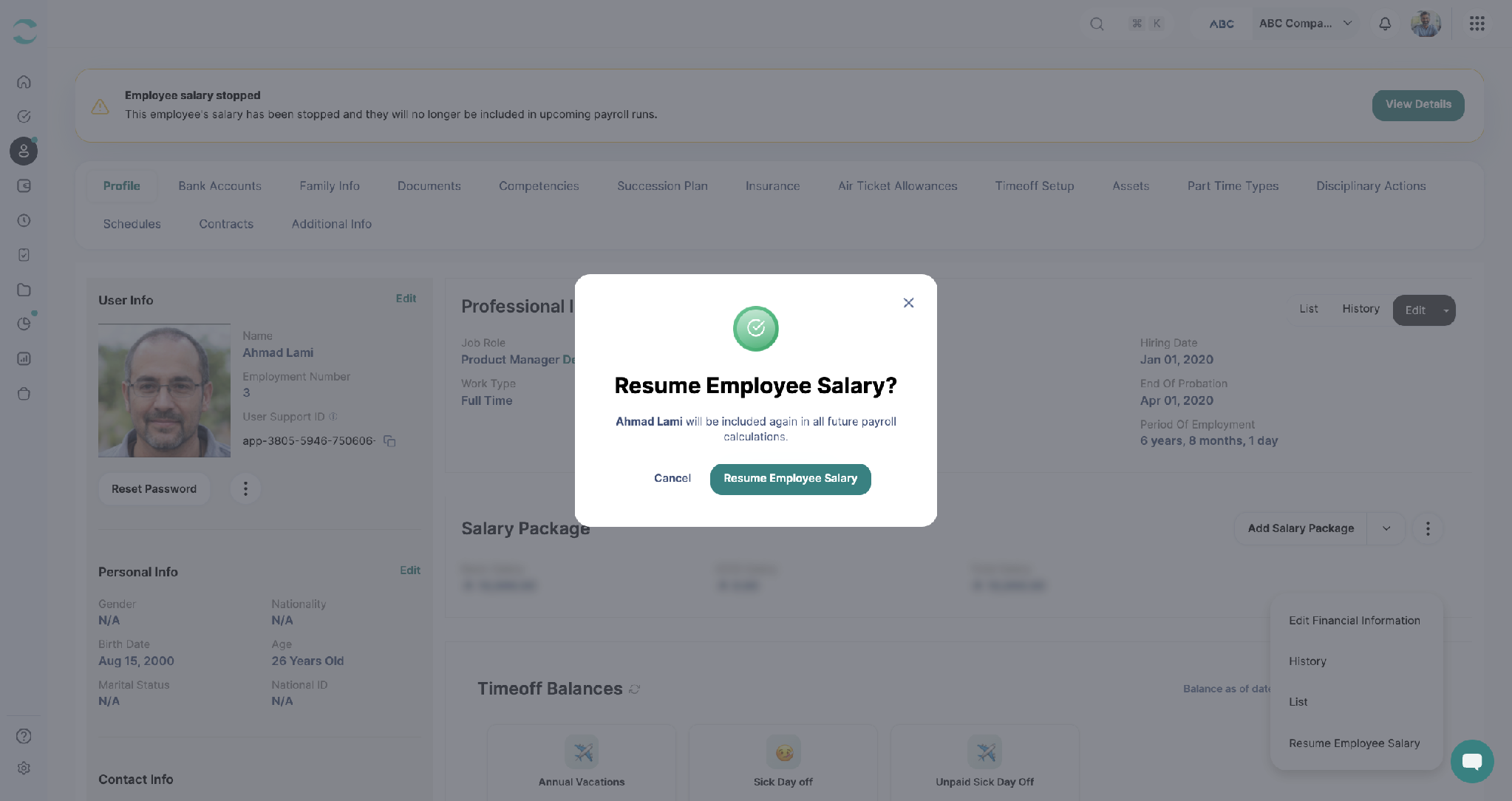
Then click “Resume Employee Salary” again to confirm.
Once confirmed, the employee is included again in all future payroll calculations.
Was this article helpful?
That’s Great!
Thank you for your feedback
Sorry! We couldn't be helpful
Thank you for your feedback
Feedback sent
We appreciate your effort and will try to fix the article