Send emails directly from your own domain through ZenATS, giving your communication a more professional and branded experience. Easily configure your domain, verify it through DNS, and manage all candidate communication without relying on external email tools.
This feature is exclusively available for the Advanced tier.
How to Set It Up
To start sending emails from your domain, follow these steps
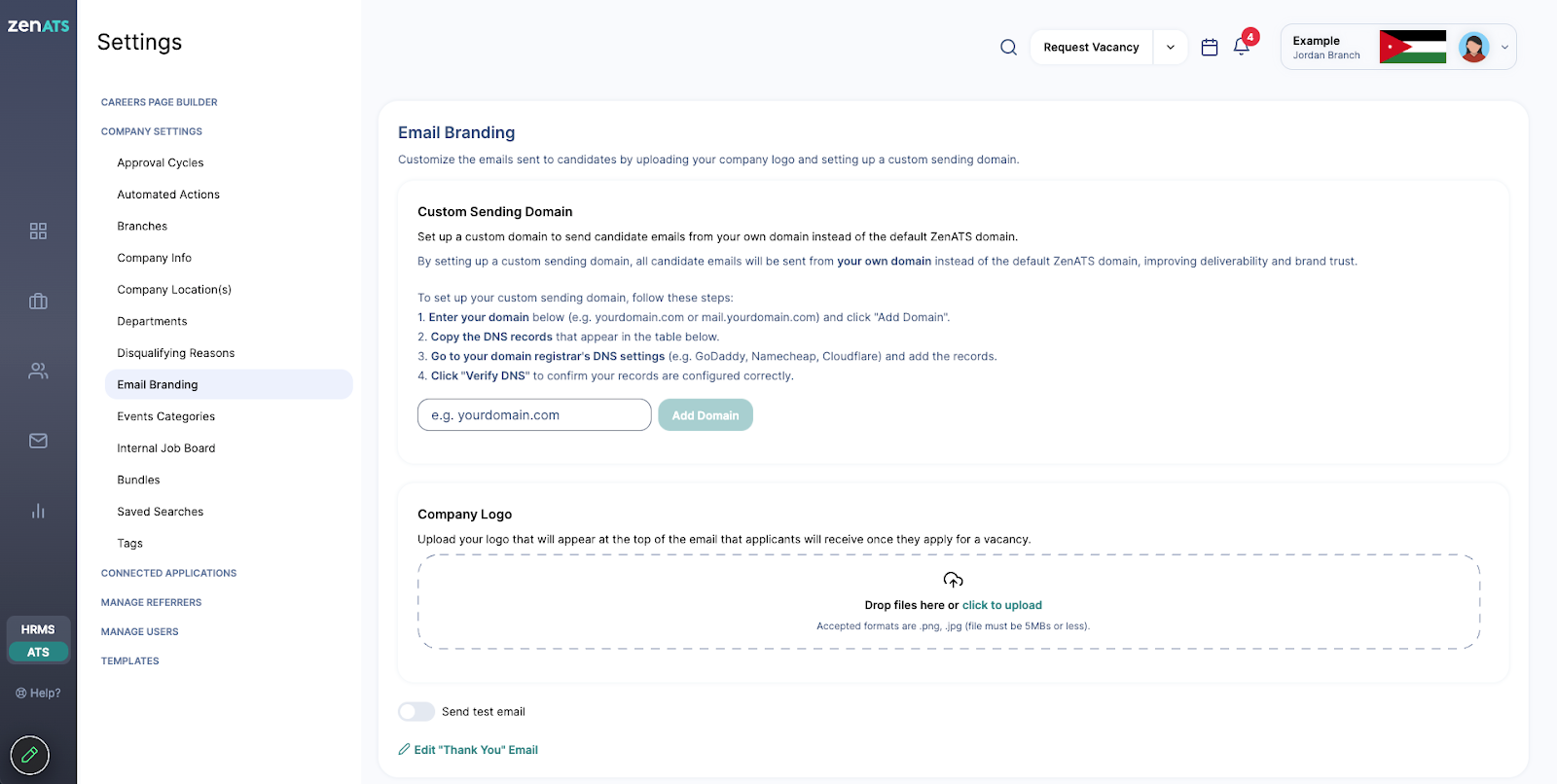
1. Access Email Branding Settings
Log in to your ZenATS account.
Go to “System Preferences”.
Under Company Settings, click on “Email Branding”.
2. Add Your Domain
Enter the domain you want to use (e.g., careers.yourcompany.com or yourcompany.com)
Click “Add Domain"
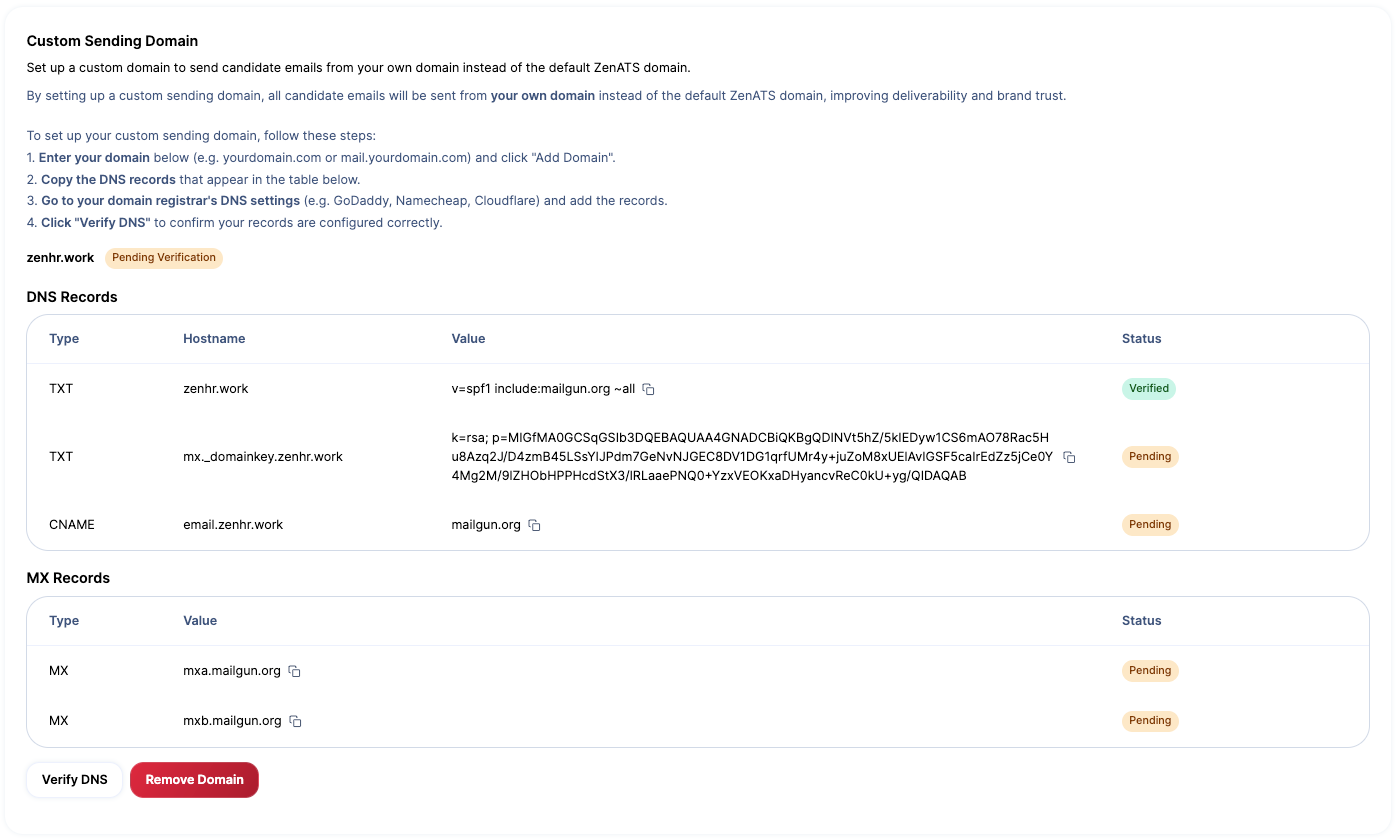
Once added, ZenATS will generate a set of DNS records. These records are required to verify that you own the domain and allow ZenATS to send emails on your behalf.
3. Configure DNS Records
Copy the DNS records shown in ZenATS
Go to your domain provider (e.g., GoDaddy, Namecheap, Cloudflare)
Open your domain’s DNS settings
Add the provided records exactly as shown
Note: DNS changes may take some time to propagate, depending on your provider.
4. Verify Your Domain
Return to ZenATS
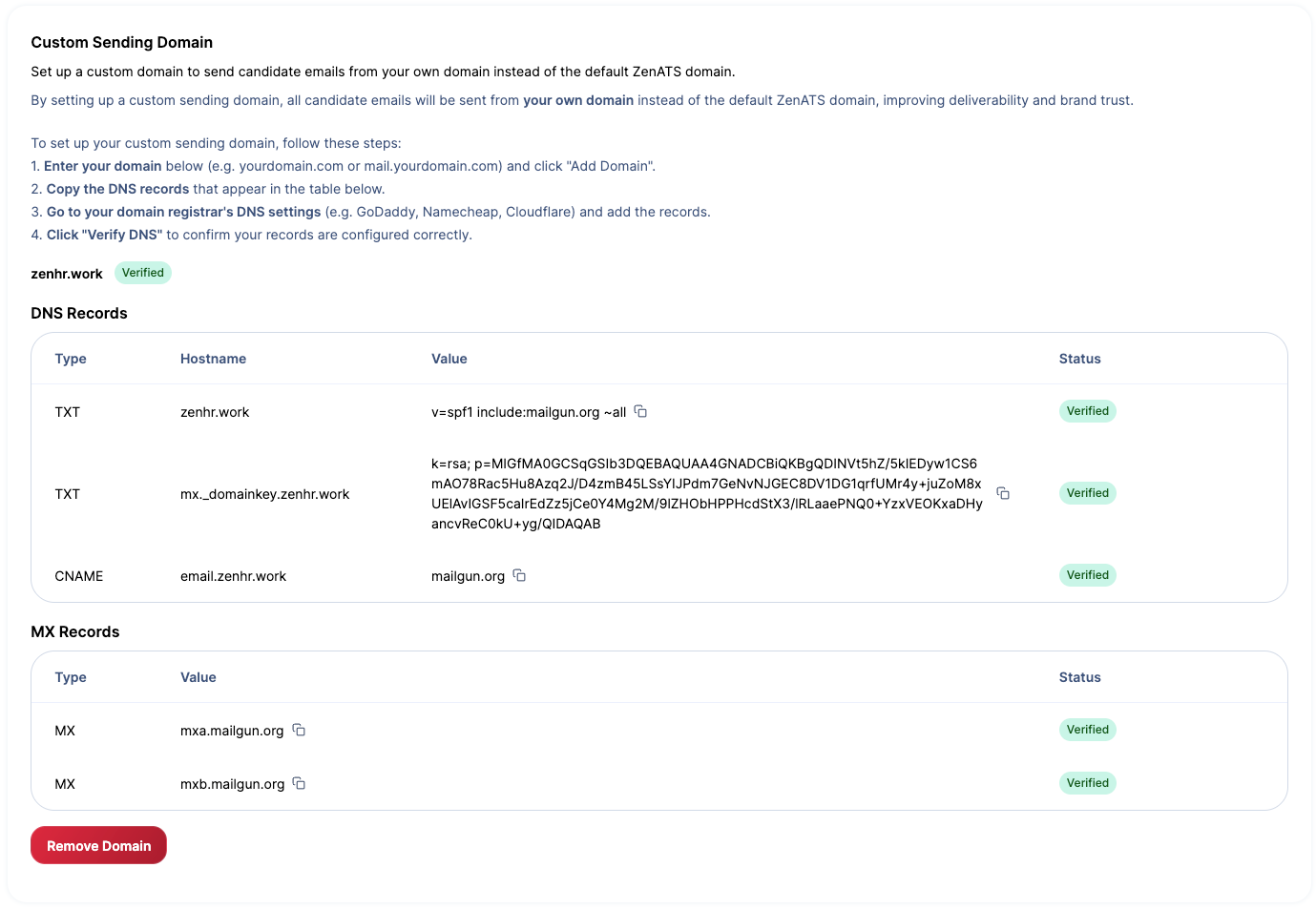
Click “Verify DNS”
ZenATS will check if your DNS records are correctly configured. Once verified, your domain will be activated for sending and receiving emails.
After successful verification, all emails sent through ZenATS will use your domain, creating a more seamless and professional candidate experience.
You can update or remove your domain at any time by clicking “Remove Domain”.
Was this article helpful?
That’s Great!
Thank you for your feedback
Sorry! We couldn't be helpful
Thank you for your feedback
Feedback sent
We appreciate your effort and will try to fix the article