How to Unlock the Account of an Employee/User
Only Global Admins, Global HR Admins, Superadmins, and HR Admins can unlock accounts.
Go to the Main Menu → Employees → Employee Affairs → Employee Management.
Select the desired employee from the table.
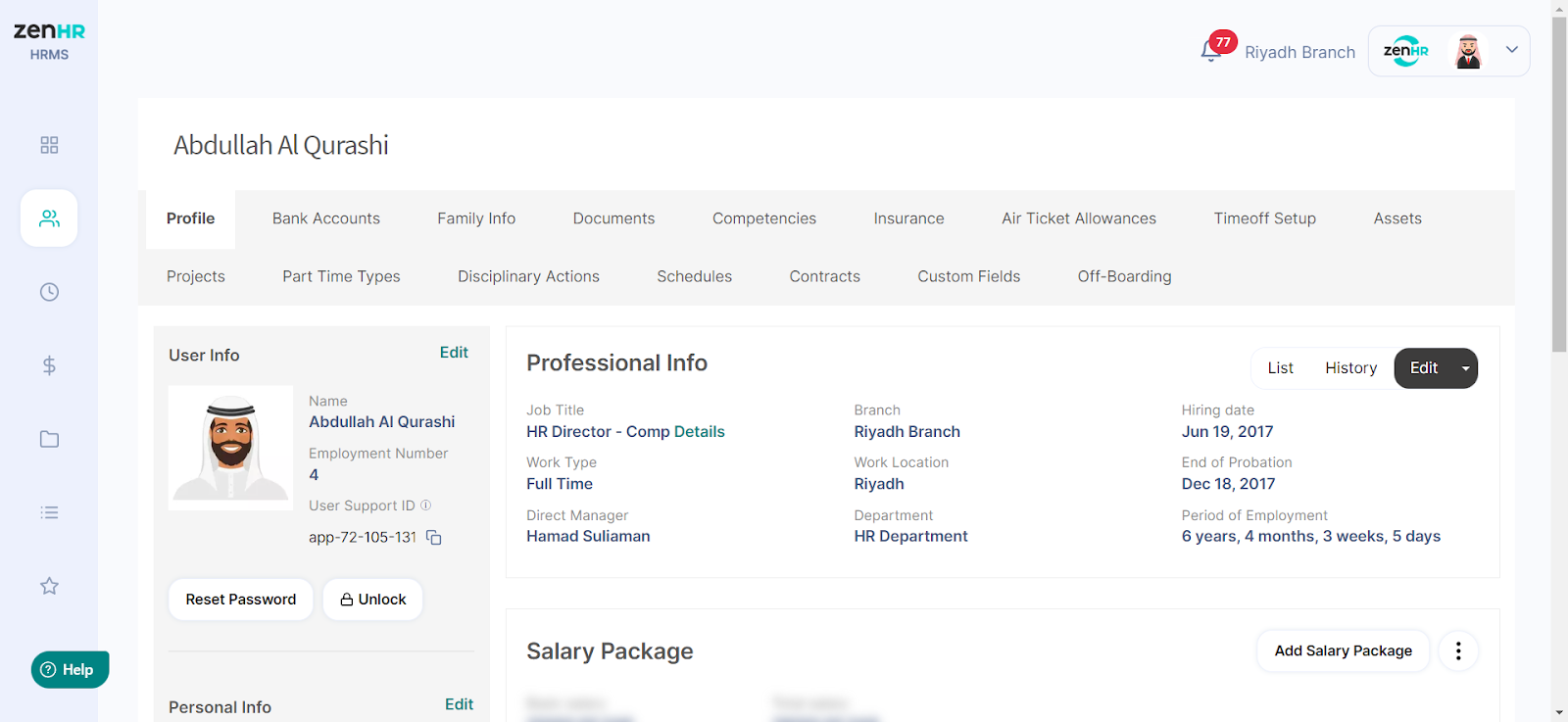
Then, on the employee's profile, under their picture, click the “Unlock” button.
A popup will then appear to confirm if you would like to unlock this employee's account.
How to Reset the Password of an Employee/Use
Only Global Admins, Global HR Admins, Superadmins, and HR Admins can reset passwords.
Go to the Main Menu → Employees → Employee Affairs → Employee Management.
Select the desired employee from the table.
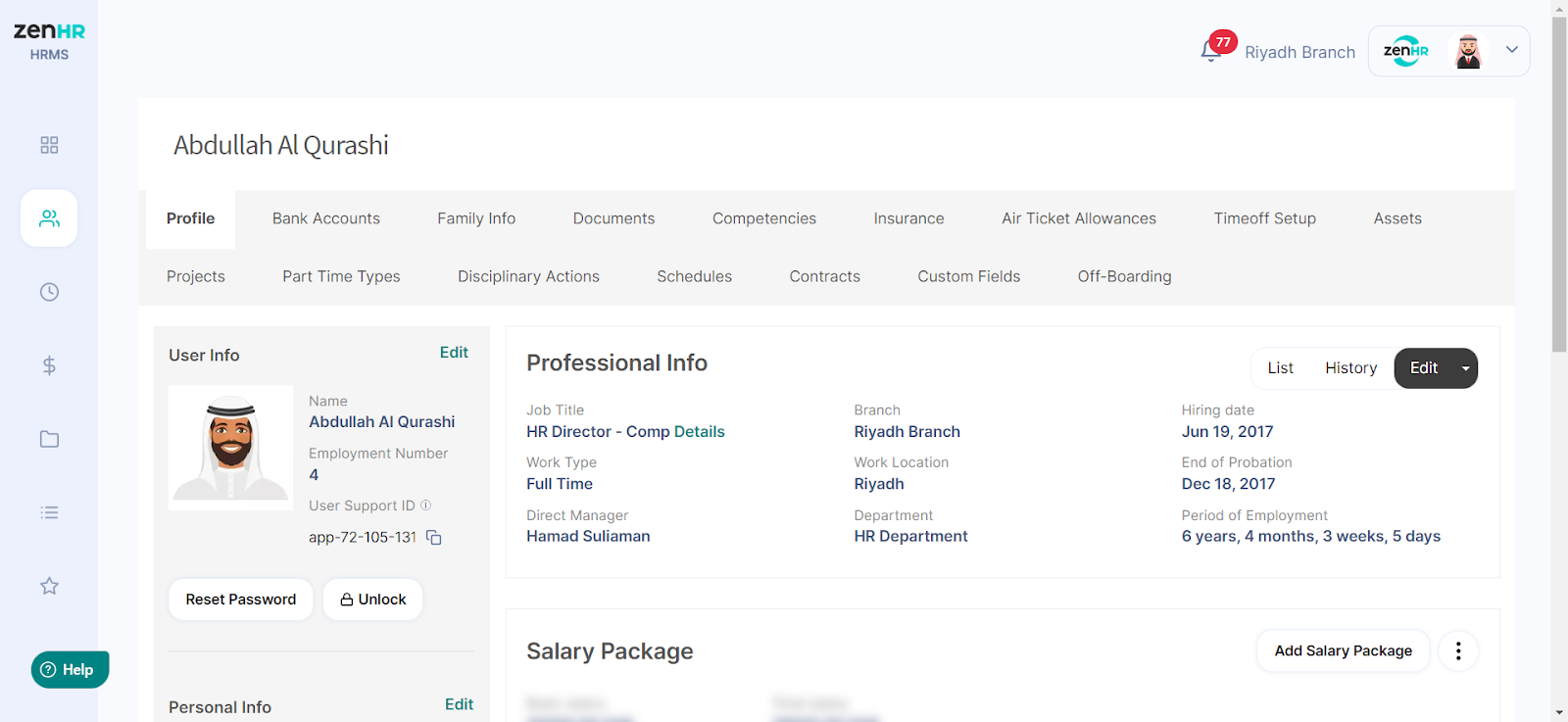
Then, on the employee's profile, under their picture, click the “Reset Password” button.
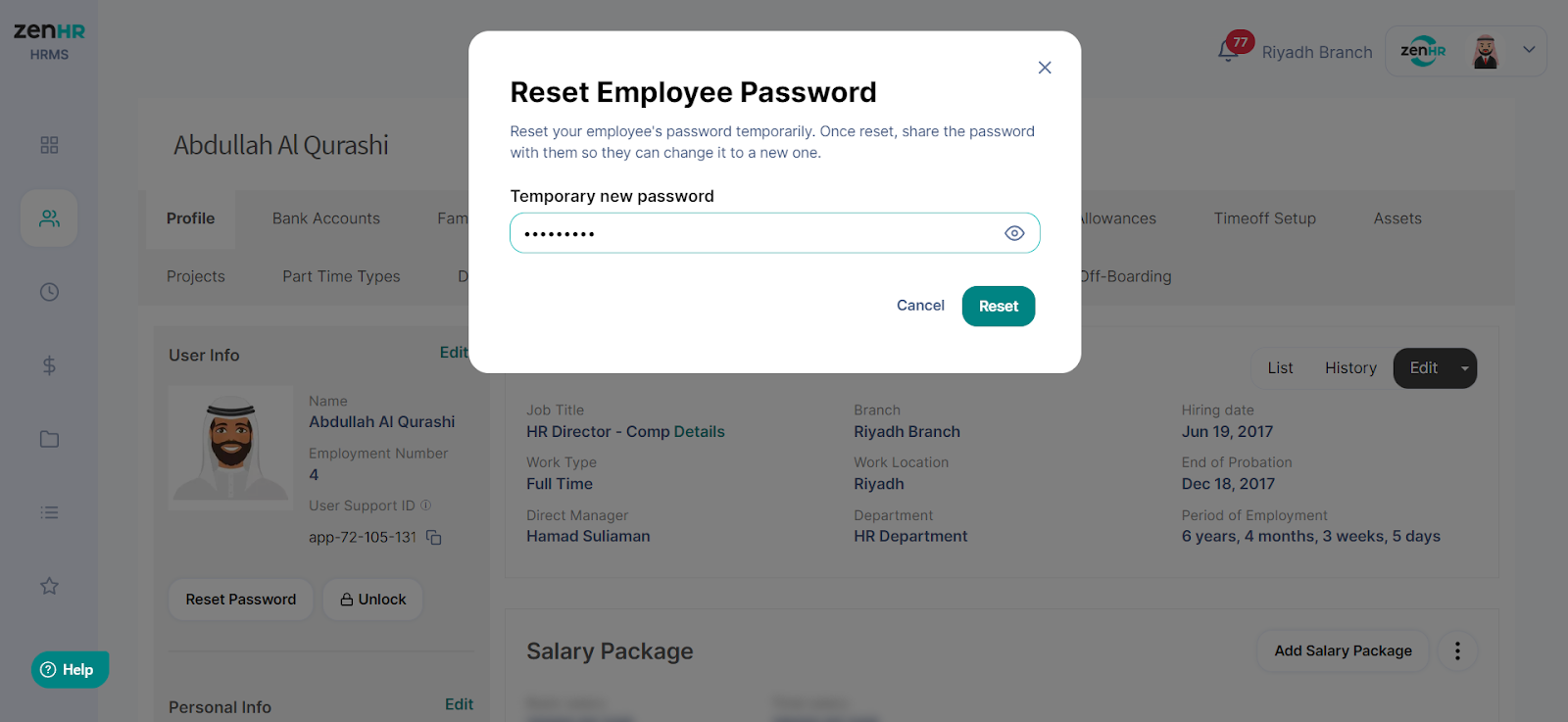
Create a Temporary New Password for that employee.
Once created, the Temporary New Password should be given to the employee to log in. When they log in, they can then change their password to what they desire.
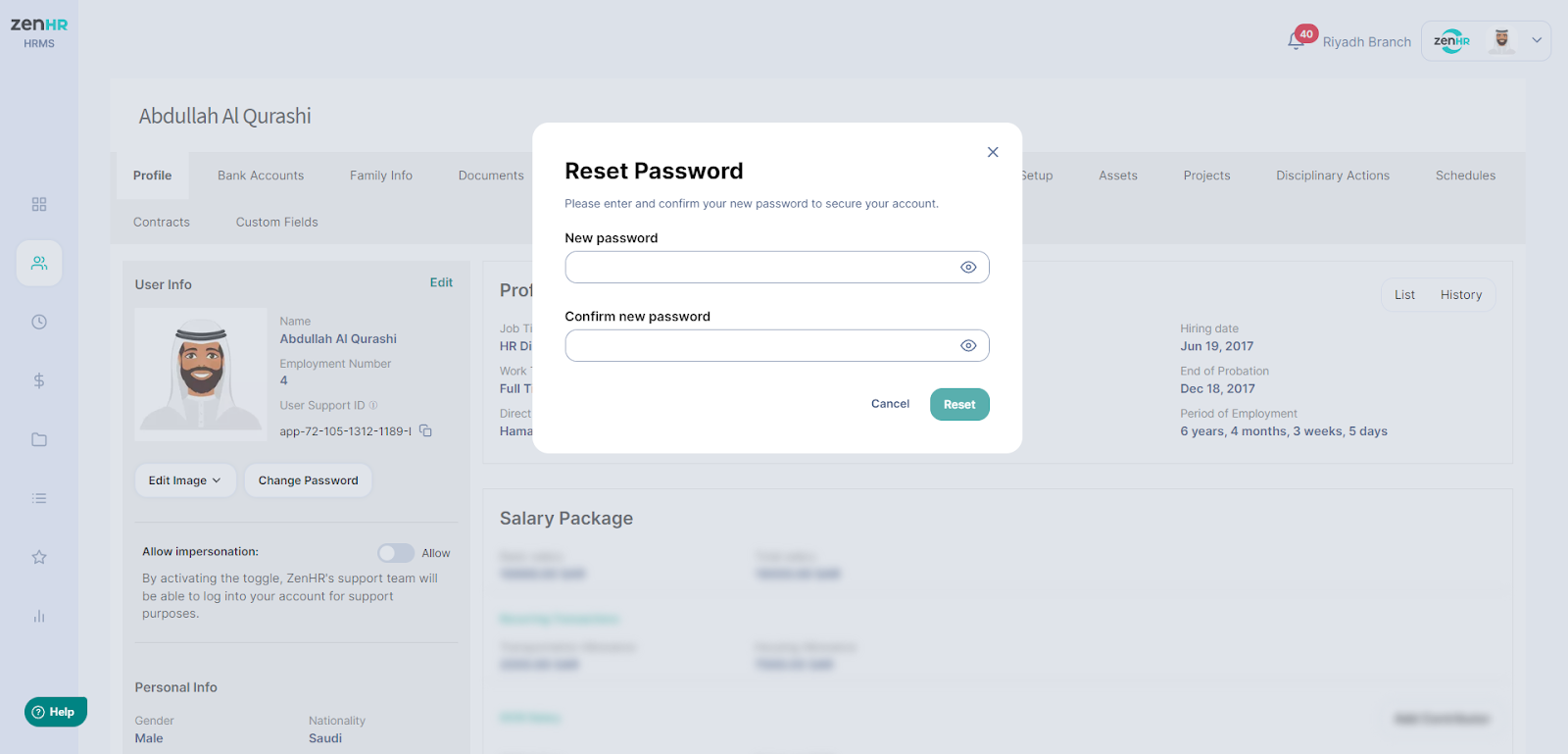
Note: The employee cannot log in until they change the Temporary New Password. If they do not change it, they will be logged out.
Was this article helpful?
That’s Great!
Thank you for your feedback
Sorry! We couldn't be helpful
Thank you for your feedback
Feedback sent
We appreciate your effort and will try to fix the article