Feedback Cycles is a powerful feature within ZenHR's Performance Evaluation module that helps organizations collect structured, multi-source feedback and gain a more complete understanding of employee performance.
Whether you're conducting a comprehensive 360° review, a manager-led evaluation, or a peer feedback exercise, Feedback Cycles allows you to create customized feedback processes, assign reviewers, build questionnaires, and analyze results all from a single place.
This guide will walk you through how to create and manage feedback cycles, submit feedback, and review results within ZenHR.
1. Accessing Feedback Cycles
To access Feedback Cycles:
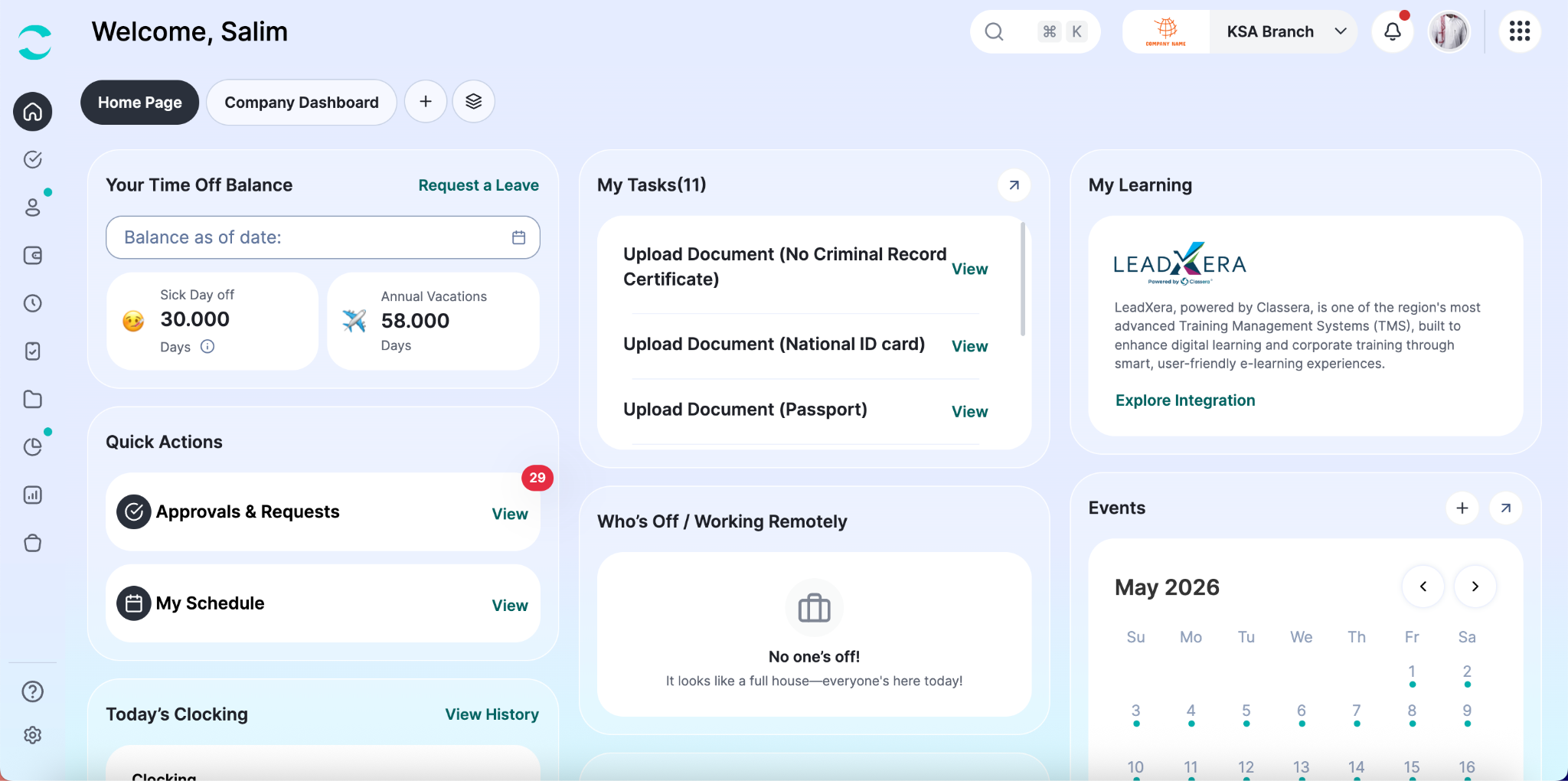
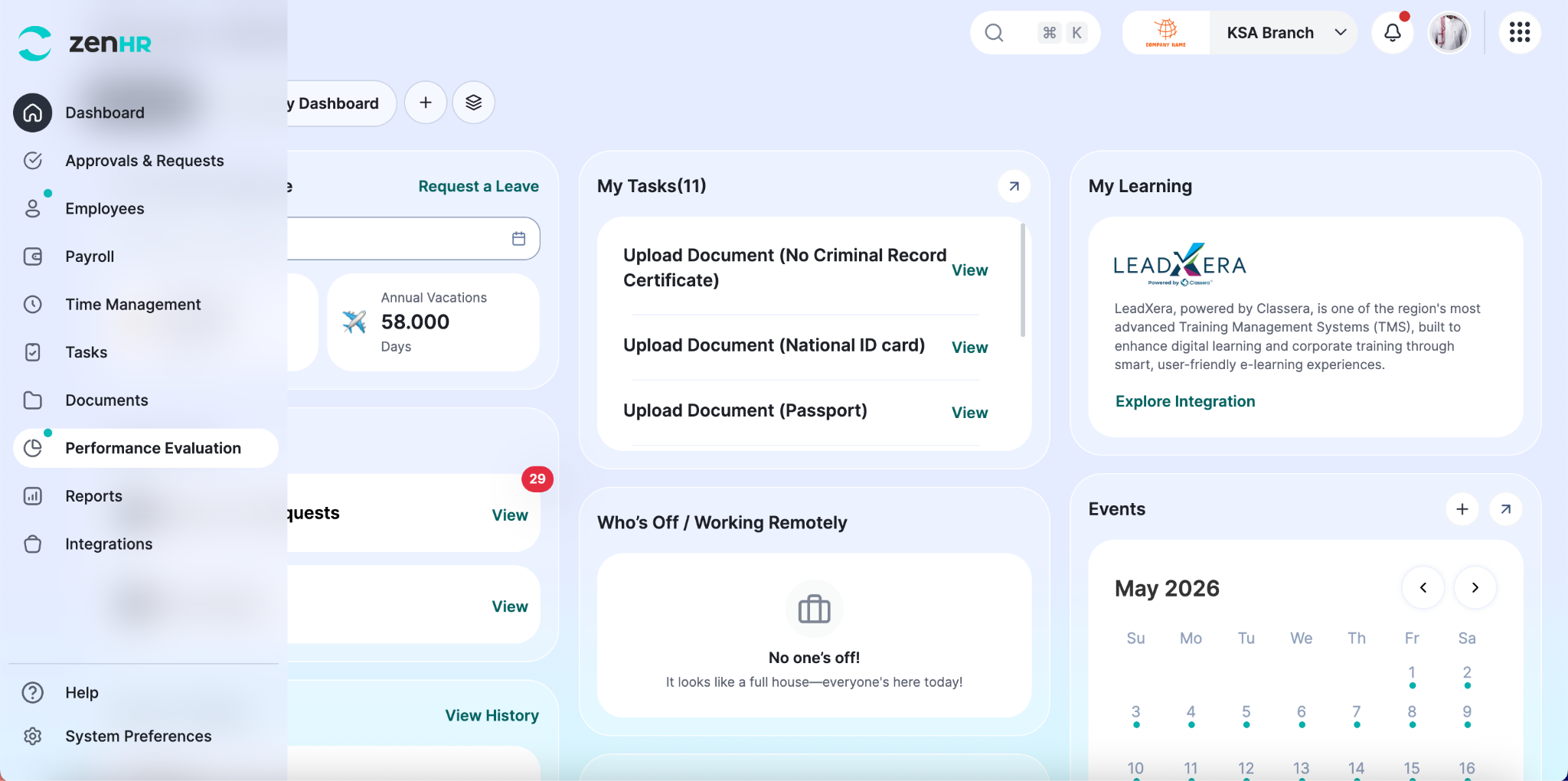
From the main menu, click on the Performance Evaluation module.
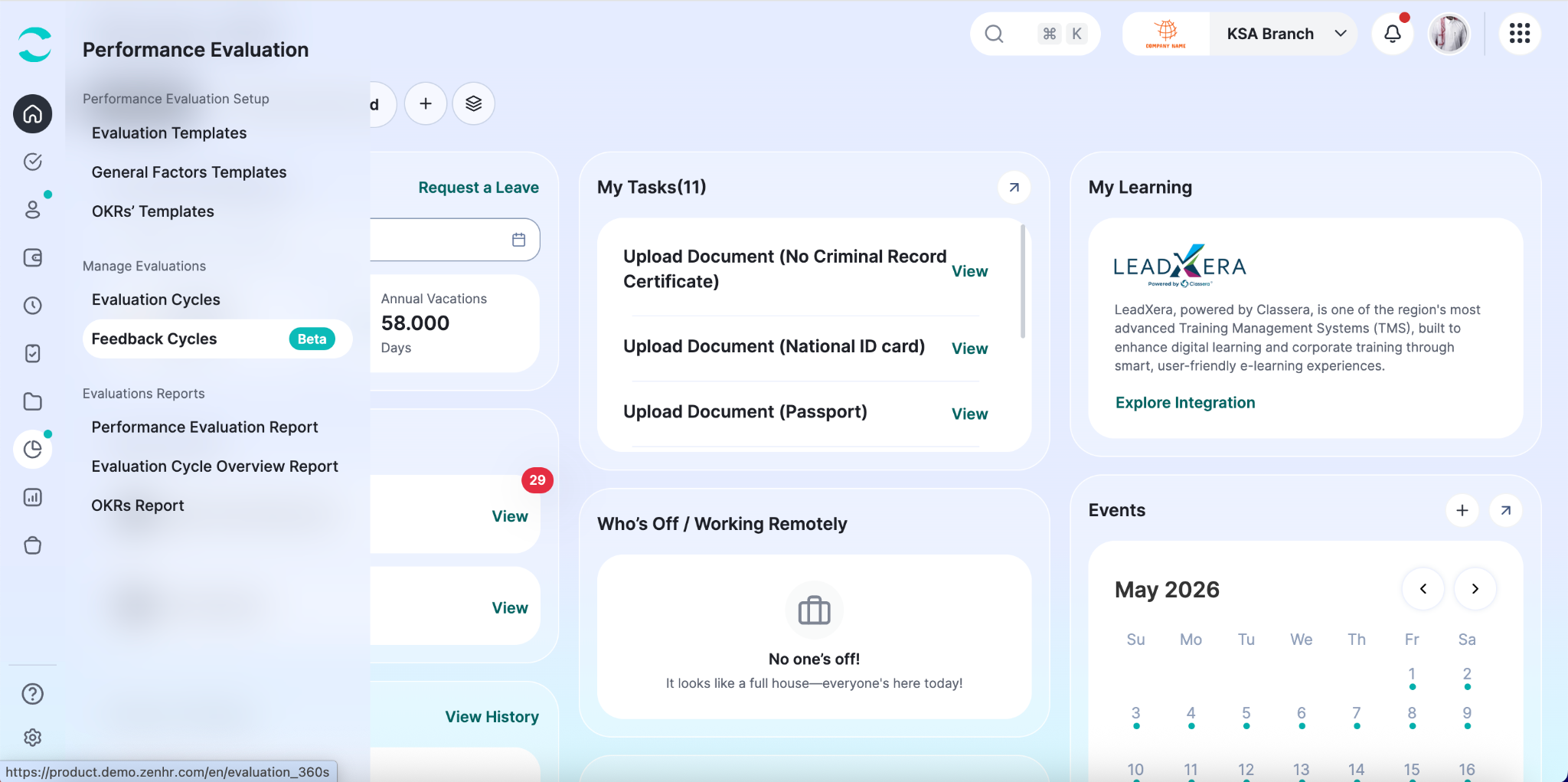
Then, under Performance Evaluation, select “Feedback Cycles”.
2. Feedback Cycle Tabs
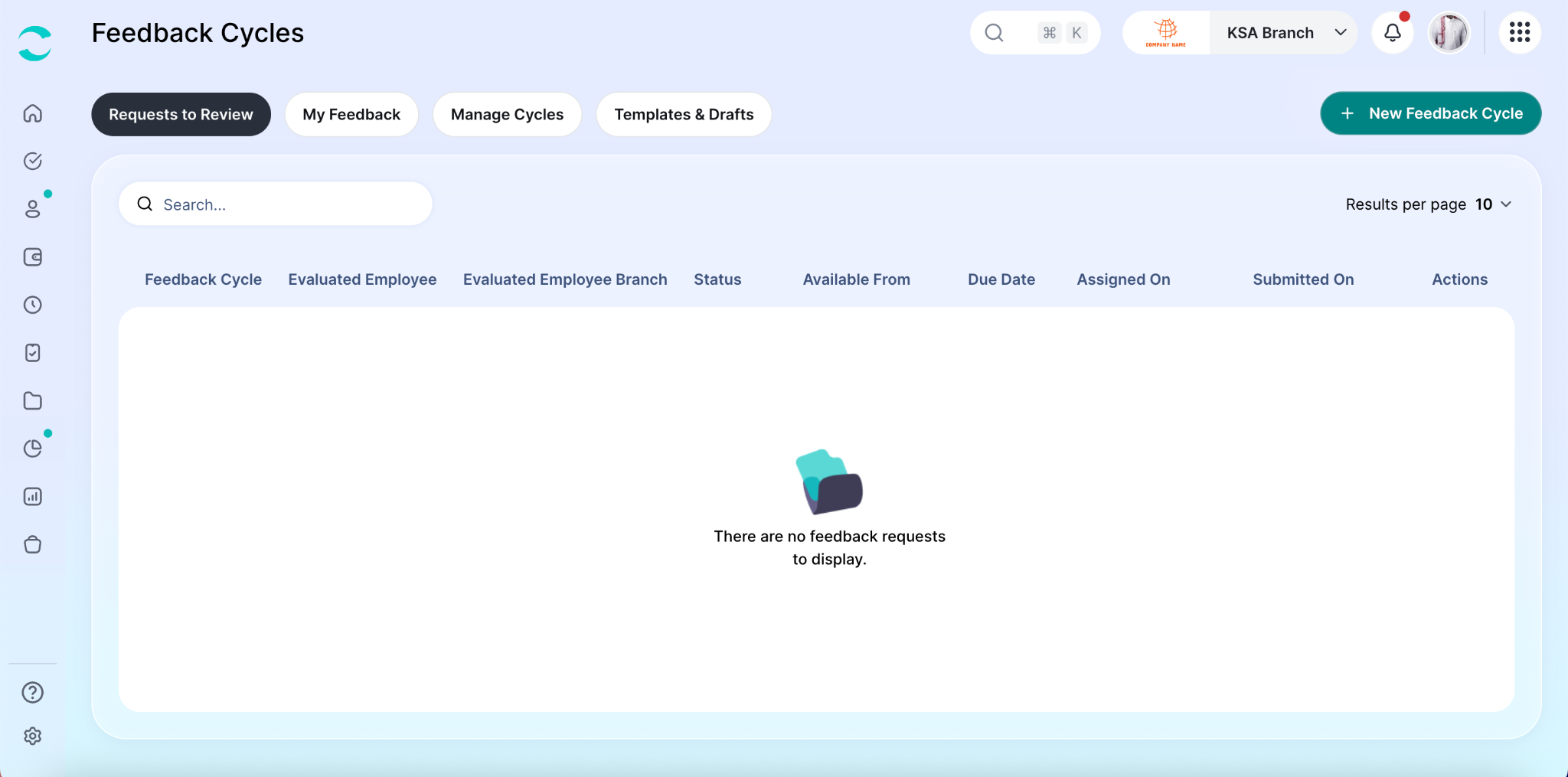
The tabs seen on this page depend on your role and permissions:
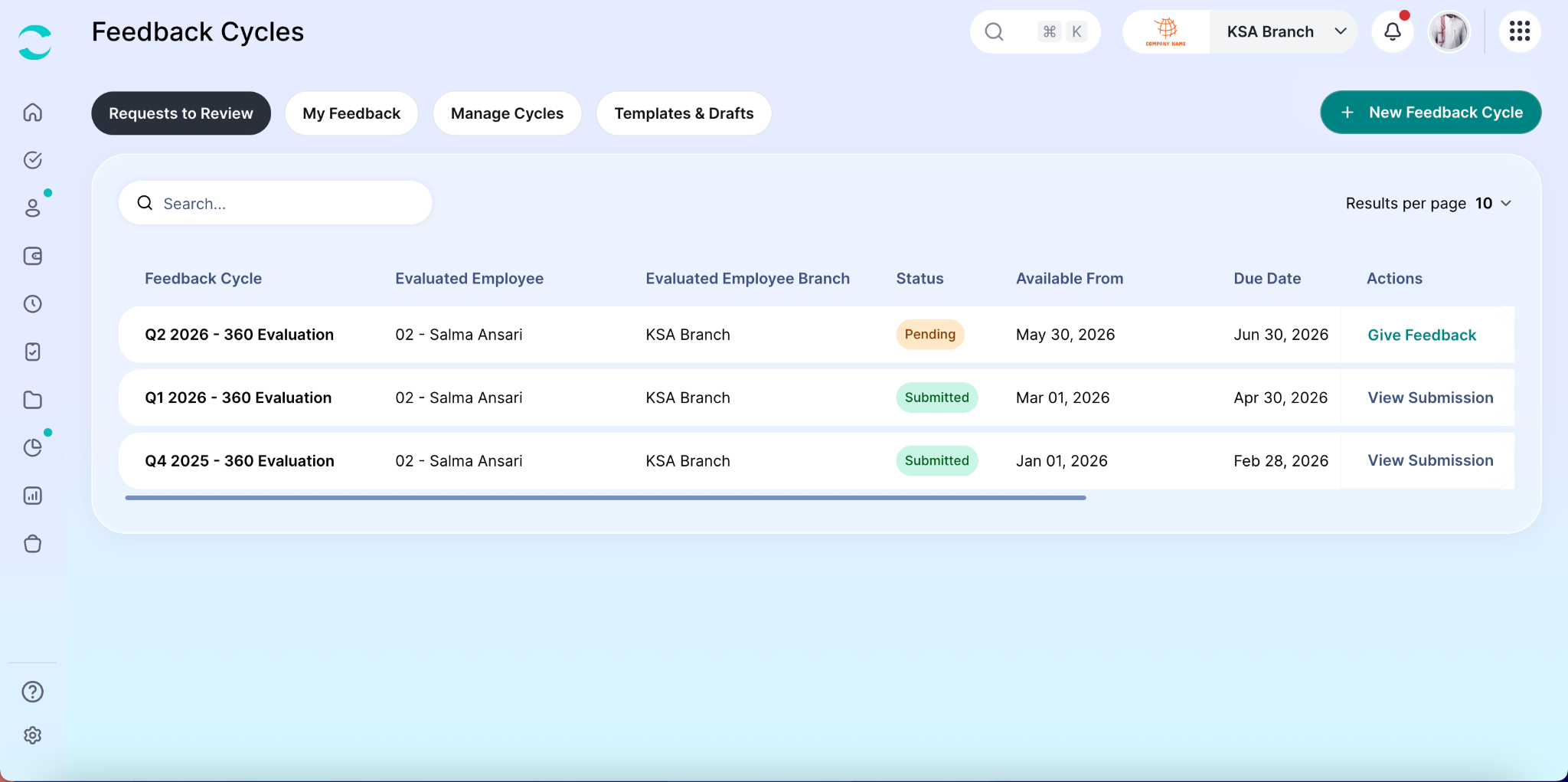
Requests to Review — Displays every feedback request assigned to you. From here you can submit feedback on your manager, peers, subordinates, and yourself.
My Feedback — Shows the feedback others have submitted about you, including input from your manager, peers, and subordinates.
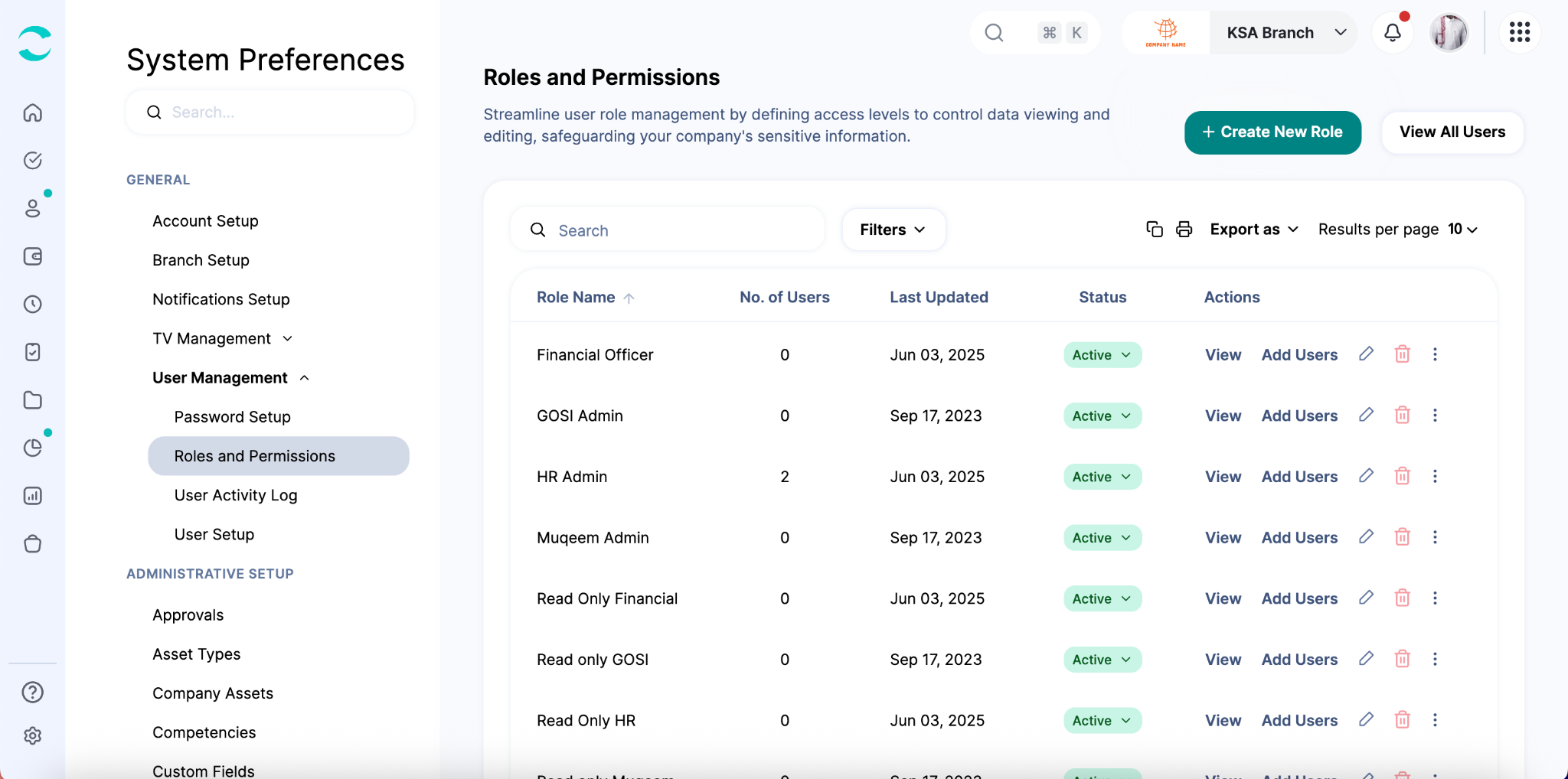
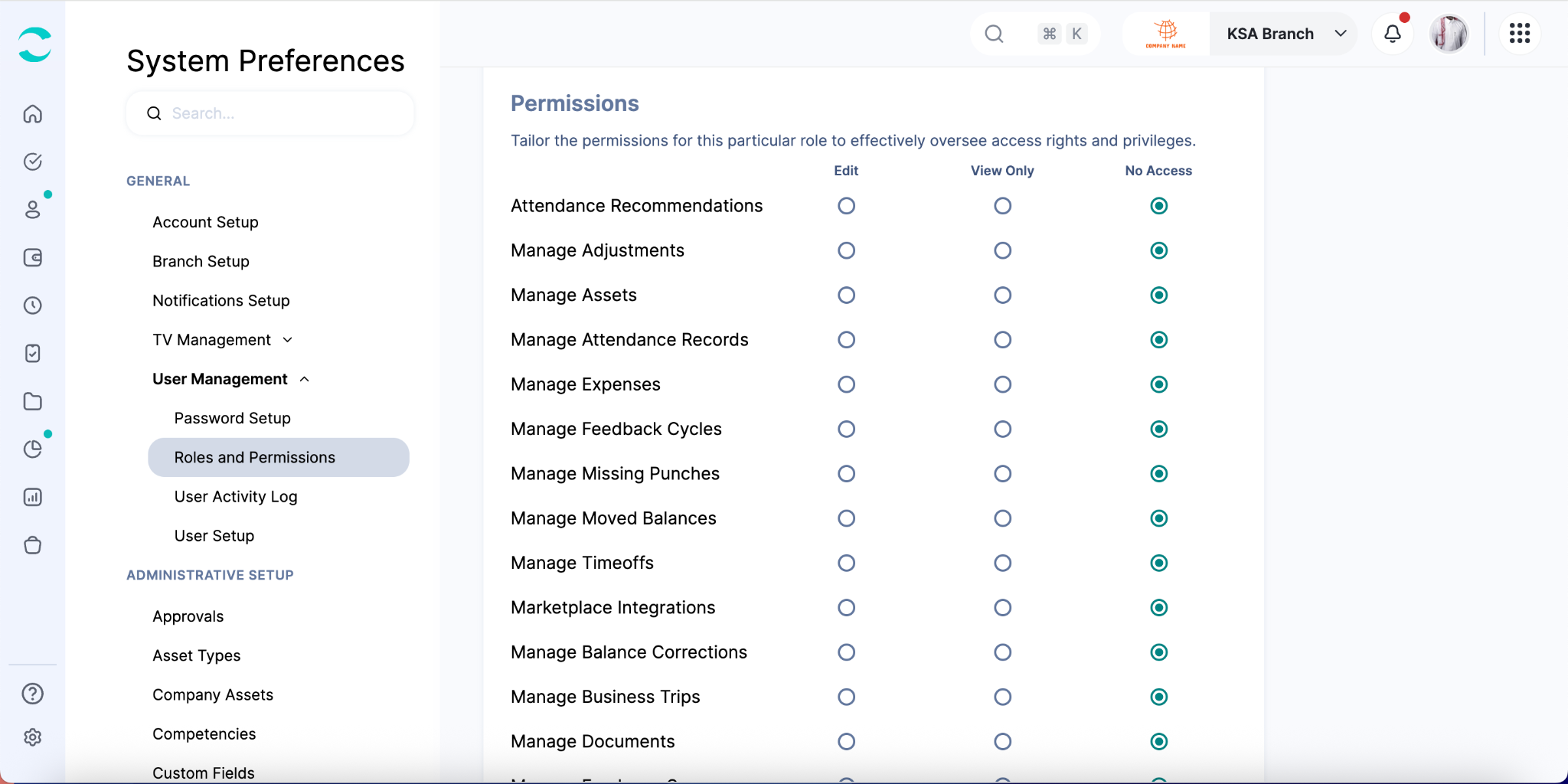
Manage Cycles — Available to users with permission to create or view cycles, which is configurable under System Preferences → Roles and Permissions. It also appears for direct managers when a cycle is set to share results with them.
Templates & Drafts — Lists feedback cycles you have saved as templates, so you can reuse them instead of starting from scratch. Cycles you have not finished setting up are saved here as drafts.
3. Creating a Feedback Cycle
Creating a feedback cycle is a guided process consisting of multiple steps.
You can save your progress at any stage and continue later from the Templates and Drafts tab.
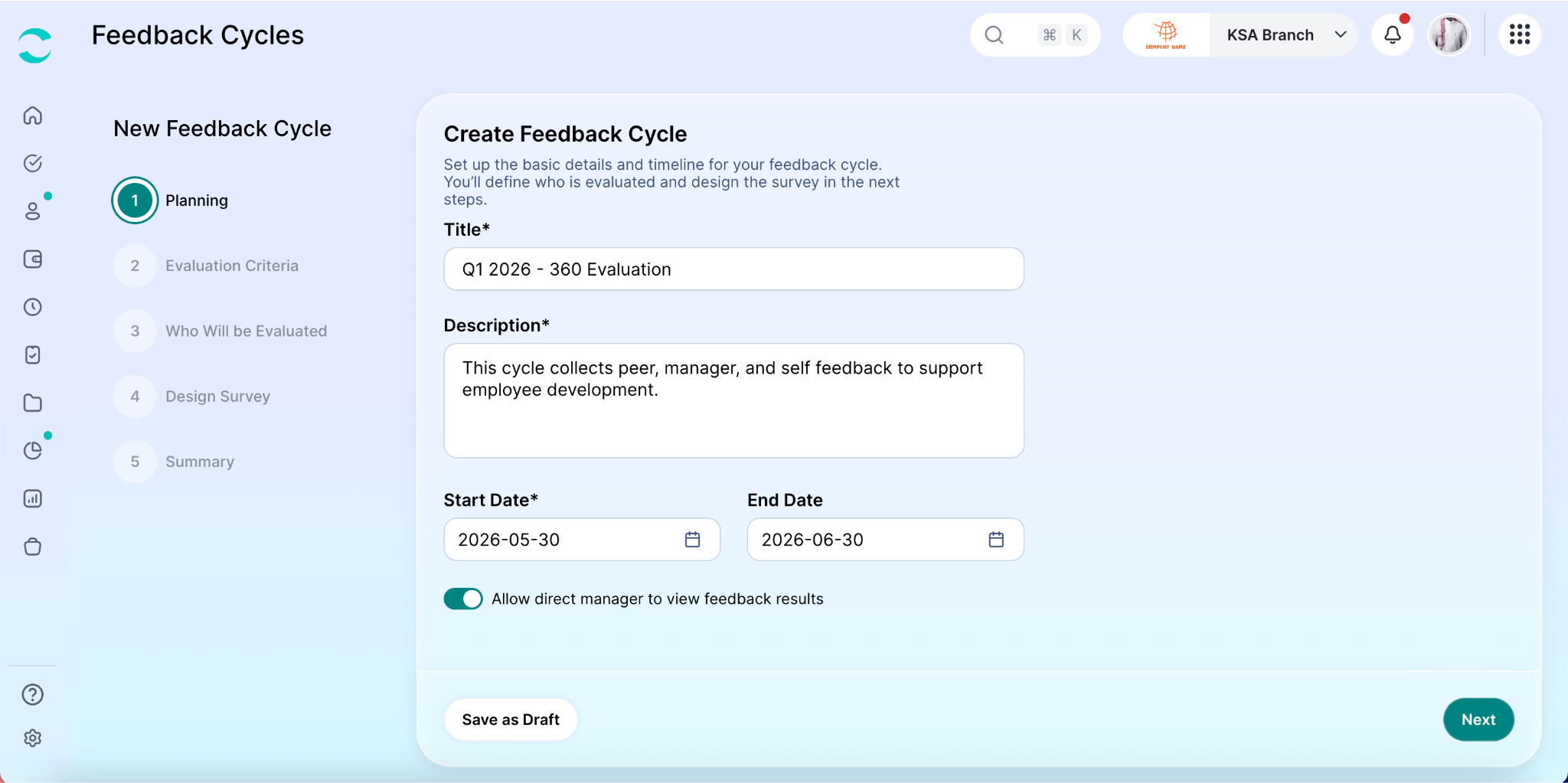
Step 1: Enter Basic Information
Start by defining the basic details of your feedback cycle:
Cycle title
Description
Evaluation period
You can also choose whether direct managers should be allowed to view the feedback results of their employees.
Step 2: Configure Evaluation Settings
Next, define how the evaluation will work.
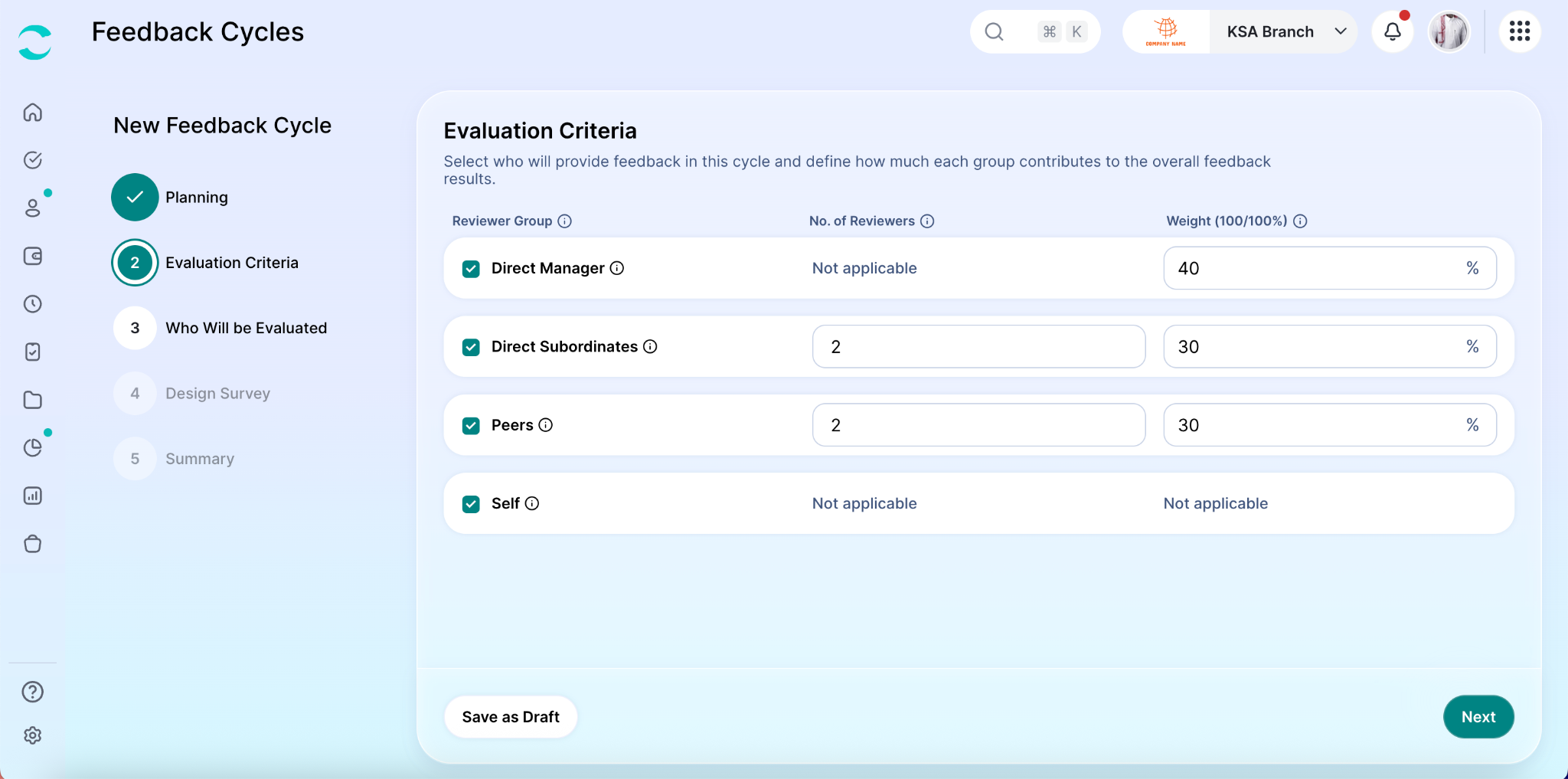
1. Select the Review Type
Choose one of the following review structures:
360° Review – Feedback from managers, peers, subordinates, and self.
180° Review – Feedback from managers and self, or another limited reviewer combination.
Single-Direction Review – Feedback from only one reviewer group.
2. Define Reviewer Counts
Specify how many reviewers should participate from each review group.
Subordinate reviewers are selected automatically and randomly by the system to ensure fairness and reduce bias.
Peer reviewers will be selected manually in a later step.
3. Assign Review Weights
Determine how much each reviewer group contributes to the final score.
For example:
Manager: 50%
Peers: 30%
Subordinates: 20%
The total weight across all reviewer groups must equal 100%.
Note: Self-evaluations do not contribute to the final score. They are displayed alongside other results for comparison purposes only.
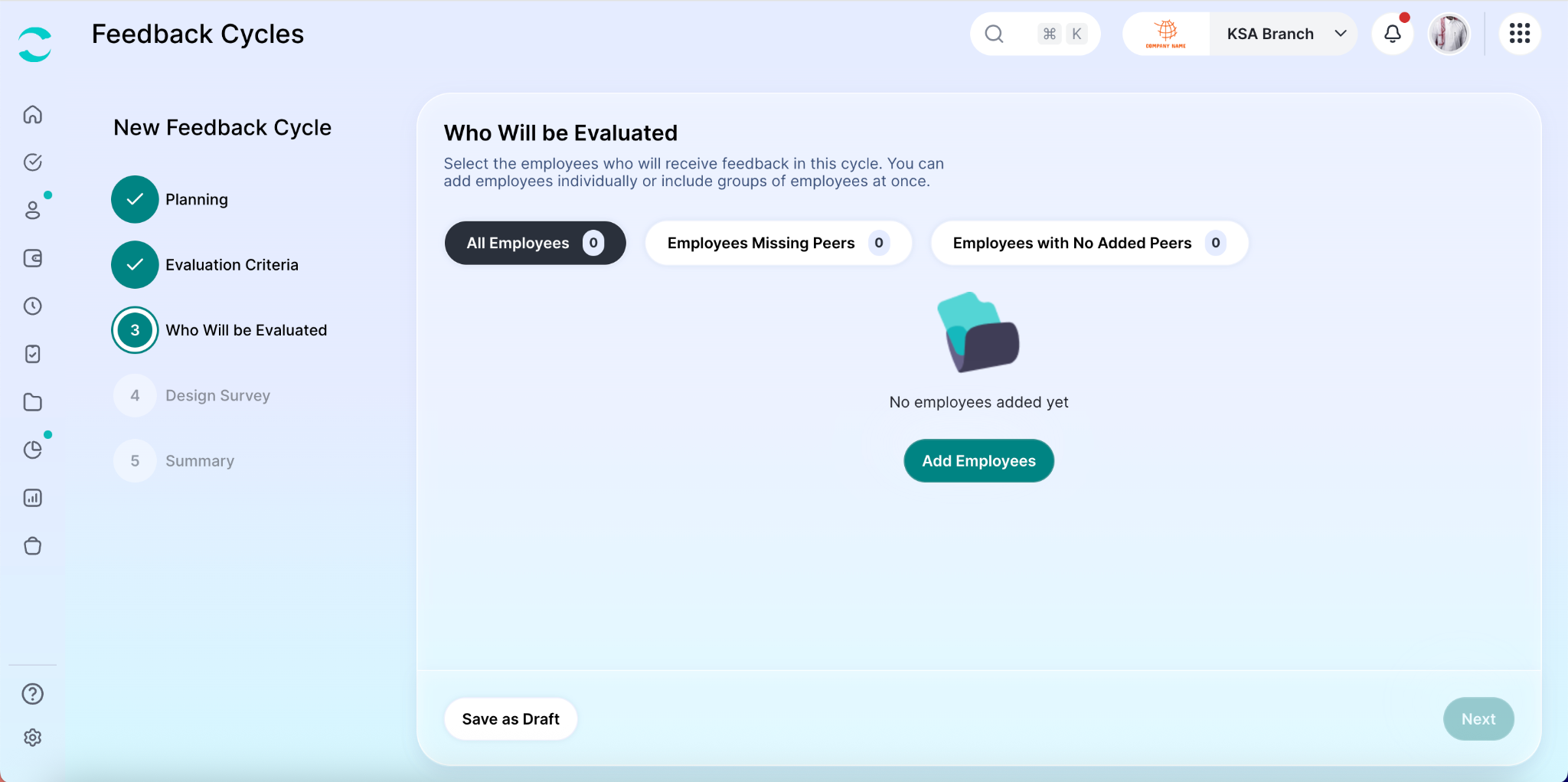
Step 3: Select Employees
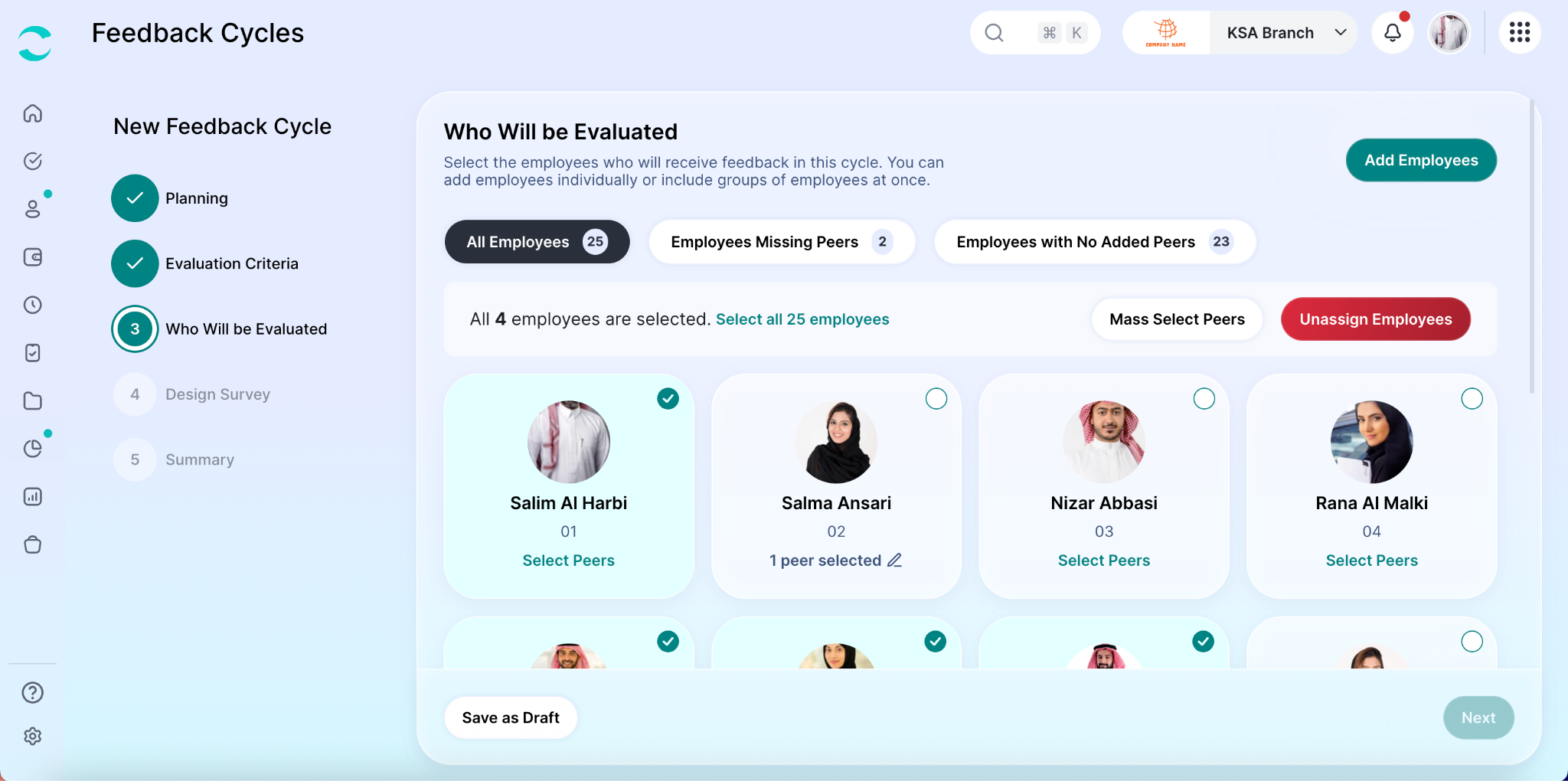
Choose the employees who will be evaluated during this feedback cycle.
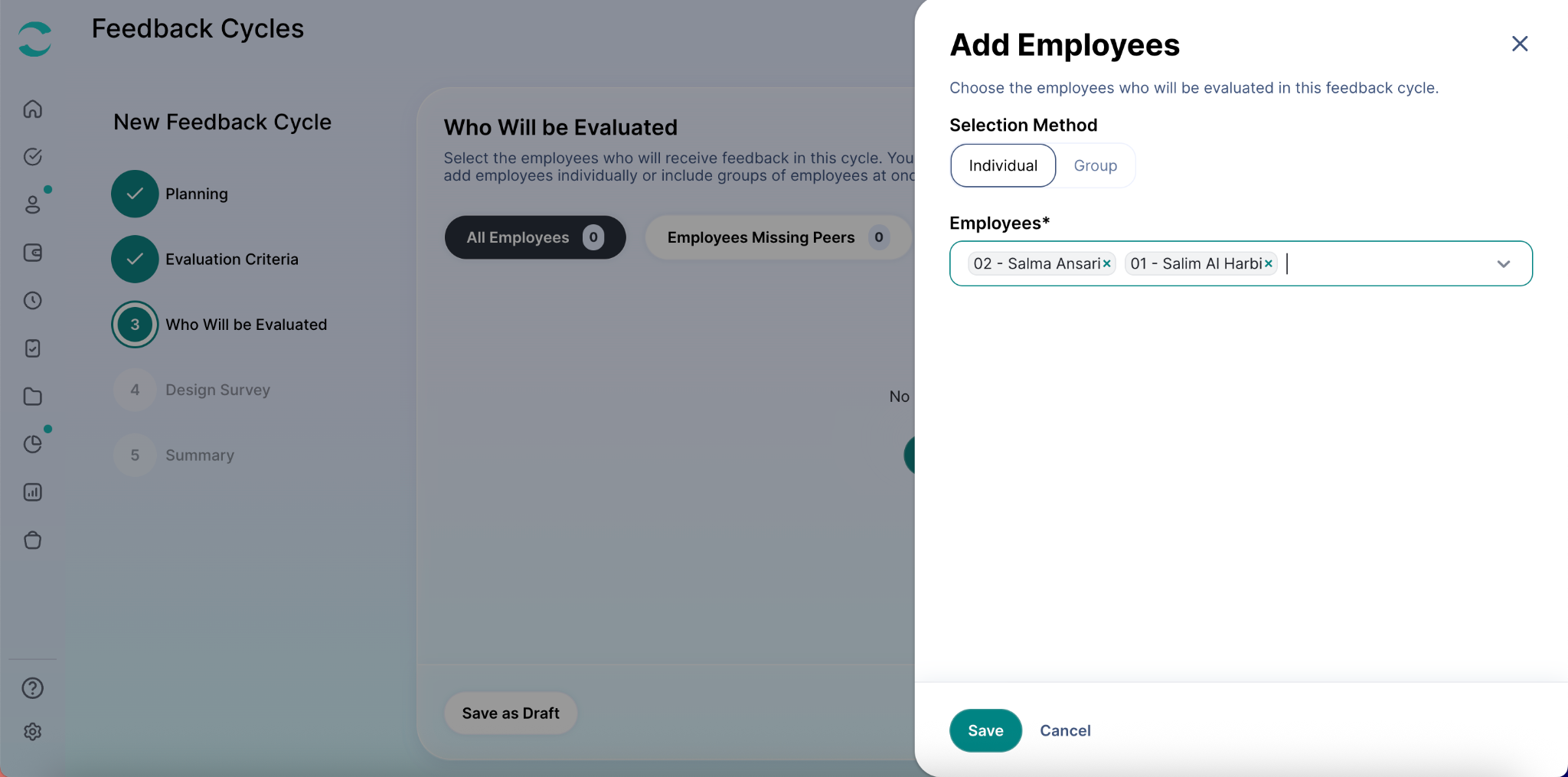
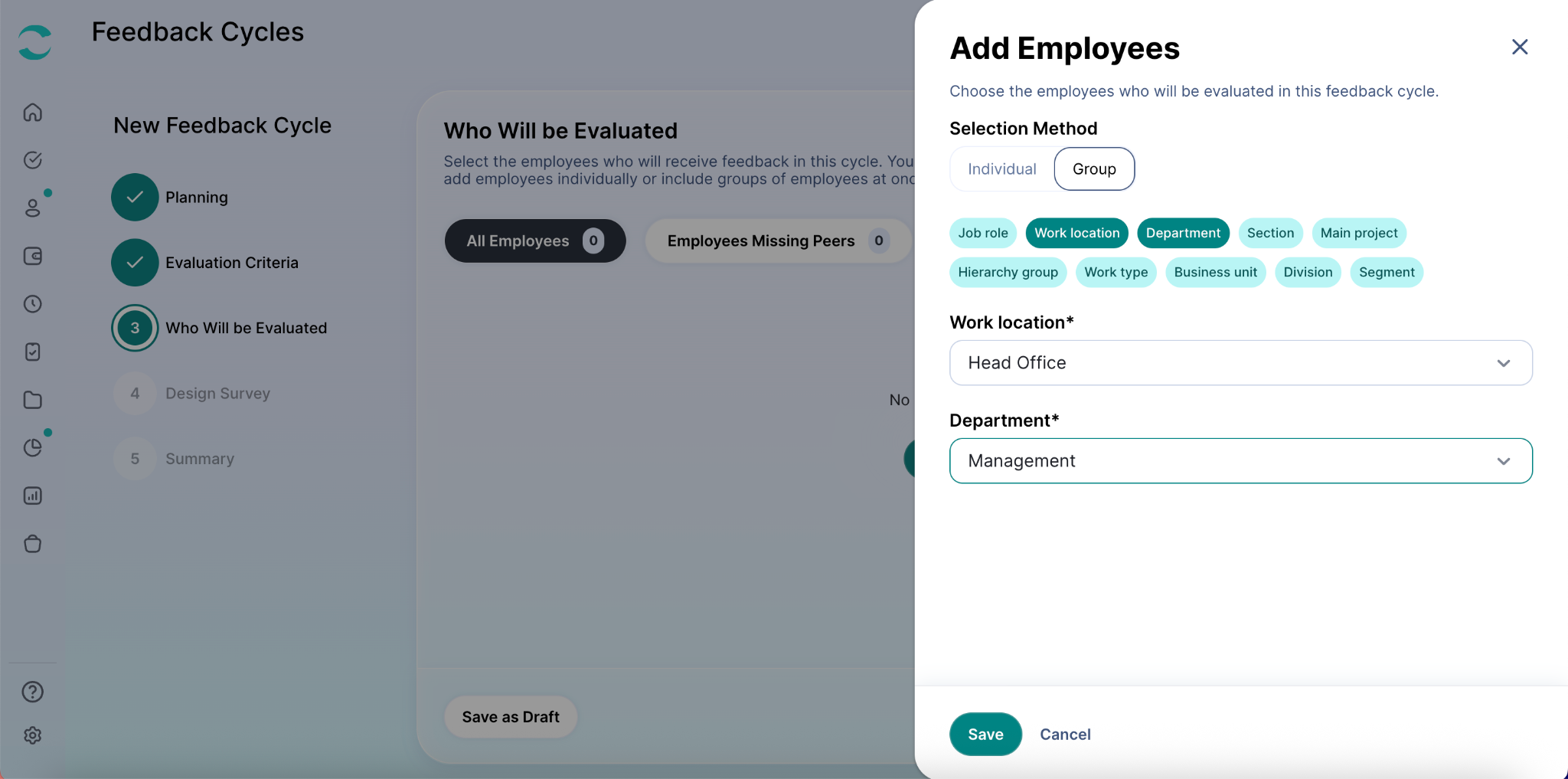
You can:
Add employees individually
Add multiple employees at once
Add employees using groups
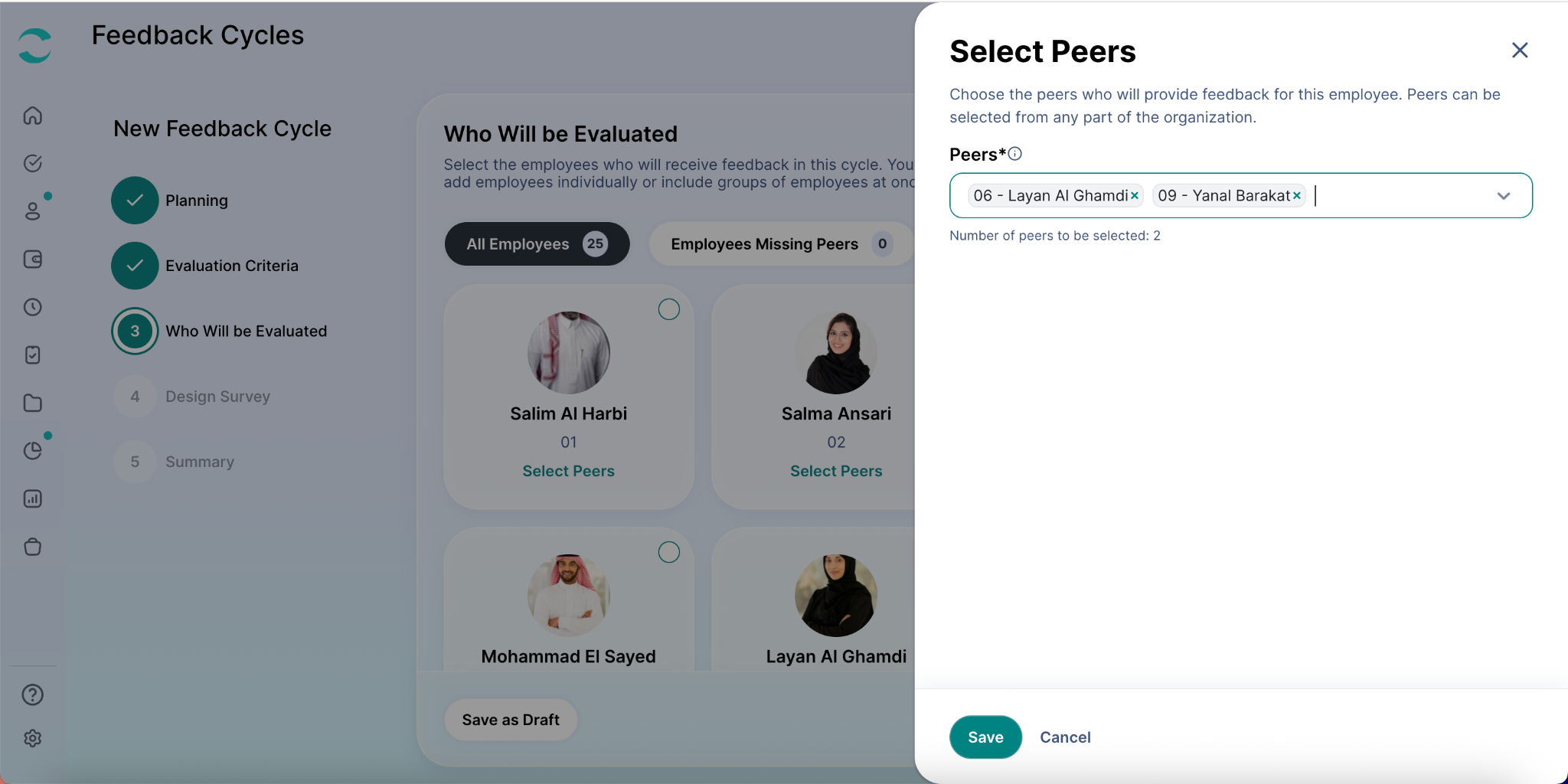
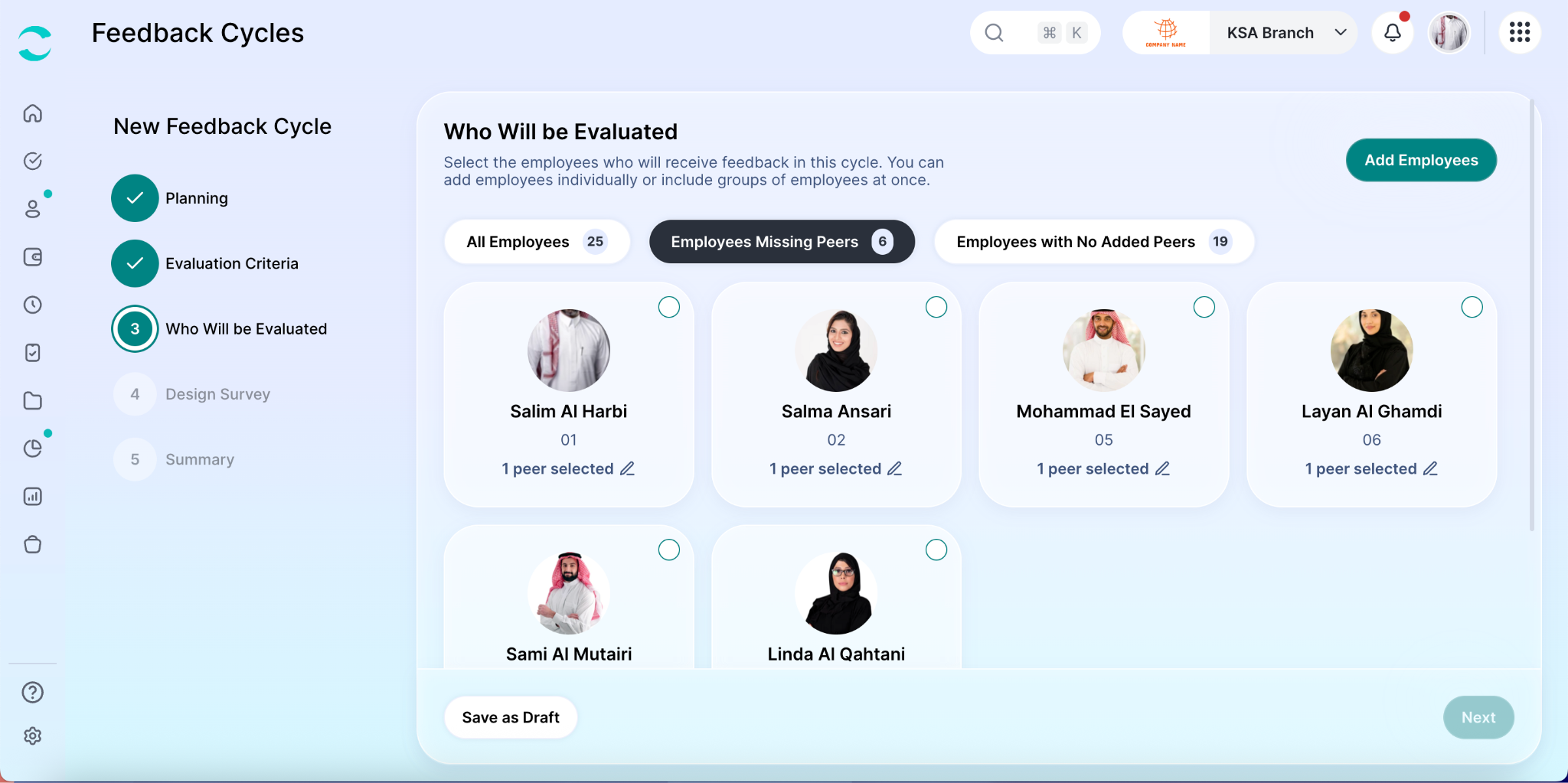
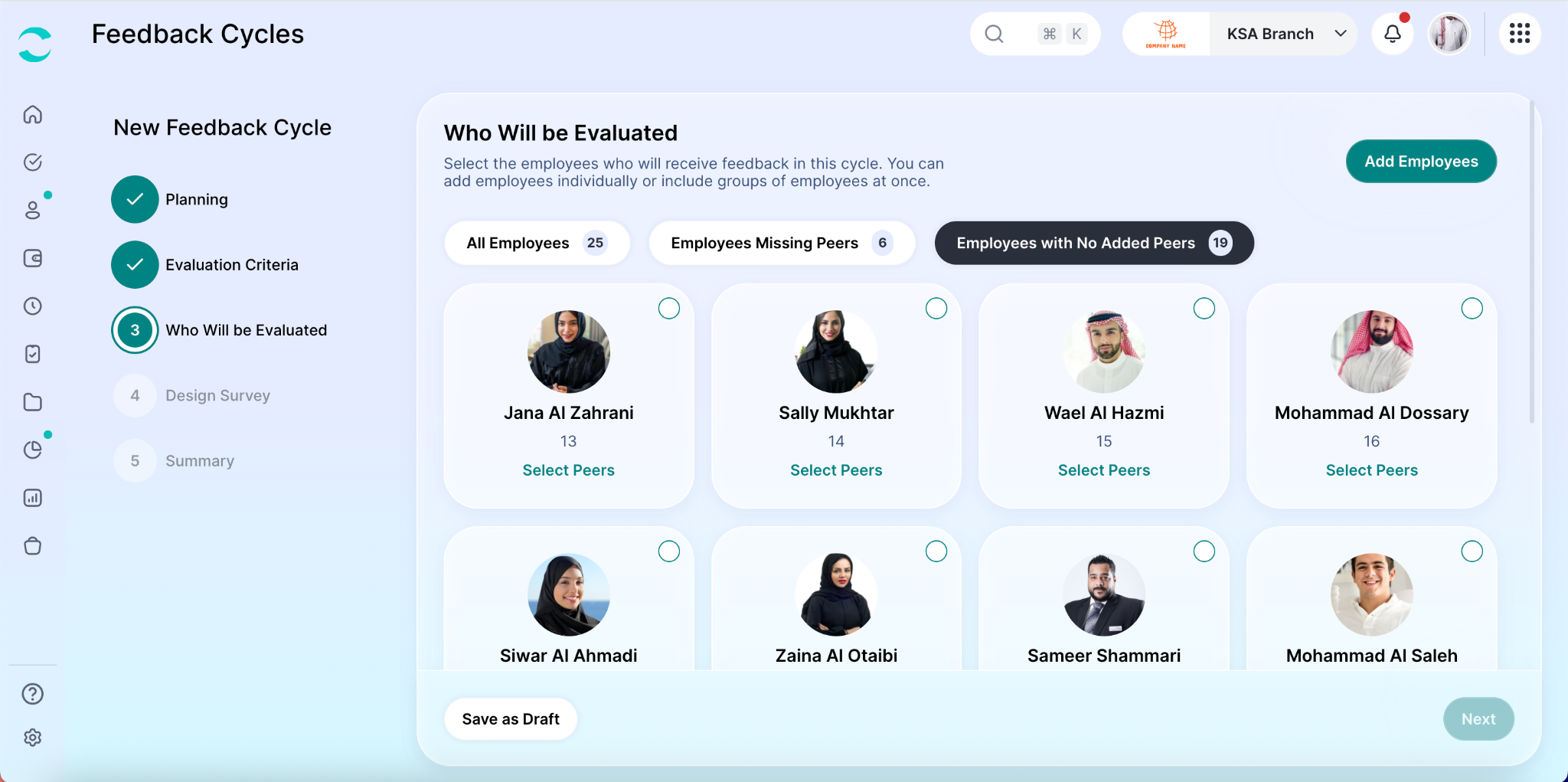
Step 4: Assign Peer Reviewers
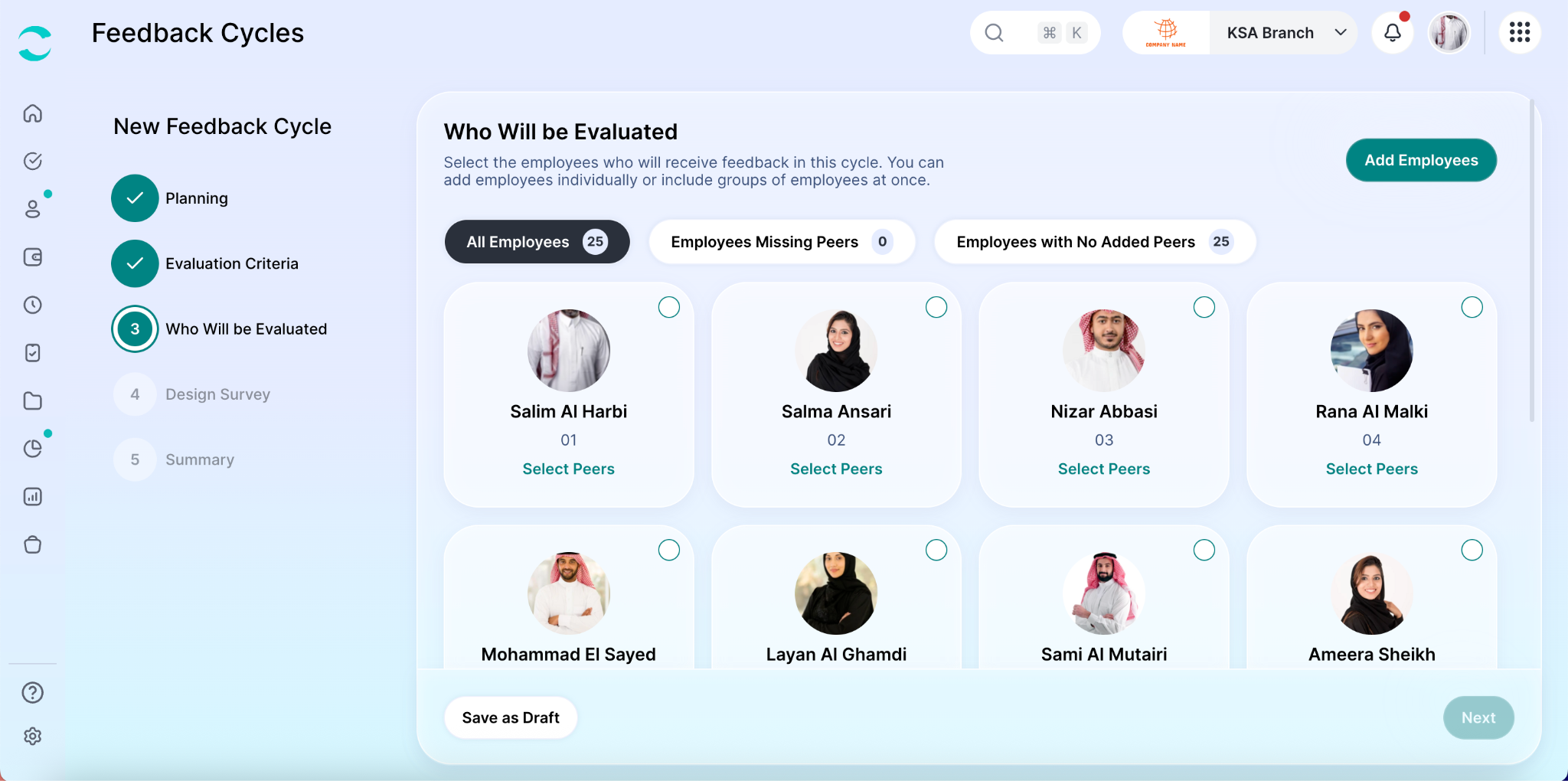
Select the peers who will provide feedback for each employee.
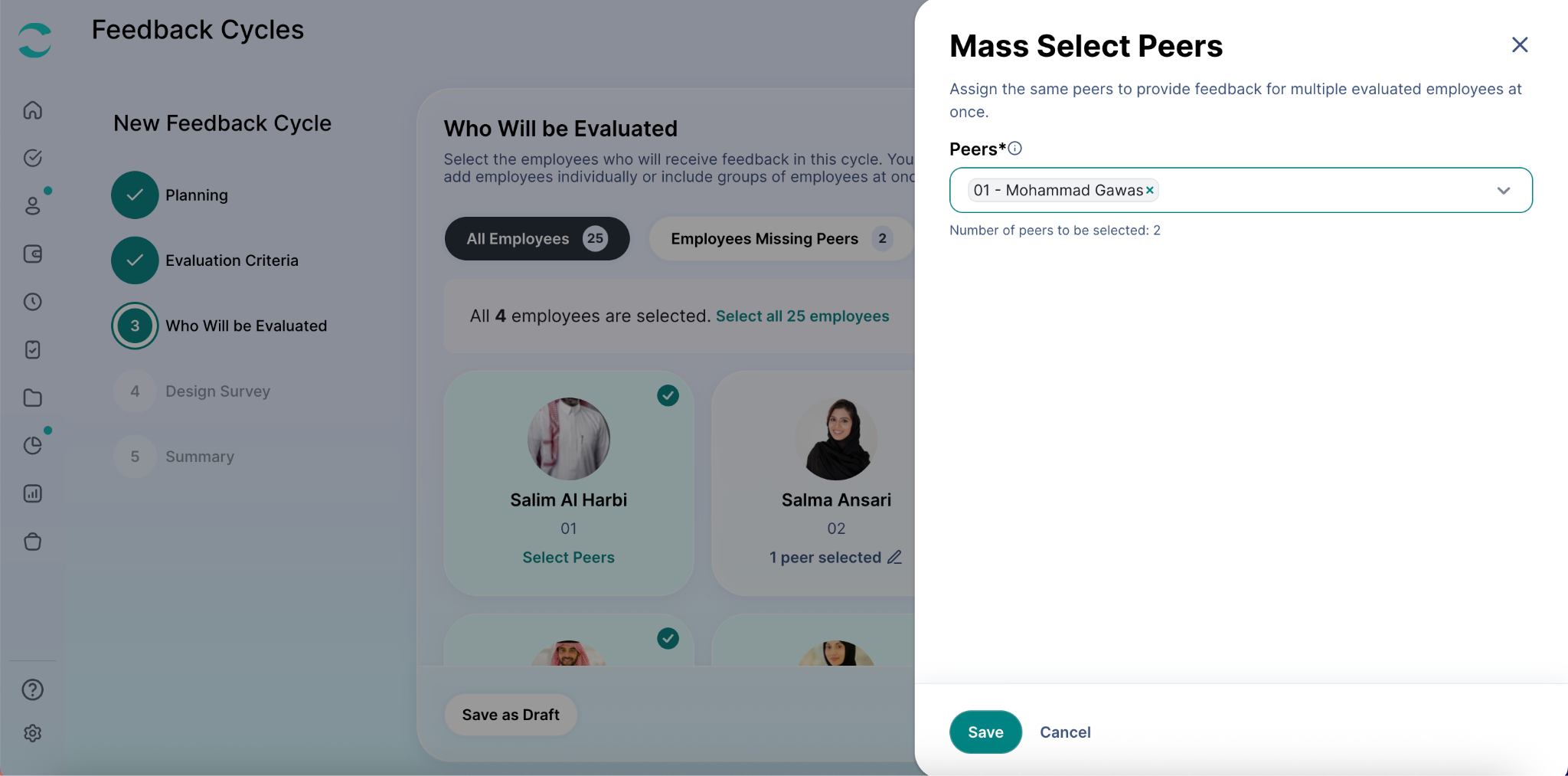
To make things more efficient, you can:
Select multiple employees.
Assign the same peer reviewers to all selected employees in one action.
This is particularly useful when employees work within the same team.
You can save your cycle as a draft at any time and continue setup later.
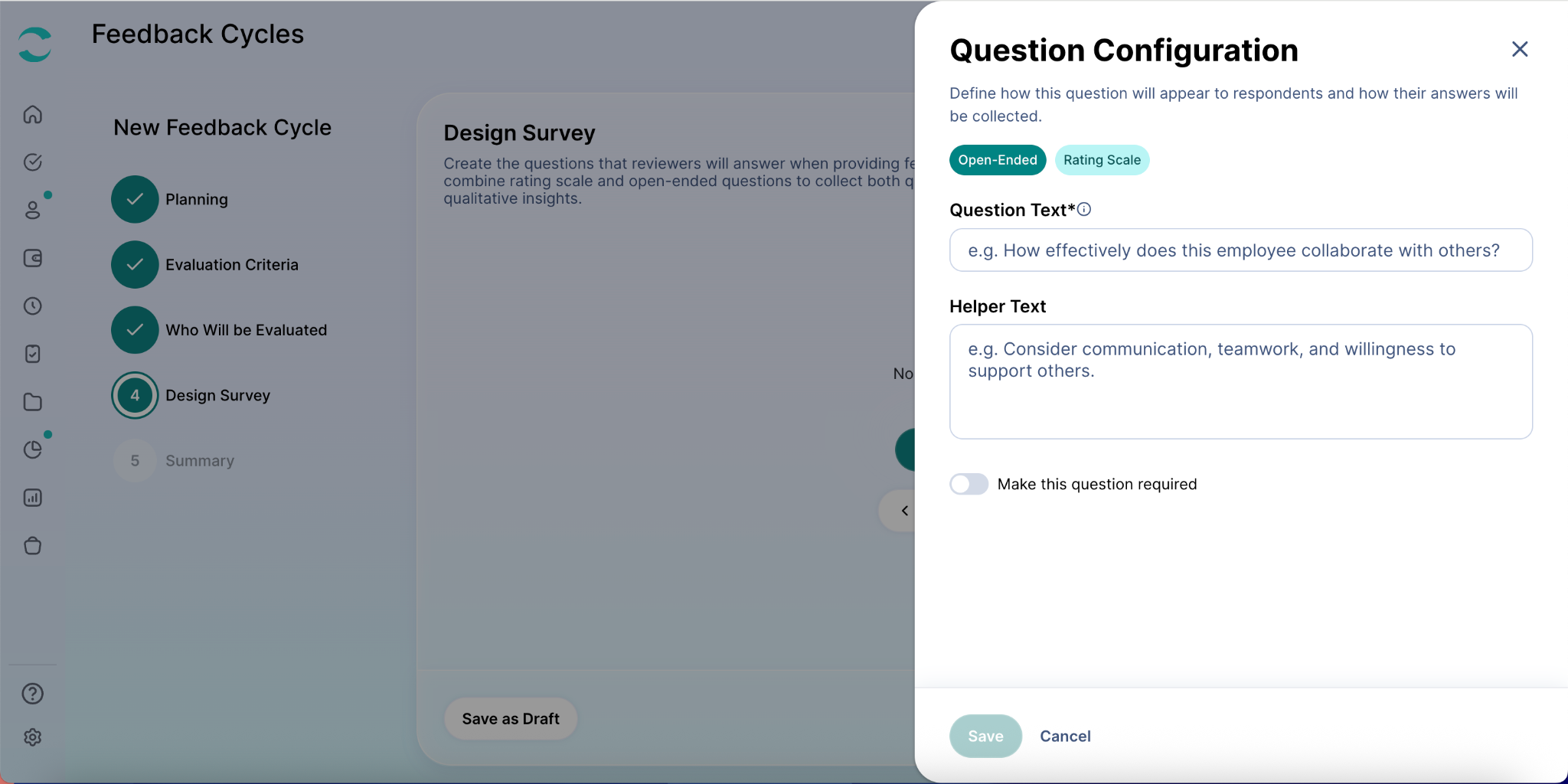
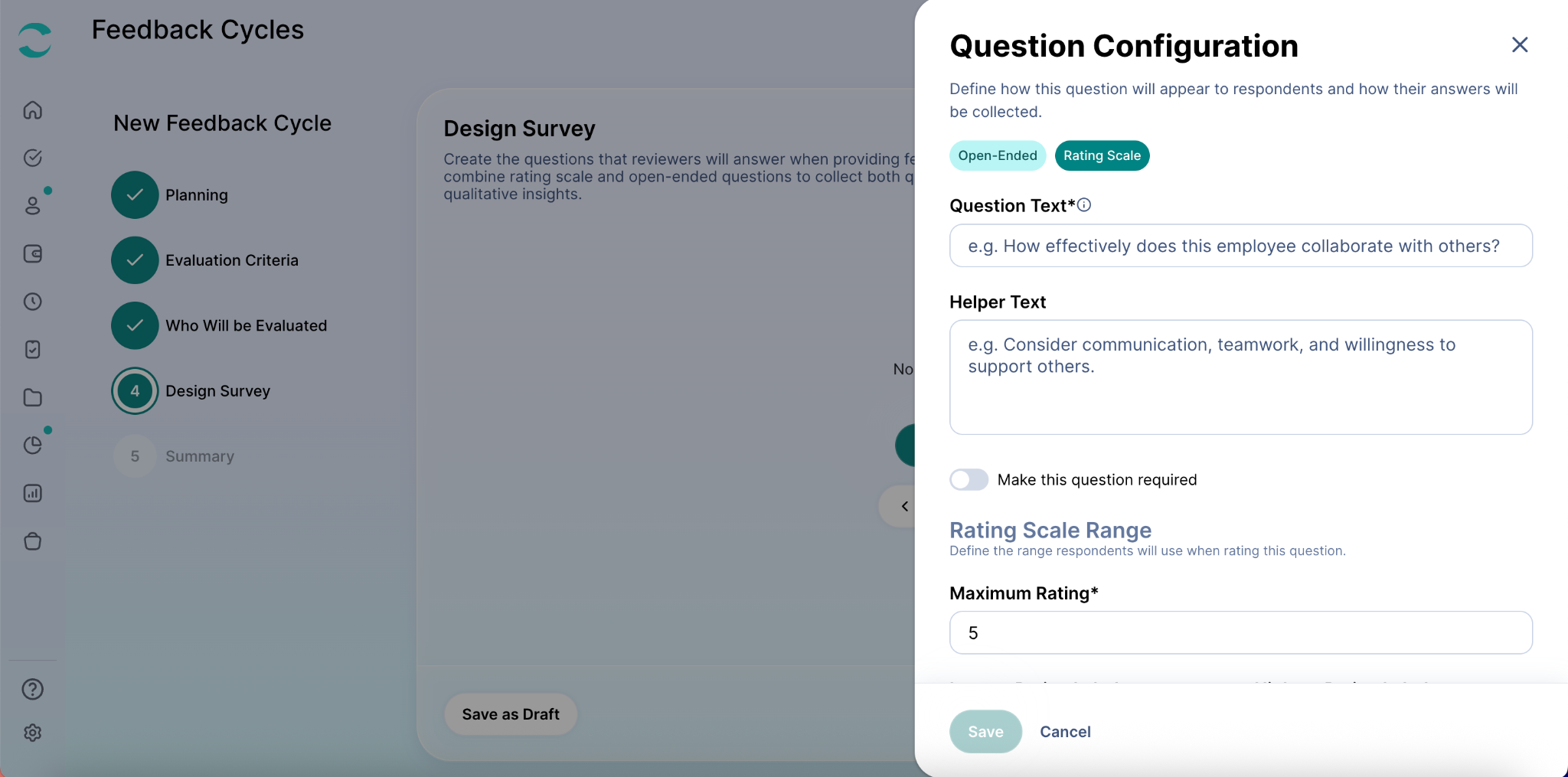
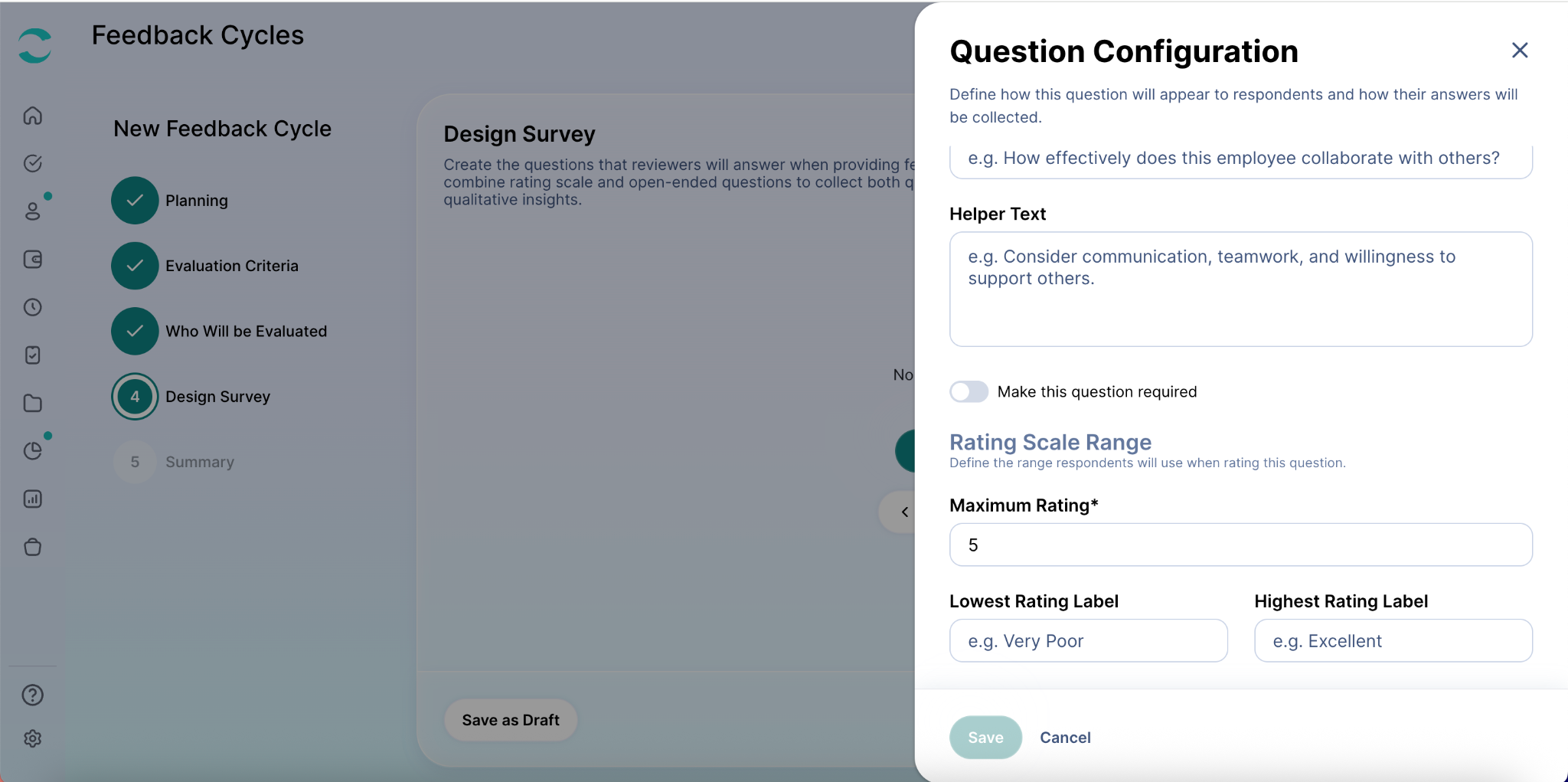
Step 5: Build a Feedback Questionnaire
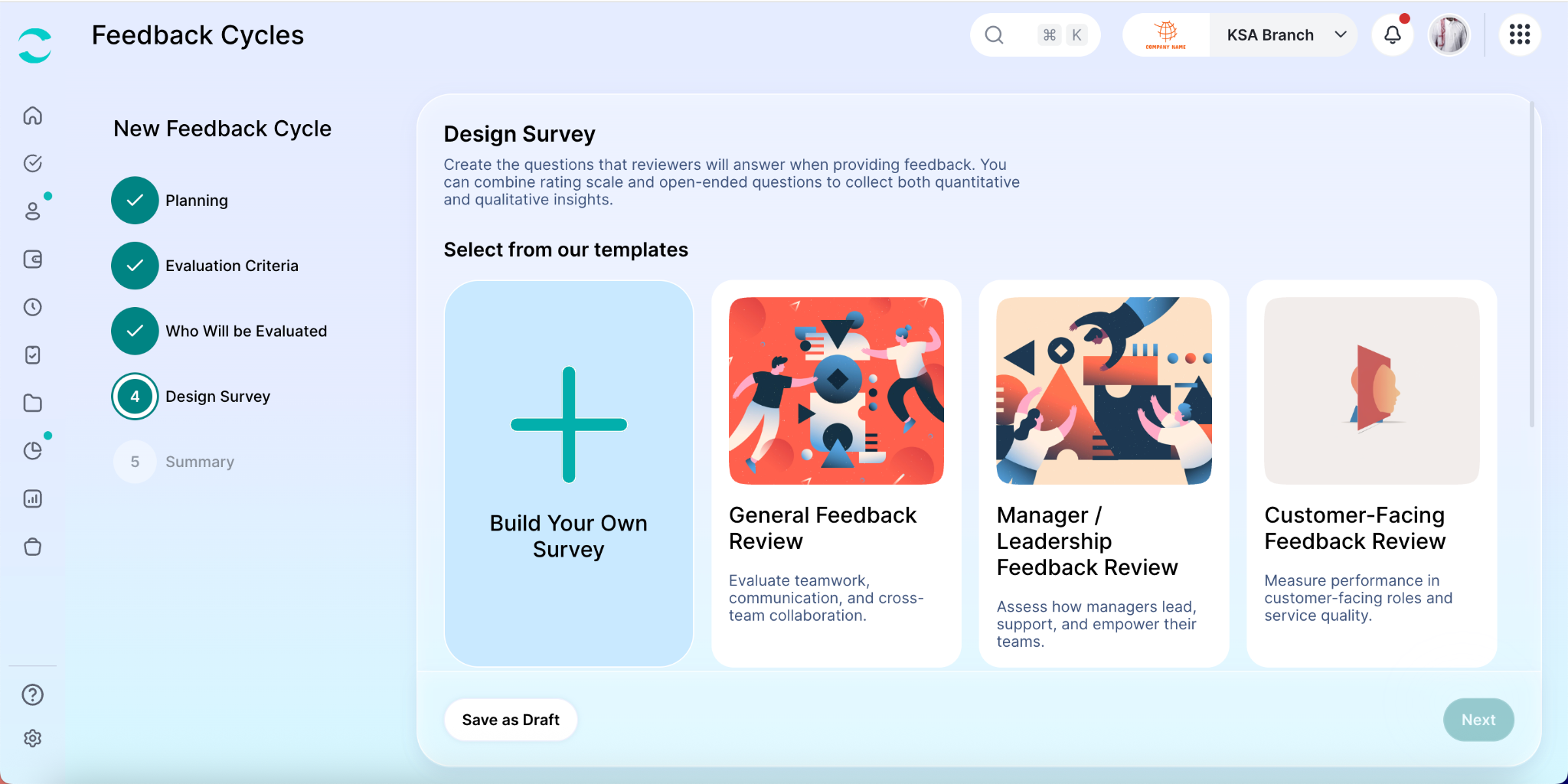
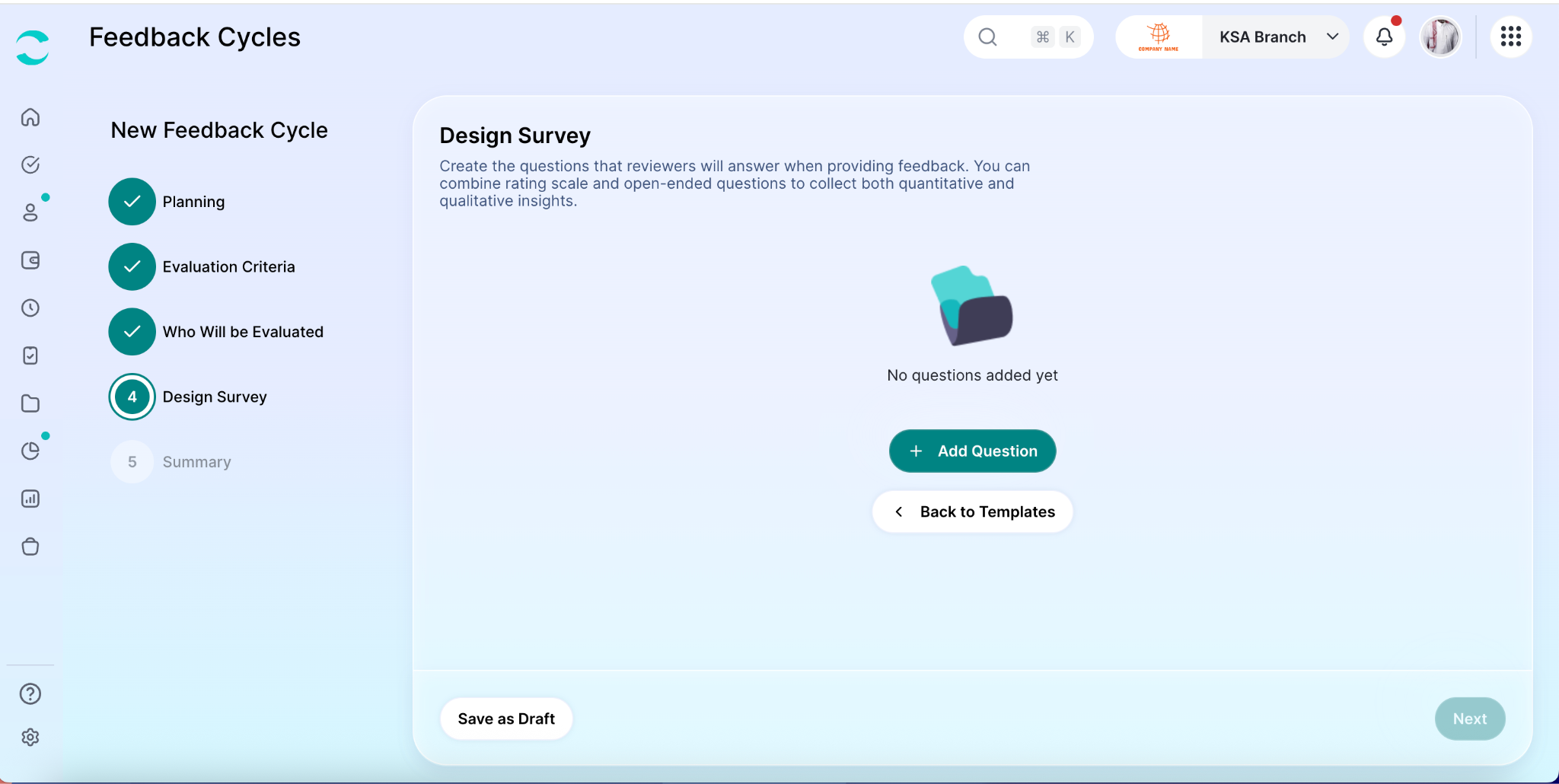
Create the survey that reviewers will complete. You can either:
Start from one of the predefined feedback templates
Create your own questionnaire from scratch
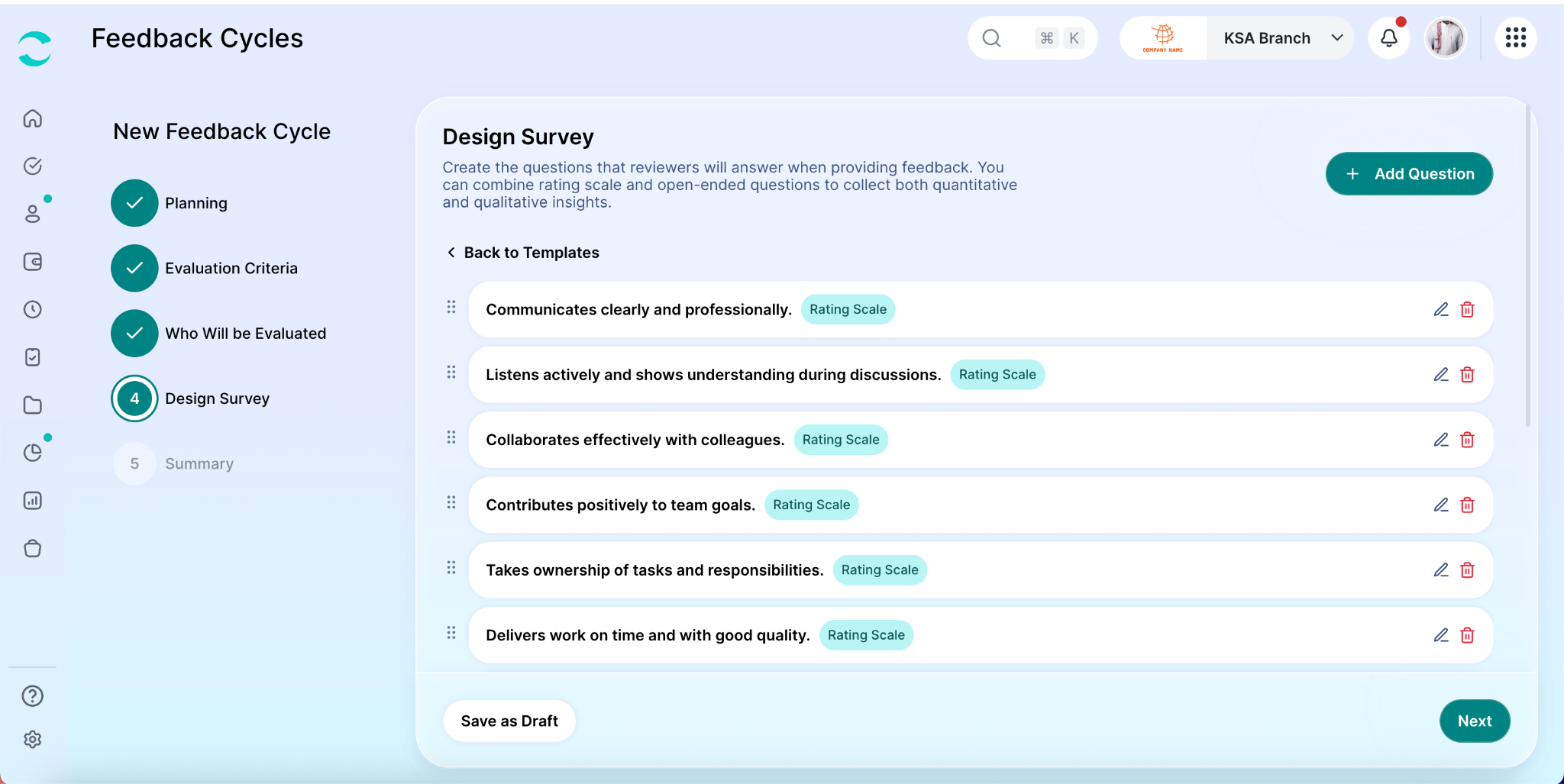
Supported Question Types
You can include the following types of questions:
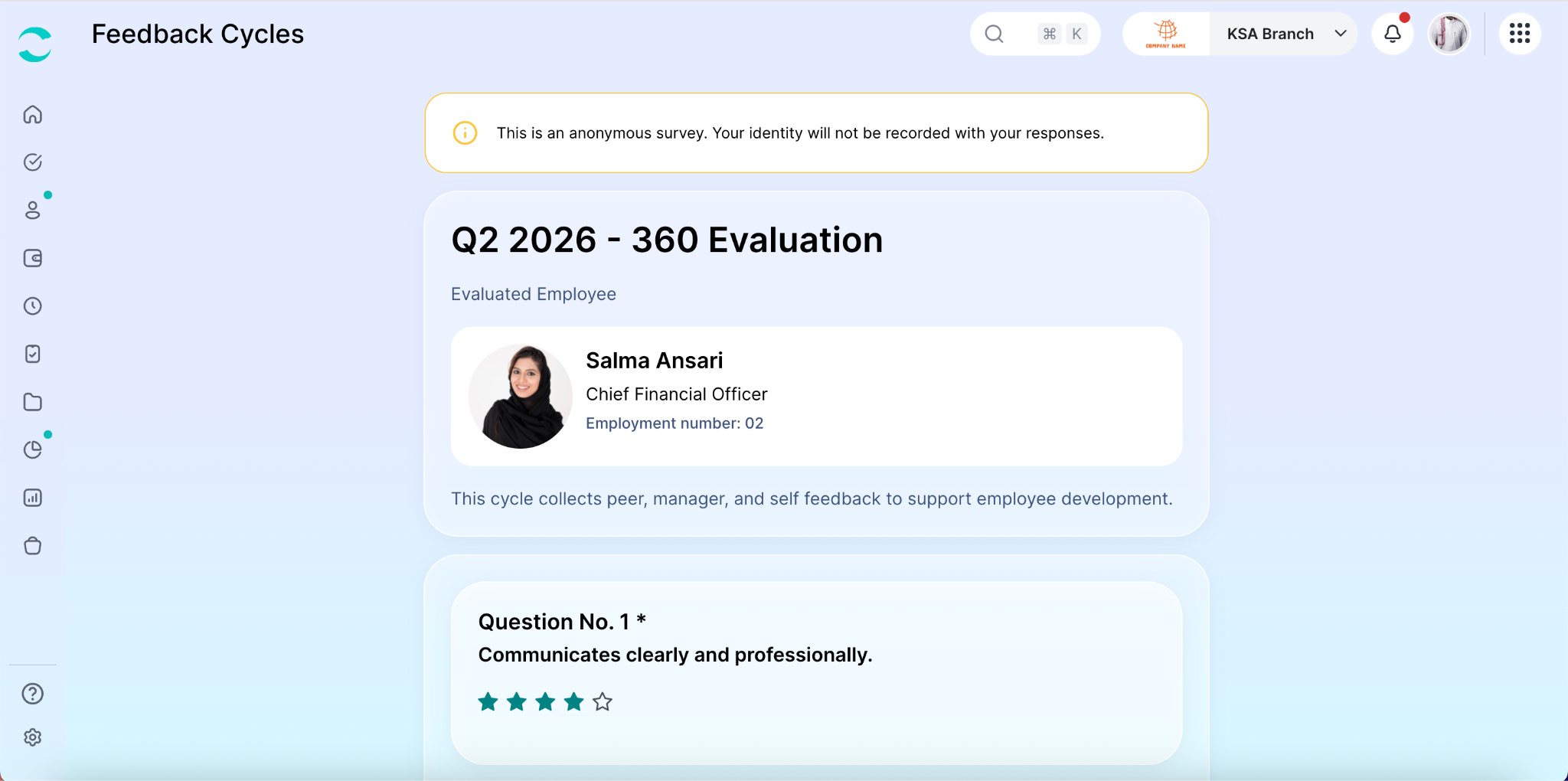
Rating-scale questions
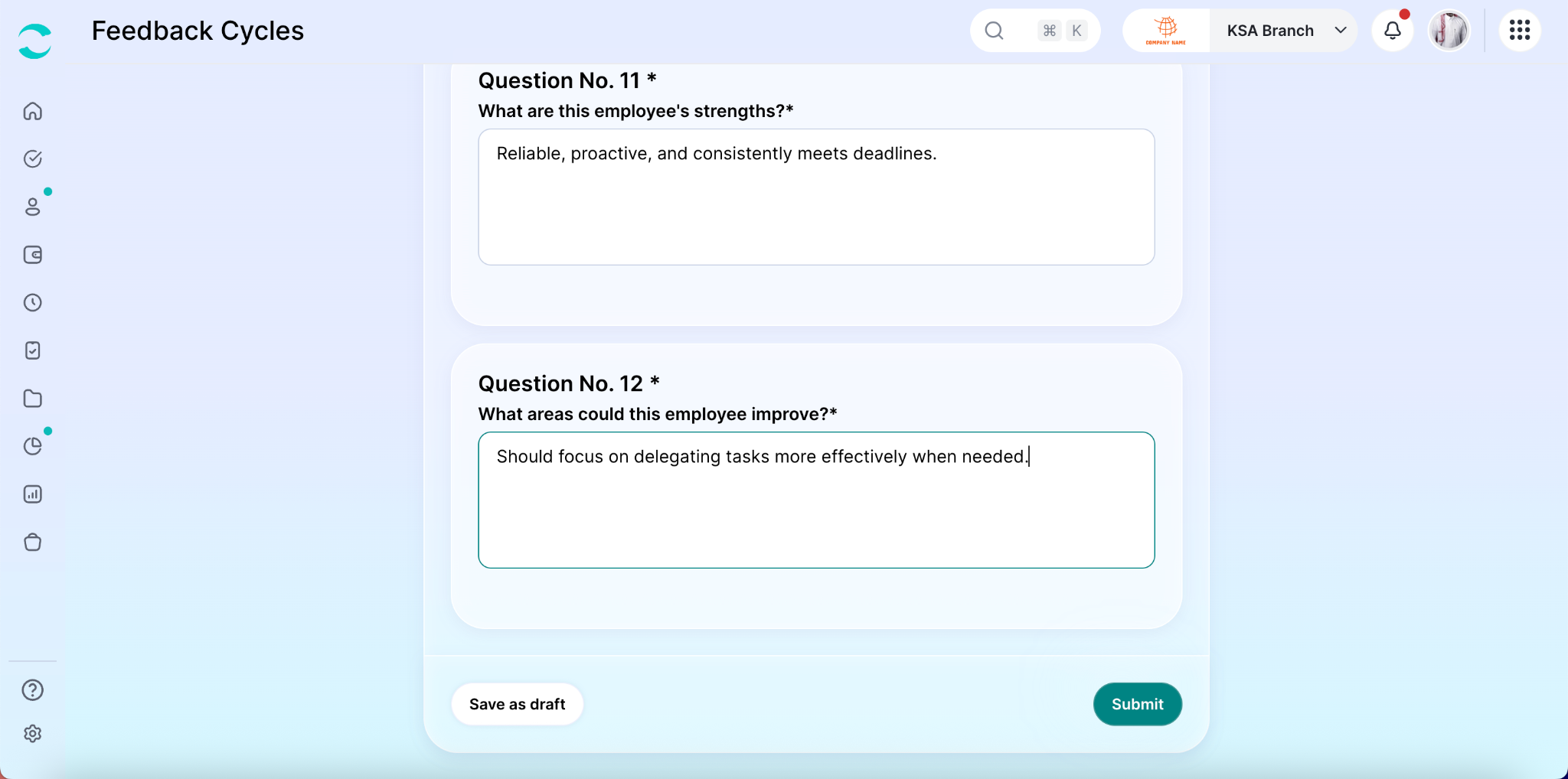
Open-ended questions
This allows you to collect both measurable scores and detailed qualitative feedback.
Step 6: Review & Launch Cycle
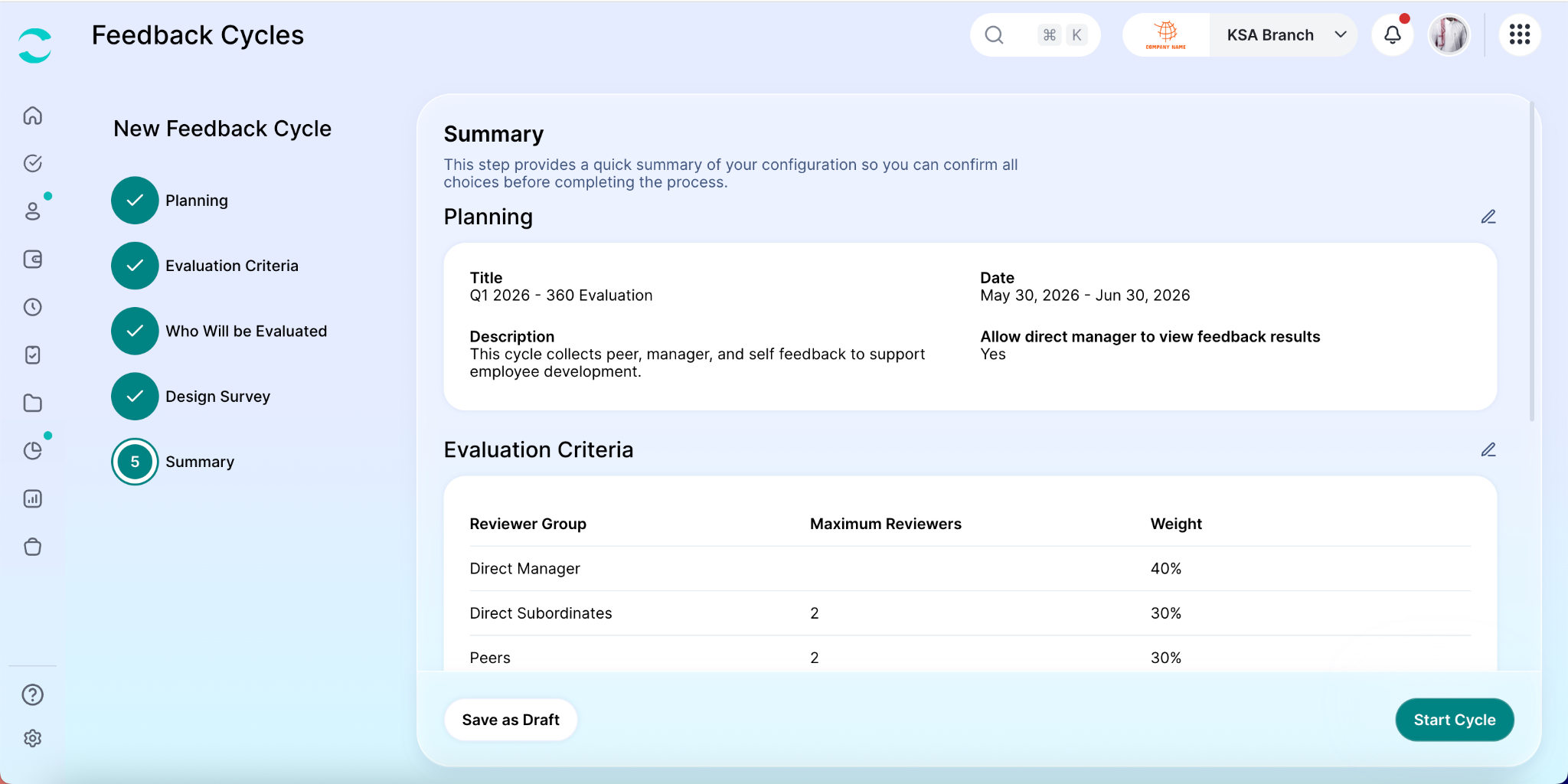
Before launching the cycle, you'll see a complete summary of your setup.
Here you can review:
Cycle details
Evaluation settings
Selected employees
Assigned reviewers
Survey questions
Make any necessary adjustments, then click “Start Feedback Cycle” to launch the cycle process.
4. Submitting Feedback
When you're assigned as a reviewer:
You'll receive a notification.
A new review request will appear in the Requests to Review tab.
To submit feedback:
Open the Requests to Review tab.
Click “Give Feedback” next to the assigned request.
Complete the questionnaire.
Submit your responses.
You can also complete feedback requests through the ZenHR Mobile App.
If you're unable to finish immediately, you can save your responses as a draft and return later to complete them.
5. Reviewing Feedback Results
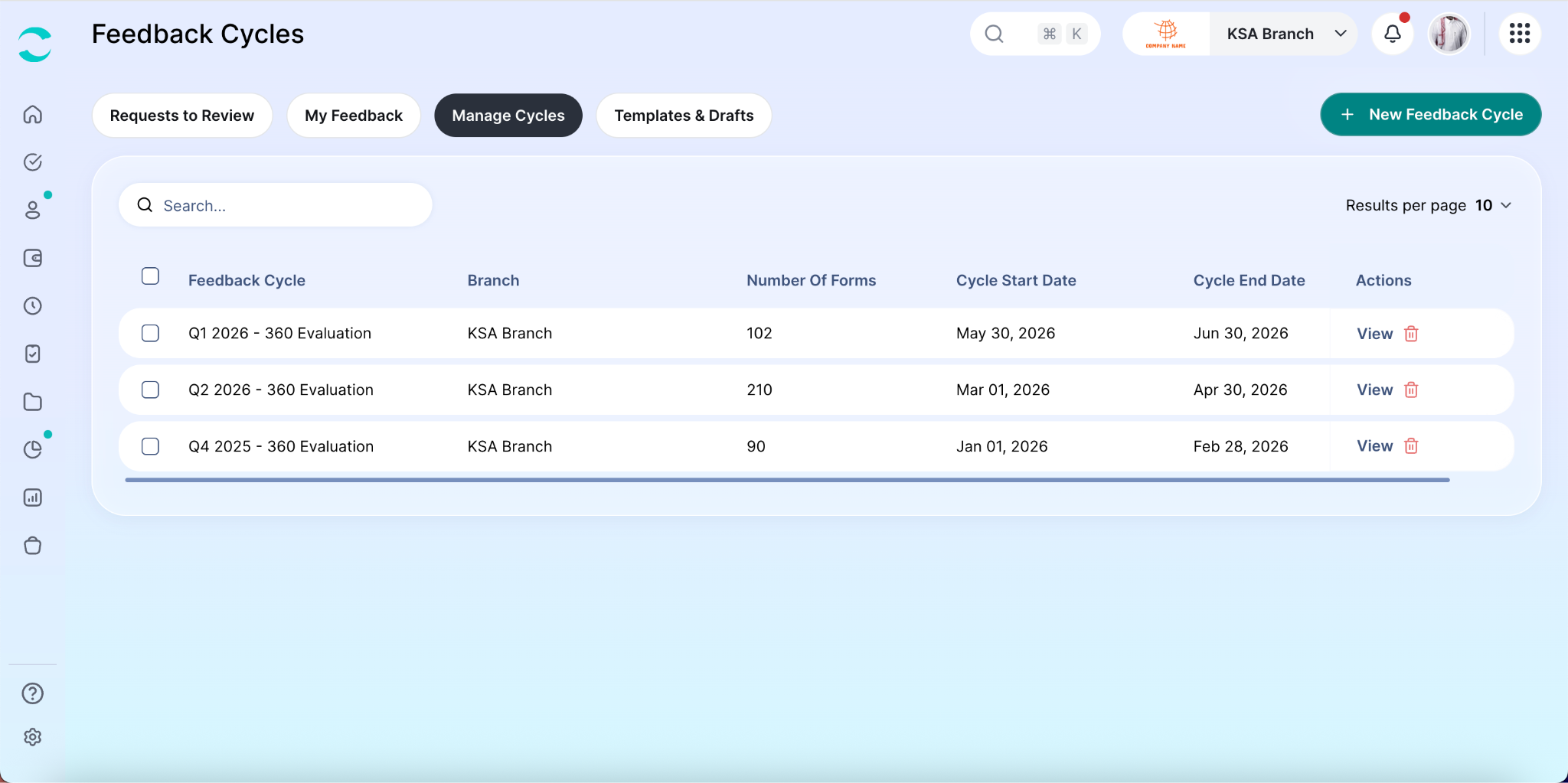
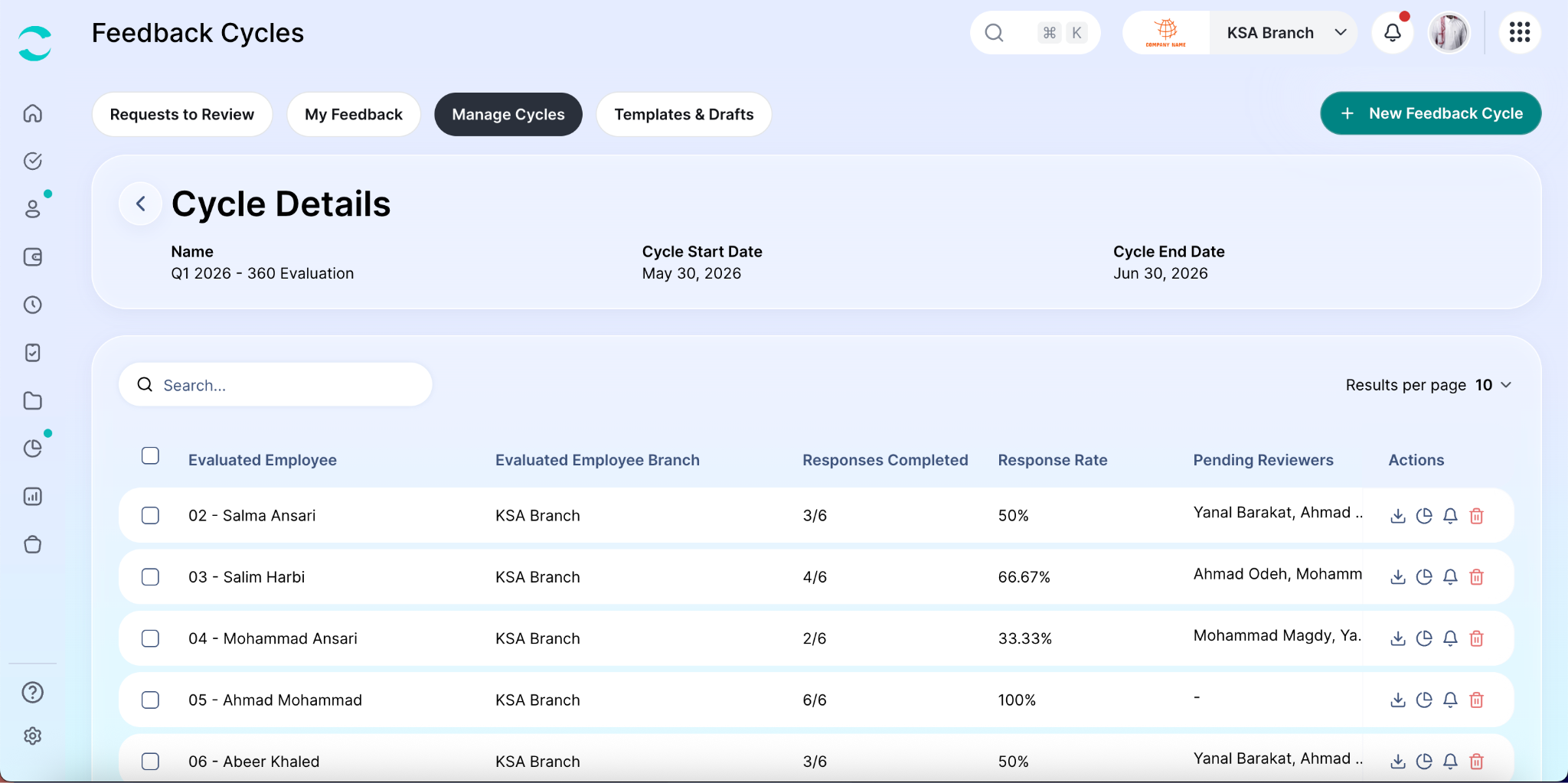
Admins and authorized managers can access cycle results through the Manage Cycles tab.
To review results:
Open Manage Cycles.
Locate the desired feedback cycle.
Click “View”.
You'll see a list of all employees included in the cycle.
For each employee, you can:
View detailed results
Download a feedback report
Send reminders to pending reviewers
Exclude the employee from the cycle if needed
Employee Results Dashboard
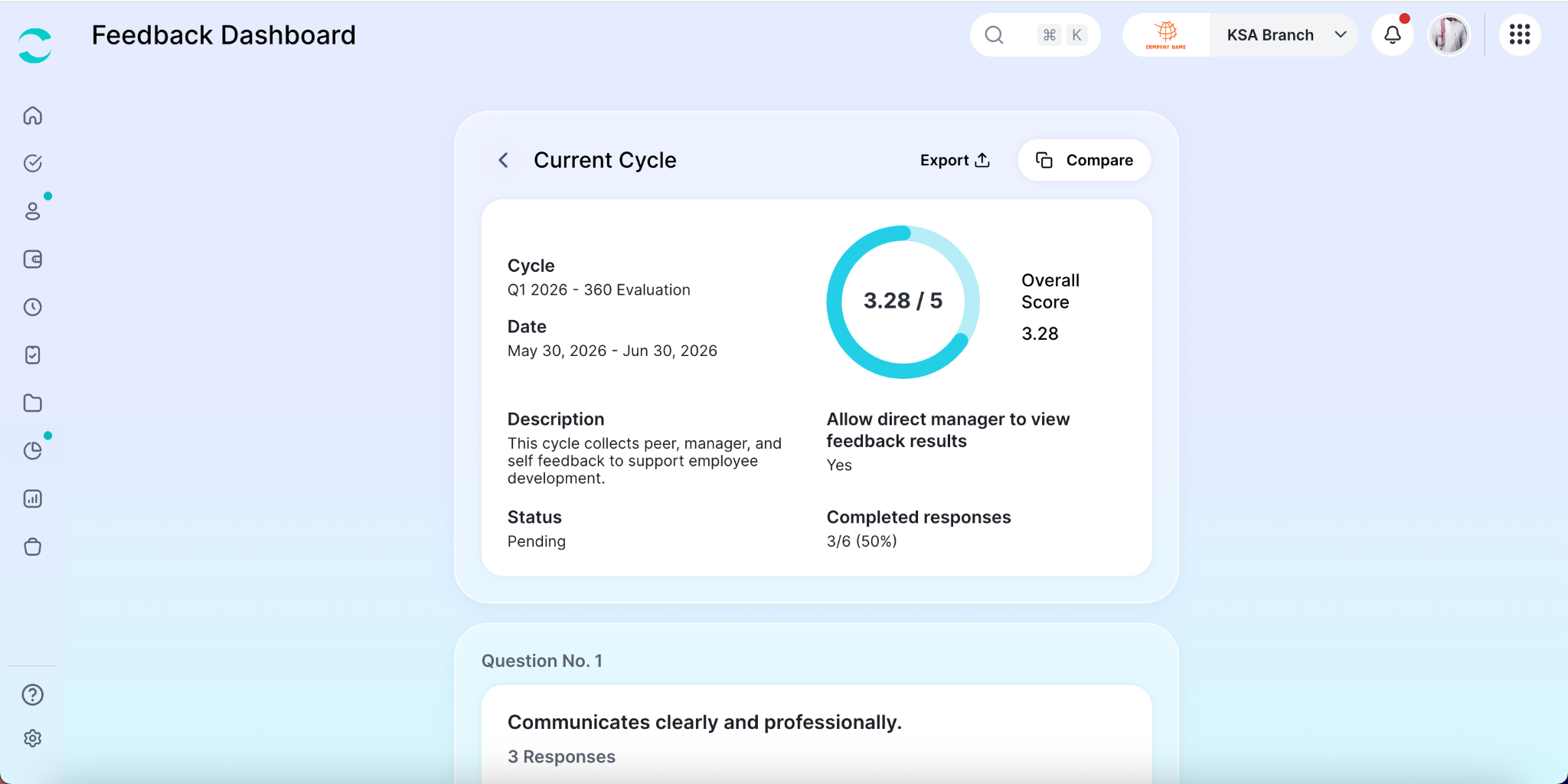
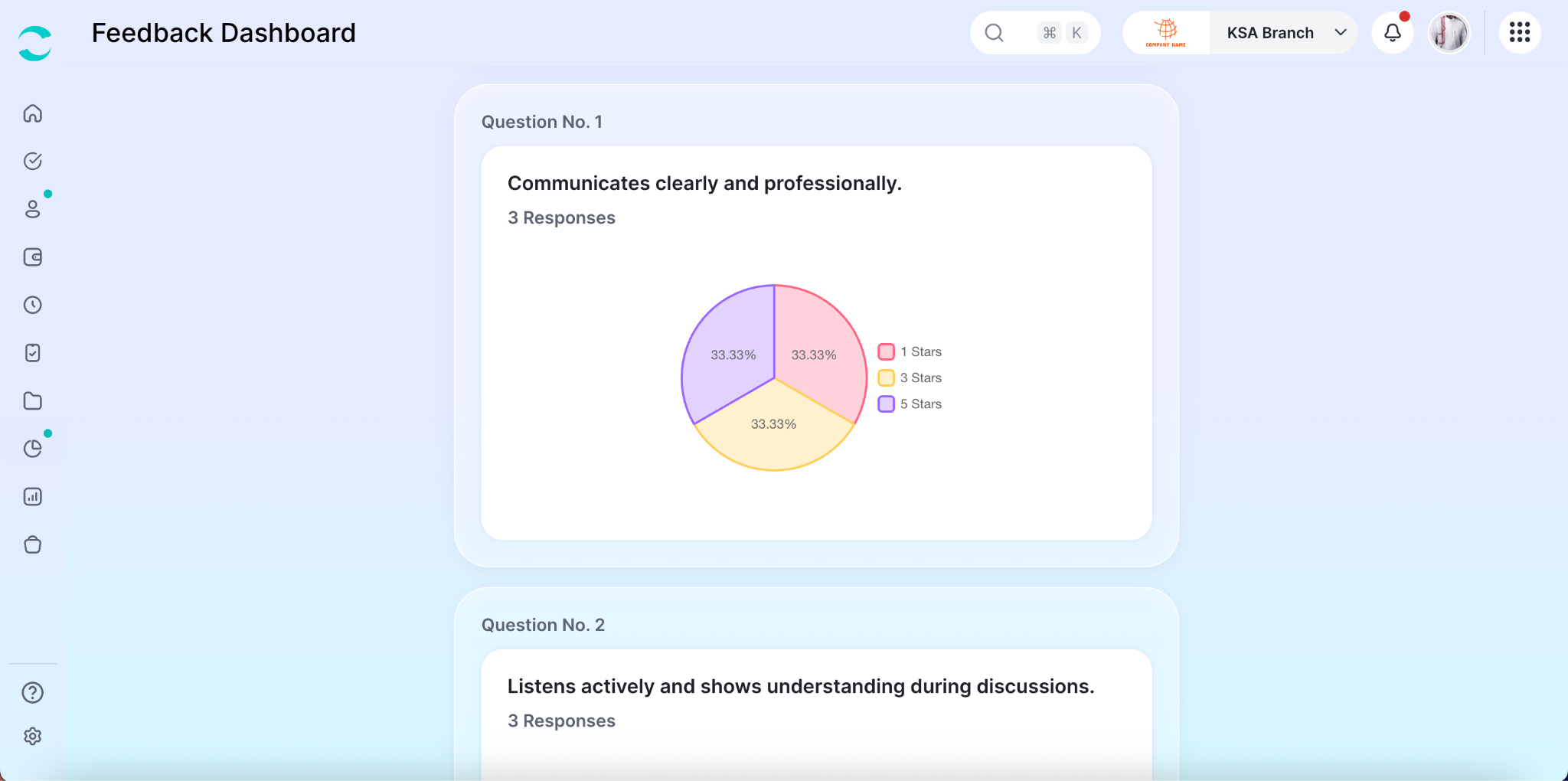
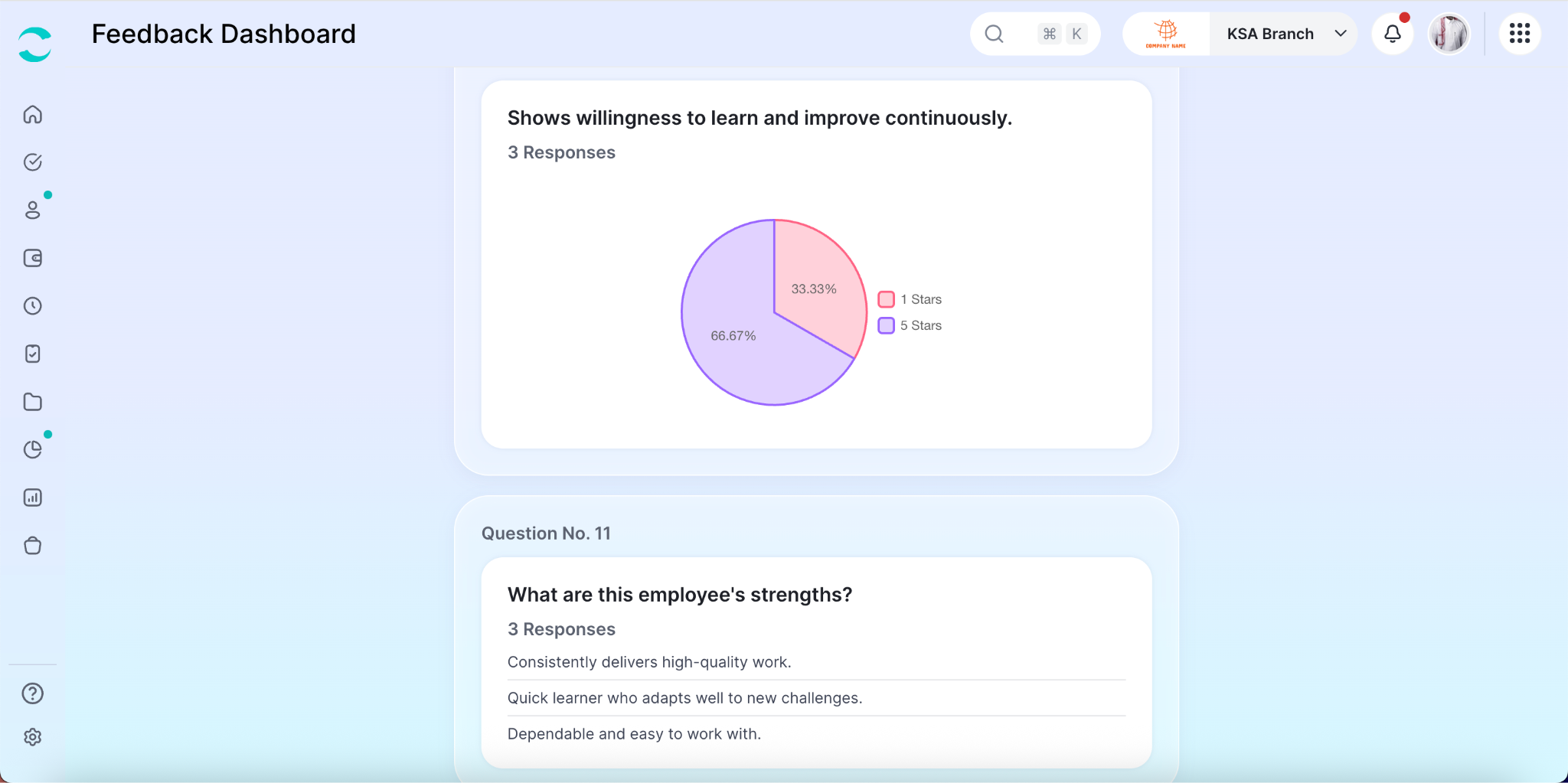
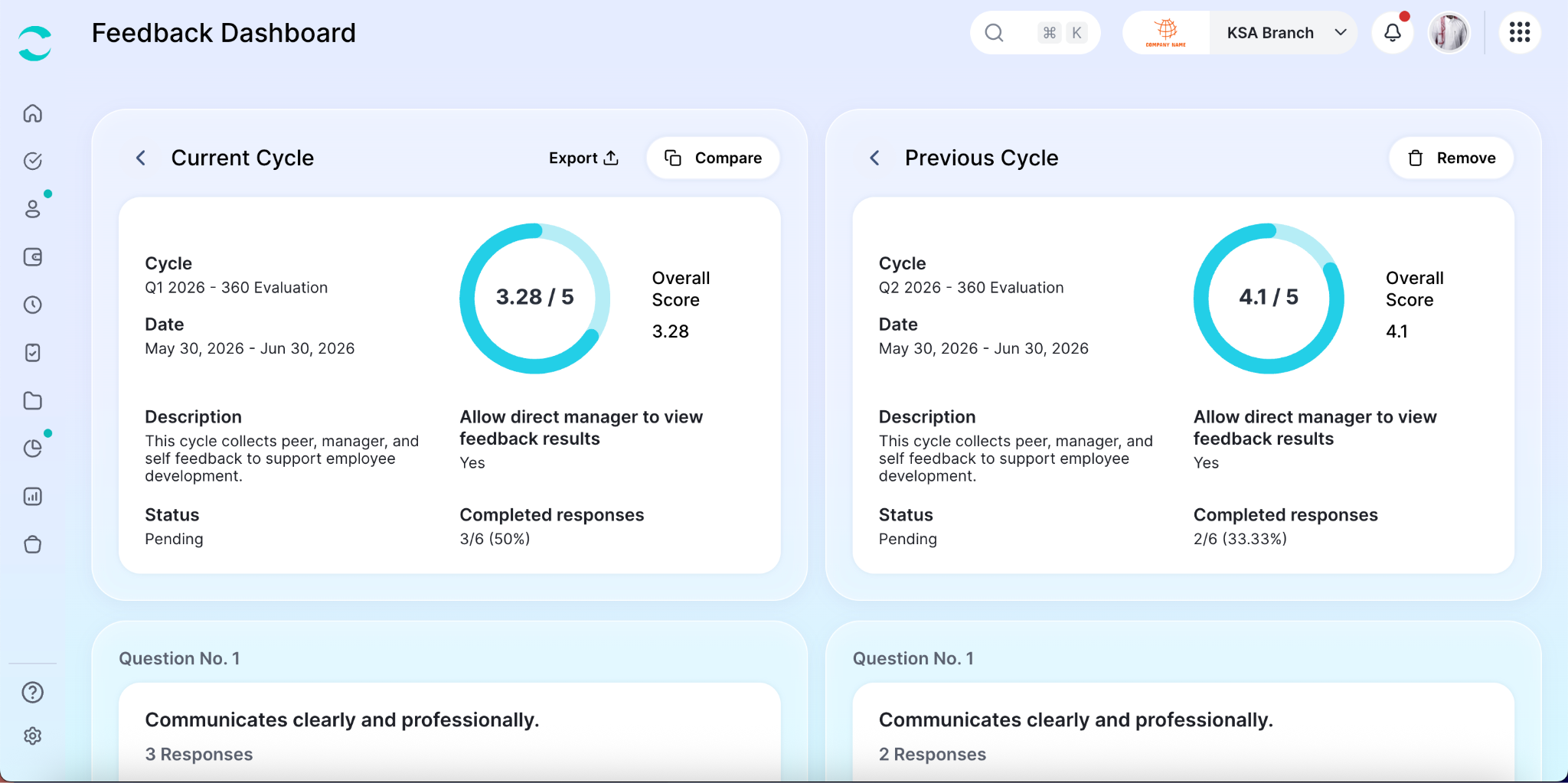
Each employee has a dedicated results dashboard that provides a complete view of their feedback.
The dashboard includes:
Final overall score
Scores by reviewer group
Individual responses
Open-ended feedback comments
Self-evaluation responses (if enabled)
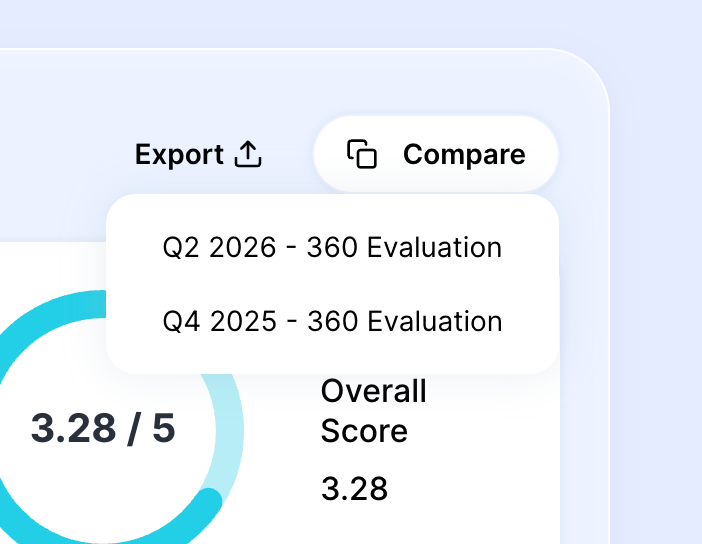
You can also compare current results with previous feedback cycles to track development and performance trends over time.
This allows managers and HR teams to identify strengths, improvement areas, and long-term employee growth.
Was this article helpful?
That’s Great!
Thank you for your feedback
Sorry! We couldn't be helpful
Thank you for your feedback
Feedback sent
We appreciate your effort and will try to fix the article