Earned Wage Access “ZenEWA”
Earned Wage Access “ZenEWA” on ZenHR is a service that enables employees to withdraw a portion of their earned salary before the official payday, based on the actual number of days worked, helping them cover urgent or unexpected expenses. The service reduces financial stress and supports employee satisfaction by minimizing reliance on loans or credit cards through a secure and transparent process.
Earned Wage Access “ZenEWA” is seamlessly integrated within the ZenHR, with no need for external systems. It operates in full alignment with company internal policies, Shariah principles, and Saudi Arabia’s Wage Protection System (WPS), including Mudad platform requirements, ensuring a fully compliant and reliable experience.
Company administrators can instantly activate the feature through ZenHR, define usage criteria, and manage approval workflows according to their internal policies. Once enabled, employees can submit Earned Wage Access requests with ease, with all transactions processed securely and automatically synced with ZenHR Payroll to ensure accuracy, automation, and consistency.
Table of Contents – EWA User Guide
Activation & Setup
Step 1: Requesting to Activate EWA
Step 2: Activating and Setting Up EWA
Eligible Employees
Company Contribution
Payroll-Based Conditions
Service Fee Configuration
Setting Limits & Controls
Submitting an EWA Request
Tracking & Managing Requests
Creating an Approval Template
Viewing & Filtering Transactions
Step 1: Requesting to Activate Earned Wage Access “ZenEWA”
To begin using Earned Wage Access “ZenEWA” on ZenHR, you first need to request activation of the feature.
Here's how:
Log in to your ZenHR account
From the Dashboard, go to the Integrations page
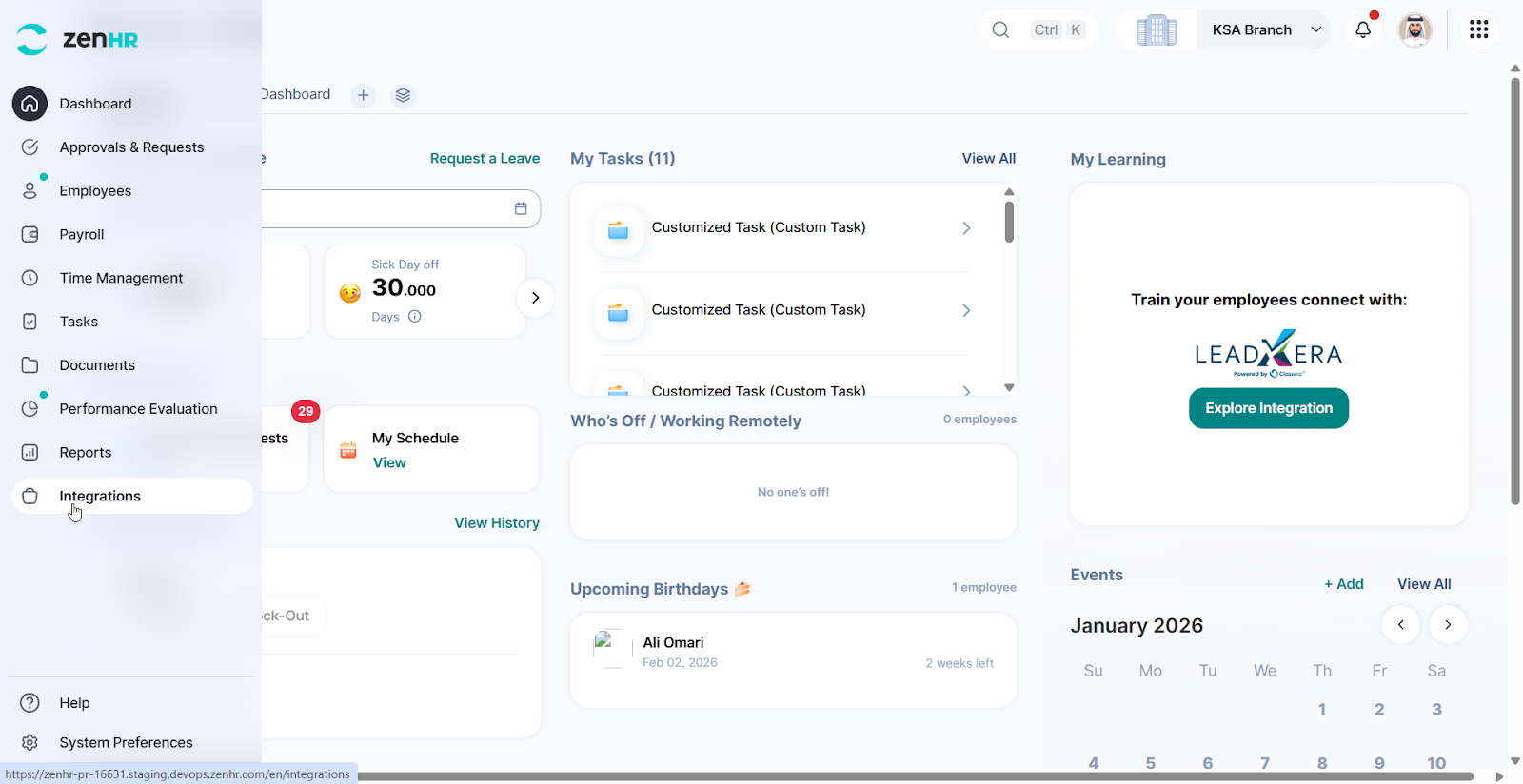
Look for the Earned Wage Access “ZenEWA” section
Note: This will only be available to branches located in KSA.
Click Activate Earned Wage Access “ZenEWA”.
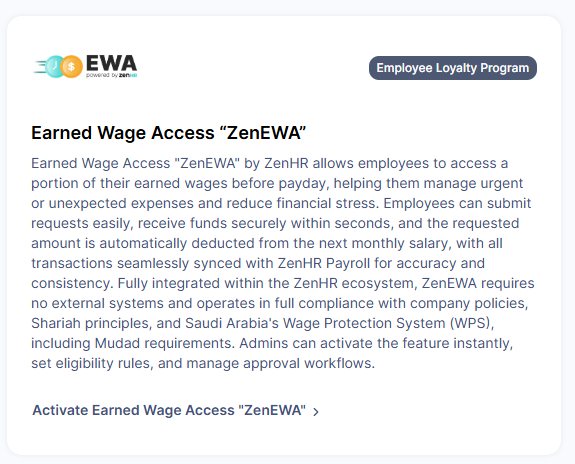
When your request is submitted, your activation request will be reviewed by the ZenHR team.
After clicking Activate Earned Wage Access “ZenEWA"
A confirmation message will appear notifying you that your request has been successfully sent to the ZenHR team.
The ZenHR team will contact you shortly with an EWA agreement to finalize the activation process.
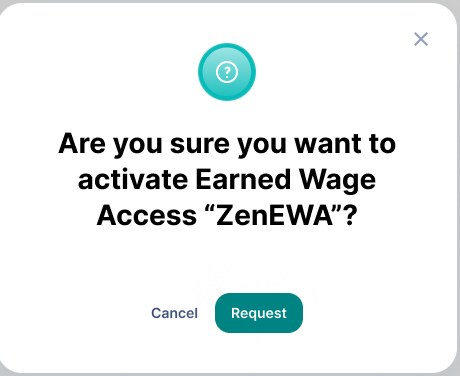
Once the agreement is approved and completed, you’ll be able to proceed with setting up and configuring the Earned Wage Access “ZenEWA” integration for your company.
Note: Only users with Global Admin or Branch Super Admin roles can set up this integration.
Step 2: Activating and Setting Up Earned Wage Access “ZenEWA”
Once your request has been approved and the agreement finalized, it’s time to activate and configure EWA for your company.
How to Set Up EWA
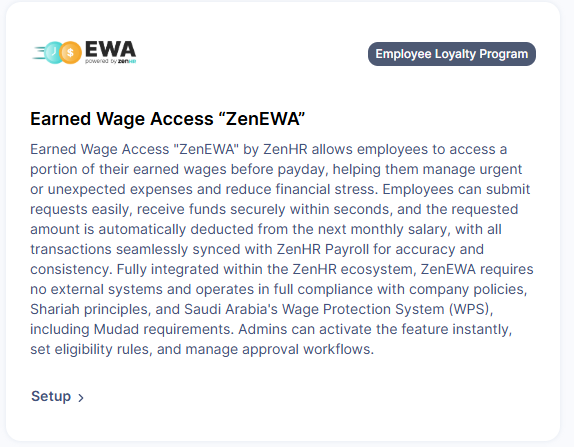
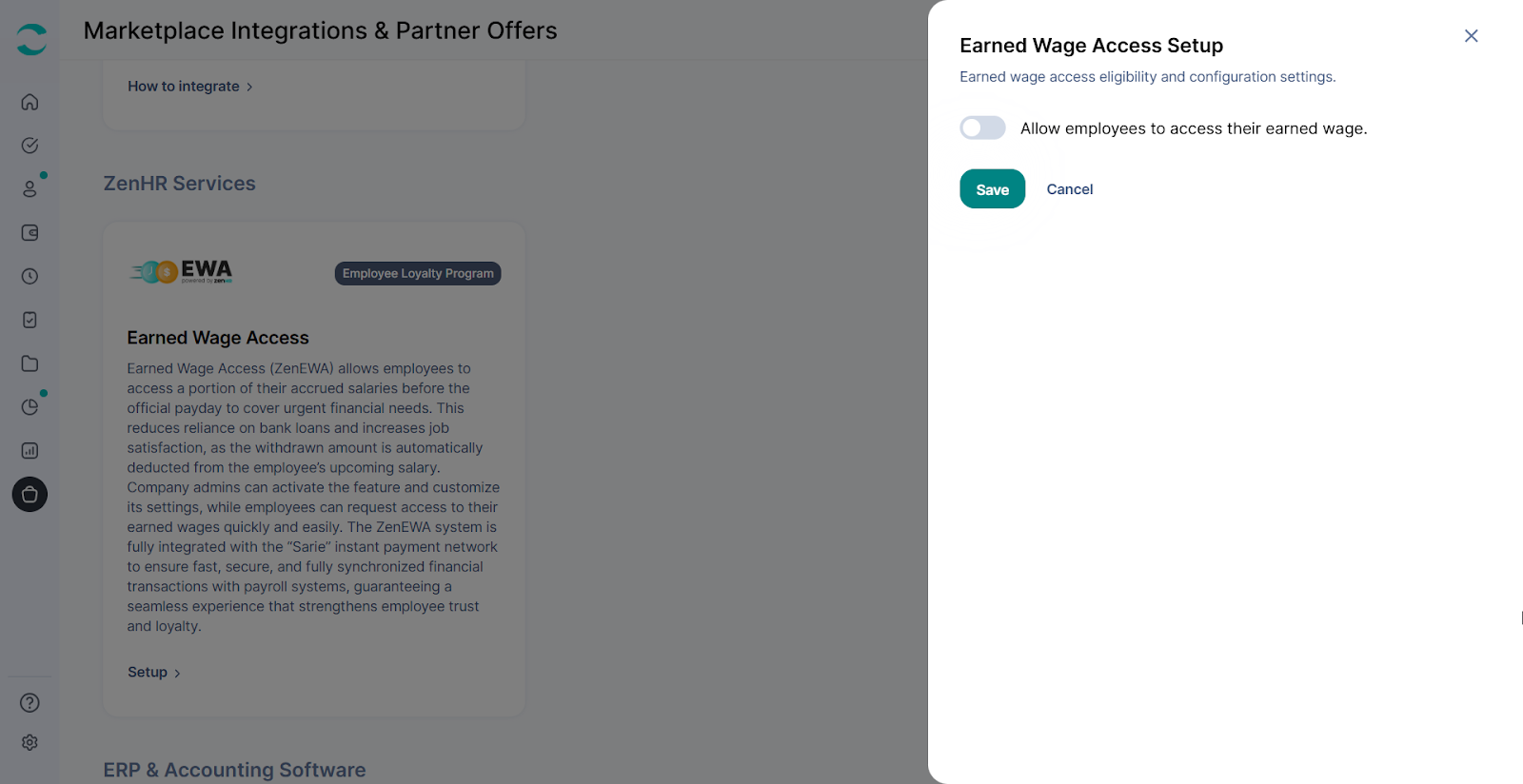
After activation, go to EWA in the Integrations page.
Click the “Setup” button to open the EWA Setup screen
This is where you'll define which employees can use the service and how it works within your organization
Activate the “Allow employees to access their earned wage” toggle.
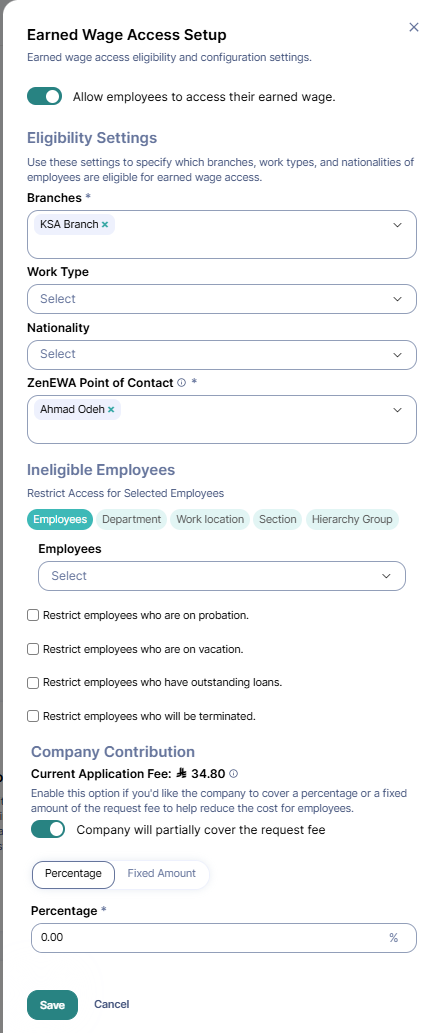
Defining Eligible Employees
Control access to Earned Wage Access “ZenEWA” by applying specific filters based on your company structure and policies.
Eligibility Filters:
Branches – Limit eligibility by work location
Work Type – Define which employment types can access EWA (e.g., full-time, part-time, temporary)
Nationality – Apply rules based on employee nationality, if required by policy
ZenEWA Point of Contact – Choose the employee(s) ZenHR should contact for any questions, updates, or claims related to the Earned Wage Access “ZenEWA” feature.
Ineligibility Filters:
Select any ineligible employees that you would like to restrict their access to Earned Wage Access “ZenEWA” by applying filters based on your company structure and policy.
Additional Eligibility Rules:
You can exclude employees based on their current status:
On probation
On vacation
With outstanding loans
With a future termination date
These filters give you the flexibility to:
Roll out EWA gradually
Apply it only to specific teams or groups
Align access with HR or risk policies
Company Contribution
Control whether your company helps cover the service fees for Earned Wage Access “ZenEWA” requests.
How it works:
Under Company Contribution, enable the toggle to allow the company to contribute toward the service fee.
Once enabled, you'll choose whether the contribution is a:
Percentage of the fee (e.g., cover 50%)
Fixed amount per transaction (e.g., cover 10.00 SAR)
If the toggle is disabled, the full fee will be paid by the employee.
This feature gives you the flexibility to support employee financial wellness while still managing overall company expenses.
How to Build an Approval Template for Earned Wage Access “ZenEWA”
To control approvals for Earned Wage Access “ZenEWA” requests, you can create a dedicated Approval Template.
Steps to Create:
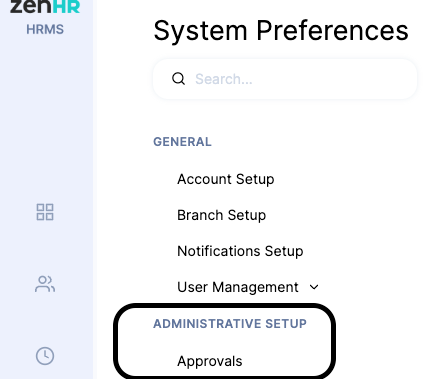
Go to “System Preferences”
Under the Administrative Setup section, click “Approvals”
Then, on the Approvals Templates List page, click the “Add” button.

Approval Template Setup for Earned Wage Access “ZenEWA”
Approval templates let you control who needs to approve Earned Wage Access “ZenEWA” requests based on your company’s organizational structure or specific employee groups.
Note: Setting up an approval cycle for Earned Wage Access “ZenEWA” may delay the request and the earned wage access of the employee.
1. Define Template Name
Start by giving your approval template a clear and descriptive name (e.g., “Earned Wage Access “ZenEWA” Approval”). This helps you quickly identify it later when managing multiple templates.
2. Select Transaction Type
From the Transaction Type dropdown, choose:
Earned Wage Access
This ensures the approval workflow only applies to Earned Wage Access “ZenEWA” requests.
3. Apply Filters (Optional)
You can target this approval template to specific groups of employees using any combination of the following filters:
Work Location
Department
Section
Main Project
Position
Employees
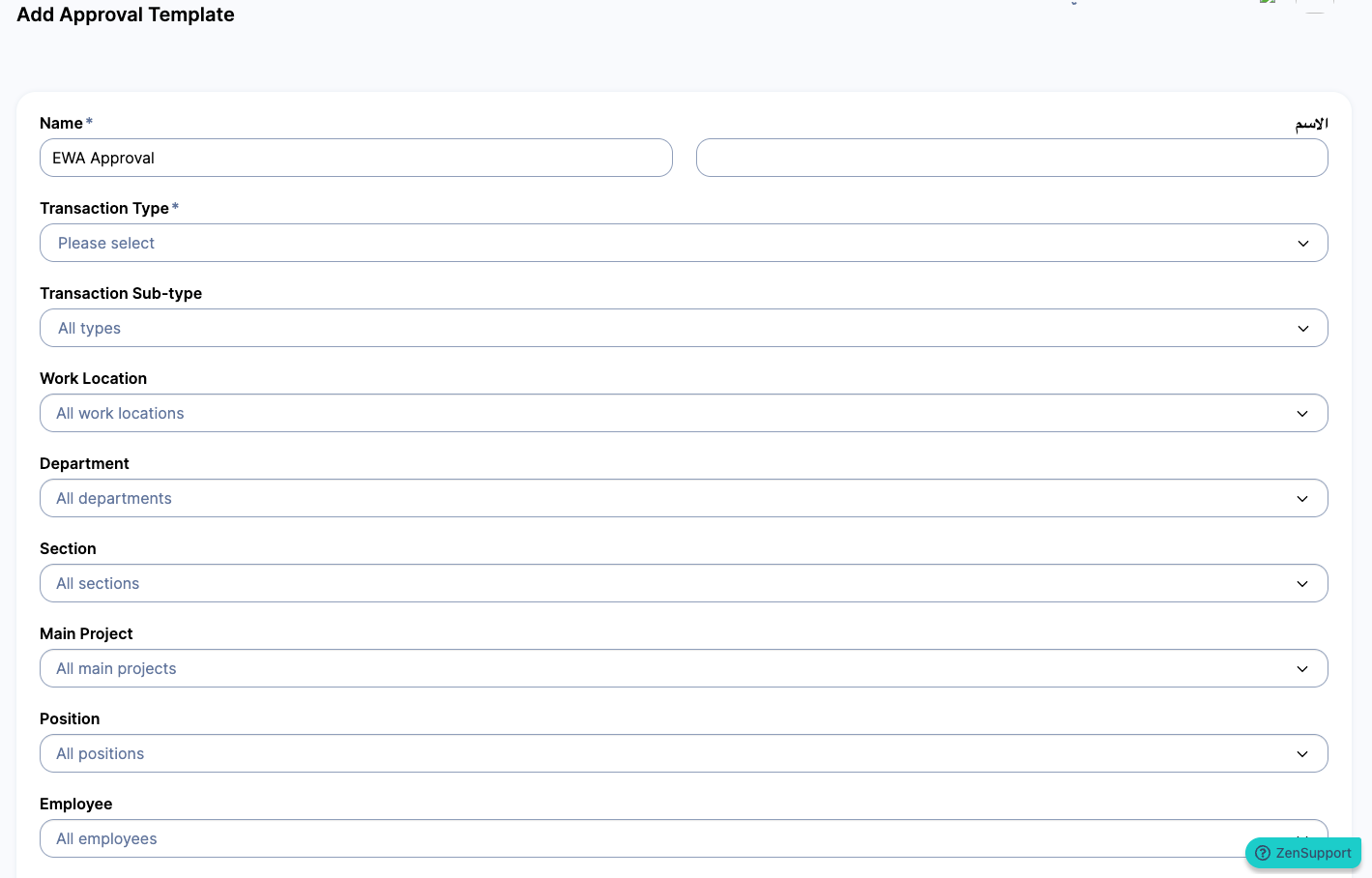
Note: If you leave these fields empty, the template will apply to all employees by default.
This gives you the flexibility to apply different approval rules to different parts of the organization or with a company-wide rule.
After Setup: What's Next?
Once you’ve saved the EWA Setup, a new section will appear to help you manage Eligible Employees, where you can view and adjust who has access based on the filters you defined.
Where to Find the Earned Wage Access (ZenEWA) Request Feature
Employees can request Earned Wage Access (ZenEWA) directly from their dashboard:
Go to the Dashboard.
Click on “Approvals and Requests” on the Main Menu.
Then click on “ Add Request”.
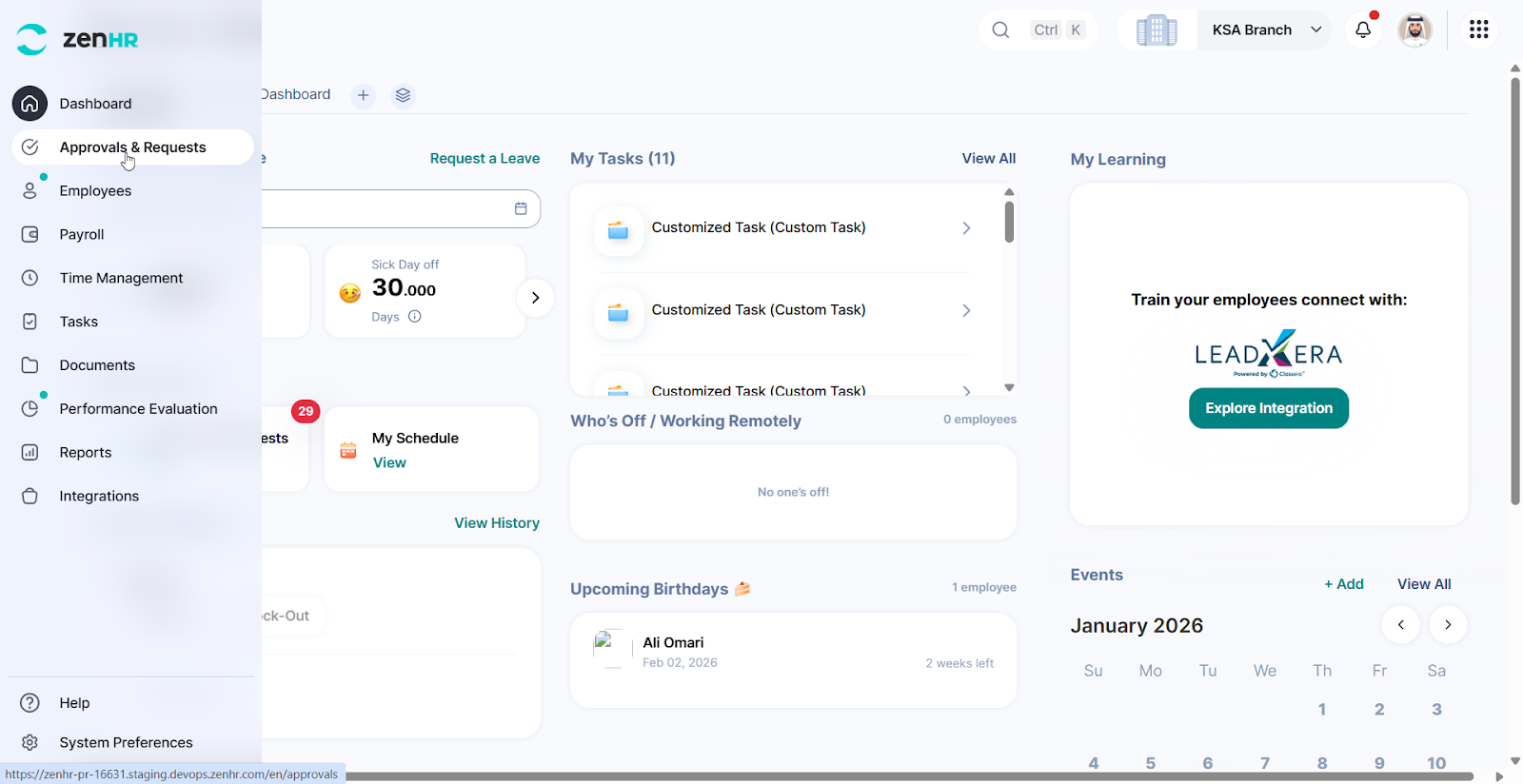
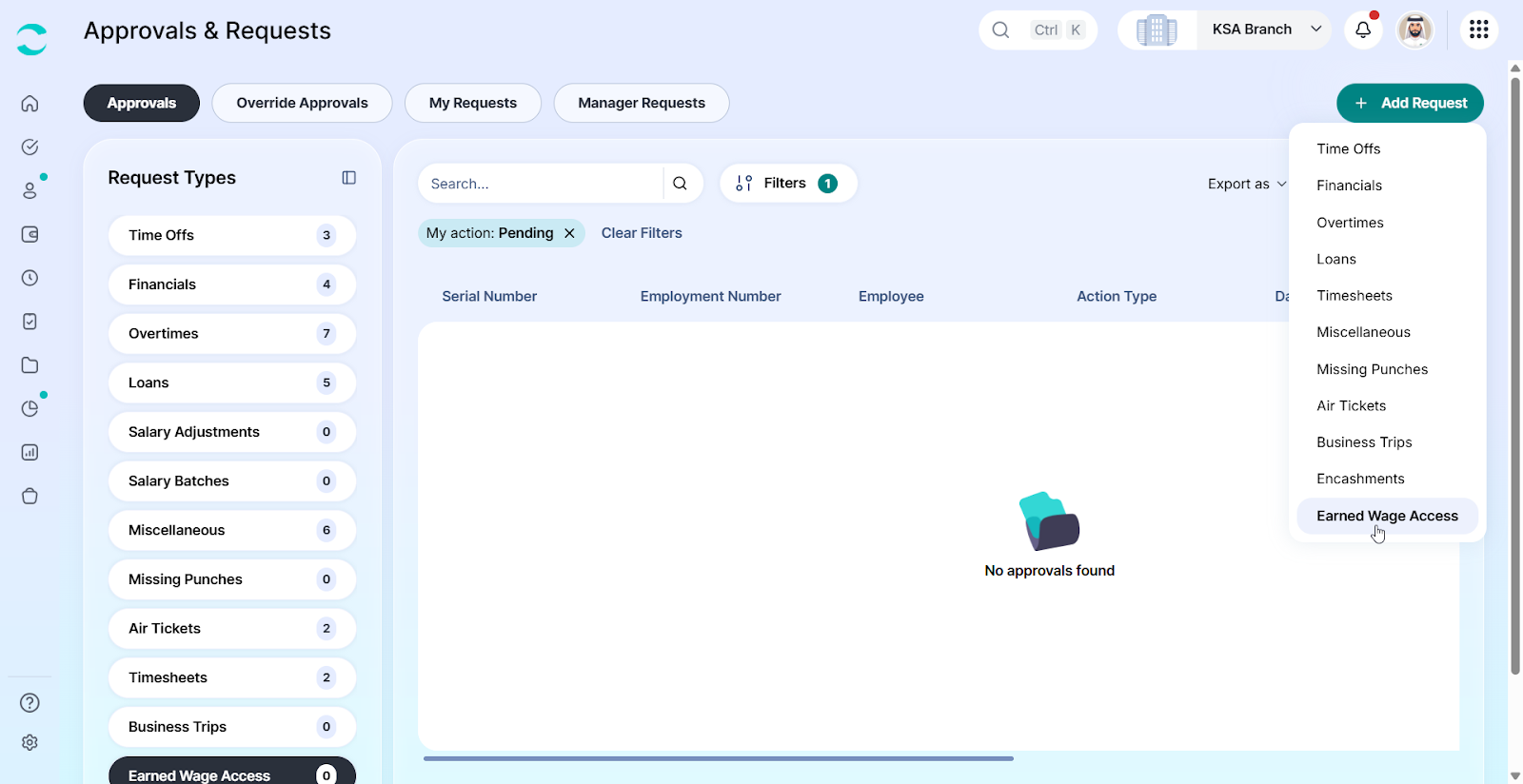
4. Select “Earned Wage Access” from the dropdown list.
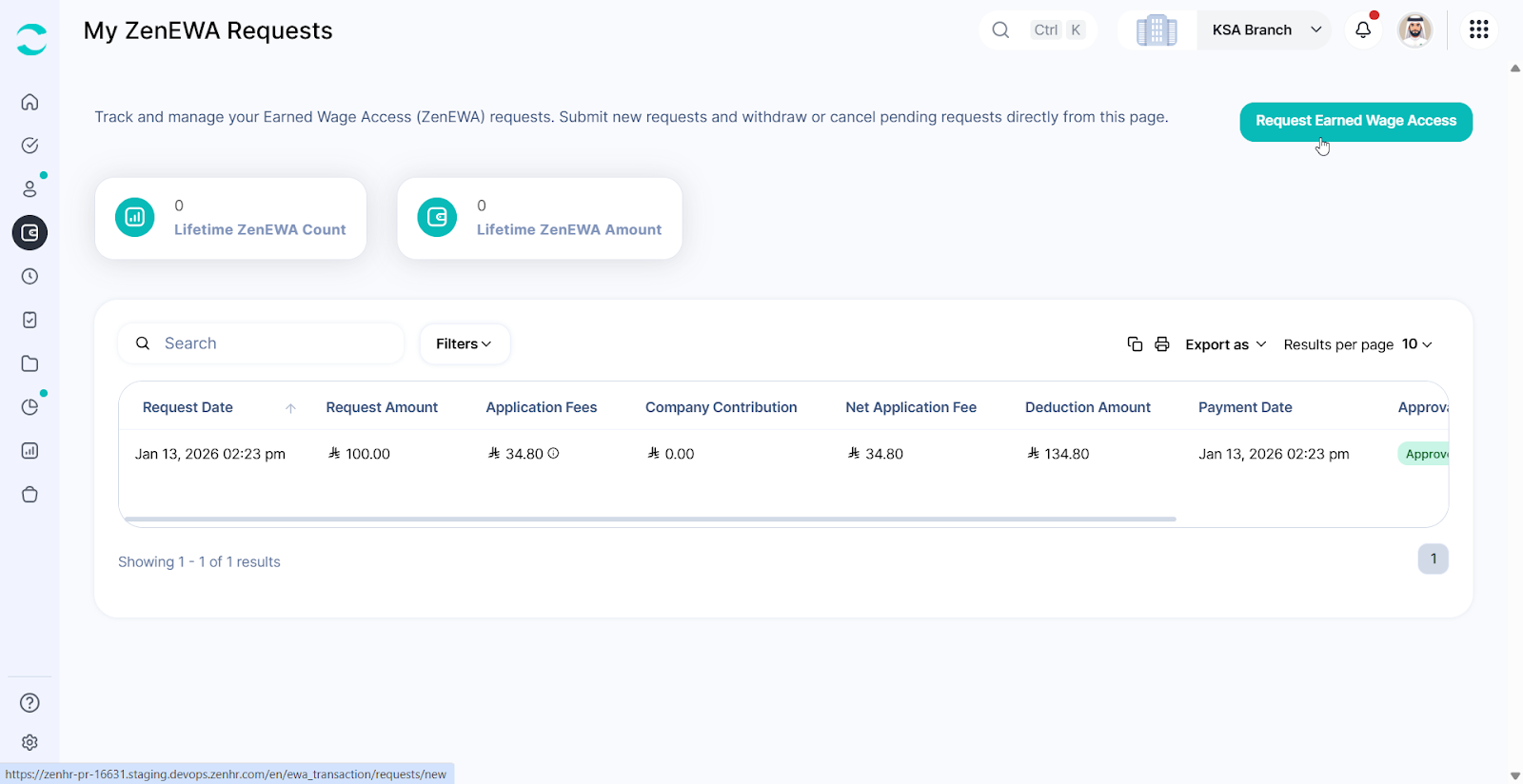
5. Then in the My ZenEWA Requests page, click on “Earned Wage Access”, a slider will appear for you to submit a request.
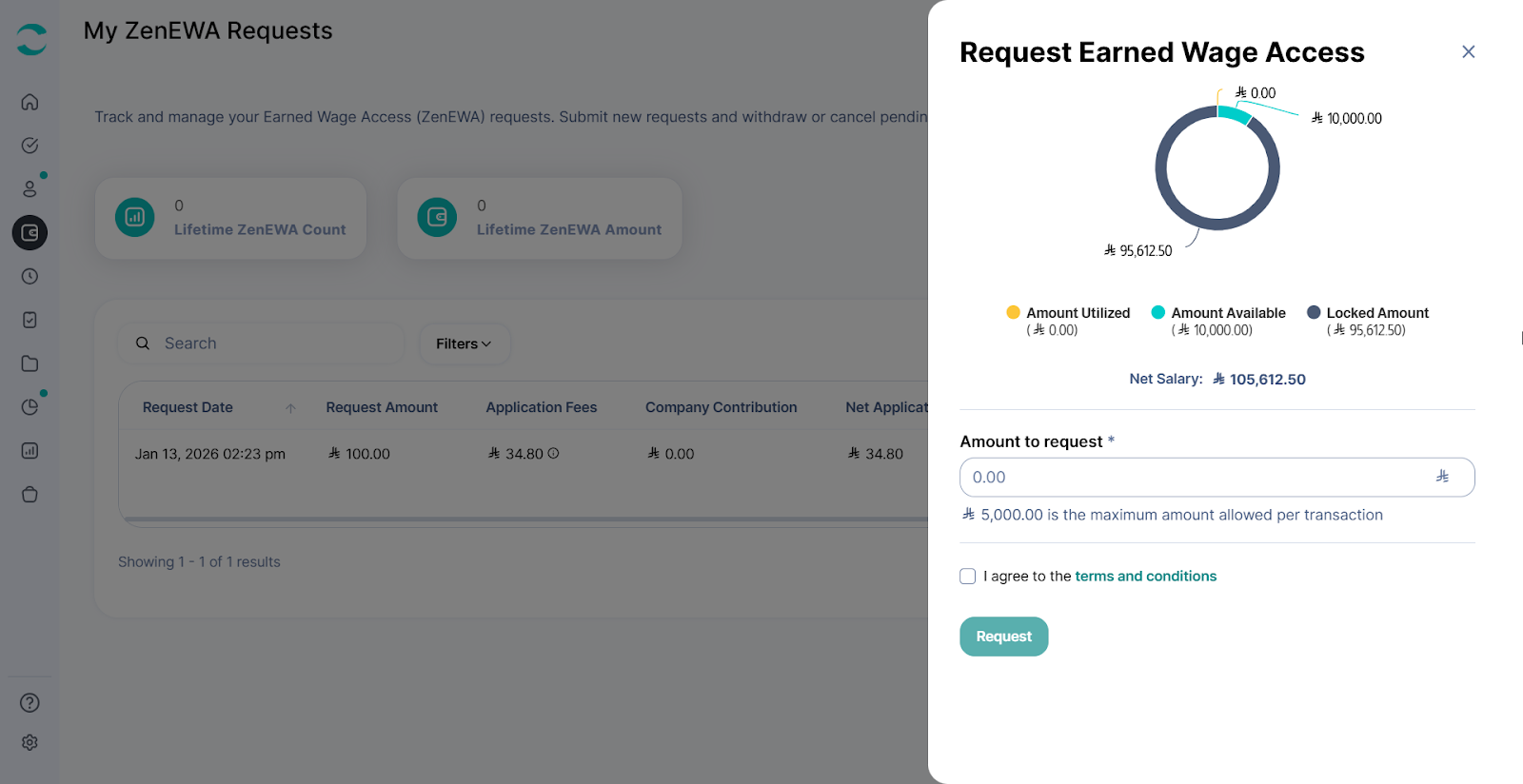
What You’ll See on the Slider:
Amount Available – How much of your earned wages you're eligible to request up to this point.
Amount Utilized – How much you’ve already withdrawn this month.
Locked Amount - The amount of your net salary that you’re not eligible to request
Amount to request – Enter the amount you'd like to withdraw.
As soon as you enter the amount, the system will automatically calculate:
The total amount you’ll receive
The service fee, based on your company’s contribution or fee rules
Review Before Submitting
Before clicking the Request button:
Review the Terms & Conditions
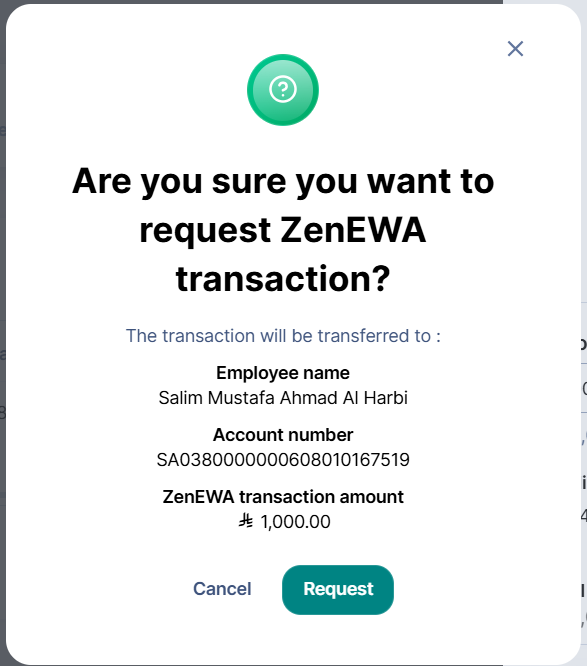
Click “Agree” to confirm your understanding
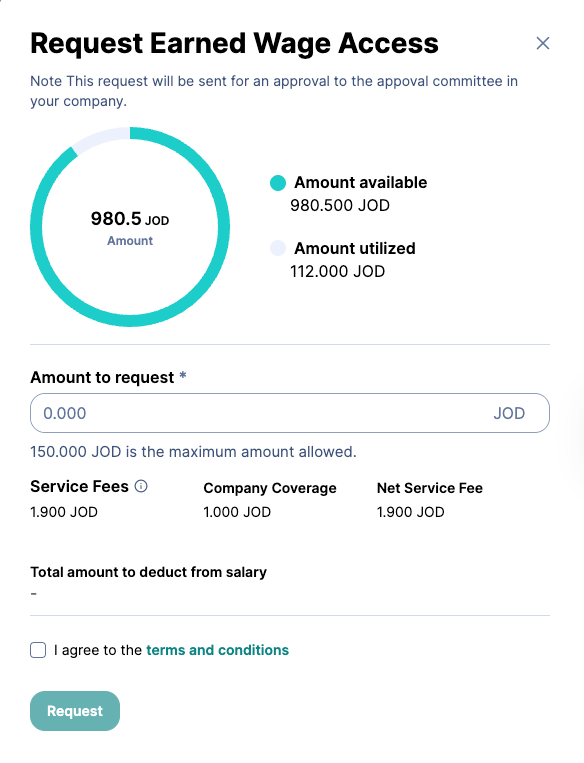
Once agreed, you’ll be able to submit your EWA request by clicking “Request” in the confirmation pop-up.
Earned Wage Access (ZenEWA) Approval Process
Admins and approvers can manage Earned Wage Access (EWA) requests directly from the dashboard. They can review, approve, or reject any pending transactions.
How to Access EWA Approvals:
From the Dashboard, go to the Quick Actions section
Click “View” under Approvals & Requests
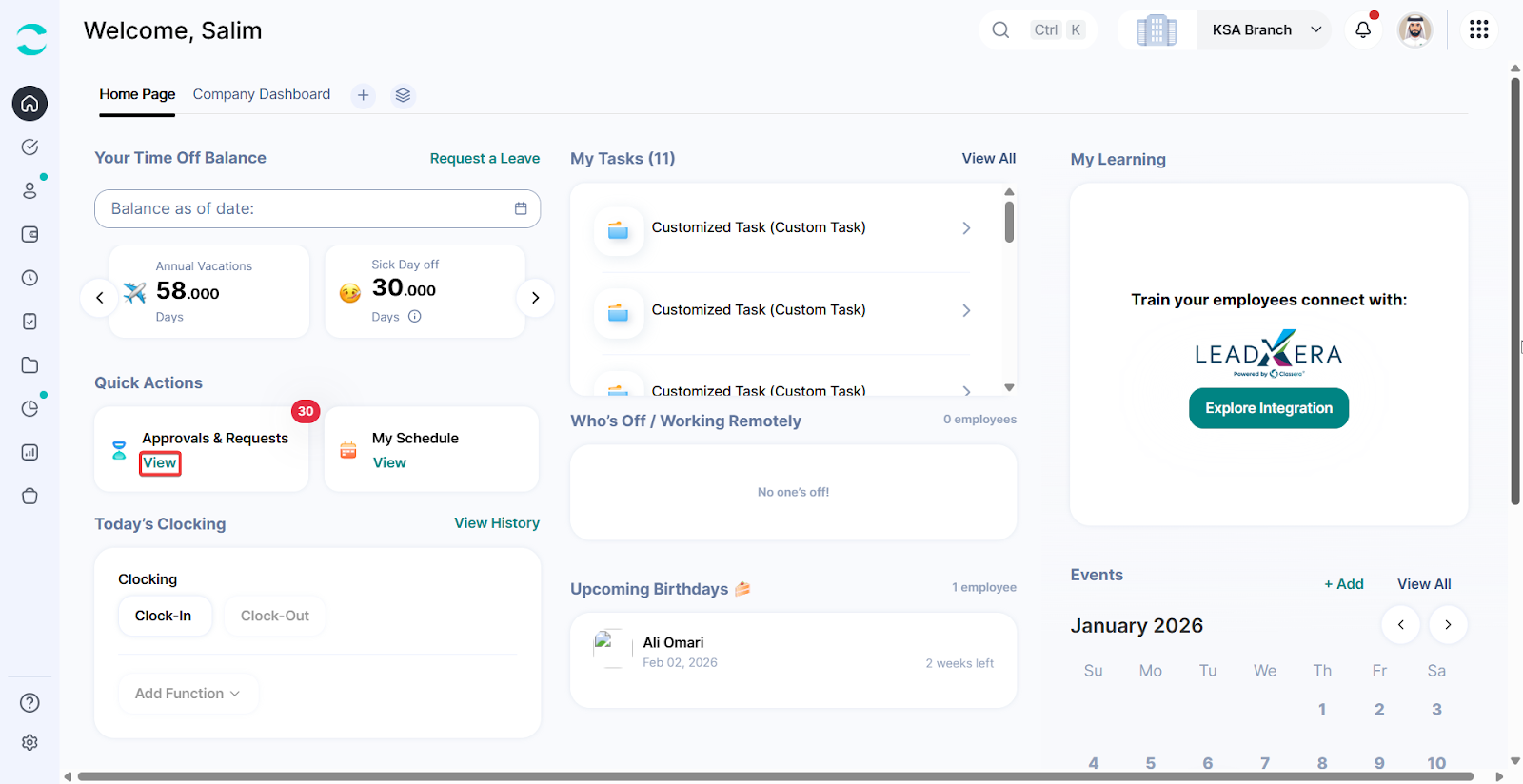
Finding Earned Wage Access (ZenEWA) Transactions to Review:
Click on “Earned Wage Access”
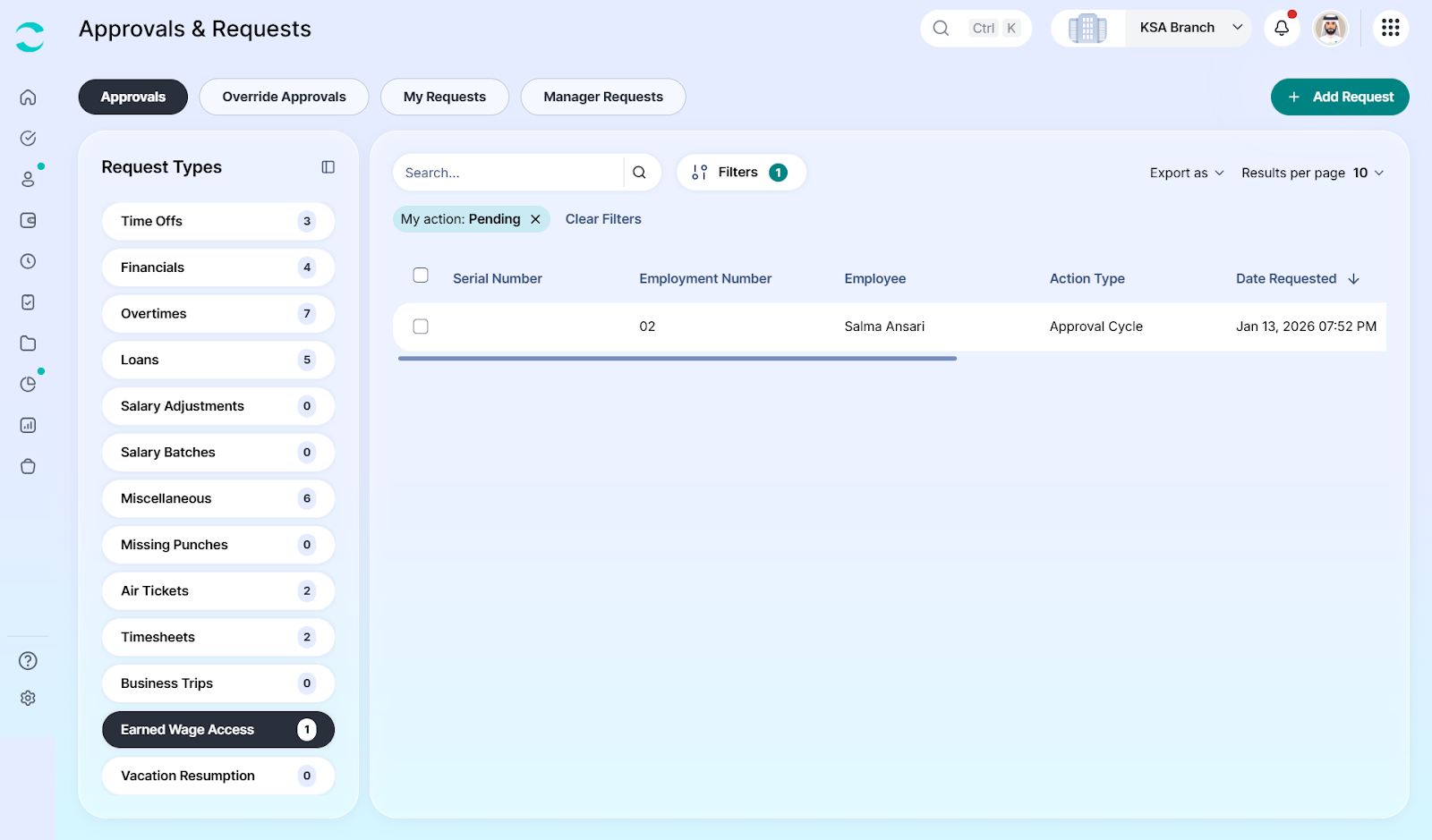
A list of Pending EWA Transactions that require action will be displayed
Here you can Approve, Reject, or View to proceed.
“Approve” or “Reject” the request.
Click “View” to open a detailed slider and review full transaction data before taking action.
EWA Details Page:
When you click “View”, a slider will open with the full transaction details breakdown:
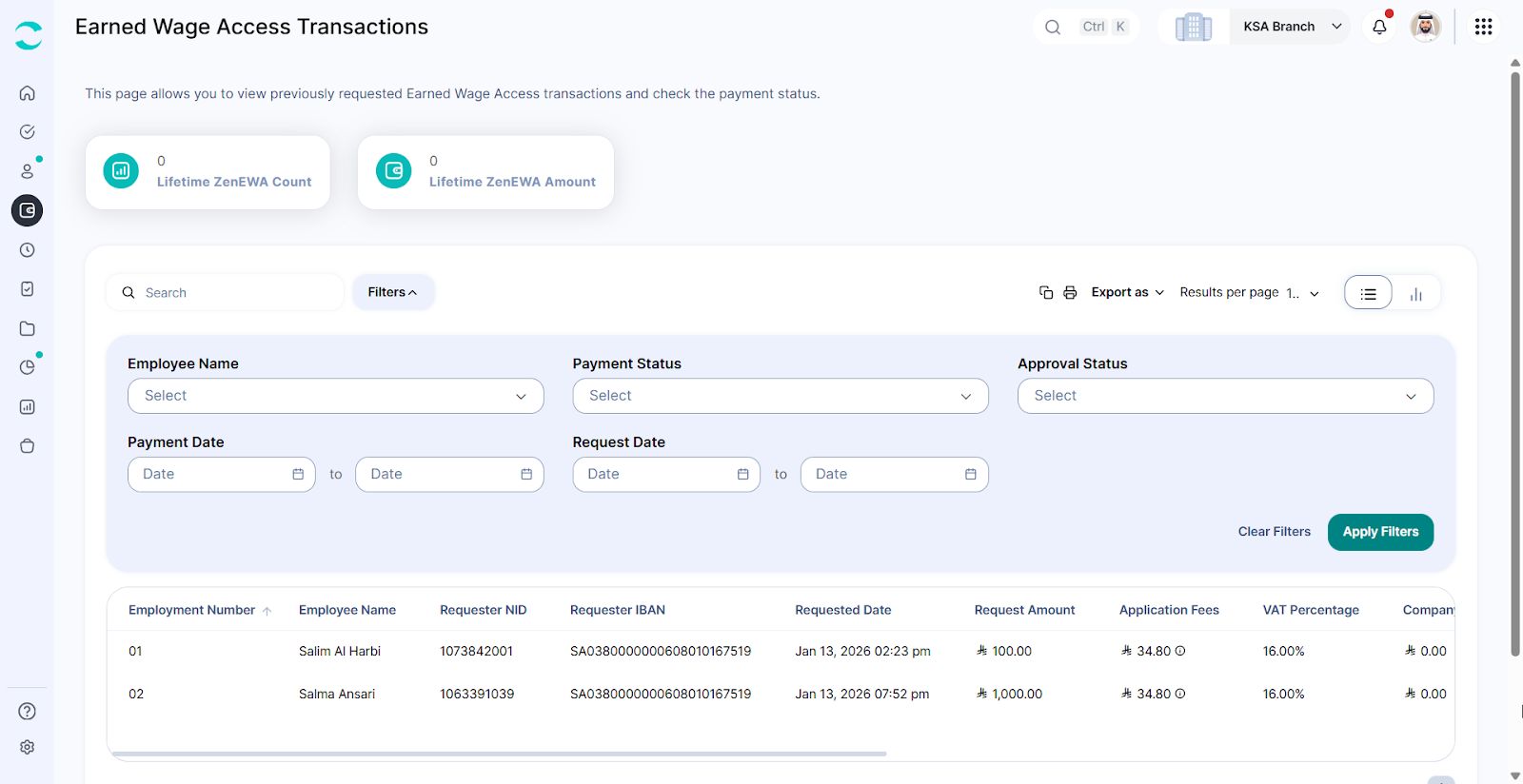
Viewing Earned Wage Access (ZenEWA) Transactions
To manage and review all the Earned Wage Access requests for your employees.
From the Side menu bar
Go to the Dashboard.
Click on “Payroll” on the Main Menu.
Then, under Earned Wage Access, click “Earned Wage Access Transactions”.
In the Earned Wage Access section, you can view a complete list of all submitted EWA requests, whether they are pending, approved, rejected, or paid.
Available Filters:
Use the filters at the top of the page to quickly find specific requests:
Was this article helpful?
That’s Great!
Thank you for your feedback
Sorry! We couldn't be helpful
Thank you for your feedback
Feedback sent
We appreciate your effort and will try to fix the article